Wireless Presentation for Meeting Rooms: AirPlay, Miracast and Transmitters Explained
You want to put a laptop or phone screen on the meeting room display without hunting for cables and adapters. This guide covers the ways to present wirelessly, what to watch for in picture quality and the network, and what native 4K in and 4K out really means.
Short answer
Wireless presentation (also called wireless projection or wireless screen mirroring) puts the screen of a laptop or phone on the meeting room display without a cable. There are three common ways: the built-in function of the operating system (AirPlay on iPhone and iPad, Miracast on Android), an app, or a hardware transmitter. For a meeting room the points that matter are picture quality and the network. The CAVE WP-50 supports native 4K on both input and output (4096×2160 and 3840×2160 at 60 and 30 fps), not a 1080p picture scaled up; it connects up to 64 devices and shows up to 9 pictures at once, has built-in 5 GHz Wi-Fi 5, and works best placed in the middle of the room. Windows and Mac laptops use plug-and-play transmitters with nothing to install, and the transmitter range covers Type-C, Type-A and HDMI, all with 4K.
Key takeaways
- Wireless presentation, wireless projection and wireless screen mirroring are the same thing in different words; what differs is how the device connects
- There are three ways: the built-in function of the operating system (AirPlay, Miracast), an app, or a hardware transmitter; a room with many visitors and mixed devices usually needs a mix
- CAVE covers the whole transmitter range: Type-C, Type-A and HDMI, so laptops, Chromebooks and devices with only an HDMI output can all present, all with 4K
- "4K to 4K native" means both input and output are 4K, with no step down to 1080p and back up; the WP-50 supports native 4K on both
- In split-screen the resolution drops: a single picture goes up to 4K, four pictures up to 1080p, nine pictures up to 720p
- Failed connections and stutter are usually down to the network and where the unit sits: put it in the middle of the room with nothing between it and the transmitters
A common scene in meeting rooms: someone has to present, the laptop screen has to go on the big display, and the cable is missing, the adapter does not fit, and the next person has to plug in all over again. Wireless presentation solves this: no cable from the laptop or phone, and the picture simply appears on the screen.
There are many terms for wireless presentation, and more than one way to do it. This guide clears up the terms and the ways first, then covers picture quality (what native 4K in and out means) and the network (why connections fail or stutter), and finally how to choose and install.
BYOD and BYOM have three guides, each for one job: to put a screen on the big display, read the first; to understand BYOM, read the second; to install it, read the third.
| Guide | What you will learn |
|---|---|
| BYOD: choosing wireless presentation (you are reading this one) | AirPlay, Miracast and transmitters, what native 4K in and out means, and what to watch on the network |
| BYOM: what is BYOM › | What it means, how it differs from BYOD, wired and wireless, small, medium and large rooms, and how WP-50 joins existing equipment |
| BYOM: how to plan it › | The 7 installation steps: Wi-Fi, extension cables, software tests, seating and echo, and troubleshooting during meetings |
First, the terms
“Wireless presentation” has no standard definition, and people and products use the words differently. These are the common ones; they mostly mean the same thing:
| Term | What it usually means |
|---|---|
| Wireless presentation | The emphasis is on presenting: put the slides on the meeting room display without a cable. |
| Wireless projection | The same thing, with the emphasis on sending the picture. |
| Wireless screen mirroring | Copying the whole screen of a device onto the display; the usual phrase for phones and tablets. |
| AirPlay | The projection function built into Apple devices (iPhone, iPad, Mac). |
| Miracast | The screen mirroring standard built into many Android phones, tablets and Windows devices. |
| BYOD | Bring Your Own Device: present from your own device. |
| BYOM | Bring Your Own Meeting: run a video meeting on your own laptop while using the room’s camera, microphone and speaker wirelessly. |
In short, wireless presentation is “send the picture”, and BYOM goes one step further: “the video meeting equipment goes wireless too”. The CAVE WP-50 does both.
Three ways to do it, each for a different situation
There are roughly three ways to put a picture on a screen wirelessly. A meeting room rarely uses just one, because the people who come to meetings use different devices:
- Built into the operating system: AirPlay on iPhone, iPad and Mac, Miracast on Android phones and tablets. The advantage is that nothing needs to be installed, and it is the most convenient on a phone. Support differs between brands and versions, so it sometimes takes a test.
- An app: install a projection program on the laptop and connect to the same wireless network. The advantage is more features; the drawback is that every laptop needs it installed first, which is inconvenient for a visitor who comes at short notice, and some company computers do not allow installing software.
- A hardware transmitter: plug a small transmitter into the laptop and the picture goes out. The advantage is plug and play, and switching presenters takes one press, without installing anything on the other person’s computer; the drawback is that you need transmitters, so a meeting room usually keeps a few.
The WP-50 supports all three: Windows and Mac use transmitters; Android phones and tablets use Miracast and iPhone and iPad use AirPlay, with no transmitter; and Windows also has a projection app. So whoever comes to the meeting, and whatever they bring, there is a way to present.
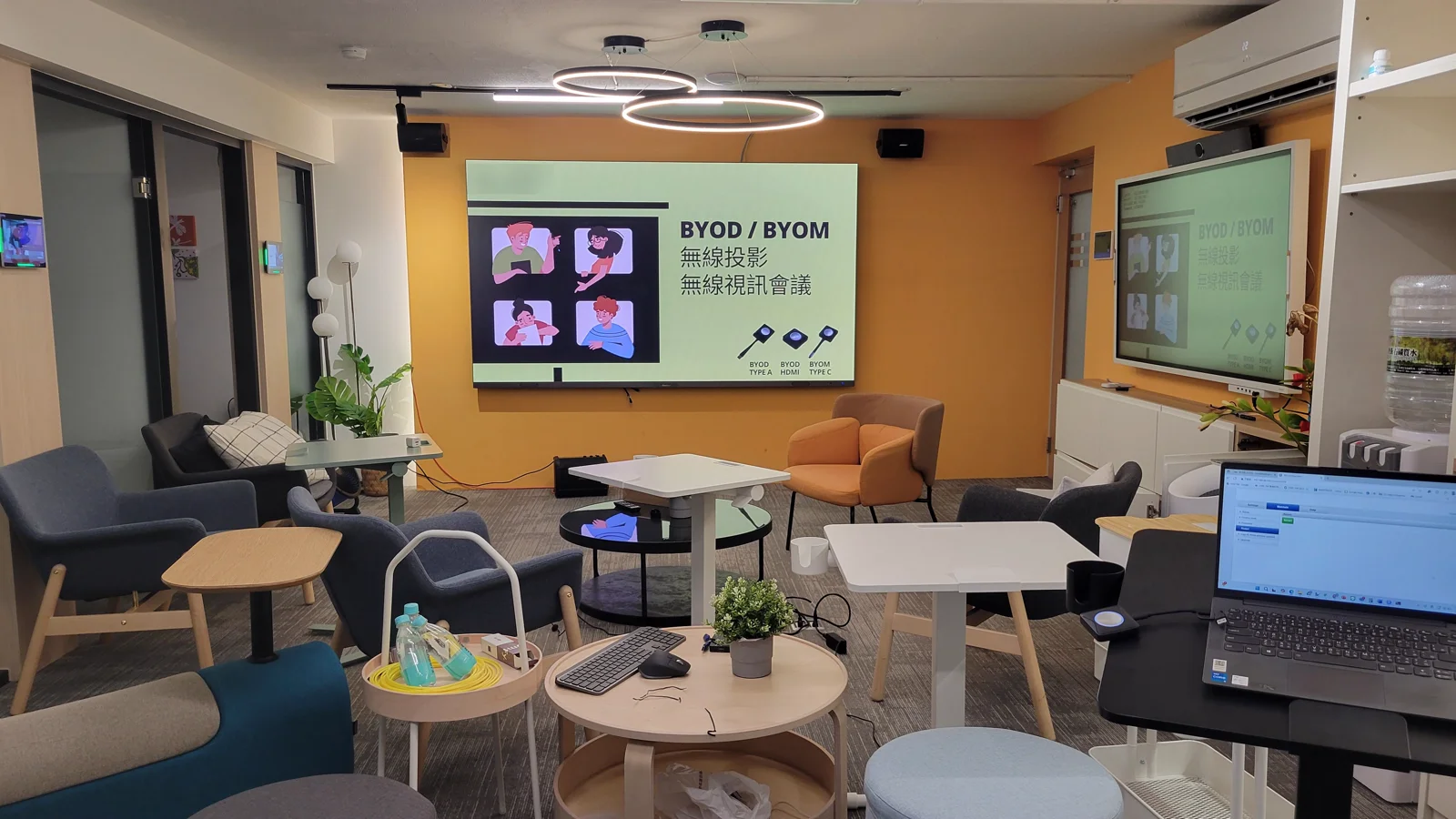
Transmitters: Type-C, Type-A and HDMI, the whole range
The laptops in a meeting room vary: some have a Type-C port with video output, some only have a Type-A USB port, some are Chromebooks or a device with only an HDMI output. If there is only one kind of transmitter, someone cannot plug in. CAVE covers the whole transmitter range with Type-C, Type-A and HDMI, so whatever device a person brings to the meeting, one of them fits:
| Transmitter | Suits | Notes |
|---|---|---|
| Type-C transmitter | Laptops with a Type-C port that supports video output | Plug in and go; nothing to install. |
| Type-A transmitter | Laptops with no video-output Type-C port, only Type-A | After plugging in, run the projection program on the transmitter. |
| HDMI transmitter | Any device with an HDMI output, including Chromebooks | Turns an HDMI output into a wireless one, whatever the operating system. |
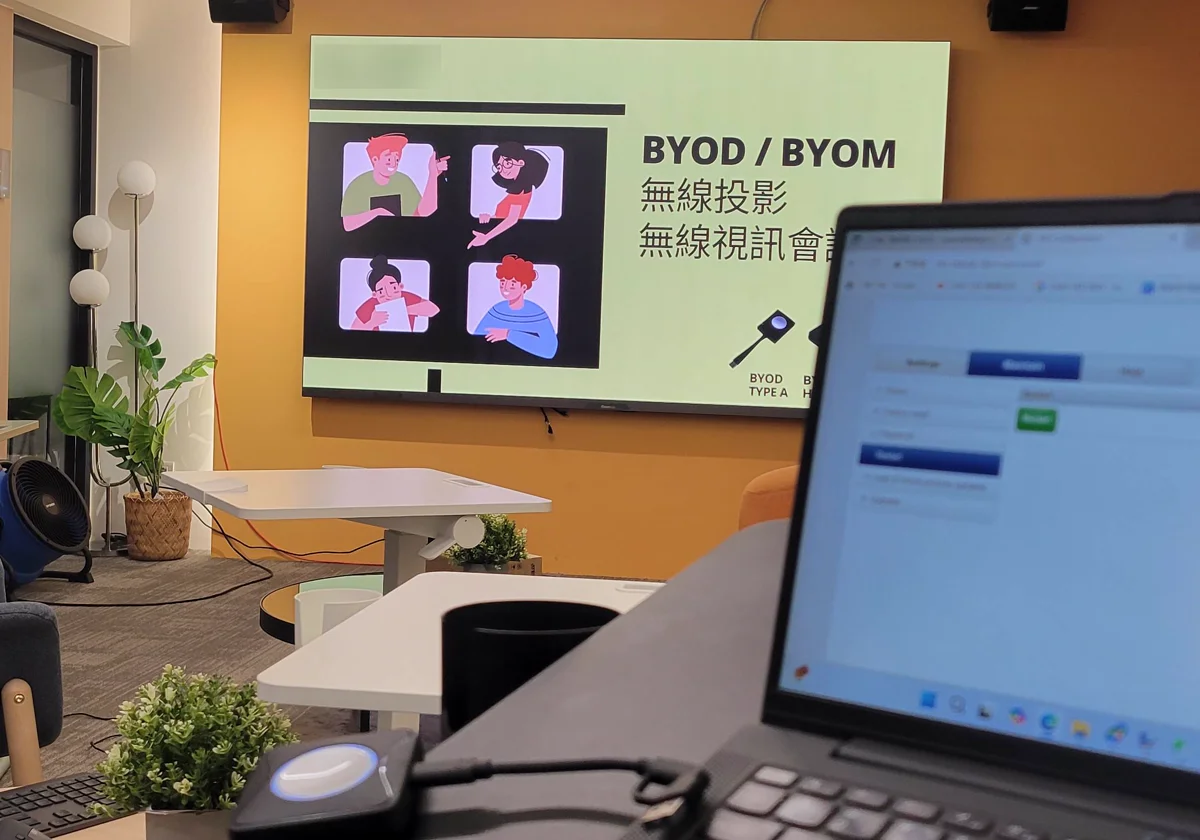
The second-generation Type-C/Type-A transmitter and the HDMI transmitter both support 4K. So whichever transmitter you use, you can present a 4K picture. Windows also has a projection app, which can be used when there is no transmitter at hand. We offer several transmitter combinations to suit the devices each customer uses, so a room does not have to keep every kind, and people coming to a meeting never have to wonder whether their laptop can present.
Picture quality: what “4K to 4K native” means
Many wireless projection specifications say “supports 4K”, but that does not always mean 4K from start to finish. A common situation is that the input is compressed to 1080p, sent, and then scaled up to a 4K display: the picture has the size of 4K but the detail of 1080p.
“4K to 4K native” means both the input and the output are real 4K, with no step down in resolution in between. The WP-50 supports native 4K on both input and output, not 1080p scaled up. The specification is:
- Input: 4096×2160 (60 and 30 fps), 3840×2160 (60 and 30 fps) and 1920×1080 (60 fps).
- Output: the same, 4096×2160, 3840×2160 and 1920×1080.
- The second-generation Type-C/Type-A transmitter and the HDMI transmitter both support 4K.
For which presentations does this matter? Small text in tables, the lines in design and engineering drawings, detailed photographs and video: 4K keeps more detail, and people at the back can read it. For slides with large text, 1080p is enough, and there is no need to chase 4K.
There are two conditions to actually see 4K: your computer has to output a 4K picture, and the meeting room display has to be 4K. Also, the resolution changes in split-screen: a single picture goes up to 4K, four pictures up to 1080p, and nine pictures up to 720p.
Several people taking turns, and split-screen
A common situation in meeting rooms: two people want to compare their own material, or take turns presenting. The WP-50 connects up to 64 devices at once and one screen shows up to 9 pictures at once; to change presenters, press the transmitter, with no re-cabling.
Split-screen suits comparing, for example two quotations side by side or a design next to a specification; a single picture suits presenting, with the highest quality. Switch according to what you are doing at that moment. Touch back-control is also supported, so a touchscreen display can operate the laptop.
Will not connect, or stutters? Usually the network and where the unit sits
The most common complaint about wireless presentation is that it will not connect, the picture stutters or it cuts out. It is usually not the equipment that is faulty but the wireless signal. The WP-50 has built-in 5 GHz Wi-Fi 5 (802.11ac) with a transmission rate of up to 1200 Mbps and WPA-PSK encryption. To keep it stable, there are a few things to watch:
- Put the unit in the middle of the room, not on the floor, in a corner or inside a cabinet.
- Keep anything from blocking the path between the unit and the transmitters; metal cabinets and walls weaken the signal.
- If the unit can only go in a rack, behind the display or under the floor, add the WiFi 6 MESH extender: connect it with a network cable and place it in the middle of the room where the signal is best. In a large space, several can be chained, and Wi-Fi channels are optimized automatically.
Installing it, step by step
- Choose where the unit goes: in the middle of the room, not on the floor, in a corner or inside a cabinet, and not blocked; if it has to be hidden, use the extender.
- Connect the WP-50 HDMI output to the meeting room display and plug in the power (DC 12 V).
- Plug a transmitter into the laptop: Type-C first, and if the Type-C port has no video output, use Type-A.
- Phones and tablets need no transmitter: AirPlay on iPhone and iPad, Miracast on Android.
- Test the projection: use a 4K source and a 4K display to check the picture quality, then try several people presenting at once and split-screen.
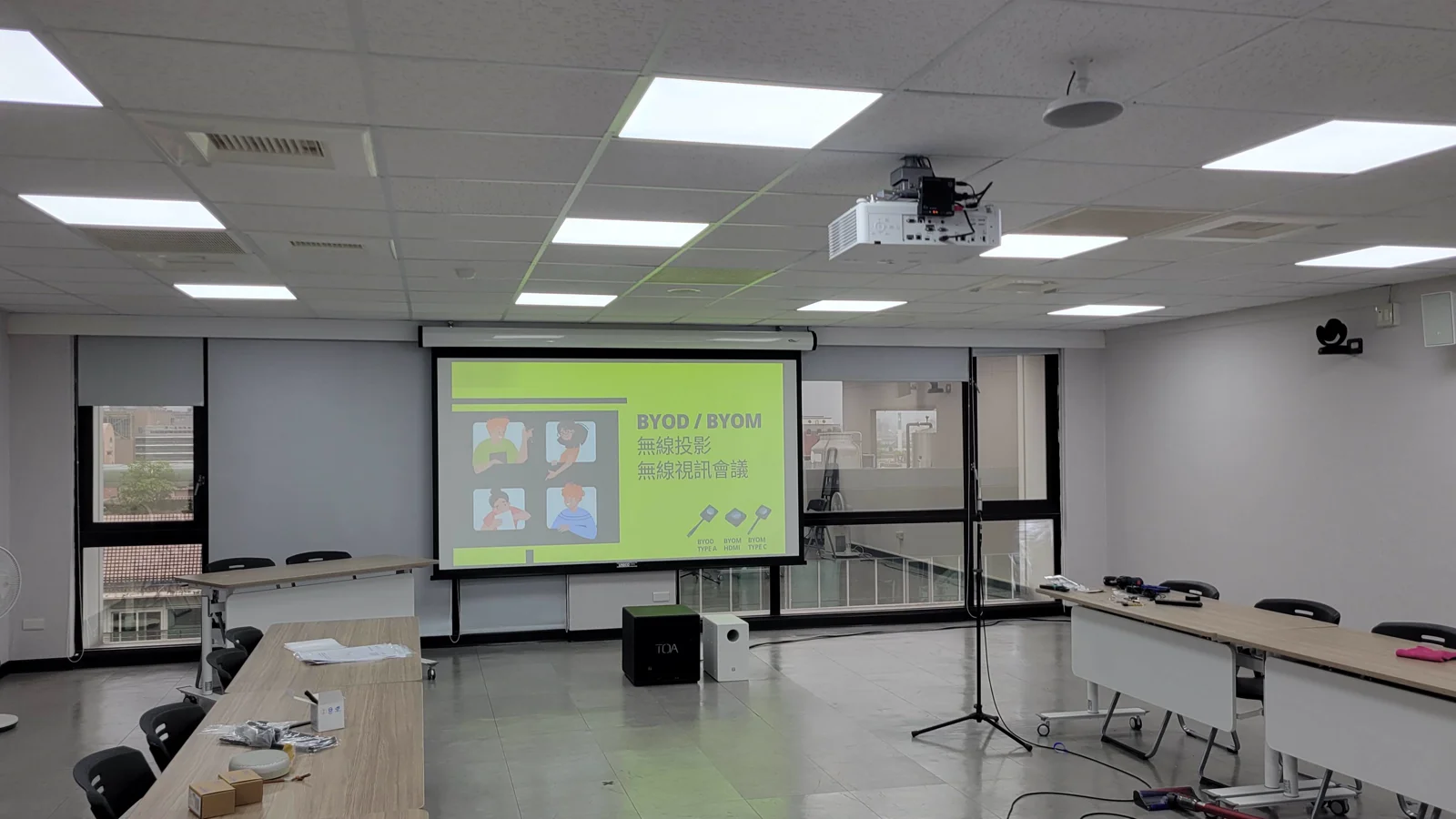
If the room also needs video meetings (BYOM), connect the room’s camera and speakerphone to the WP-50 and the laptop needs no USB cable at all. A small room connects one all-in-one camera and it is done; a large room can connect an HDMI PTZ camera and the existing microphones and speakers.
How to choose: by the situation in the room
| Situation in the room | Suggested approach | Watch for |
|---|---|---|
| Staff often use Windows and Mac laptops | Transmitters (Type-C first) | The laptop’s Type-C port must support video output, otherwise use Type-A |
| Visitors often bring iPhone or Android phones | AirPlay and Miracast, no transmitter | Support differs between device versions, so test beforehand |
| Slides with a lot of detail (design drawings, small text in reports) | 4K input and a 4K display | The computer must output 4K and the display must be 4K |
| Several people comparing material | Split-screen (four or nine pictures) | The resolution drops in split-screen |
| The unit can only go in a rack or behind the display | Add a WiFi 6 MESH extender | Place the extender in the middle of the room |
These are common setups; adjust them to the size and use of the room.
Summary: first ask who will present, then choose the approach
The point of wireless presentation is not whether it is wireless, but that everyone who comes and goes in a meeting room can put their picture up quickly and reliably. First ask who will come and what they bring, and you know which ways to keep ready; then look at picture quality, and choose native 4K in and out where detail matters; finally look after the network, with the unit in the middle of the room.
The CAVE WP-50 puts these in one unit: the transmitter range covers Type-C, Type-A and HDMI, AirPlay and Miracast are supported too, input and output are native 4K, up to 64 devices connect and 9 pictures show at once, and it can extend into wireless video meetings (BYOM). If your room has special needs, tell us its size and how it is used, and our team will get in touch to help you plan.
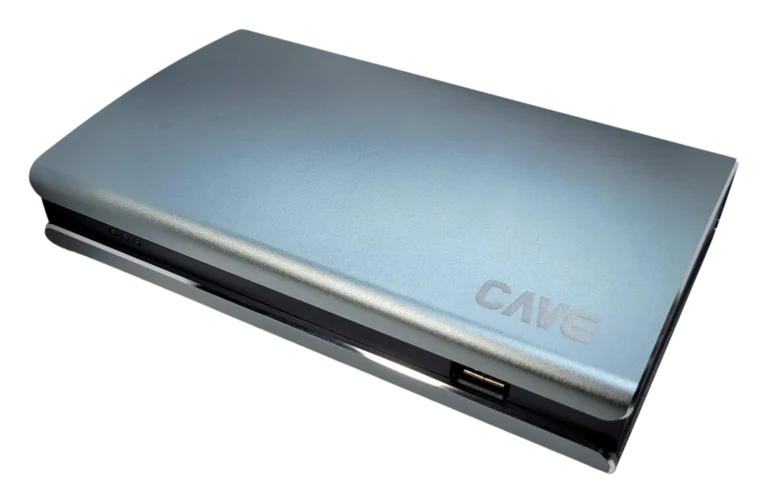
Products in this guide
FAQ
Is wireless presentation different from wireless projection?
No, they are different names for the same thing. Some say wireless presentation (the emphasis is on presenting), others say wireless projection or wireless screen mirroring (the emphasis is on sending the picture), but all mean putting a picture on a screen without a cable.
Can iPhone and Android phones present?
Yes. The WP-50 supports AirPlay (iPhone and iPad, iOS 14 or later) and Miracast (Android phones and tablets), with no transmitter needed.
What does “4K to 4K native” mean?
Both the input (your computer screen) and the output (the meeting room display) are 4K, with no step down to 1080p in between. The WP-50 supports native 4K on both input and output. To actually see 4K, the computer has to output 4K and the display has to be 4K.
How many people can present at once?
Up to 64 devices can connect at the same time, and one screen shows up to 9 pictures at once. The resolution drops in split-screen: nine pictures go up to 720p, four pictures up to 1080p, and a single picture up to 4K.
Which transmitters are there, and do I need to install software?
CAVE covers the whole transmitter range: Type-C, Type-A and HDMI. The Type-C transmitter works as soon as it is plugged into a laptop, with nothing to install, as long as the laptop's Type-C port supports video output. If it does not, use the Type-A transmitter and run the projection program on it; the HDMI transmitter works with any device that has an HDMI output. The second-generation Type-C/Type-A transmitter and the HDMI transmitter both support 4K.
What if the picture stutters or will not connect?
Check where the unit sits first: the WP-50 should be in the middle of the room, not on the floor, in a corner or inside a cabinet, with nothing between it and the transmitter. If it can only go in a rack or behind the display, add the WiFi 6 MESH extender.
The planning advice in this guide is general reference. Actual results vary with the room, the equipment and the network. Product specifications follow the manufacturer's documents; we recommend contacting us for an assessment first.
More guides
What is BYOM? How Wireless Video Meetings Work, and How to Set Up Small, Medium and Large Rooms
BYOM stands for Bring Your Own Meeting: you run the video call on your own laptop and use the room camera, microphone and speaker. This guide explains how BYOM works, how it differs from BYOD, how small, medium and large rooms differ, and how WP-50 connects to the equipment already in the room.
How to plan a wireless BYOM meeting room: meet from your own laptop, no cables
Walk into the room, open your own laptop and start the meeting with the room's camera and microphones, without plugging in a tangle of cables. Here is what BYOM is, why Wi-Fi matters most, and how to set it up step by step.
Huddle Room Setup: One USB Cable, 2 to 6 People on a Call
A huddle room is used all the time and looked after by no one. This guide compares the three simplest setups: the SP-1100 all-in-one, the J01i with an SM-500 (UCB-S), and the A01 with an SM-500, and how to choose by headcount, room size and room to grow.