Huddle Room Setup: One USB Cable, 2 to 6 People on a Call
A huddle room is used all the time and looked after by no one. This guide compares the three simplest setups: the SP-1100 all-in-one, the J01i with an SM-500 (UCB-S), and the A01 with an SM-500, and how to choose by headcount, room size and room to grow.
Short answer
A huddle room is a small room where 2 to 6 people meet briefly, often called a small meeting room or discussion room. It is used all the time and nobody looks after the equipment, so the setup needs few devices, few cables and must work as soon as it is plugged in. There are three common setups: the SP-1100 all-in-one (camera, microphones and speaker in one unit, one USB cable, nothing on the table); UCB-S (a J01i 4K camera and an SM-500, the most economical choice for a small space or modest picture demand); and the A01 with an SM-500 (for better picture quality, a wider view, or a few more people). Choose the SP-1100 for a clear table. Choose an SM-500 setup to keep the microphone close to people, if the room may grow, or if a hardware conferencing unit, streaming or recording equipment may be added later: the SM-500 can grow to four units, its wireless receiver has 3.5 mm analogue input and output, and the A01 also has an HDMI output.
Key takeaways
- A huddle room is a small meeting room, usually 2 to 6 people; this guide assumes the farthest person is within 4 metres of the camera
- The usual problems are too many cables, nobody who knows the settings, and echo; the fix is few devices, few cables and plug-and-play
- The SP-1100 puts a 4K camera, four microphones and a speaker in one unit, with one USB cable to the computer and nothing on the table
- The J01i with an SM-500 (UCB-S) is the most economical choice for a small space or modest picture demand; for better picture quality or a wider view, use the A01
- The A01 is an all-round 4K wide-angle camera with USB and HDMI outputs; it can sit above a display or hang from the ceiling
- Room to grow and to integrate: the SM-500 can grow to four units, and its wireless receiver has 3.5 mm analogue input and output, so a hardware conferencing unit, streaming or recording equipment can be added later without replacing the set
Huddle rooms have one thing in common: they are used all the time and nobody looks after them. The same room hosts an internal discussion in the morning, a client call in the afternoon and another team the next day. The simpler the equipment, the less can go wrong.
There are several guides on video conference rooms, each for one job. Start with “What to buy for a video conference room” for the whole picture, then read on as needed:
| Guide | What you will learn |
|---|---|
| What to buy for a video conference room (start here) › | Cameras, audio, connections, and the table of setups by room size |
| How to choose a meeting room camera › | Camera by room size and headcount, PTZ, auto tracking, mounting |
| How to choose a conference speakerphone › | Fixing sound that is unclear, echo and noise, and choosing an audio setup |
| Huddle room setup (you are reading this one) | Small rooms for 2 to 6 people: three setups and how to expand |
| Microphones for large meeting rooms › | Pickup options and how many for a big space, and how to deal with room reflections |
| How to choose a USB extension › | What to check when a short cable works but a long one fails |
| Why medium and large rooms use PTZ › | 5 reasons to use a PTZ camera (for what PTZ is, see “What is a PTZ camera”) |
What is a huddle room?
A huddle room is a small room where 2 to 6 people meet briefly. It is also called a small meeting room, discussion room or meeting booth: a small table, a display, a few people around the table, and sometimes a call with colleagues or clients who are not there.
This guide covers rooms of 2 to 6 people, with the farthest person within 4 metres of the camera.
Where huddle rooms usually go wrong
A huddle room has nobody to look after it, yet many people take turns using it. The usual problems:
- Cables all over the table: a camera, a microphone and a speaker, each with its own cable, and ten minutes of looking for cables before the meeting.
- Using the laptop camera and microphone: people on the far side of the table look small and dark, and only those close to the laptop are heard clearly.
- Echo: the laptop speaker is picked up again by the microphone, and the other side hears their own words.
- Nobody knows the settings: with several devices, the next person does not know which camera or which microphone to select.
The fix is fewer devices, fewer cables, and a setup that works as soon as it is plugged in.
Three things to look at first
- Headcount and distance: how far the farthest person sits from the display. In a small space with modest picture demand, the most economical setup is enough; for better picture quality or a few more people, use the A01 or A01SE, or the SP-1100.
- Whether the table can hold a device: client meeting rooms often want a clear table, with everything on the display. In an internal room a speakerphone on the table is fine, and the sound is closer to people.
- Whether the room will grow: if the table may get longer or more people may join, choose a speakerphone that can be added to later, so nothing needs replacing.
The three setups side by side
| Setup | What it is | Best for | Key point |
|---|---|---|---|
| SP-1100 all-in-one (UCB-AIO on the bundles page) | One SP-1100 | Up to 8 people, within 4 metres | Camera, microphones and speaker in one unit, one USB cable, nothing on the table |
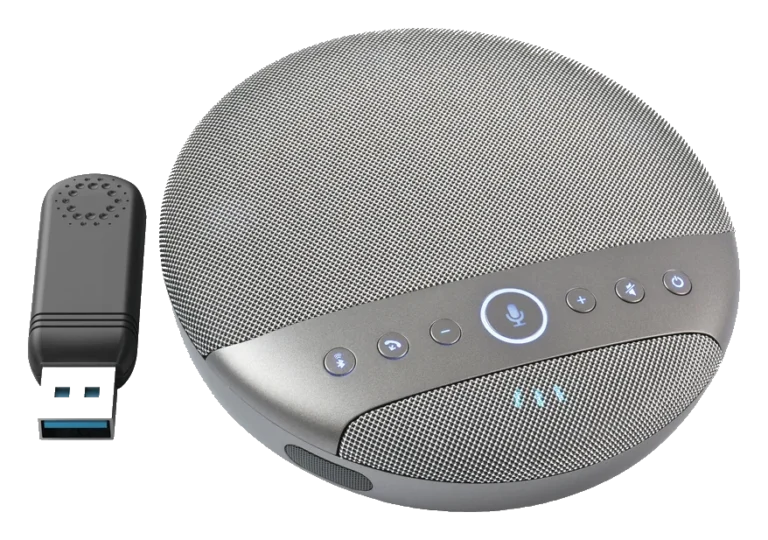
| UCB-S | J01i 4K camera plus SM-500 | A small space of about 2 metres, or modest picture demand | The most economical choice; the SM-500 sits on the table, wireless with a built-in battery, and more can be added |
| A01 / A01SE with SM-500 | A01 or A01SE (single-output version) 4K ultra-wide camera plus SM-500 | Better picture quality and a wider view, or a few more people | The A01 has USB and HDMI outputs and the A01SE has USB only; the SM-500 can be added to |
Setup 1: the SP-1100, all in one
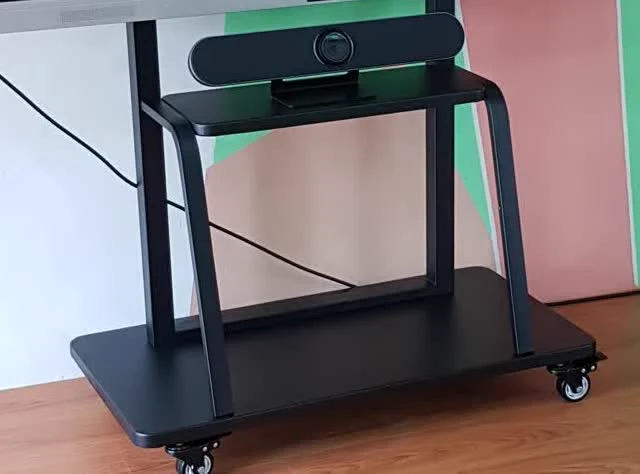
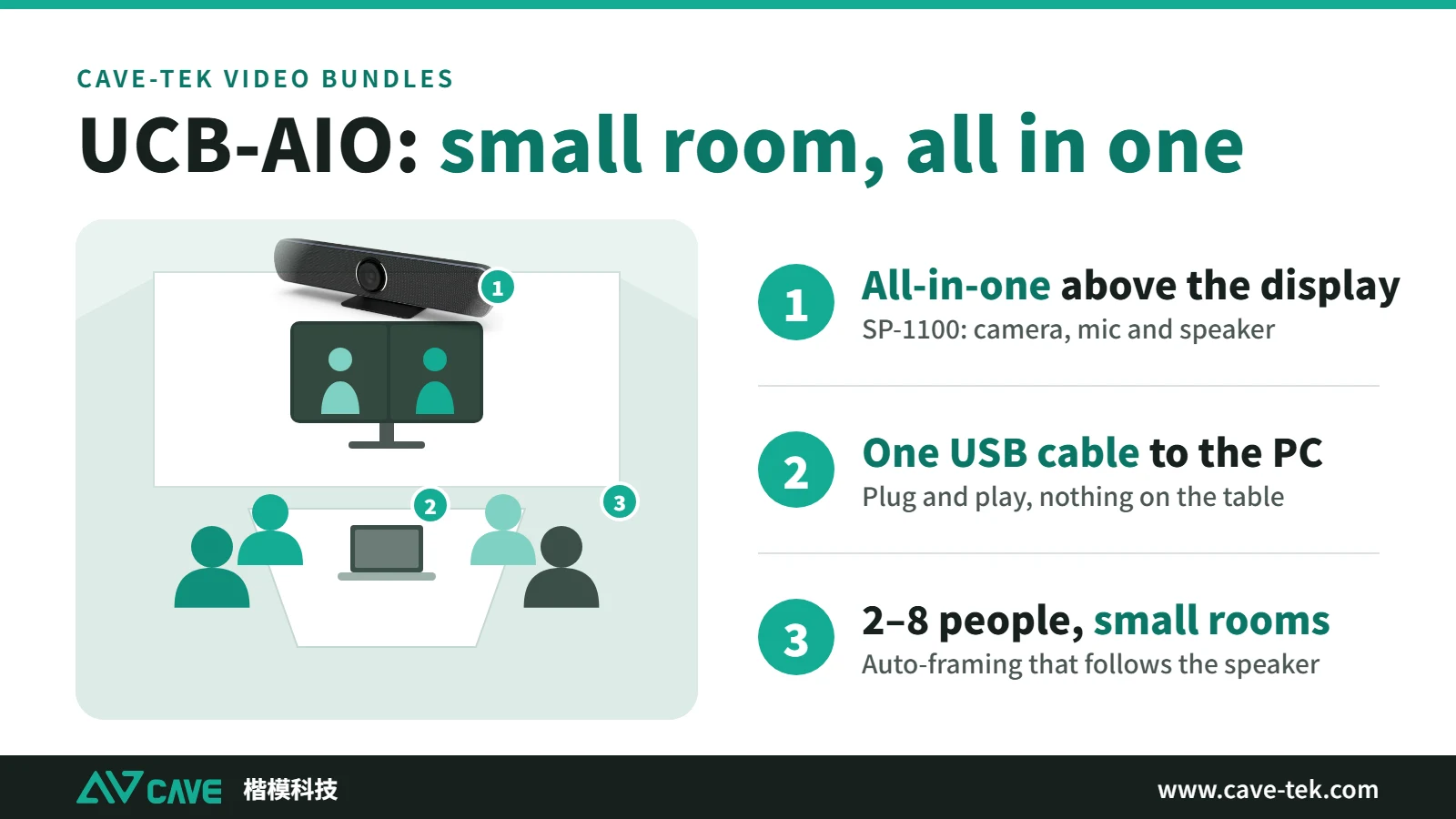
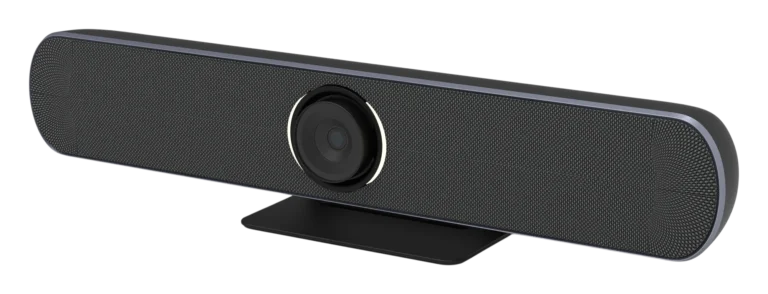
The scene is a small meeting room or client room with a clear table and nobody to look after the equipment. The SP-1100 puts a 4K camera, four microphones and a speaker in one unit. It sits above or below the display, and one USB cable to the computer starts a meeting. No drivers are needed on Windows, macOS, ChromeOS or Linux.
- The lens has a 110-degree horizontal and 121-degree diagonal view at 4K 30fps, so one picture fits everyone in a small room.
- The lens is motorised: it can frame everyone automatically, or follow the direction of the voice to the person speaking, with nobody operating it.
- Four microphones pick up voices up to 6 metres away, with an 8W speaker; echo cancellation, noise reduction and automatic gain control are built in, and both sides can talk at once.
- It can go on a wall or on a mobile display stand, so the meeting goes wherever the display goes; the standard thread also fits a tripod.
The SP-1100 is the one-unit answer, recommended for up to 8 people within 4 metres, with microphones that pick up voices up to 6 metres away. In a larger room or with people spread further apart, use a setup with the microphone on the table.
Setup 2: UCB-S, a J01i and an SM-500
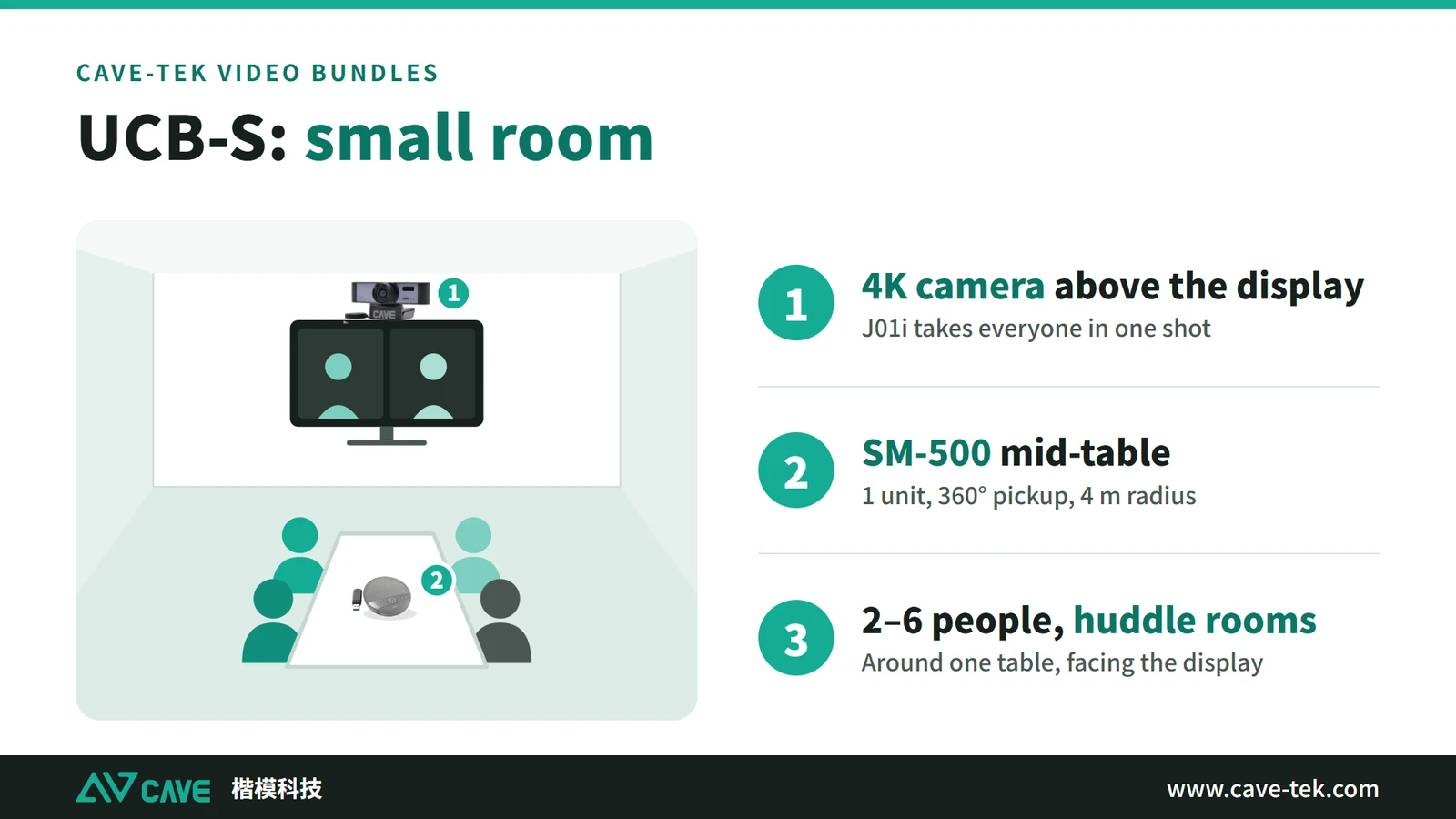
The scene is a few people around a small table in a small space, wanting a meeting up and running with the least equipment. UCB-S is a J01i 4K camera and an SM-500 wireless speakerphone, and it is the most economical choice for a small room.
The J01i is a 4K camera with 5x digital zoom and a 110-degree view, and it works when placed above the display. It suits a small space of about 2 metres (2 to 3 people is easiest), or places where the picture demand is modest. For a larger space, pair the SM-500 with an A01 or A01SE instead.
- The SM-500 picks up sound through 360 degrees, with a 4-metre radius, so everyone around the table is covered.
- The built-in battery gives about 8 hours of talk time, so there is no socket to find, and it can be carried to another room.
- A USB cable to the computer, selectable directly in Teams, Google Meet and Zoom; echo cancellation, noise reduction and automatic gain control are built in.
- One unit covers a table up to 6 metres; if the room grows, more can be added, up to four.
Setup 3: the A01 or A01SE with an SM-500
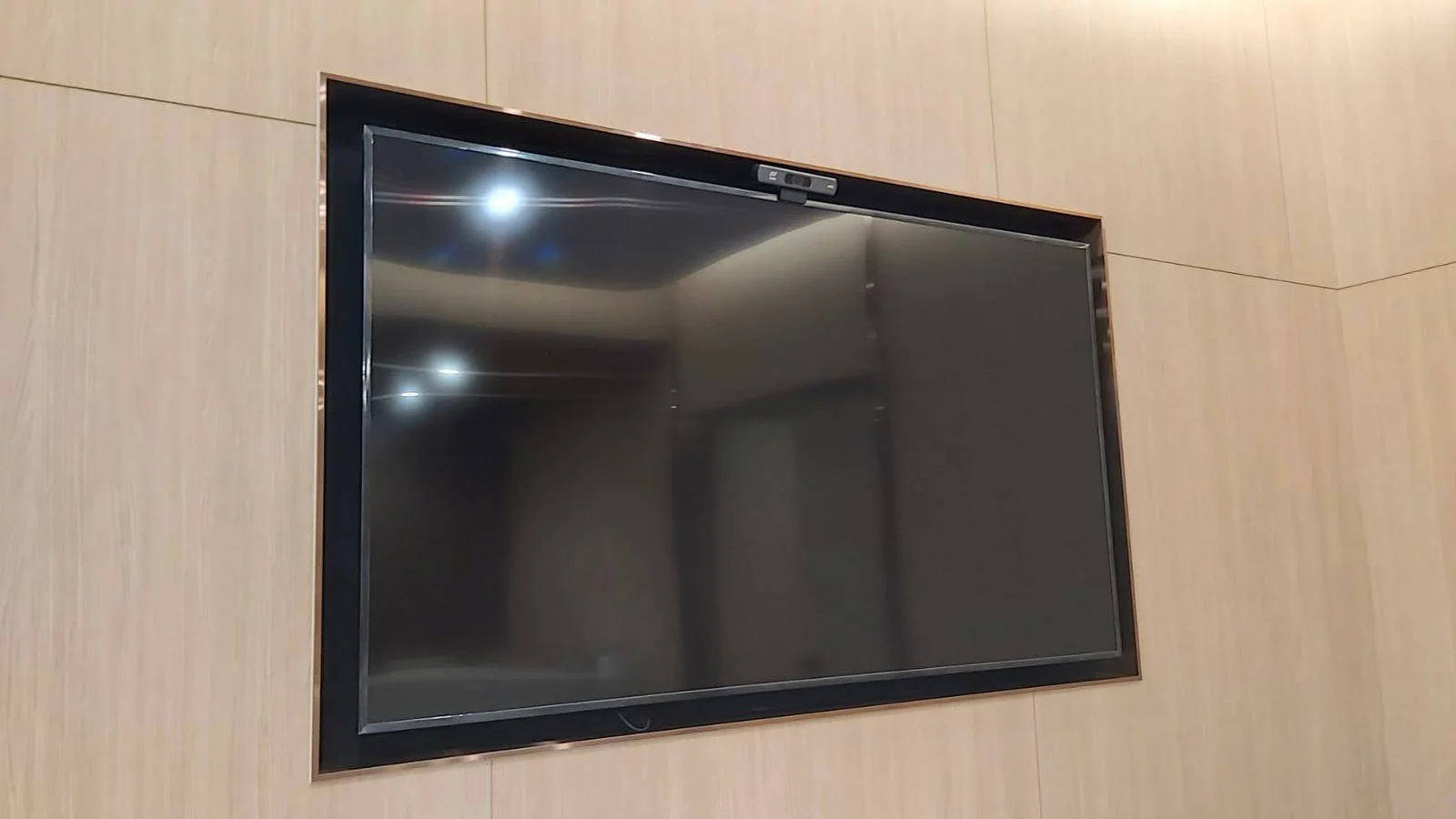
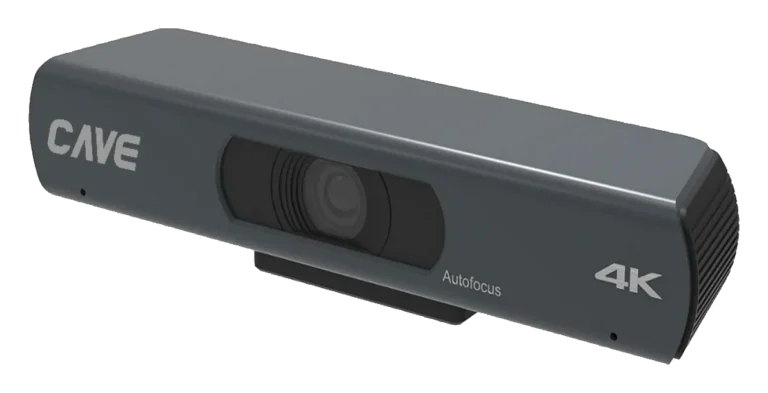
For better picture quality and a wider view, or a few more people, use the A01 or the A01SE (SE is the single-output version, with USB only). Like the S12+, the A01 is an all-round camera: in any space the S12+ covers, when the need is simply to have a picture, with no close-ups and no concern for how large people appear in it, the A01 can be planned in. In a small room its 120-degree horizontal view fits everyone into one picture in a room 2 to 4 metres deep, and the lens never has to turn.
- 4K picture and a wide view, with 8x digital zoom; auto framing adjusts the picture to the people it finds, whether there are few or many.
- USB and HDMI outputs: the picture can go to a computer, a display or other equipment.
- The remote control sets 10 preset positions, so a different part of the room is one press away.
- One USB cable carries both power and video, so no adaptor is needed, and it weighs only 0.5 kg; it can sit above a display or hang upside down from the ceiling.
- Sound goes to the SM-500 in the middle of the table, used the same way as in UCB-S.
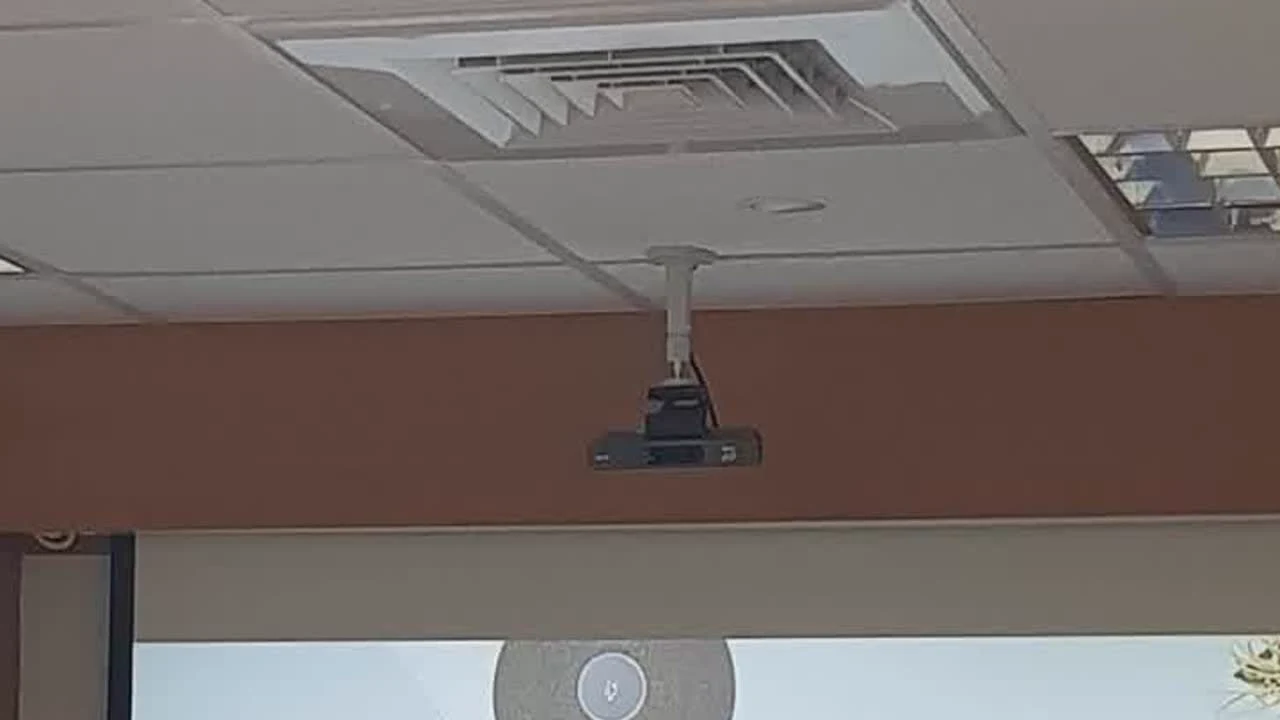
Room to grow and to integrate
A huddle room that only needs video calls today may not stay that way. More people may join, and streaming, recording or a hardware conferencing unit may be added. Equipment with only a USB interface cannot be combined with analogue signals, so adding anything else means replacing the set. The SM-500 and the A01 or A01SE leave several ways out:
- More sound: one SM-500 has a 4-metre pickup radius; when the room grows or the table gets longer, add more, up to four. The units link wirelessly, and every one of them plays sound, with echo and reverberation handled together.
- Picture out: besides USB, the A01 has an HDMI output, so the picture can go to a display or other equipment (the A01SE has USB only).
- Analogue audio: the SM-500 wireless receiver has 3.5 mm analogue input and output, so it can connect to a hardware video conferencing unit, and can also be integrated with streaming and recording equipment.
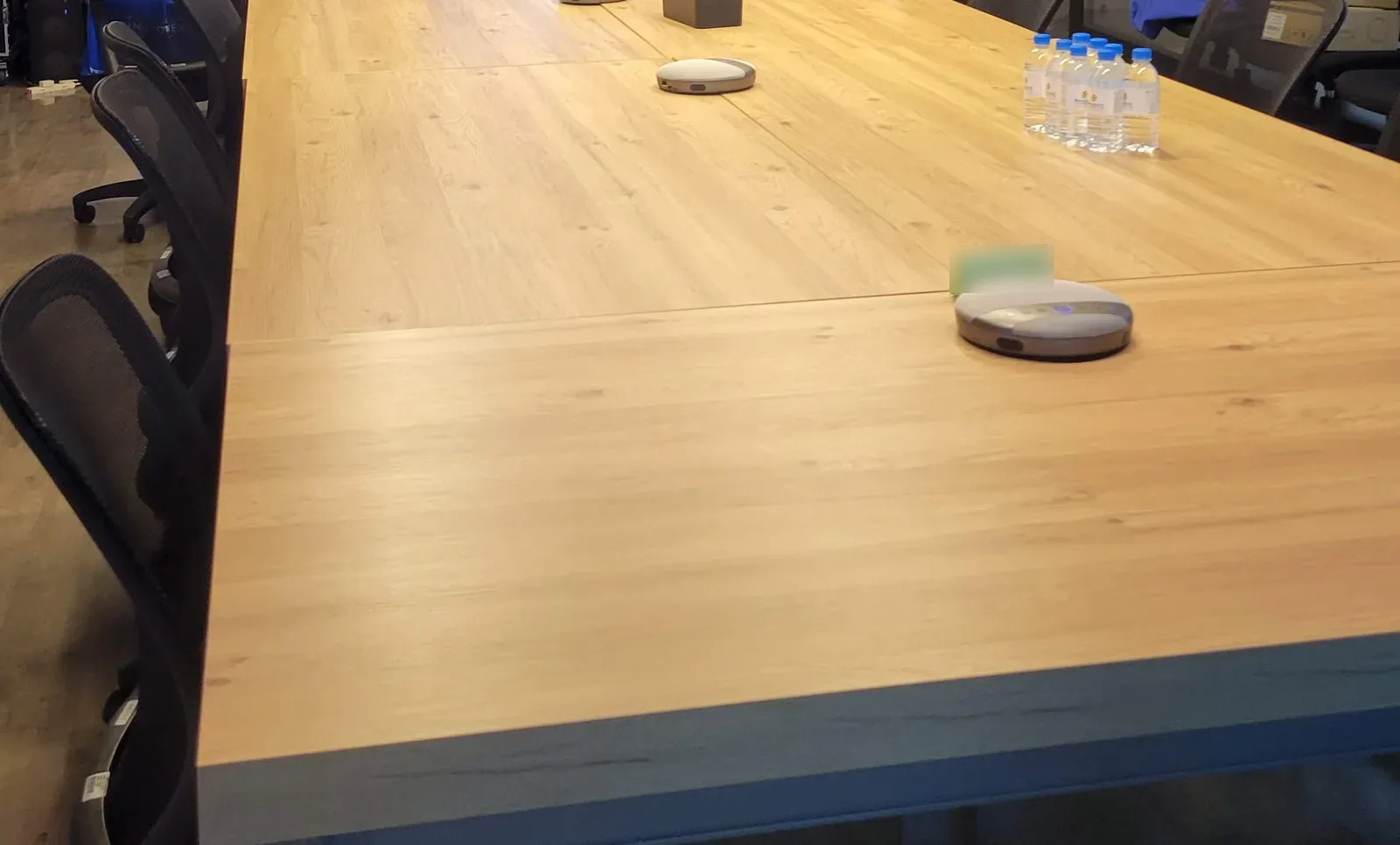
So whether the room moves to hardware video conferencing, or adds streaming or recording, we have the flexibility. How it connects depends on the equipment in the room; just tell us what is there when you plan.
How to choose
All of them go with an SM-500, which is used the same way, so the difference is the camera: in a small space with modest picture demand the J01i is the most economical; for better picture quality, a wider view or a few more people, use the A01 or A01SE.
- A small space of about 2 metres, modest picture demand, and the most economical setup wanted: the J01i with an SM-500 (UCB-S).
- Better picture quality and a wider view, or a few more people: the A01 or A01SE with an SM-500.
- A completely clear table, a single cable, and a lens that switches to whoever is talking: the SP-1100.
- A room that may grow: an SM-500 setup, adding units later.
- A hardware conferencing unit, streaming or recording equipment to be added later: an SM-500 setup, whose wireless receiver has 3.5 mm analogue input and output, and the A01 also has an HDMI output.
If in doubt, try it in the room. Have someone sit in the farthest seat and talk, and check that the other side can see and hear them, with no echo. The quick video bundle wizard on the bundles page can also help: answer a few questions and take away a plan.
Installing it, step by step
- Decide where the camera goes: in the centre above the display, facing the seats. The SP-1100 can also sit below the display, and the A01 can hang from the ceiling.
- Connect the SP-1100, J01i, A01 or A01SE to the computer with one USB cable.
- If you use an SM-500, put it in the middle of the table and connect it to the computer with a USB cable.
- In Teams, Google Meet or Zoom, select the devices: for the all-in-one, choose the SP-1100 as camera, microphone and speaker; for a pairing, choose the J01i, A01 or A01SE as camera and the SM-500 as microphone and speaker.
- Test: have someone sit in the farthest seat and talk, and check that the other side can see and hear them, with no echo.
If the computer is far from the display and the USB cable is not long enough, do not just add any long cable; read the USB extension guide first.
More people, a bigger room?
The setups here are for 2 to 6 people within 4 metres. Beyond that the problems change: people at the back look too small and need a PTZ camera with optical zoom, and a longer table needs more microphones. These guides cover that:
Summary
A huddle room is used all the time and looked after by nobody, so keep the equipment simple: few devices, few cables, working as soon as it is plugged in. For a clear table choose the SP-1100, with one USB cable for camera, microphones and speaker. For a small space with modest picture demand choose the J01i with an SM-500; for better picture quality or a few more people, the A01 or A01SE with an SM-500. To keep the microphone near people, or to add units or streaming and recording equipment later, an SM-500 setup has the flexibility. Beyond 6 people or 4 metres, read the guides on meeting-room cameras and PTZ.
Contact CAVE-TEK about a huddle-room setup ›
* SE stands for single output: the A01SE has the same picture specifications as the A01 but only a USB output, with no HDMI. If you need HDMI output, choose the A01.
Products in this guide
FAQ
What is a huddle room?
A huddle room is a small room where 2 to 6 people meet briefly. It is also called a small meeting room, discussion room or meeting booth: a small table, a display, and sometimes a call with colleagues or clients who are not in the room.
Why not use the laptop camera and speaker in a huddle room?
Two people next to a laptop can manage. With more people it breaks down: anyone sitting far from the laptop looks small and dark on the other side, and only people near the laptop are heard clearly. A camera above the display and a conference microphone and speaker improve both picture and sound.
How do I choose between the J01i and the A01?
The J01i is a 4K camera with 5x digital zoom and a 110-degree view, which sits above the display. It suits a small space of about 2 metres (2 to 3 people is easiest) or places where the picture demand is modest, and with an SM-500 it is UCB-S, the most economical choice. For better picture quality, a wider view or a few more people, use the A01: 4K picture, a 120-degree ultra-wide view, and USB and HDMI outputs.
What is the difference between the SP-1100 and UCB-S?
The SP-1100 puts the camera, microphones and speaker in one unit on the display, with nothing on the table, recommended for up to 8 people within 4 metres, with microphones that pick up voices up to 6 metres away. UCB-S is a J01i 4K camera plus one SM-500 wireless speakerphone, which sits in the middle of the table so the sound is closer to people; it has a built-in battery and more units can be added. Both start a meeting with a USB cable.
Does a huddle room need a PTZ camera?
Usually not. In a small room within 4 metres, one wide-angle camera gets everyone into the picture. Optical zoom to bring distant people closer is a need of larger rooms.
Can the SM-500 connect to streaming or recording equipment?
The SM-500 wireless receiver has 3.5 mm analogue input and output, so it can connect to a hardware video conferencing unit and can also be integrated with streaming and recording equipment. The A01 also has an HDMI output for the picture. How it connects depends on the equipment in the room, so tell us what is there when you plan.
Do I need to install software or drivers?
No. The SP-1100, J01i, A01, A01SE and SM-500 are USB plug and play, with no drivers on Windows or macOS, and can be selected directly in Teams, Google Meet and Zoom.
The planning advice in this guide is general reference. Actual results vary with the room, the equipment and the network. Product specifications follow the manufacturer's documents; we recommend contacting us for an assessment first.
More guides
How to choose a meeting-room camera: 8 things to check, starting with room size
The camera is the most visible part of a video meeting. Whether remote people can see everyone, and see them clearly, depends on it. Work through these 8 points before you choose.
How to adjust colour on a PTZ camera: lighting, exposure, white balance and colour, in that order
The picture looks yellow or blue, faces are too bright or too dark, or two cameras don't match? Work through lighting, exposure, white balance and colour in that order and the picture comes right.
What equipment does a video meeting room need? Cameras, speakers and microphones explained
Three things ruin a video meeting: you can't hear them, they can't hear you, and the picture is a blur. Here is a plain-English walk through what a meeting room needs and how the pieces fit together.