How to plan a wireless BYOM meeting room: meet from your own laptop, no cables
Walk into the room, open your own laptop and start the meeting with the room's camera and microphones, without plugging in a tangle of cables. Here is what BYOM is, why Wi-Fi matters most, and how to set it up step by step.
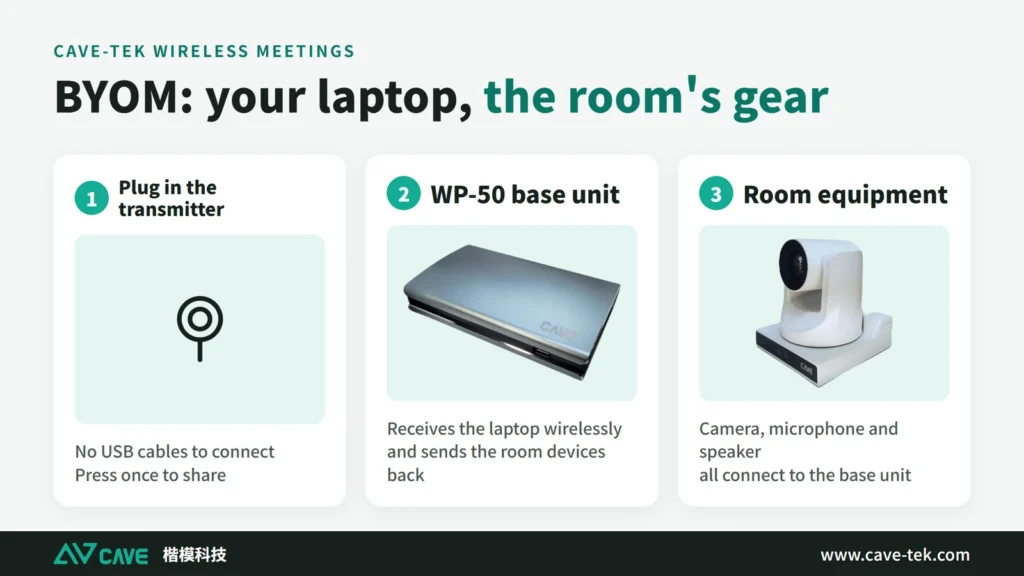
Short answer
BYOM (Bring Your Own Meeting) lets each person use their own laptop to connect wirelessly to the room's camera, microphones and speakers and meet directly in Teams, Google Meet or Zoom. The most important thing to plan is the Wi-Fi signal: a video meeting sends live video and needs roughly 5 to 10 times the data of wireless presentation (about 30 Mbps or more). Put the base unit in the middle of the room with nothing between it and the laptops; if you can't, add a Wi-Fi extender. Use professional USB and HDMI cables between the camera, the microphones and the base unit.
Key takeaways
- BYOM = your own laptop + the room's professional camera and microphones, with no cable in between
- It depends heavily on Wi-Fi: dropouts, frozen video and broken audio are mostly a signal problem
- On a weak signal, turn the camera off and keep the audio, and the meeting can usually continue
- The cables from the base unit to the camera and microphones are the part people forget
Most people who have used wireless presentation don't want to go back, in the same way nobody wants to plug in a network cable to get online any more. BYOM takes that convenience one step further: the camera and microphones a video meeting needs become wireless as well.
| Wireless presentation (BYOD) | Wireless conferencing (BYOM) | |
|---|---|---|
| What it does | Shows the laptop screen on the big display | Lets the laptop use the room's camera and microphones for a video meeting |
| What it sends | The laptop screen (compresses very small) | Camera video and audio (can't be compressed much) |
| Data needed | About 5 Mbps | About 30 Mbps or more |
| Can it lag a little? | Half a second doesn't matter | No. It must be live and uninterrupted |
BYOD and BYOM have three guides, each for one job: to put a screen on the big display, read the first; to understand BYOM, read the second; to install it, read the third.
| Guide | What you will learn |
|---|---|
| BYOD: choosing wireless presentation › | AirPlay, Miracast and transmitters, what native 4K in and out means, and what to watch on the network |
| BYOM: what is BYOM › | What it means, how it differs from BYOD, wired and wireless, small, medium and large rooms, and how WP-50 joins existing equipment |
| BYOM: how to plan it (you are reading this one) | The 7 installation steps: Wi-Fi, extension cables, software tests, seating and echo, and troubleshooting during meetings |
What is BYOM?
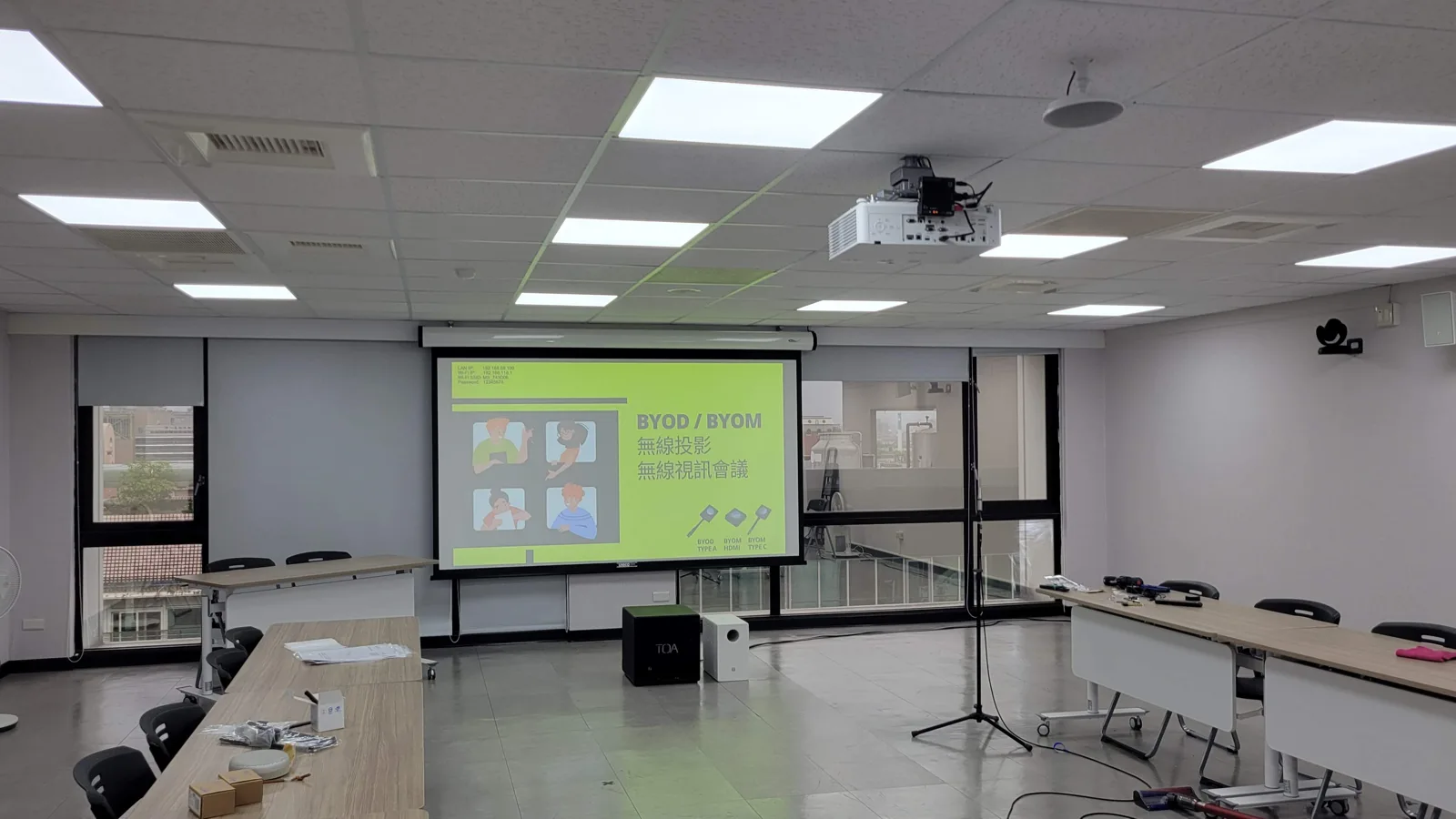
BYOM (Bring Your Own Meeting) lets everyone use their own laptop to run a meeting with the camera, microphone and speaker of the room, wirelessly. What BYOM means, how it differs from BYOD, and how wired and wireless setups work are covered in “What is BYOM”; this guide is about getting it installed well.
What do you gain?
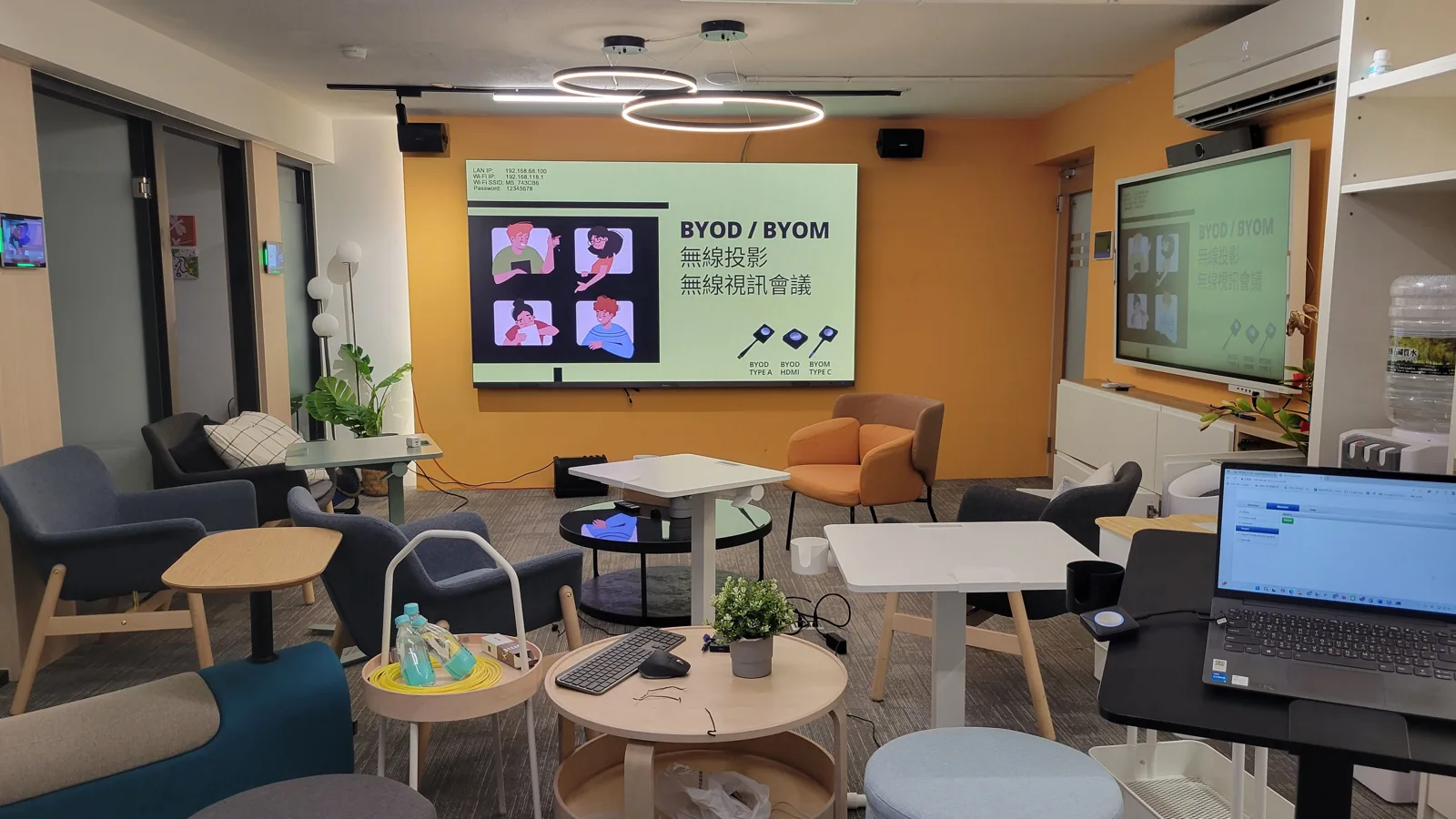
The biggest gain with BYOM is that there is nothing to learn: walk into the room and meet from your own laptop with the app you always use. The camera and microphones are the professional ones of the room, so picture and sound are better than the laptop built-ins; you can sit anywhere, and changing presenter takes one press of the transmitter. To the computer it is a standard USB camera and microphone, so Teams, Google Meet, Webex and Zoom all work, and the same transmitter can share the screen wirelessly.
CAVE WP-50: from small rooms to large ones
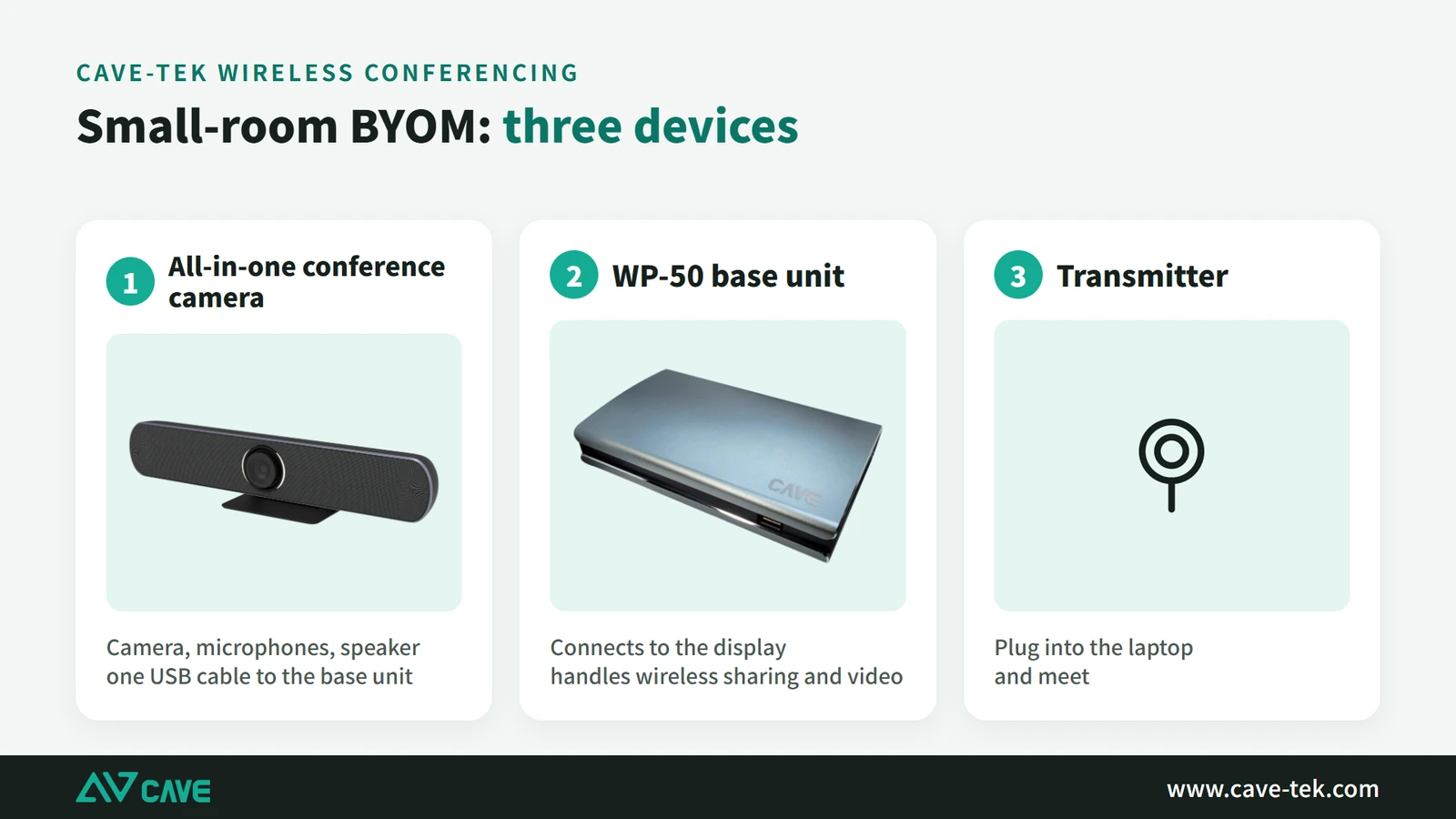
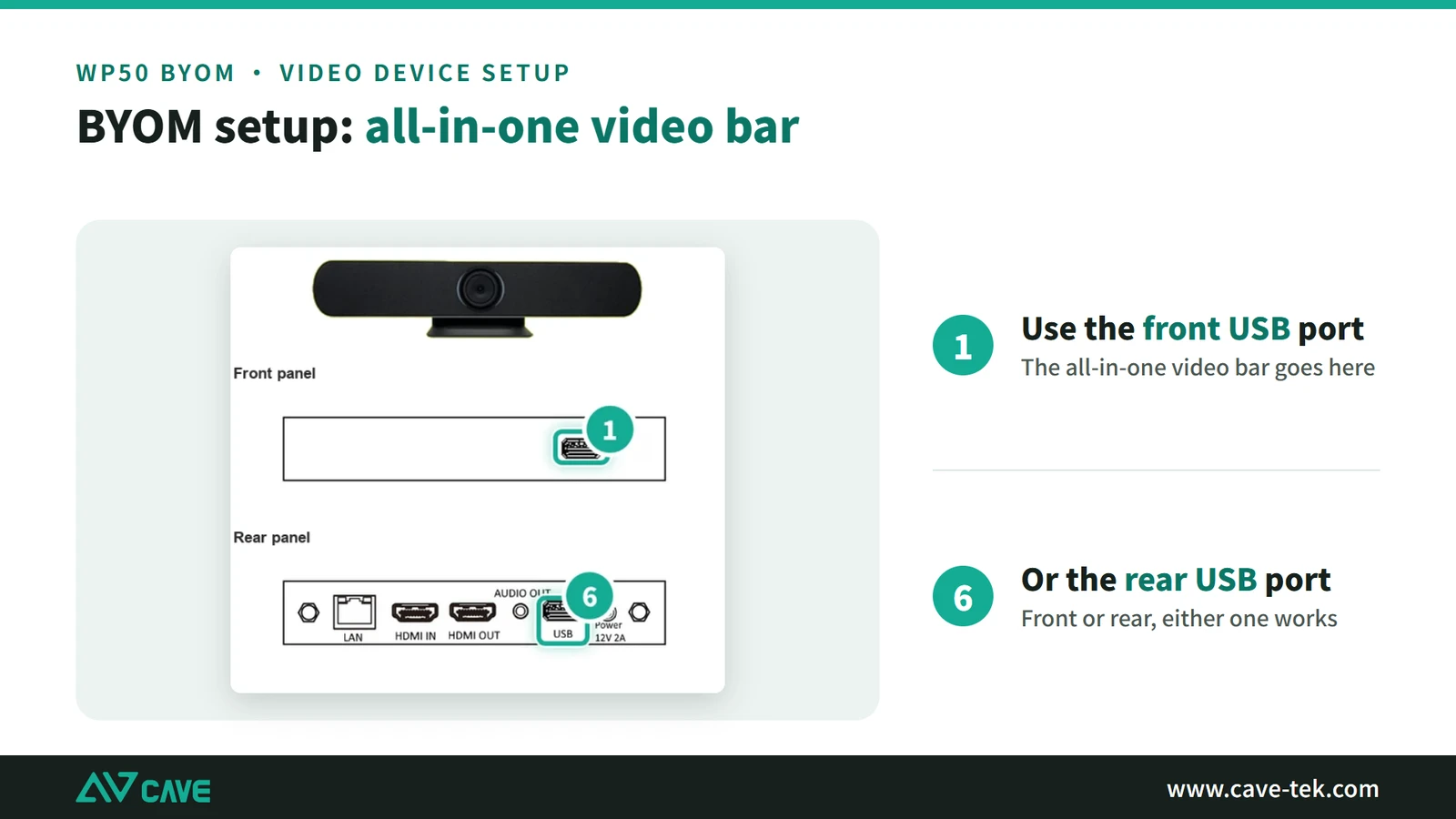
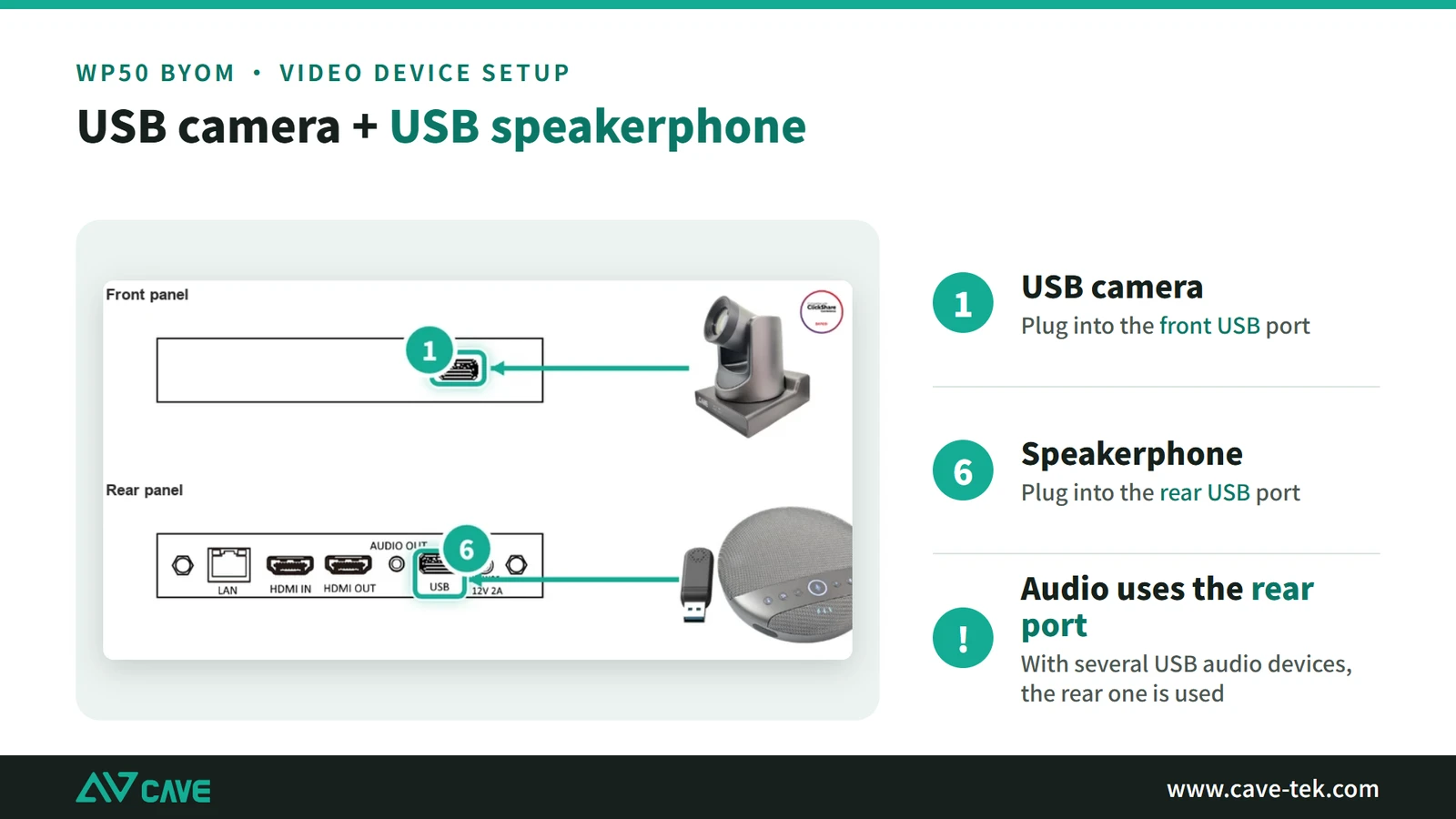
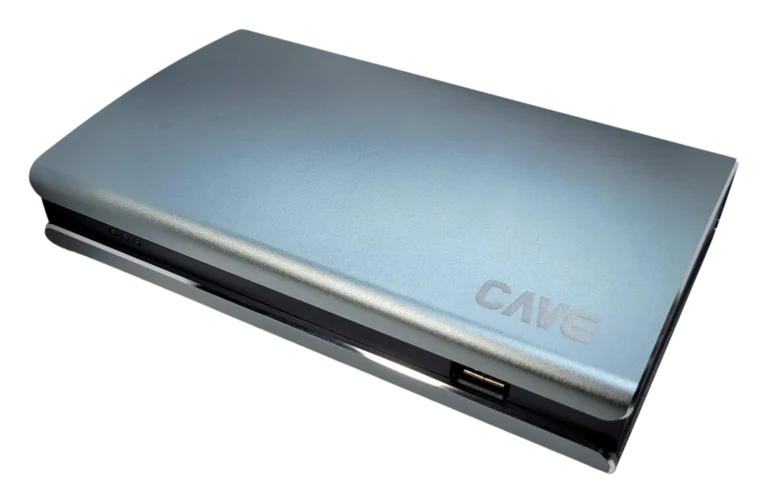
The CAVE WP-50 is designed for medium and large rooms. A small room can connect one all-in-one conference camera. A large room can connect HDMI cameras as well as USB devices, so several PTZ cameras and an existing microphone and public-address system can all be brought in. It works with USB and HDMI video equipment from many brands.
Why does BYOM depend so much on Wi-Fi? (most important)
BYOM sends video and audio over Wi-Fi, so the quality of the signal decides how smoothly the meeting runs. Three characteristics explain why the signal needs special care.
1. It is live and can’t be buffered
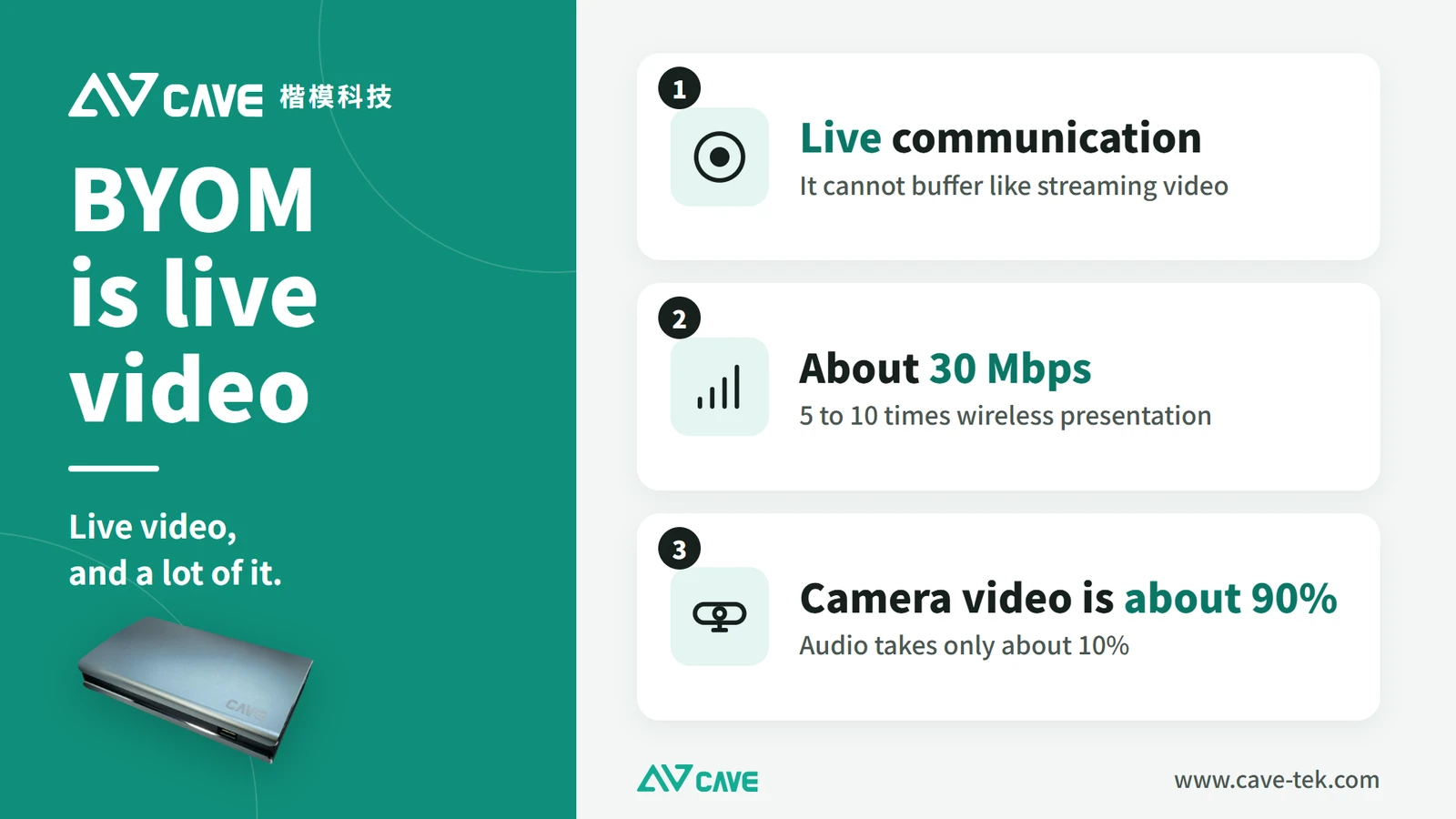
When you watch YouTube, the video downloads a few seconds ahead, so you never notice a brief slowdown. A video meeting can’t do that. What you say has to reach the other side at once; a delay of a second or two and both sides start talking over each other. It needs a wireless link that stays steady and never drops.
2. It needs 5 to 10 times the data of wireless presentation
Wireless presentation only sends the laptop screen, which can be compressed very efficiently; about 5 Mbps is enough. For every meeting app to recognise it as a USB camera, BYOM has to send video in a more universal format that produces larger files, so it needs about 30 Mbps or more.
3. Video is far bigger than audio
A minute of audio is about 1 MB. A minute of video can be 100 MB or more. In a wireless video meeting, over 90% of the data is video. So when the signal is poor there is one very useful trick: turn the camera off and keep only the audio. The data needed drops sharply and the meeting can usually carry on.
7 steps to plan a BYOM room
Step 1: Choose the camera and speakerphone
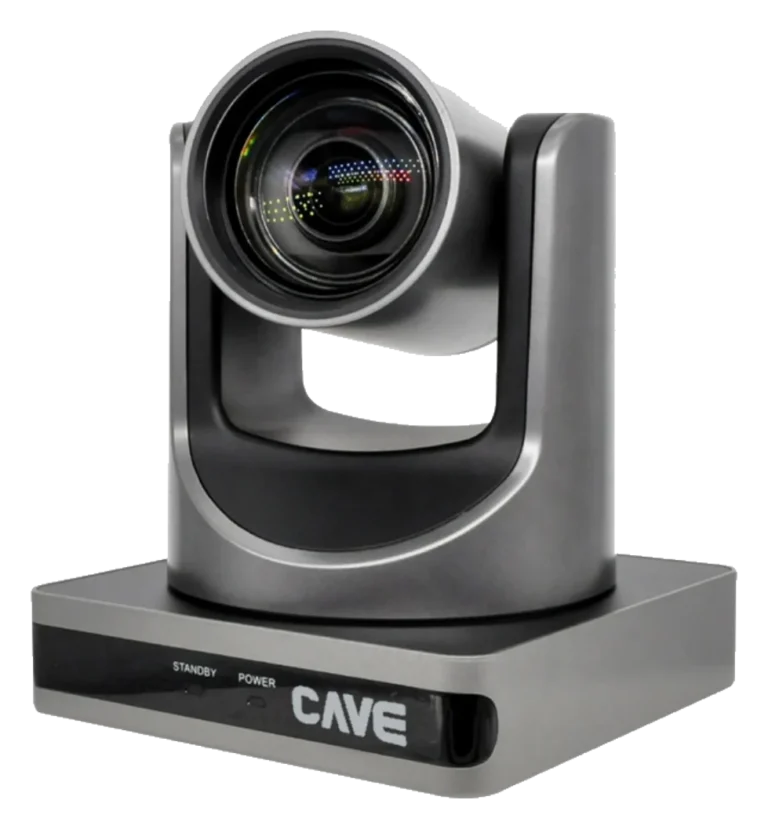
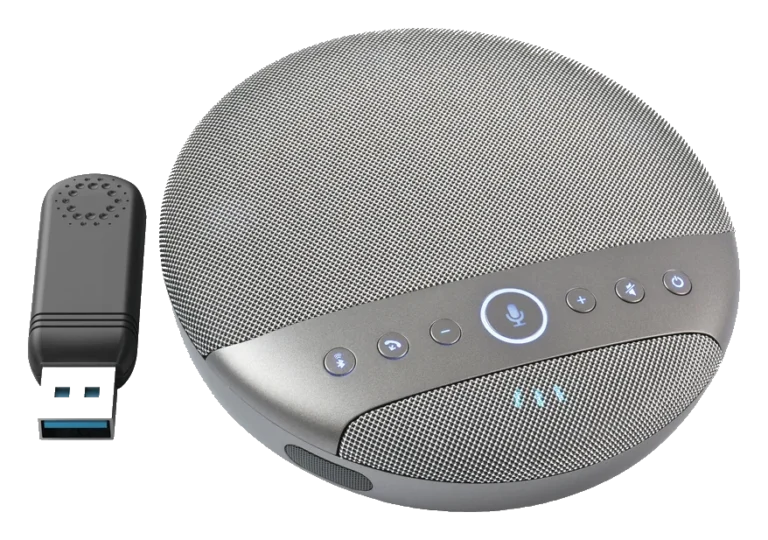
BYOM only makes the signal wireless. How clear the picture is and how good the sound is still depend on the camera and microphones. Look at four things: picture quality, pickup and playback, stability, and how well they work with other equipment. Choose a camera of 1080p or higher and microphones with noise reduction.
How to choose a meeting-room camera ›
How to plan audio for a video conference room ›
Step 2: Choose a BYOM system that is stable and easy to use
With a good BYOM system you are connected within a few minutes of walking in, without installing software or reading a manual. Picture and sound stay steady through the meeting, and it isn’t fussy about the brand of camera or microphone.
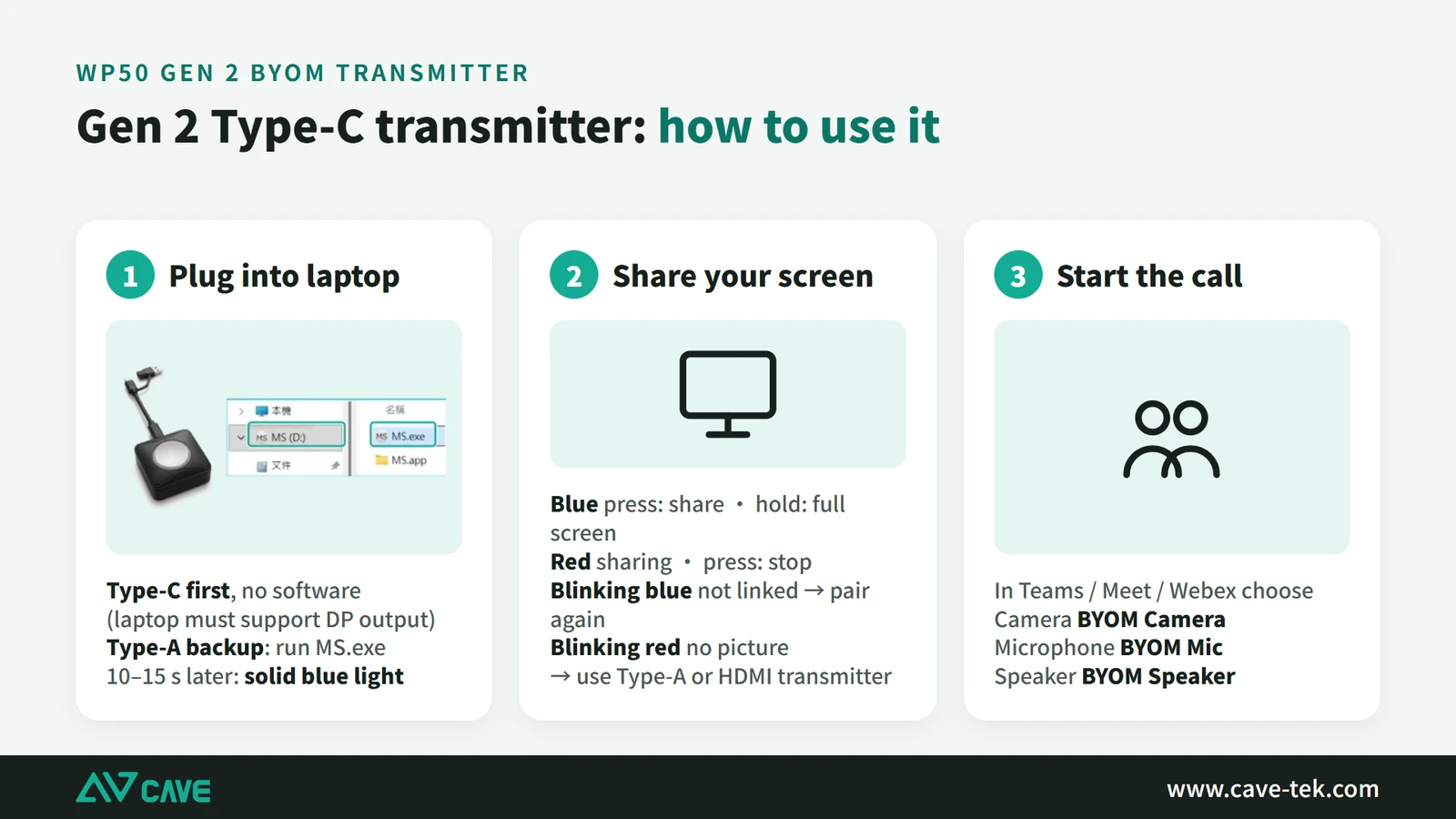
Step 3: Look after the Wi-Fi signal (most important)
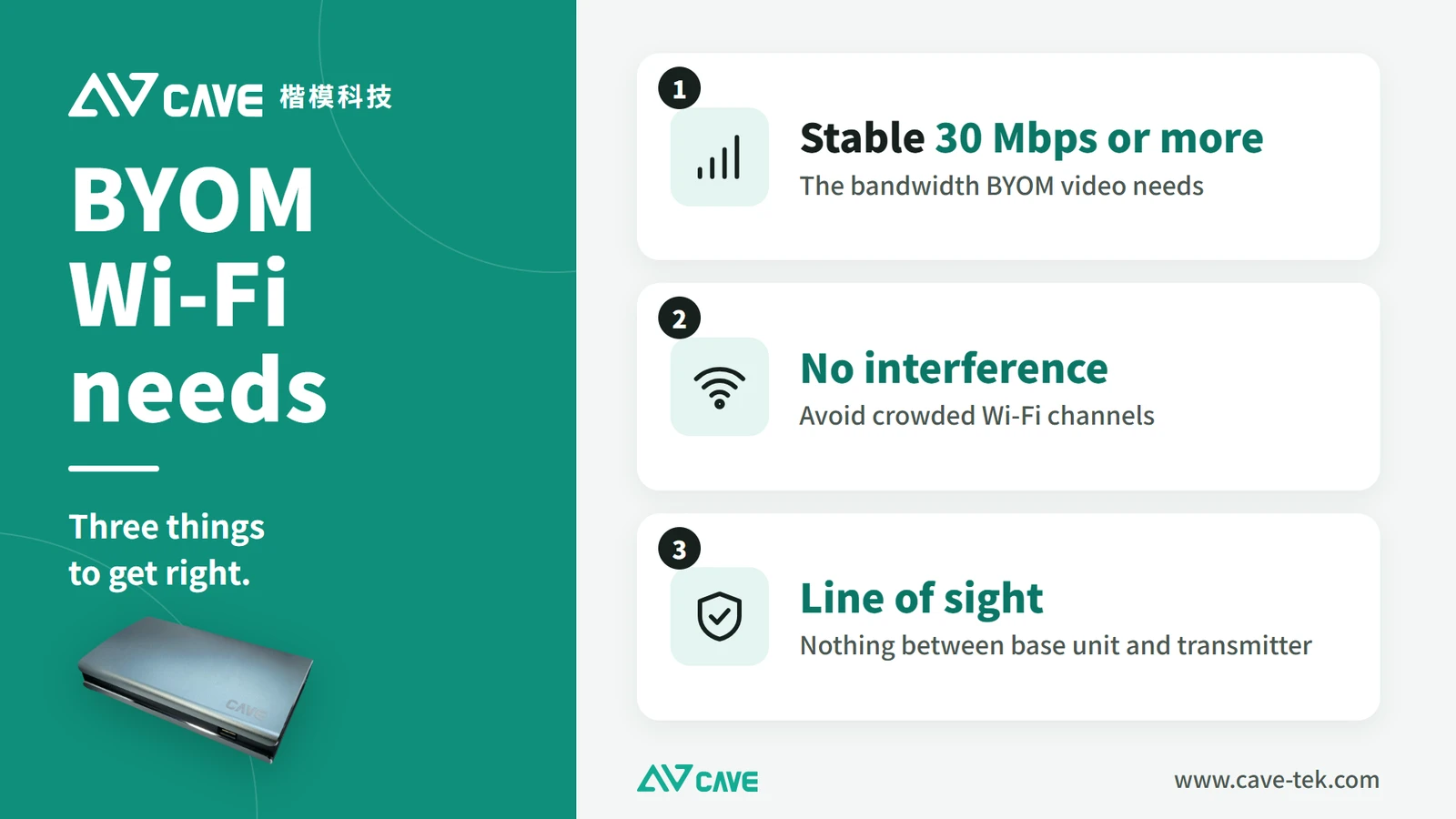
In our experience, when BYOM doesn’t run well (dropouts, delayed audio, frozen or broken video, crackling sound), a poor wireless signal is nearly always the cause. So get the signal right first when you install. Aim for three things: a steady 30 Mbps or more, no interference, and nothing in the way.
Where should the base unit go?
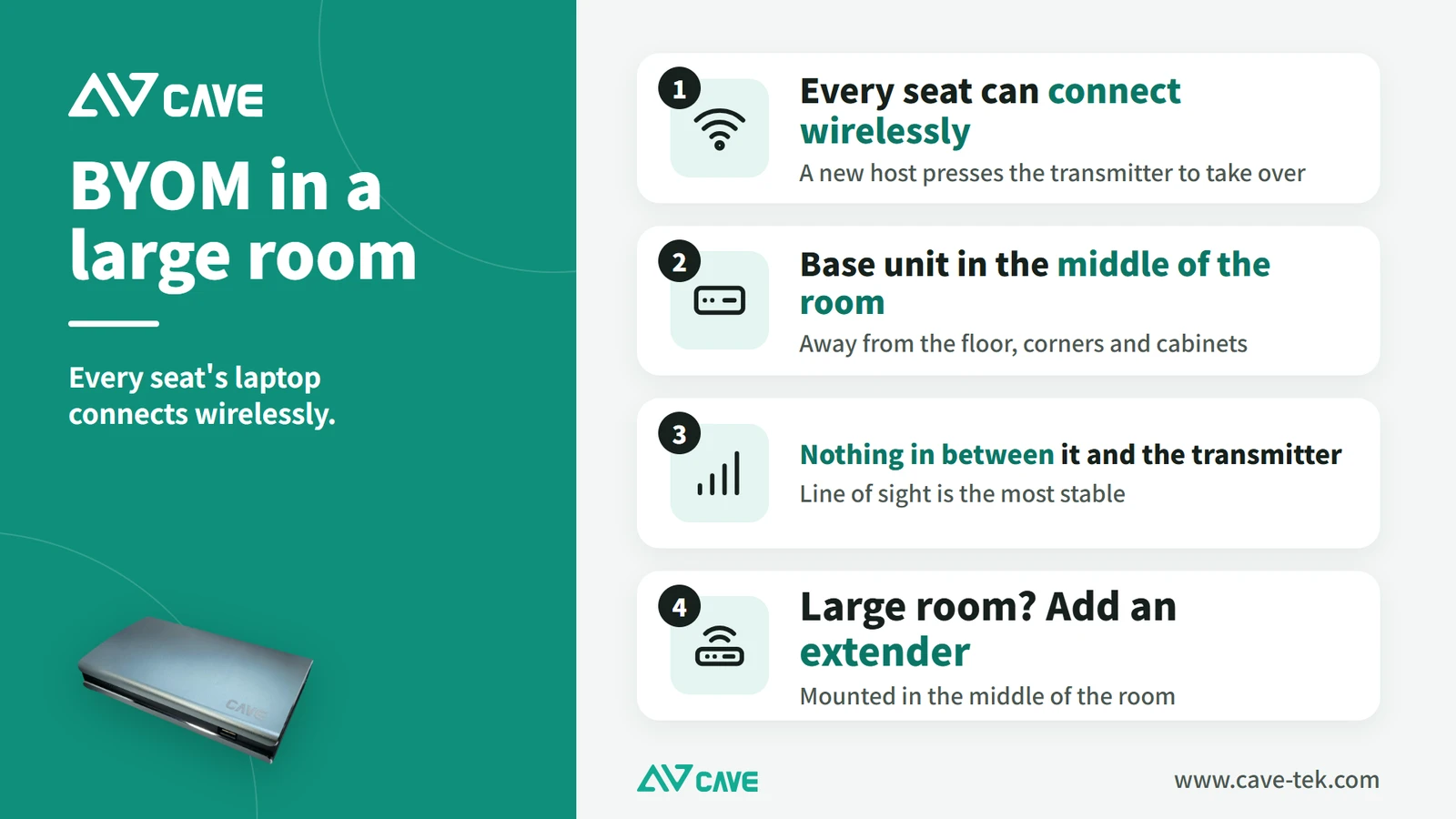
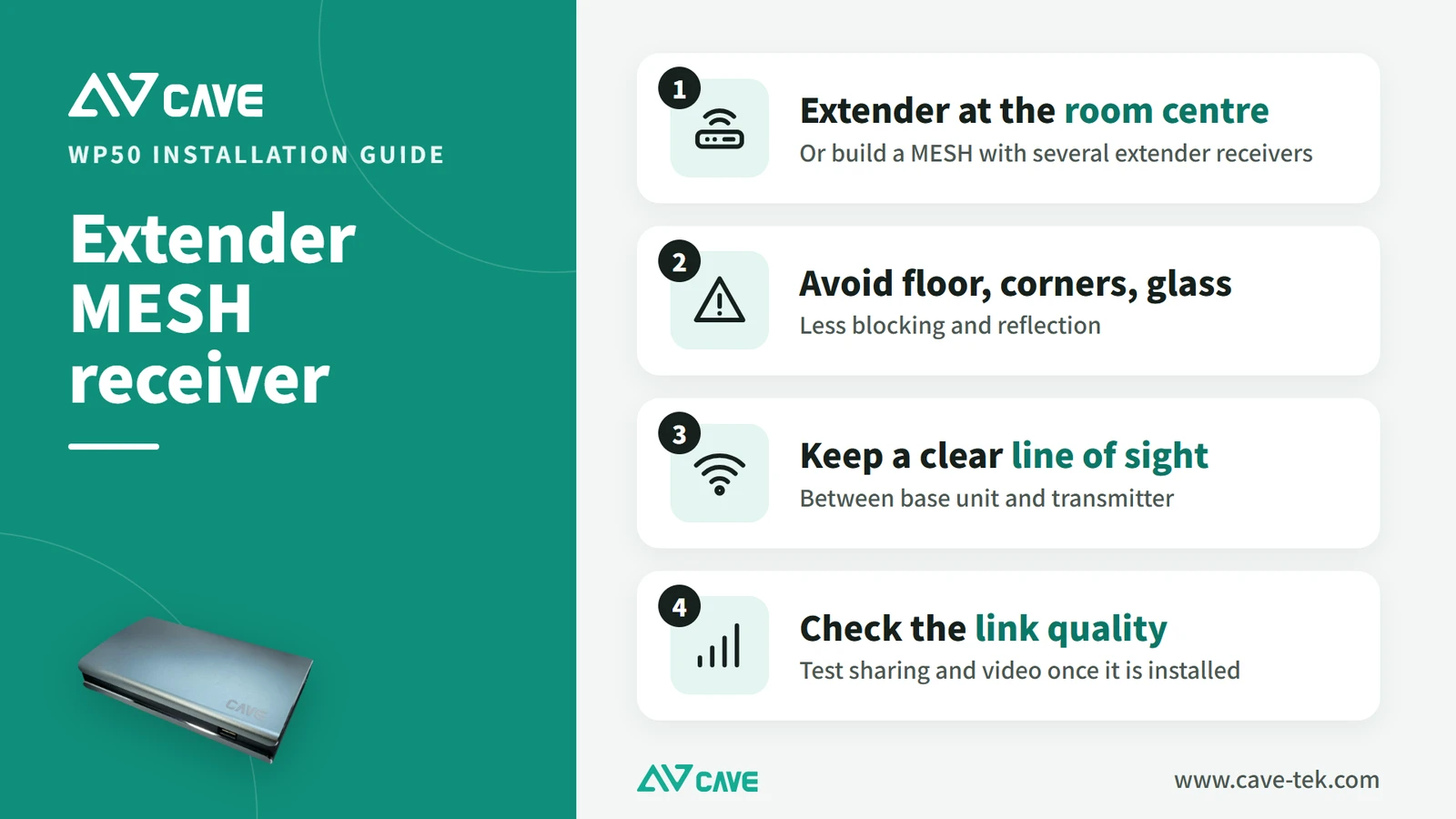
- In the middle of the room
- Not on the floor, in a corner or inside a cabinet
- Where the base unit and the transmitter on the laptop can see each other, with no wall, pillar or metal cabinet in between
- Away from other electronics that give off wireless signals
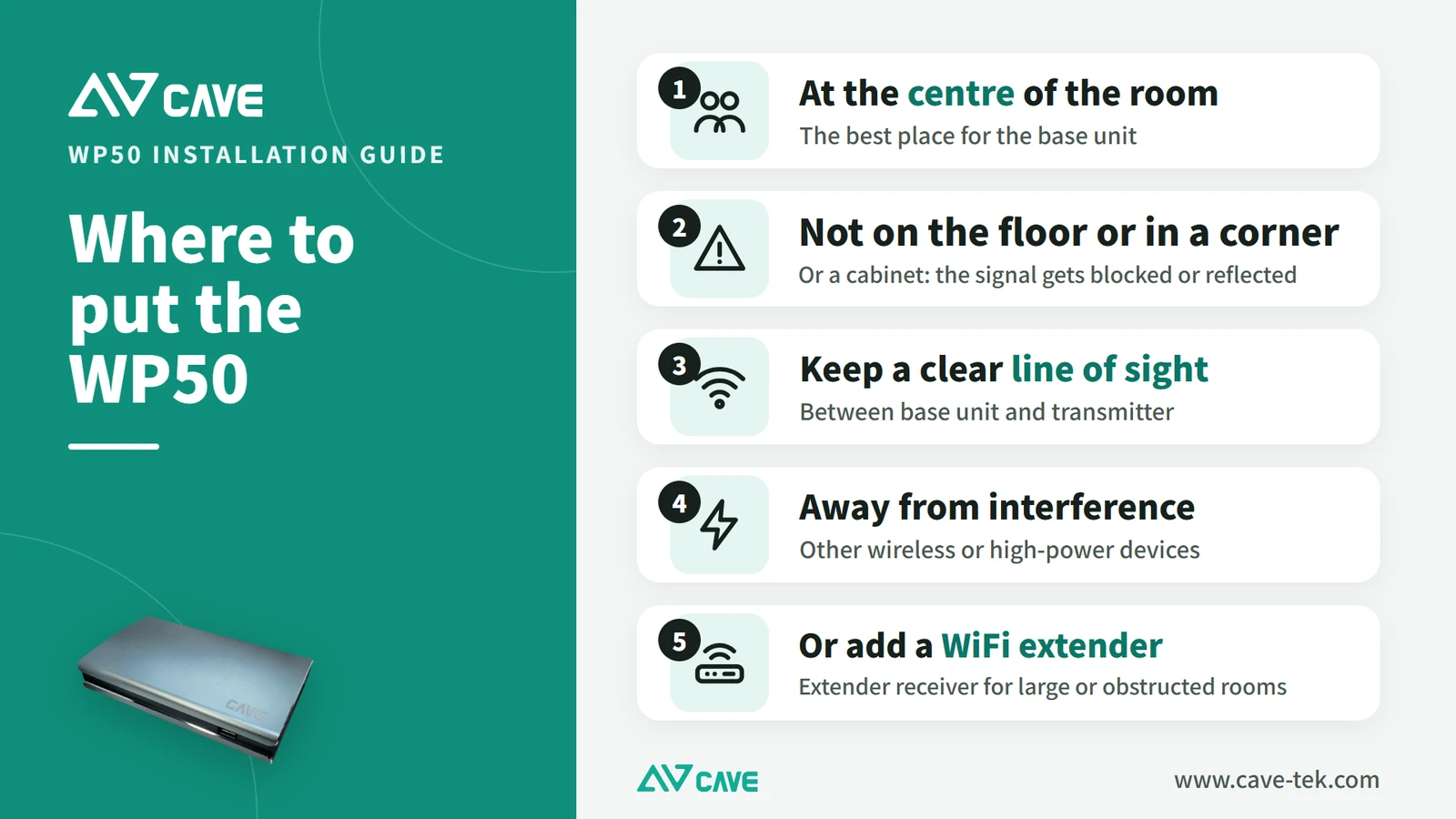
If the base unit has to go in an equipment rack, or the room is very large or long, add a Wi-Fi extender. Mount the receiver in the middle of the room so that it picks up the signal in place of the base unit. In a still bigger space, fit several, and keep them away from the floor, corners and large sheets of glass that reflect the signal.
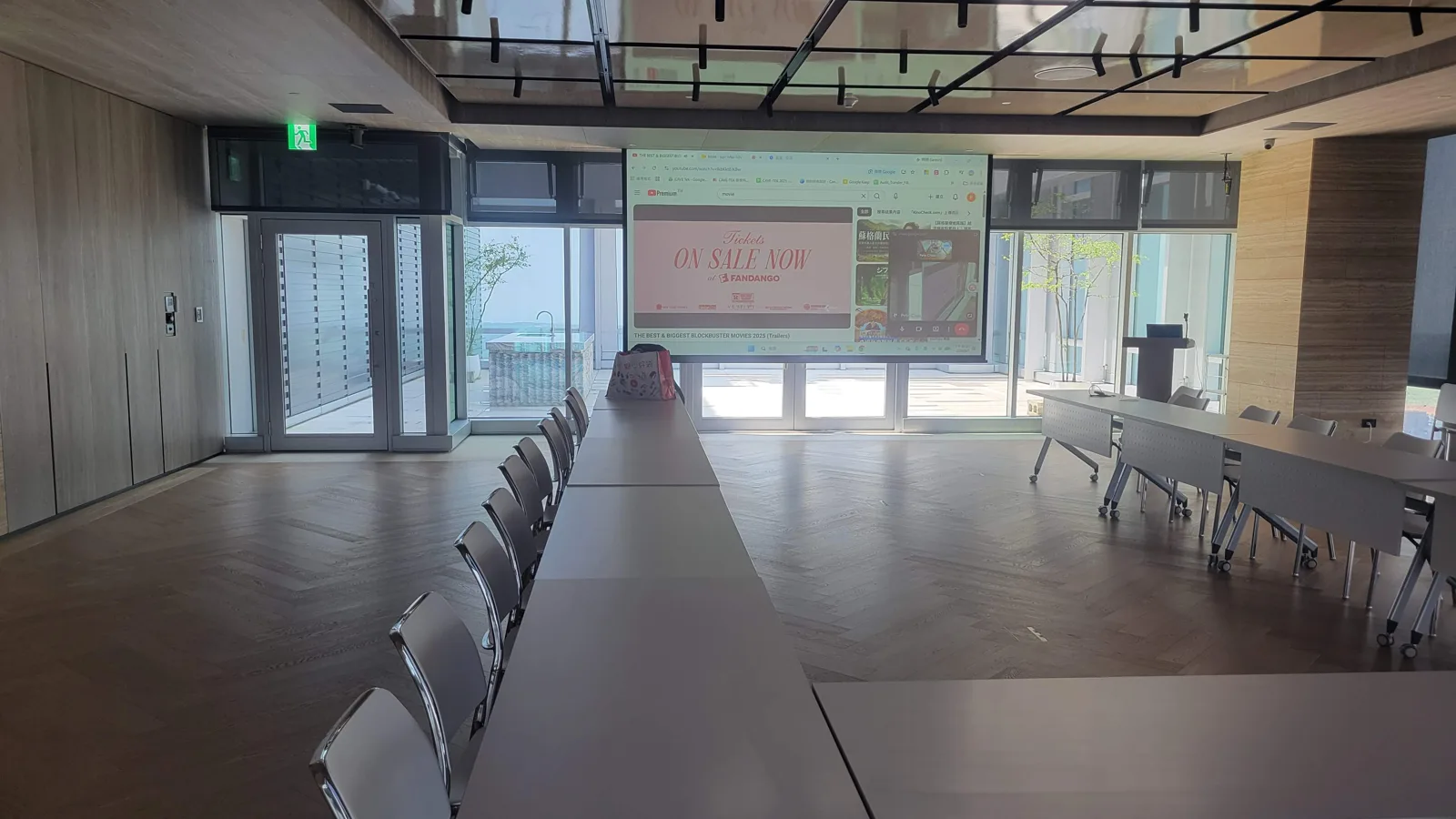
Measure it once everything is installed. Use a Wi-Fi analyser on a phone or computer and check the signal strength at every seat that will be used; between -45 and -65 dBm is good. Also check whether other Wi-Fi networks nearby are on the same channel, and if so move the base unit to a cleaner one. Finish by running a real video meeting.
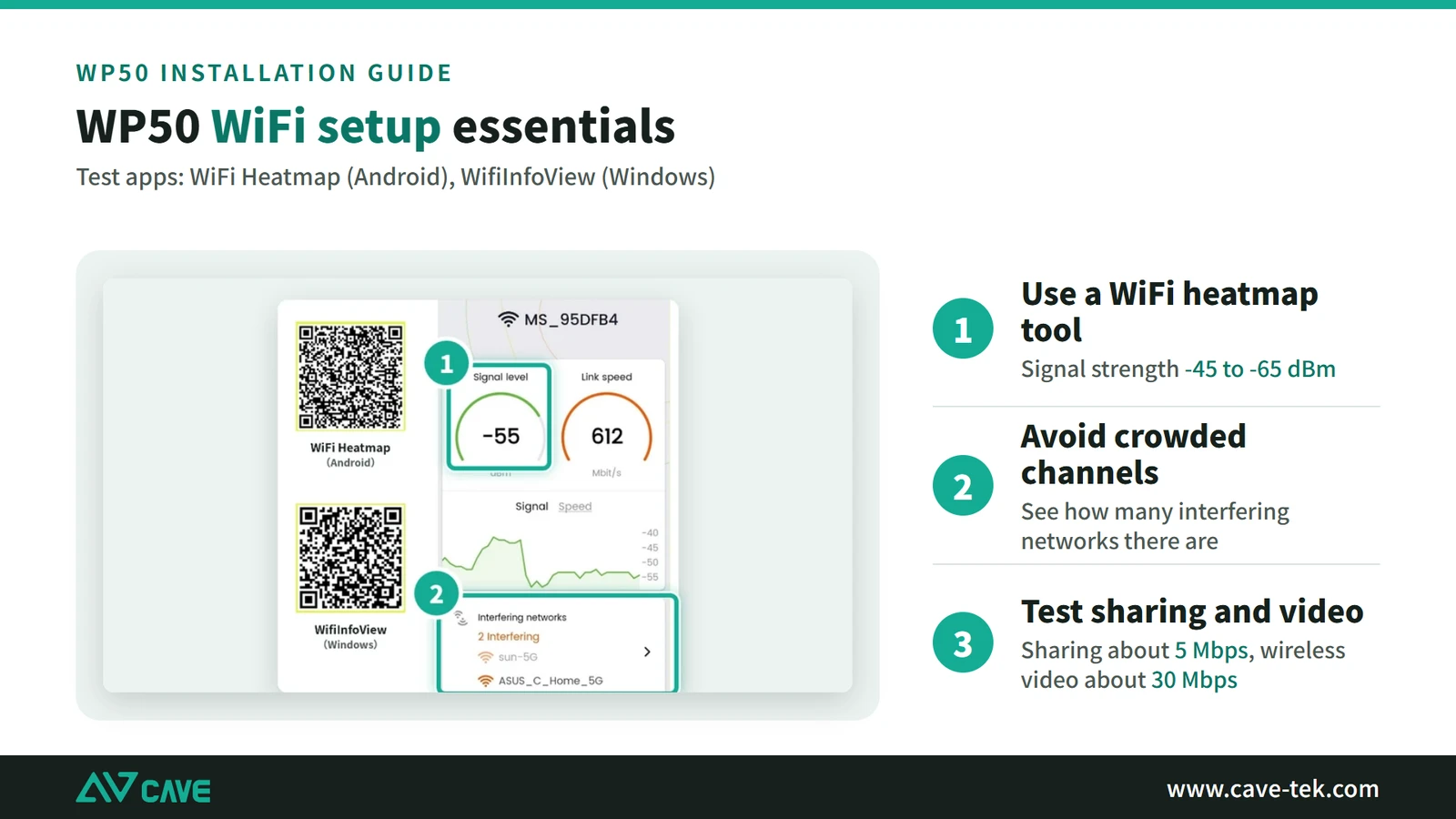
In some places there is simply too much wireless traffic around to clear, whatever you adjust. Don’t fight it: turn the camera off and rely on audio, or use a wired connection in that room.
Step 4: Use good USB and HDMI extension cables (most often forgotten)
With the wireless part taken care of, there is still a wired part: the cables from the camera and microphones to the base unit. In a big room these often run for ten metres or more. USB and HDMI signals weaken over distance and need professional extension cables to hold up. An ordinary extension lead is a frequent cause of a camera that isn’t detected or a picture that flickers.
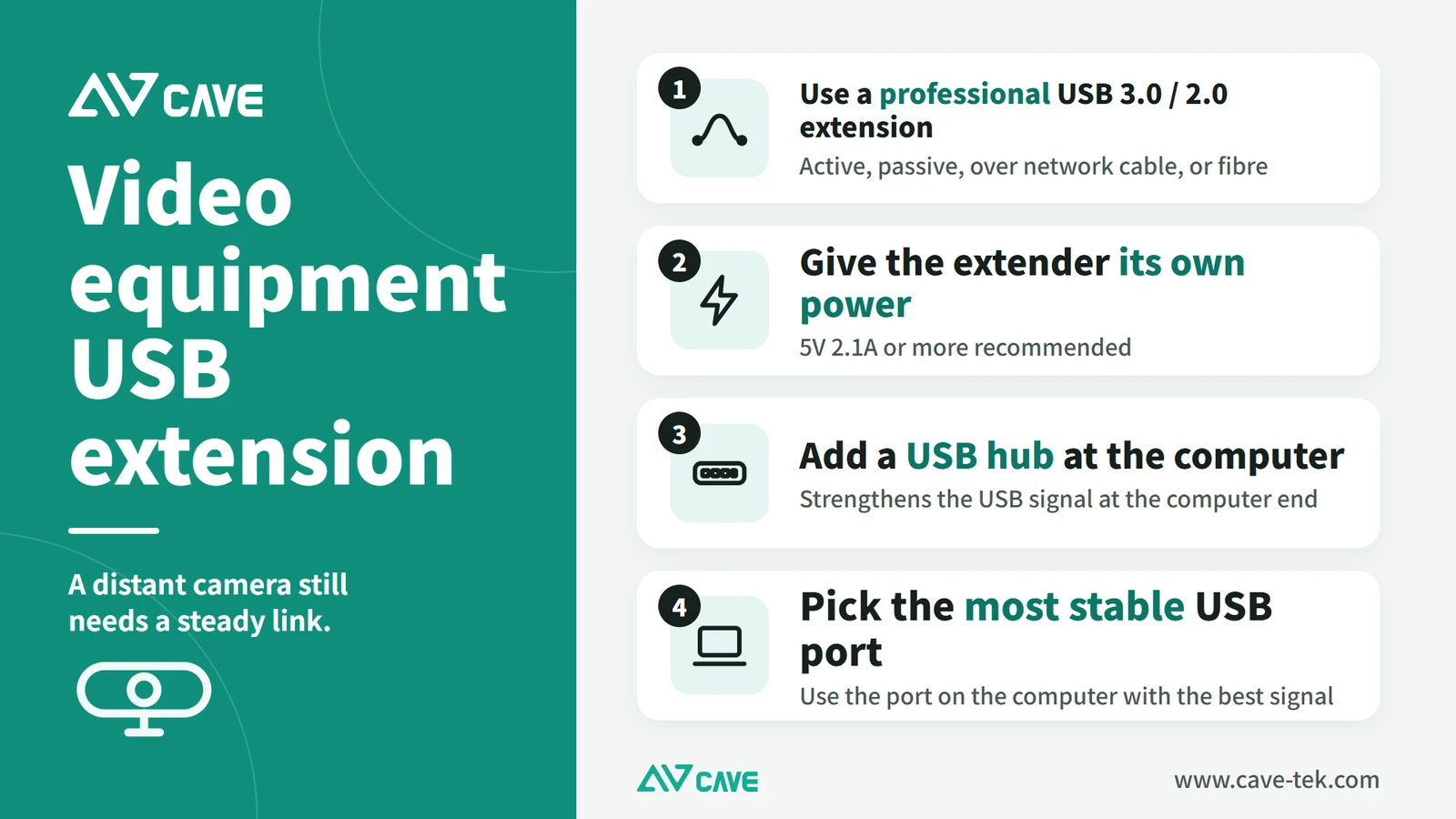
- Use a professional USB 2.0 or 3.0 extension (active cable, extender over network cable, or optical fibre)
- Give the extender its own power supply (5 V 2.1 A or more)
- Add a USB hub at the computer end to strengthen the signal
- Use the USB port on the computer with the steadiest signal
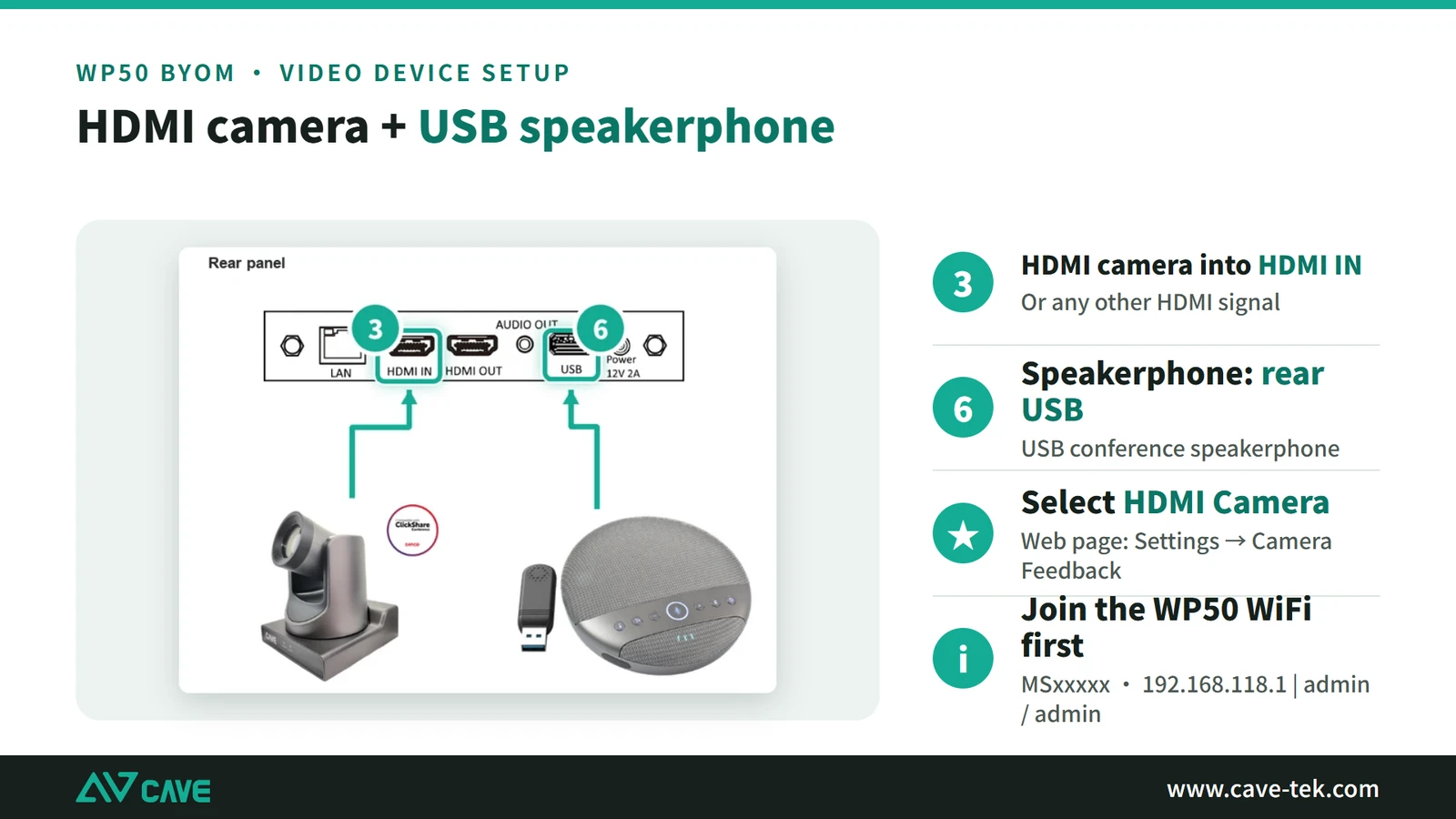
Large rooms often pair an HDMI camera with a USB conference speakerphone. Connect the camera to HDMI IN on the back of the base unit and the speakerphone to a USB port, then set the camera type to HDMI camera on the base unit’s admin page.
Step 5: Check that every meeting app works
Companies often use several meeting apps at once: Teams internally, Google Meet with customers, Zoom or Webex with suppliers. After installation, try each one and make sure the camera, microphone and speaker can all be selected and all work.
Step 6: Arrange the seating and deal with echo
Seat people so that everyone is in the shot and nobody is too far from a microphone. In rooms with glass walls or tiled floors that reflect sound, curtains, carpet or acoustic panels reduce echo and noise.
Step 7: Show people how to use it, and name someone to ask
However simple the equipment is, people get stuck the first time. Spend ten minutes showing colleagues how to plug in the transmitter and which camera and microphone to select in the meeting app, and put a short set of steps on the wall. Make sure everyone knows who to call if something goes wrong during a meeting.
If something goes wrong in a meeting, check these first
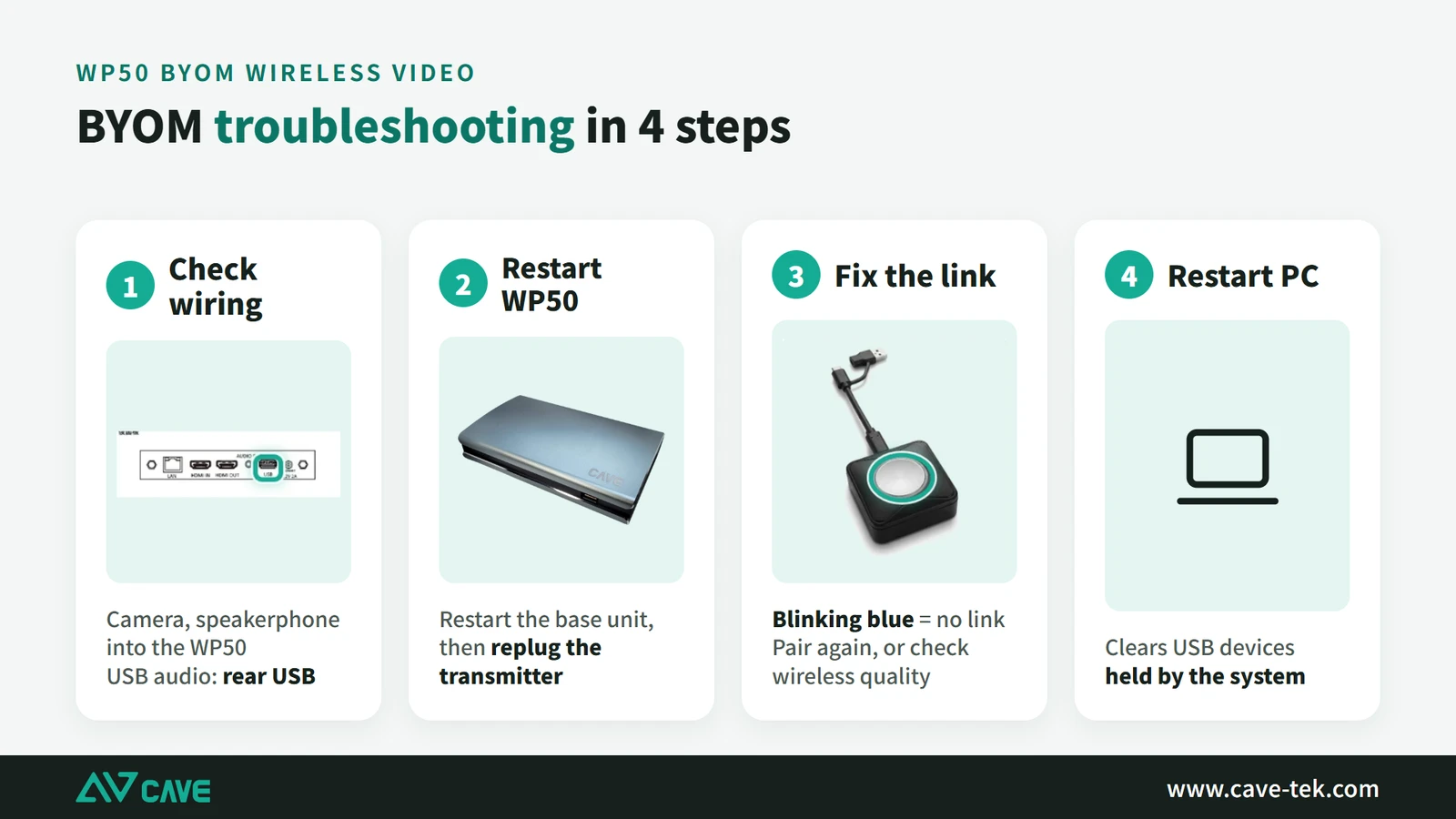
Wireless meetings occasionally fail to connect or show no picture. Most cases can be fixed on the spot. Check in the order below, and things are usually back within a few minutes:
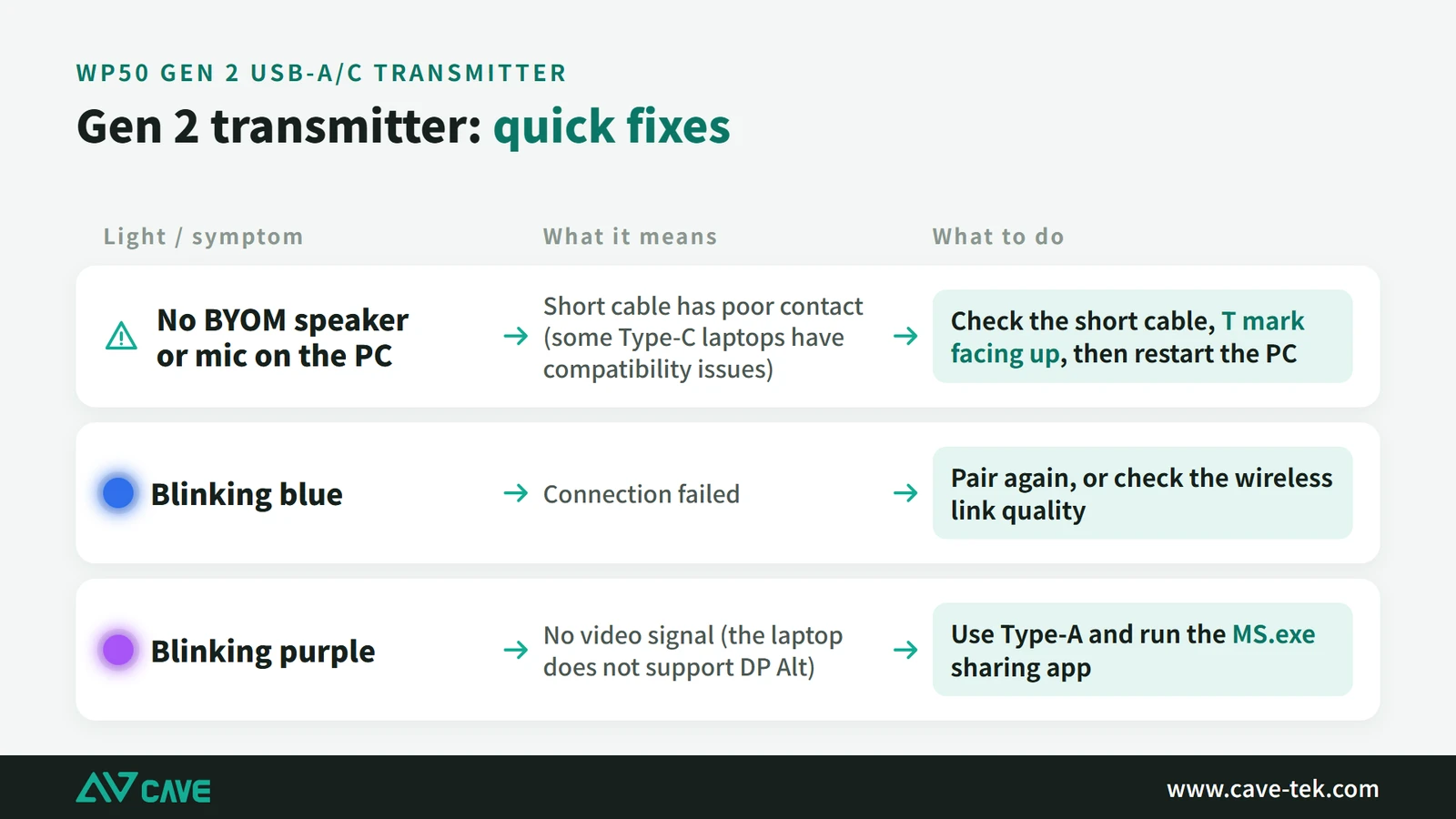
- The computer can’t find the BYOM camera or microphone: check the transmitter’s cable is plugged in properly, then restart the computer
- The transmitter light keeps flashing and won’t connect: pair it again, or check the Wi-Fi signal
- Connected but no picture: the USB-C port on some laptops doesn’t output video; use an ordinary USB port and run the presentation program on the transmitter
- Frozen picture or broken audio: turn the camera off and keep the audio, then adjust the base unit position or Wi-Fi channel after the meeting
- Still not working: restart the base unit, unplug and replug the transmitter, and finally restart the computer
Suggested setups by room size
BYOM makes meetings simple, provided three things are done well: the right camera and speakerphone, a good Wi-Fi signal, and proper extension cables for the wired part. Wi-Fi is where problems most often start and where time is best spent, so after installation test at every seat. Here are common combinations by room size:
| Room | Camera | Audio | Wireless meeting |
|---|---|---|---|
| Small | SP-1100 | Built in | WP-50 |
| Small | A01 | SM-500 | WP-50 |
| Medium | S12+ | SM-500 ×2–3 | WP-50 |
| Large | P20i, TX20i | DMA-702 or SM-500 ×4 | WP-50 |
Every room differs in size, partitions and the wireless environment around it, and the same equipment can behave very differently in another space. If you can’t decide, contact us. We can look at where things should go and whether you need an extender.
Contact us about your meeting room ›
Back to “What is BYOM”: room sizes, and how WP-50 joins the equipment already in the room ›
Products in this guide
FAQ
What’s the difference between BYOM and BYOD?
BYOD (wireless presentation) shows a laptop screen on the display; BYOM (wireless conferencing) lets the laptop use the room camera and microphones for a video call, which needs far more bandwidth.
Which conferencing apps work with BYOM?
The room camera and microphones appear to the laptop as standard USB devices, so Microsoft Teams, Google Meet, Zoom and Webex all work.
The signal is unstable in a large room — what can I do?
Centre the receiver with a clear line of sight to the transmitters, or add a Wi-Fi extender, and test connection quality at each seat.
How many devices can connect to WP-50?
WP-50 supports up to 64 connected devices and up to 9 split-screen views.
The planning advice in this guide is general reference. Actual results vary with the room, the equipment and the network. Product specifications follow the manufacturer's documents; we recommend contacting us for an assessment first.
More guides
What is BYOM? How Wireless Video Meetings Work, and How to Set Up Small, Medium and Large Rooms
BYOM stands for Bring Your Own Meeting: you run the video call on your own laptop and use the room camera, microphone and speaker. This guide explains how BYOM works, how it differs from BYOD, how small, medium and large rooms differ, and how WP-50 connects to the equipment already in the room.
Wireless Presentation for Meeting Rooms: AirPlay, Miracast and Transmitters Explained
You want to put a laptop or phone screen on the meeting room display without hunting for cables and adapters. This guide covers the ways to present wirelessly, what to watch for in picture quality and the network, and what native 4K in and 4K out really means.
Huddle Room Setup: One USB Cable, 2 to 6 People on a Call
A huddle room is used all the time and looked after by no one. This guide compares the three simplest setups: the SP-1100 all-in-one, the J01i with an SM-500 (UCB-S), and the A01 with an SM-500, and how to choose by headcount, room size and room to grow.