What is BYOM? How Wireless Video Meetings Work, and How to Set Up Small, Medium and Large Rooms
BYOM stands for Bring Your Own Meeting: you run the video call on your own laptop and use the room camera, microphone and speaker. This guide explains how BYOM works, how it differs from BYOD, how small, medium and large rooms differ, and how WP-50 connects to the equipment already in the room.
Short answer
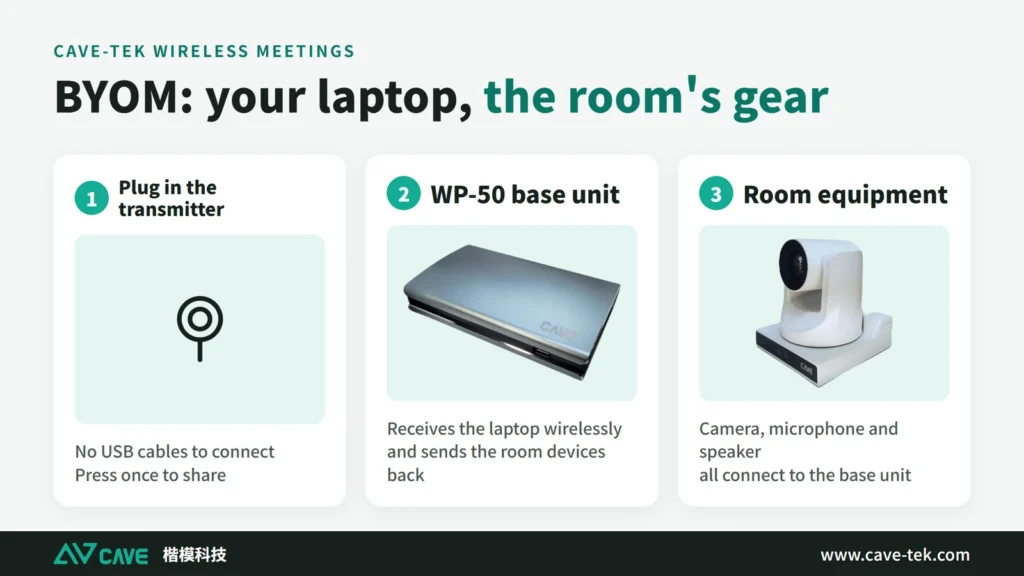
BYOM means Bring Your Own Meeting. Instead of using a shared room computer, each person starts the video meeting on their own laptop, in whatever app they already use, such as Teams, Google Meet or Zoom. The laptop then connects to the camera, microphone and speaker of the room, by cable or wirelessly. The meeting runs on your device; the room supplies the picture and sound. It differs from BYOD, which usually means only sharing your screen. Wireless BYOM is live video, so stable Wi-Fi matters more than anything else. Rooms of different sizes differ mainly in how many cameras and microphones they need, how they are connected, and where the base unit and the signal go.
Key takeaways
- BYOM = Bring Your Own Meeting: your laptop hosts the call, the room provides camera and audio
- It differs from BYOD, which usually means only sharing your screen
- Wireless BYOM is live video, so stable Wi-Fi matters more than anything else
- A small room needs one all-in-one camera; a large room has several cameras, existing microphones and wider signal coverage to deal with
- To the computer, WP-50 is a standard USB camera and microphone, and it accepts USB cameras, HDMI cameras and the audio equipment already in the room
Meeting rooms used to have a fixed computer or a dedicated conferencing unit. Everyone had to learn that one system, and it only worked with one meeting service. BYOM turns this round: people bring the meeting with them on their own laptop, and the room only has to provide good video and sound.
This guide first explains what BYOM is, how it works and how it differs from BYOD. Then it looks at what changes between small, medium and large rooms, and how WP-50 connects to the equipment already in the room. For the step-by-step installation plan, continue with the BYOM planning guide.
BYOD and BYOM have three guides, each for one job: to put a screen on the big display, read the first; to understand BYOM, read the second; to install it, read the third.
| Guide | What you will learn |
|---|---|
| BYOD: choosing wireless presentation › | AirPlay, Miracast and transmitters, what native 4K in and out means, and what to watch on the network |
| BYOM: what is BYOM (you are reading this one) | What it means, how it differs from BYOD, wired and wireless, small, medium and large rooms, and how WP-50 joins existing equipment |
| BYOM: how to plan it › | The 7 installation steps: Wi-Fi, extension cables, software tests, seating and echo, and troubleshooting during meetings |
What does BYOM mean?
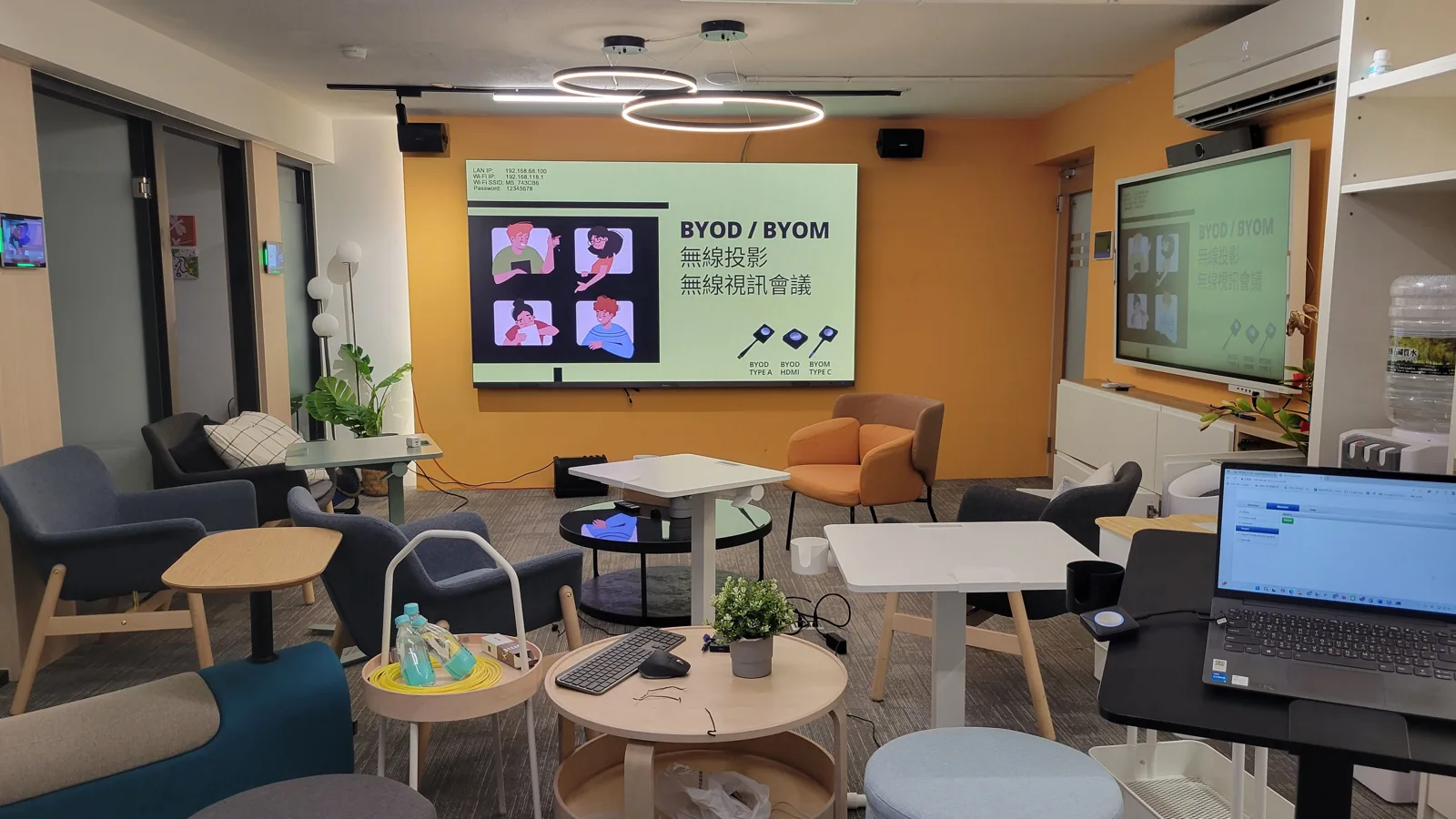
BYOM is short for Bring Your Own Meeting. You join or host a video meeting from your own laptop, and the camera, microphones and speakers of the room appear on the laptop as if they were plugged straight into it. In the meeting app you simply choose the room camera, the room microphone and the room speaker.
Because the meeting runs on your own device, it does not matter which service the other side uses. One room works for Teams in the morning, Google Meet at noon and Zoom in the afternoon, with nothing to switch.
BYOM and BYOD: what is the difference?
| BYOD | BYOM | |
|---|---|---|
| Stands for | Bring Your Own Device | Bring Your Own Meeting |
| What the laptop sends | Its own screen, to the room display | Its own screen, and it also receives the room camera and sound |
| Used for | Presenting in the room | Video meetings with people elsewhere |
| Bandwidth needed | Lower (about 5 Mbps) | Roughly 5 to 10 times more (about 30 Mbps or more) |
In short: BYOD puts your presentation on the big screen. BYOM does that too, and also lets the people on the far side see and hear the whole room through the equipment in the room.
How to choose wireless presentation (wireless screen sharing) ›
How does BYOM work? Wired and wireless
The camera and speakerphone of the room are connected to a base unit. Your laptop connects to that unit, and the unit passes the camera and sound to the laptop as standard USB devices, so no driver or special software is needed.
Wired BYOM
The camera and speakerphone connect to the laptop with USB cables, usually through a hub. It is simple and stable, and suits a small room where the laptop always sits in the same place. The drawback is the cable: the host has to sit next to it, and every change of presenter means unplugging and plugging in again.
Wireless BYOM
A small transmitter plugs into the laptop. It sends the laptop screen to the room display and, at the same time, brings the room camera and sound back to the laptop over Wi-Fi. Anyone at the table can host, and changing host takes one press. CAVE WP-50 is a system of this kind.
Why does wireless BYOM need so much from Wi-Fi?
Network trouble is the most common problem with wireless BYOM, for three reasons:
- It is live: a video meeting cannot download a piece first and play it later, as video streaming does. What you say has to reach the other side at once, so the connection must stay stable without breaks.
- It carries more data: so that every meeting app recognises the base unit as a USB camera, BYOM uses a common but larger video format, which needs about 30 Mbps or more, 5 to 10 times as much as wireless screen sharing.
- Video is far bigger than sound: more than 90% of the traffic is video.
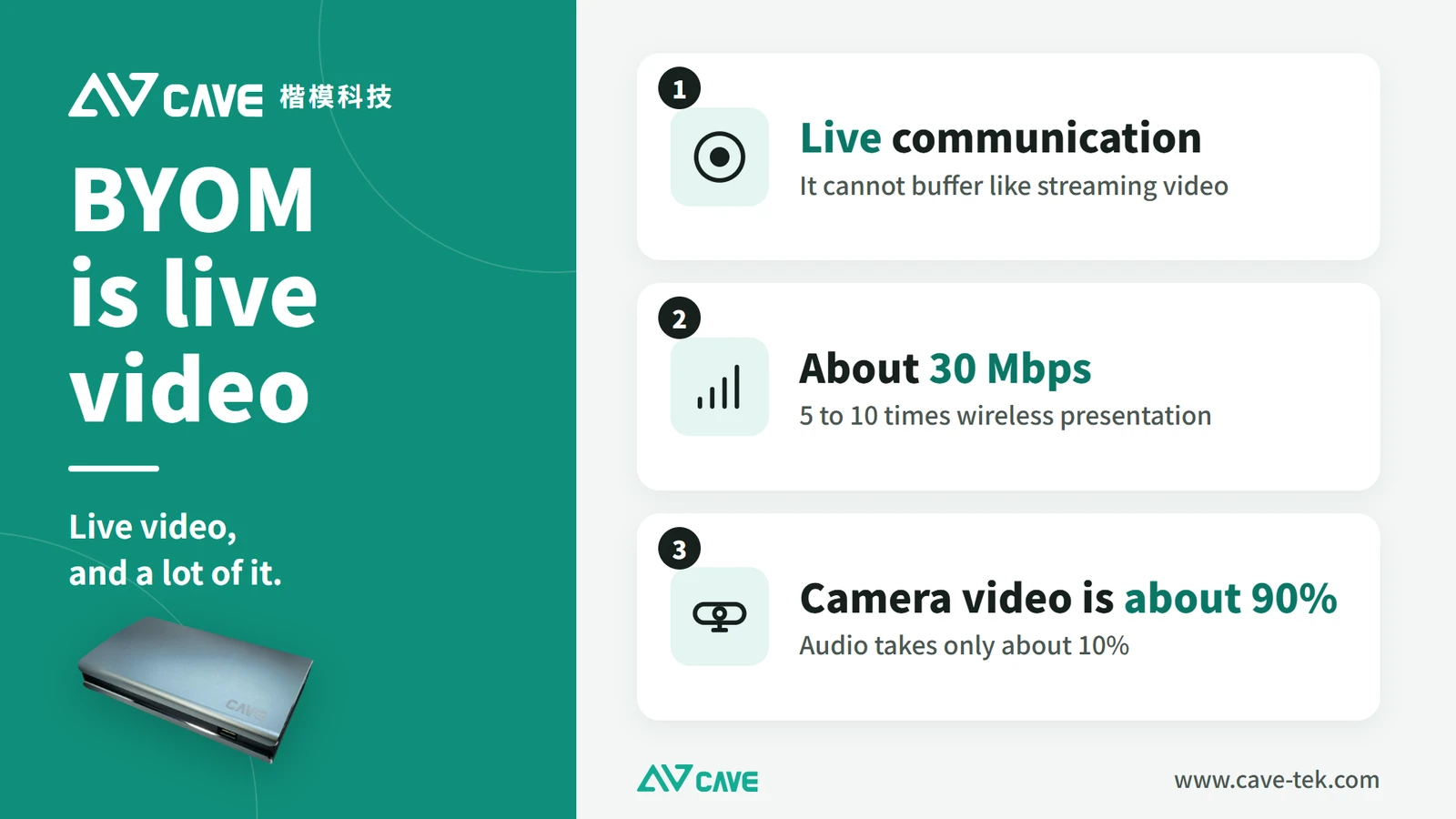
So when the signal is poor, turn your own camera off and keep the sound: the data needed drops by more than half, and the meeting can usually carry on. For long-term stability, aim for three things: a steady 30 Mbps or more, no interference, and nothing between the base unit and the transmitter.
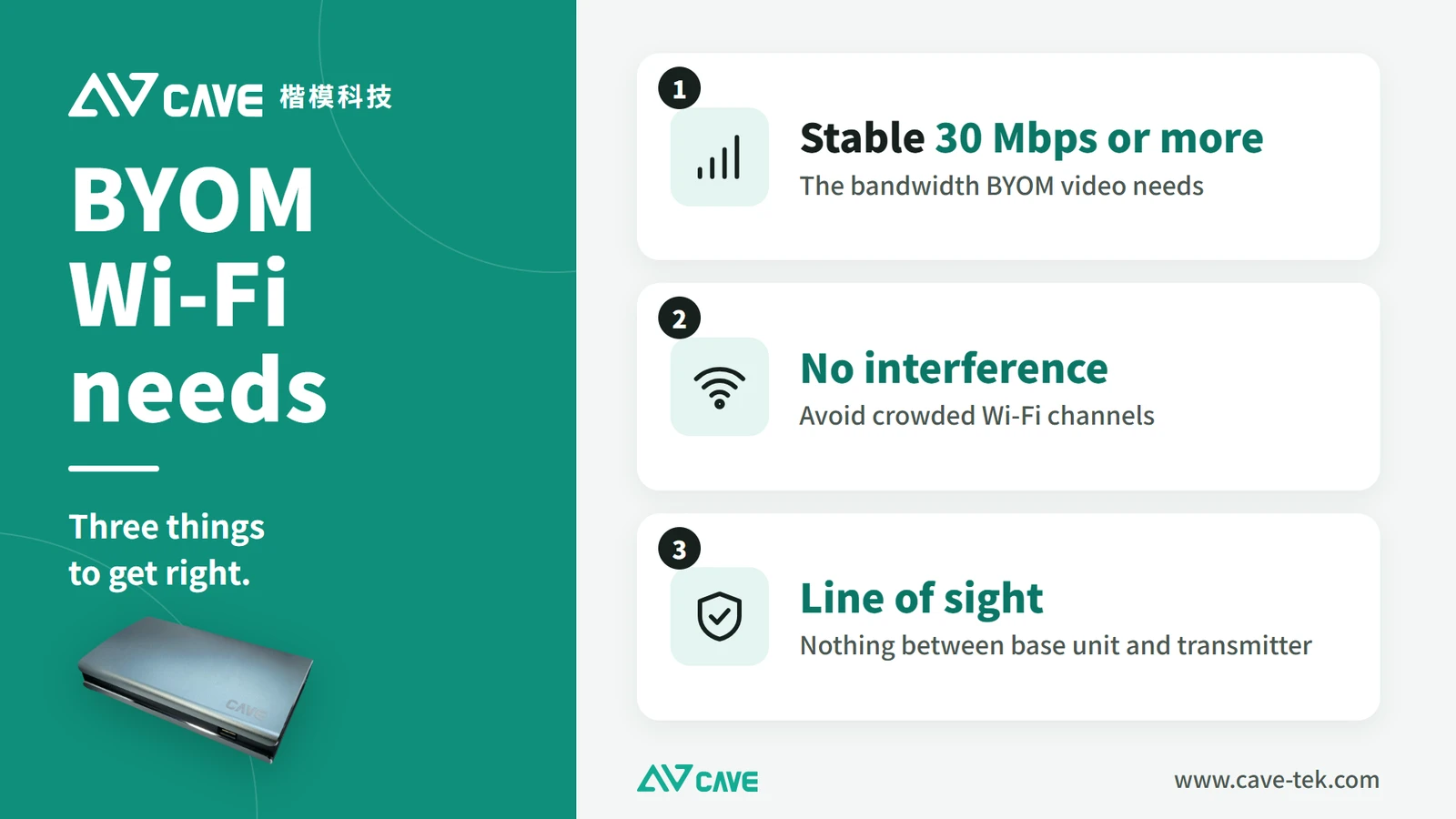
Place the base unit in the middle of the room, not on the floor, in a corner or inside a cabinet, with a clear line of sight to the transmitter. After installation, walk to every seat with a Wi-Fi checking tool on a phone or laptop; a reading between -45 and -65 dBm is a good target. Then run a real video meeting to test.
Small, medium and large rooms: how does BYOM differ?
The idea is the same, but the job changes with the size of the room. In a small room the goal is simplicity. In a large room it becomes integrating several cameras, the microphones already there, and signal coverage.
| Camera | Sound | Connection and what to watch | |
|---|---|---|---|
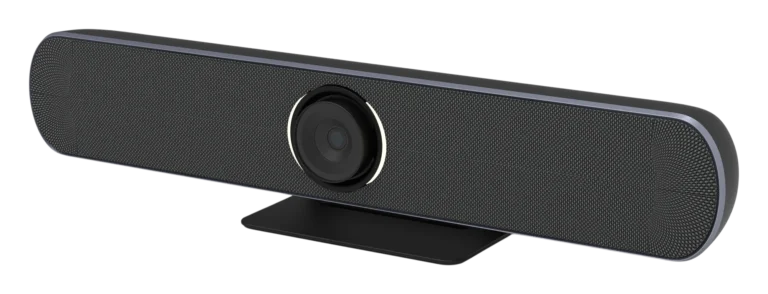
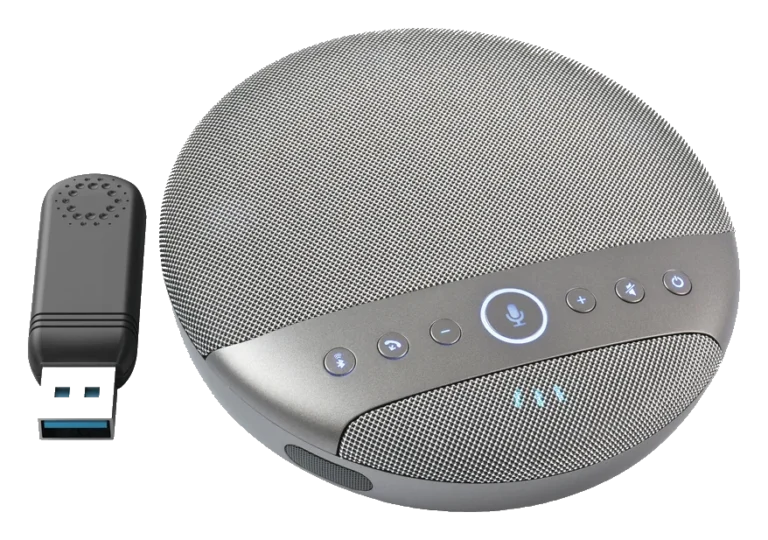
| Small | All-in-one camera (SP-1100), or A01 or A01SE plus SM-500 | Built into the all-in-one, or SM-500 | USB straight into WP-50. Put the base unit in the middle with a clear line of sight |
| Medium | S12+ | SM-500 x2-3 | USB into WP-50. Seats are spread out, so test the signal at every seat |
| Large | P20i (TX20i for very large rooms or when you need close-ups) | DMA-702 or SM-500 x4, or keep the microphones and sound system already there | Cameras over HDMI, sound through a USB audio device. Plan the base unit position, extenders and extension cables |
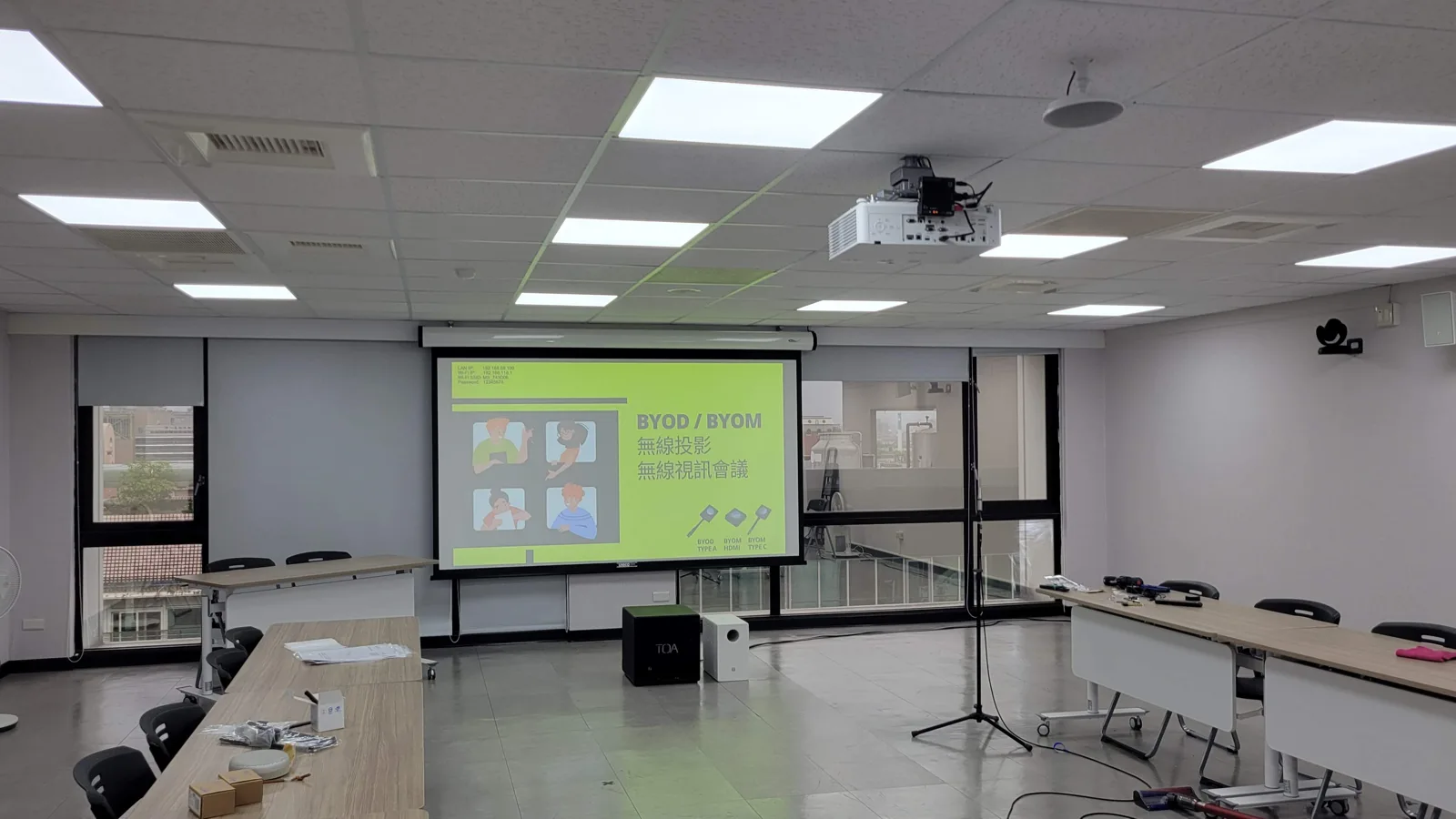
Small rooms: one USB cable and you are done
The usual small-room setup is WP-50 connected to the display, plus an all-in-one video camera on USB. For a wider picture and better pickup, use A01 or A01SE with SM-500. If the base unit sits in the middle of the room with a clear line of sight to the transmitter, it normally works reliably. Only when the unit has to go in a rack or behind the display do you need to think about an extender.
Medium rooms: seats are spread out, so test every position
People sit further apart in a medium room. We suggest S12+, which has optical zoom, and two or three SM-500 units to cover the whole table. Signal is the main point at this size: put the base unit in the middle, away from corners and cabinets, and after installation measure at every seat.
Large rooms: several cameras, existing microphones, a whole system
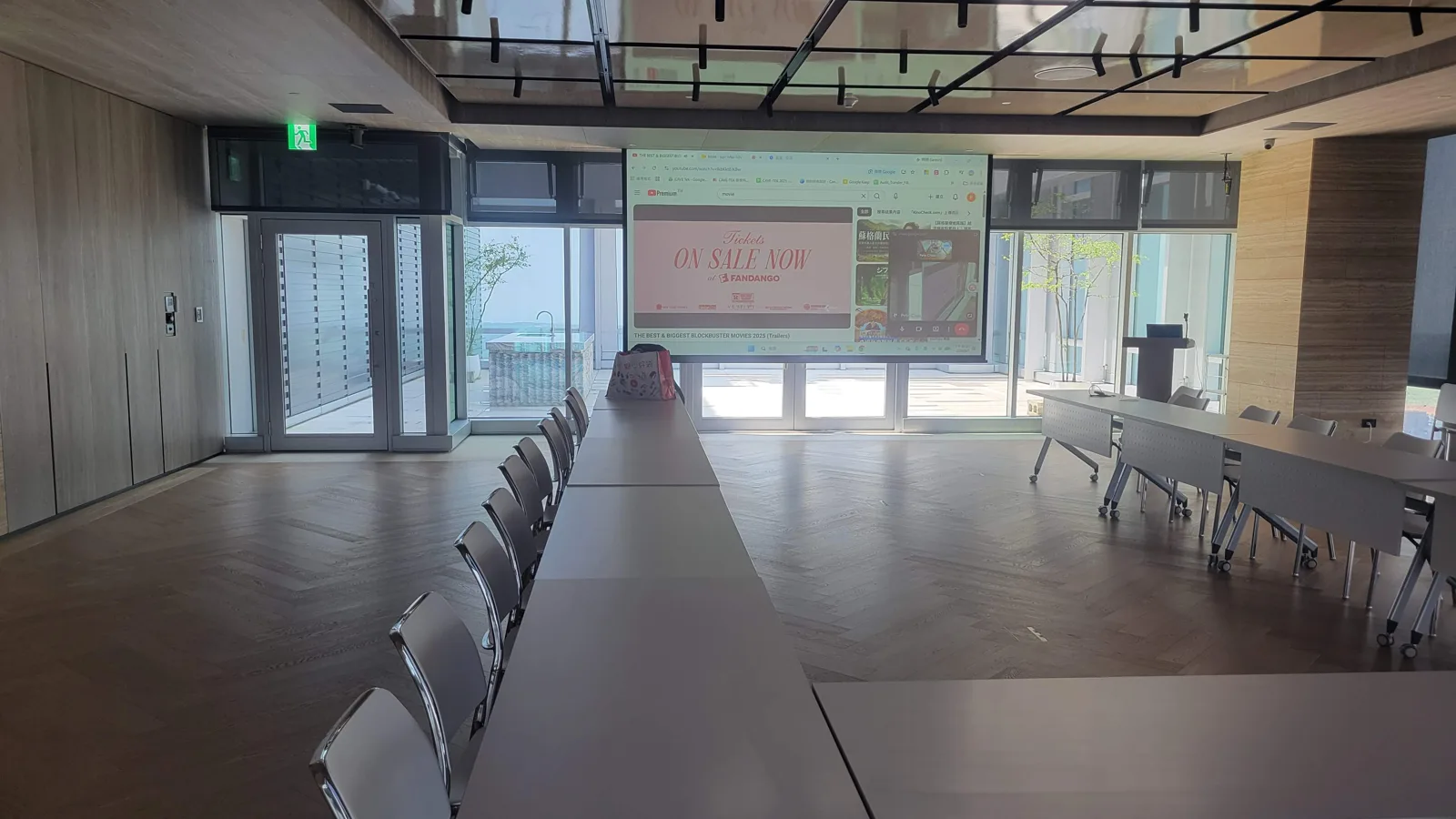
A large room usually already has equipment: several PTZ cameras and its own microphones and sound system. With BYOM the point is to connect those, not to replace them. With WP-50, several PTZ cameras go through an HDMI matrix or splitter into the HDMI input of the unit, and the existing microphones and sound system are brought in through a USB audio device. To the laptop the whole system is still just one camera and one microphone and speaker.
Three things need extra care in a large room:
- Base unit position and coverage: the deeper or longer the room, the more the signal at each seat matters. If the unit has to go in a rack, add an extender and place it in the middle of the room to receive in place of the unit; in a bigger space add more, and keep away from the floor, corners and large panes of glass that reflect the signal.
- Cable length: the run from cameras and microphones to the base unit is wired, and over ten metres or more USB and HDMI need professional extension solutions. A random extension cable is often the reason a camera is not detected or the picture flickers.
- Testing on site: for an HDMI camera, open the management page of the unit and change the camera type to HDMI camera; after the audio equipment is added, test every meeting app.
Read the wireless video meeting (BYOM) planning guide, step by step ›
How does WP-50 join the equipment already in the room?
To the computer, WP-50 is a standard USB camera (UVC) and a USB microphone and speaker (UAC), so it works with any meeting software and needs no driver. On the room side, this is what it connects to:
| What to connect | How | Where it fits |
|---|---|---|
| USB cameras, all-in-one cameras | USB port | Small and medium rooms |
| HDMI cameras, switchers, splitters | HDMI input | Large rooms with several PTZ cameras, or an existing production system |
| USB speakerphones, audio processors | USB port | New pickup, or bringing in existing microphones and sound system |
| Display | HDMI output | Shows presentations and shared screens |
| Speakers or sound system | 3.5 mm audio output | Sends meeting sound to the room sound system |
The HDMI input can also serve as a wired backup: connect an HDMI cable in addition to the wireless link, and that picture can join the split screen too. The same WP-50 also handles wireless presentation: up to 64 devices connected at once and 9 pictures on screen (sources up to 720P with 9 pictures, 1080P with 4, 4K for a single picture), and phones and tablets can cast with AirPlay or Miracast without a transmitter.
Whether the microphones and sound system already in the room need an audio processor, and how to connect it, depends on the equipment on site. We suggest having a professional team assess it first, and the first setup is best done by professionals.
If something goes wrong in a meeting, check these first
Wireless meetings occasionally fail to connect or show no picture, and most cases can be fixed on the spot. The three most common: the laptop cannot find the camera or microphone, so check the transmitter is plugged in properly and restart the laptop; the picture freezes or sound breaks up, so turn the camera off and keep only sound; connected but no picture, because the Type-C port on some laptops does not output video, so use a standard USB port and run the presentation program in the transmitter.
Before an important meeting, test in the room once, and check in the meeting app that the room camera, microphone and speaker are selected. The planning guide has the full troubleshooting order.
Summary
BYOM lets everyone meet from the laptop and software they know, while the room only has to provide good video and sound. A small room is done with one all-in-one camera and one USB cable. In a large room the work becomes integrating several cameras and the existing microphones, and making sure the Wi-Fi reaches every seat. In a room of any size, the signal is the place to spend time, so after installation always test at every seat.
Every room differs in size, partitions and the wireless environment around it, and the same equipment can behave very differently in another space. If you cannot decide, contact us. We can look at where things should go and whether you need an extender.
Next: the wireless video meeting (BYOM) planning guide, step by step ›
How to choose a meeting room camera ›
How to choose a conference speakerphone ›
Ask us about CAVE wireless video meeting solutions ›
* SE stands for single output: the A01SE has the same picture specifications as the A01 but only a USB output, with no HDMI. If you need HDMI output, choose the A01.
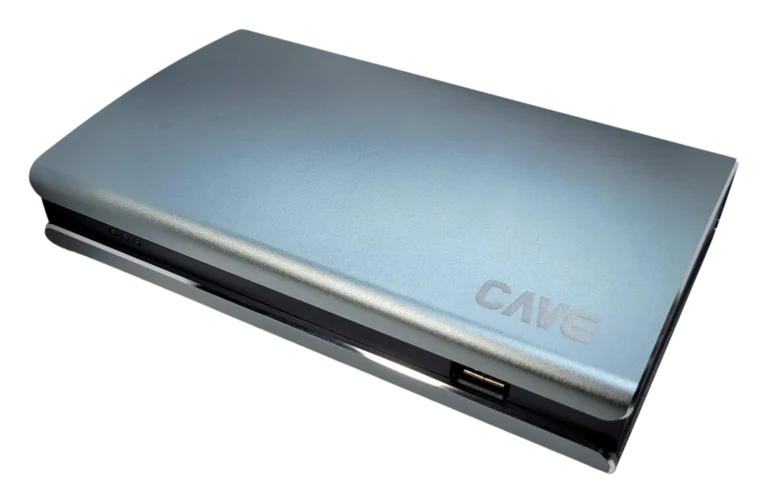
Products in this guide
FAQ
What does BYOM stand for?
Bring Your Own Meeting: you run the video call on your own laptop and use the camera, microphone and speaker of the meeting room.
How is BYOM different from BYOD?
BYOD (Bring Your Own Device) usually means sending the screen of your device to the room display for a presentation. BYOM also lets the people on the far side see and hear the whole room through the room camera and microphone, so you can run a video meeting. BYOM also needs more bandwidth than screen sharing, roughly 5 to 10 times as much.
Does BYOM need software or drivers?
No. The camera and speakerphone of the room are connected to the base unit, which presents them to your laptop as a standard USB camera and USB audio device. Teams, Google Meet and Zoom can use them directly.
Which is better, wired or wireless BYOM?
It depends on the room. Wired BYOM uses a USB cable and is simple and stable, best for a small room where the laptop always sits in the same place. Wireless BYOM uses a transmitter, so anyone can host from their seat and switching presenters takes one button press. It suits larger rooms with scattered seating, but the Wi-Fi has to be right.
How does BYOM differ between a small room and a large room?
A small room usually uses one all-in-one camera (or a camera plus a speakerphone) plugged into the base unit with USB. A large room has more to deal with: several PTZ cameras go through an HDMI matrix or splitter into the base unit, the microphones and sound system already in the room are brought in through a USB audio device, and a deep room needs a good base unit position and possibly an extender.
Which cameras and microphones can WP-50 connect?
For video, it accepts USB (UVC) cameras and the picture from HDMI cameras, switchers or splitters. For sound, it accepts USB (UAC) speakerphones or audio processors. So PTZ cameras and an existing production system can all be used.
Can the microphones and sound system already in the room still be used?
Yes. They connect to WP-50 through a USB audio device, such as an audio processor, and WP-50 presents the result to the laptop. Whether you need a processor and how to connect it depends on the equipment in the room, so we suggest having a professional team assess it, and the first setup is best done by professionals.
What if wireless BYOM freezes or breaks up?
Check the network first. Put the base unit in the middle of the room with a clear line of sight, away from the floor, corners and cabinets; pick a Wi-Fi channel that is not crowded and test it; in a large room add an extender. If bandwidth is short, turn your own camera off first and the connection will usually hold.
The planning advice in this guide is general reference. Actual results vary with the room, the equipment and the network. Product specifications follow the manufacturer's documents; we recommend contacting us for an assessment first.
More guides
How to plan a wireless BYOM meeting room: meet from your own laptop, no cables
Walk into the room, open your own laptop and start the meeting with the room's camera and microphones, without plugging in a tangle of cables. Here is what BYOM is, why Wi-Fi matters most, and how to set it up step by step.
Wireless Presentation for Meeting Rooms: AirPlay, Miracast and Transmitters Explained
You want to put a laptop or phone screen on the meeting room display without hunting for cables and adapters. This guide covers the ways to present wirelessly, what to watch for in picture quality and the network, and what native 4K in and 4K out really means.
Huddle Room Setup: One USB Cable, 2 to 6 People on a Call
A huddle room is used all the time and looked after by no one. This guide compares the three simplest setups: the SP-1100 all-in-one, the J01i with an SM-500 (UCB-S), and the A01 with an SM-500, and how to choose by headcount, room size and room to grow.