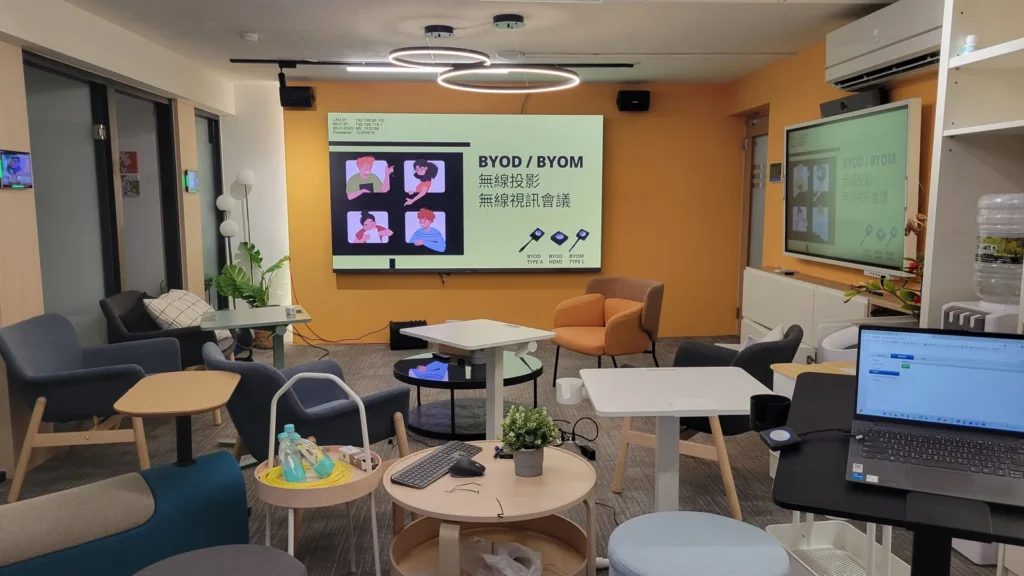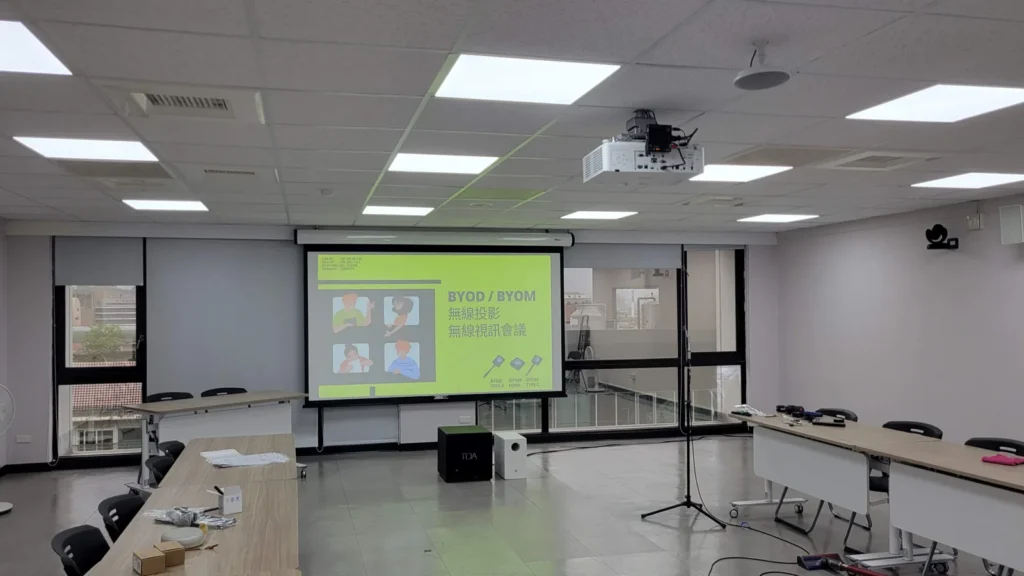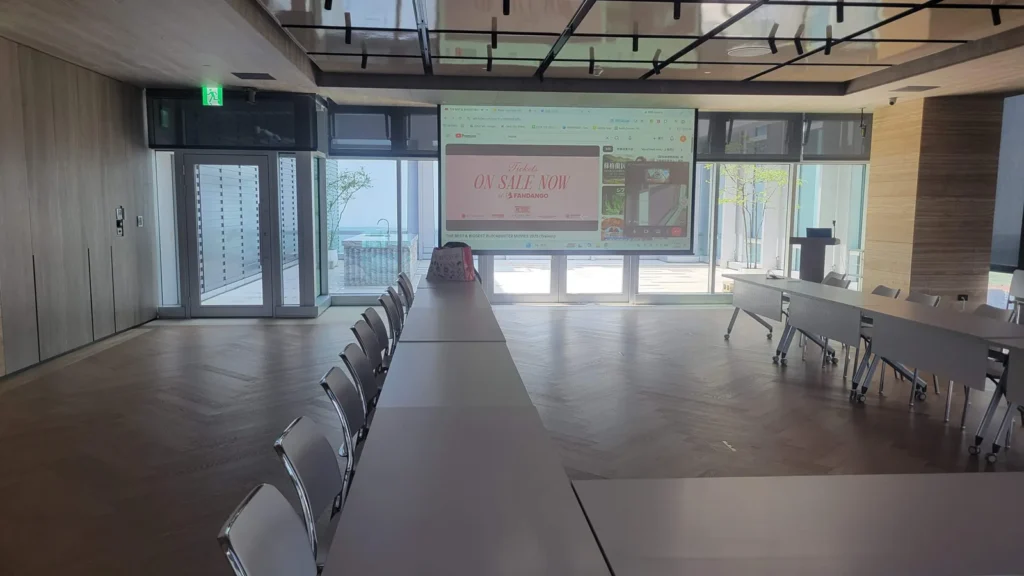
Wireless presentation
Bring your own meeting
Split-screen views
and Miracast
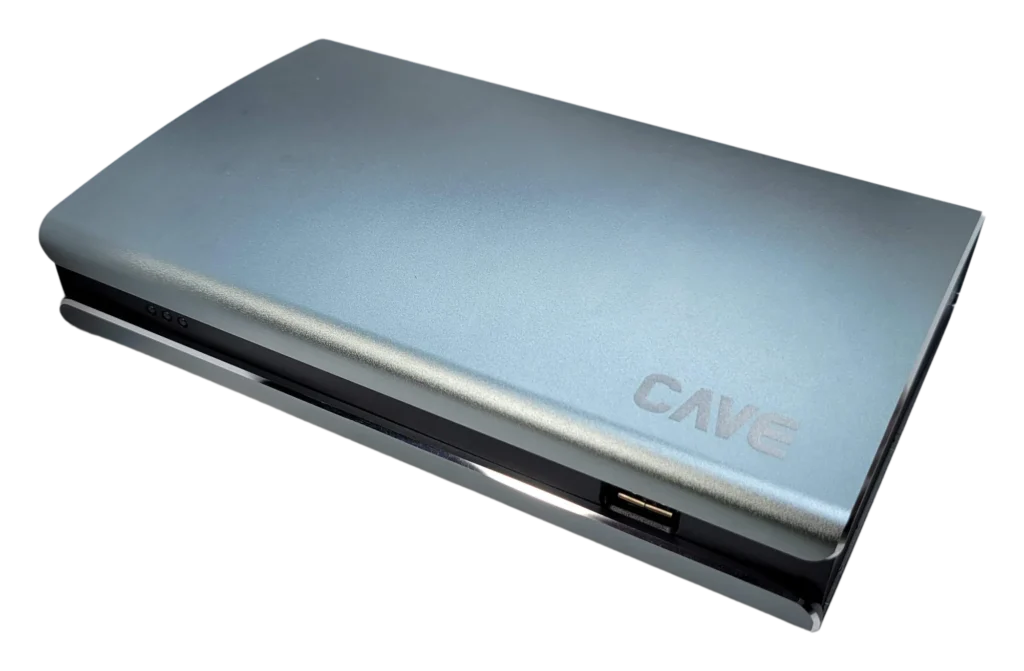
WP-50 is a base unit for wireless presentation and wireless video conferencing (BYOM). Plug a transmitter into your own laptop to show your screen on the big display and, at the same time, use the room's camera, microphones and speakers wirelessly for Teams, Google Meet or Zoom.
01BYOM wireless conferencing
Your own laptop, the room's equipment.
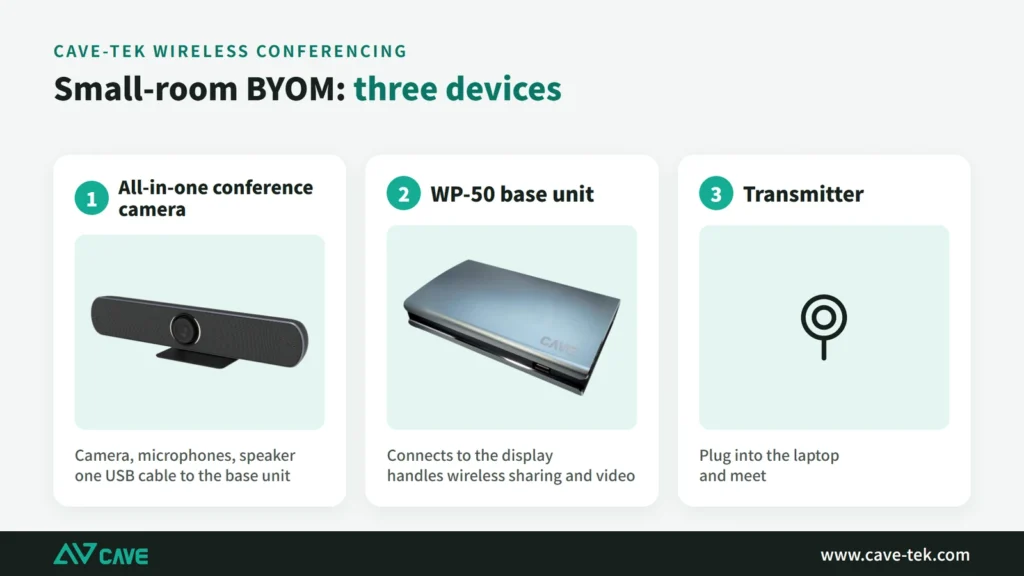
The room's camera and speakerphone connect to WP-50. The laptop needs no USB cable, no software and no Wi-Fi set-up. Plug in the transmitter and the laptop gains a camera, a microphone and a speaker; to change host, press the transmitter once.
02Plug-and-play transmitter
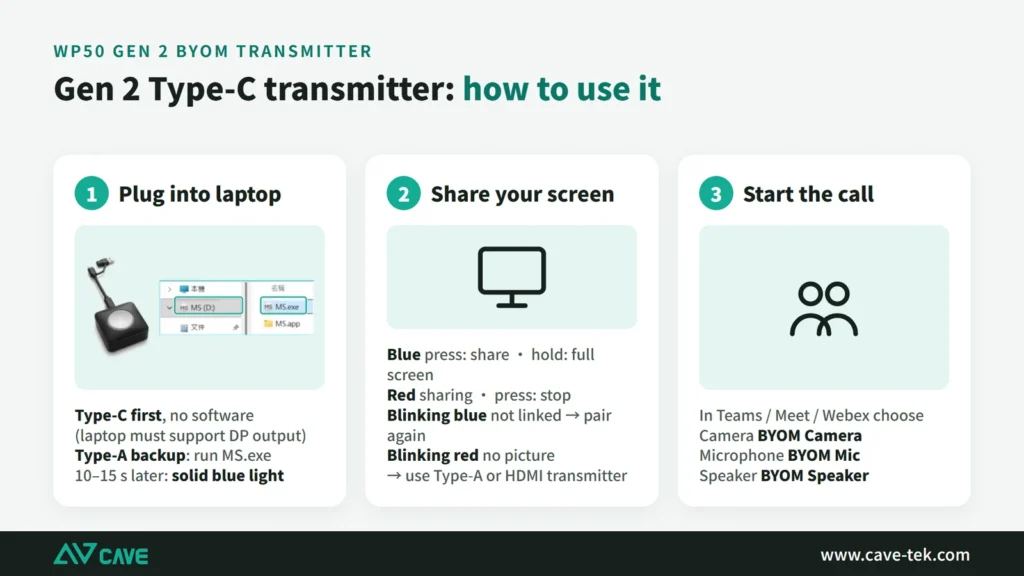
Plug in Type-C, press once, and you are sharing.
The Type-C transmitter works as soon as it is plugged in, with no software to install (the laptop's Type-C port must support video output). If it doesn't, use Type-A and run the sharing app stored on the transmitter. An optional HDMI transmitter lets any device with an HDMI output share its screen. The Gen 2 Type-C/A transmitter and the HDMI transmitter both support 4K, and there is a sharing app for Windows.
03Works with every meeting app
Teams, Google Meet, Webex: meet the way you always do.
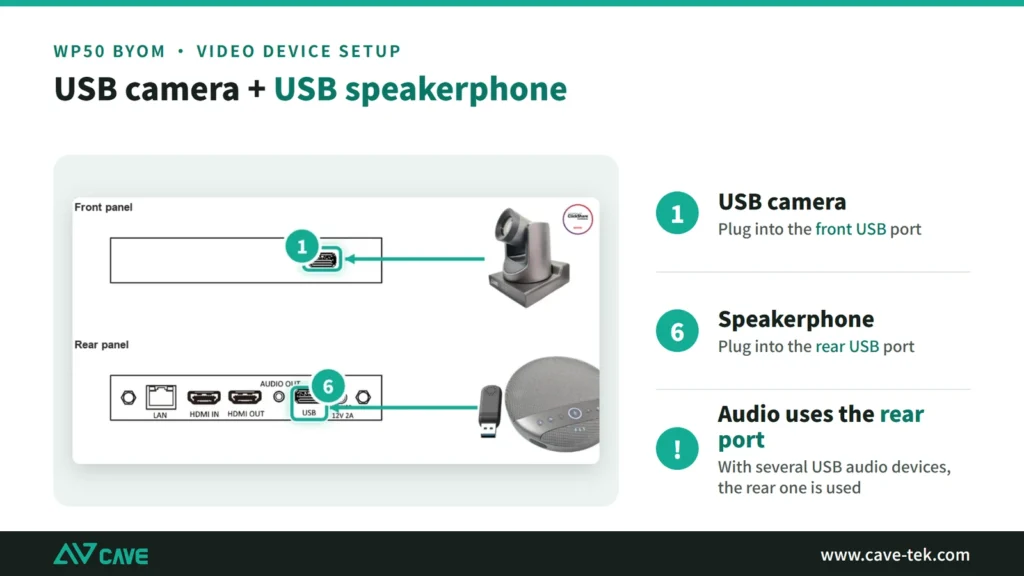
To the computer, WP-50 is a standard USB camera and a USB microphone and speaker (UVC, UAC), so it works with any conferencing app. On the room side it takes USB cameras from CAVE, Logitech, Poly and others, and USB conference speakerphones or audio processors.
04USB and HDMI cameras
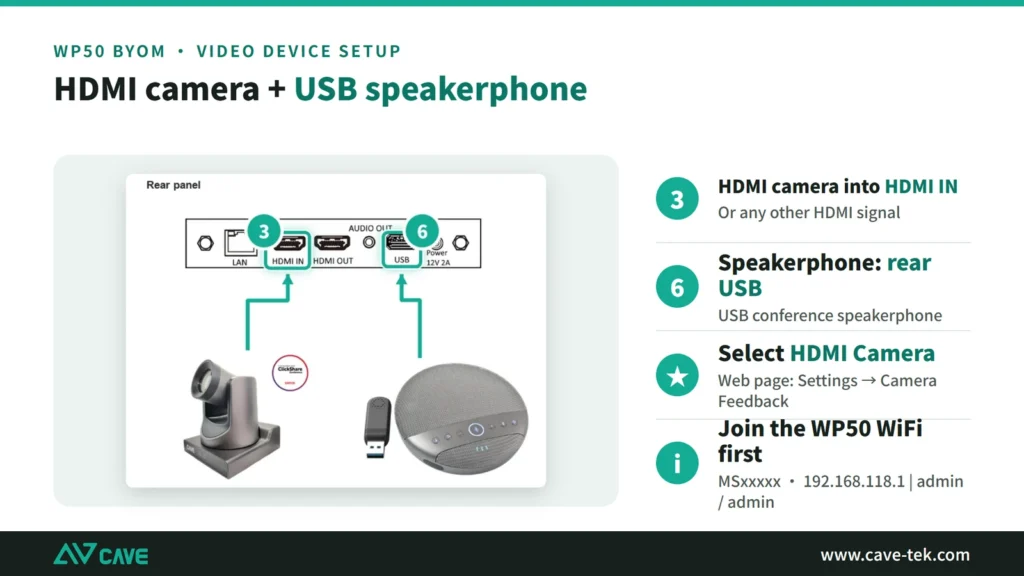
The PTZ cameras in a large room connect too.
As well as USB devices, WP-50 takes an HDMI video source, so USB camera compatibility is not a concern. An HDMI camera, a switcher or a multiviewer can all be brought into the video meeting, which makes wireless conferencing possible in medium and large rooms with several PTZ cameras. The HDMI input also serves as a wired fallback: a device on an HDMI cable can join the split screen alongside the wireless sources.
054K wireless presentation
Up to 9 screens shown at once.
Input and output are native 4K, not upscaled 1080p. Up to 64 devices can be connected and 9 shown in split screen. Windows and Mac use the transmitter; Android phones and tablets use Miracast, and iPhone and iPad use AirPlay, with no transmitter needed. Touch-back control of a touch display is supported. In split screen, sources are up to 720p with nine windows, 1080p with four, and 4K for a single source. Certified by NCC and BSMI in Taiwan.
06Installation and wireless signal
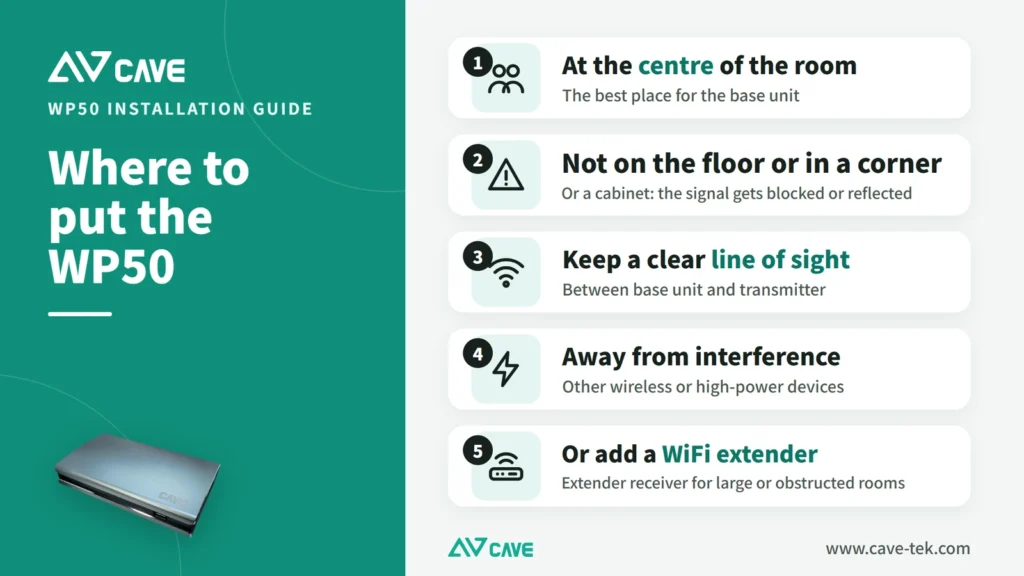
Put the base unit in the right place for a steady signal.
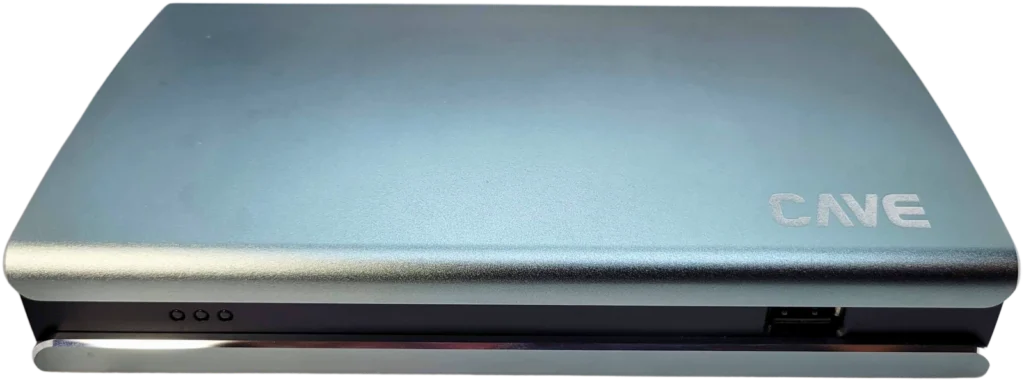
WP-50 has 5GHz Wi-Fi 5 (802.11ac) built in. Place the base unit in the middle of the room, not on the floor, in a corner or in a cabinet, with nothing between it and the transmitter. It has HDMI in and out, two USB ports, a Gigabit network port and a 3.5 mm audio output.
07By room size
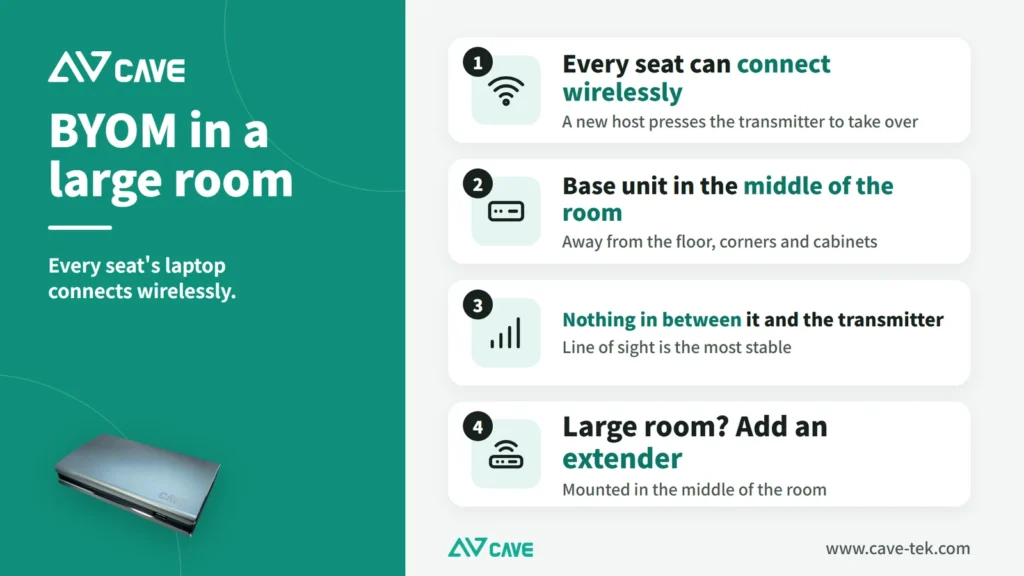
One camera in a small room, the whole system in a large one.
Small and medium rooms: WP-50 connects to the display, and one all-in-one conference camera on USB completes the set. Large rooms: the room's existing microphones and loudspeakers come in through a USB audio device, and several PTZ cameras reach the HDMI input through an HDMI matrix or splitter, so the whole system is available wirelessly.
08Extender receiver (optional)
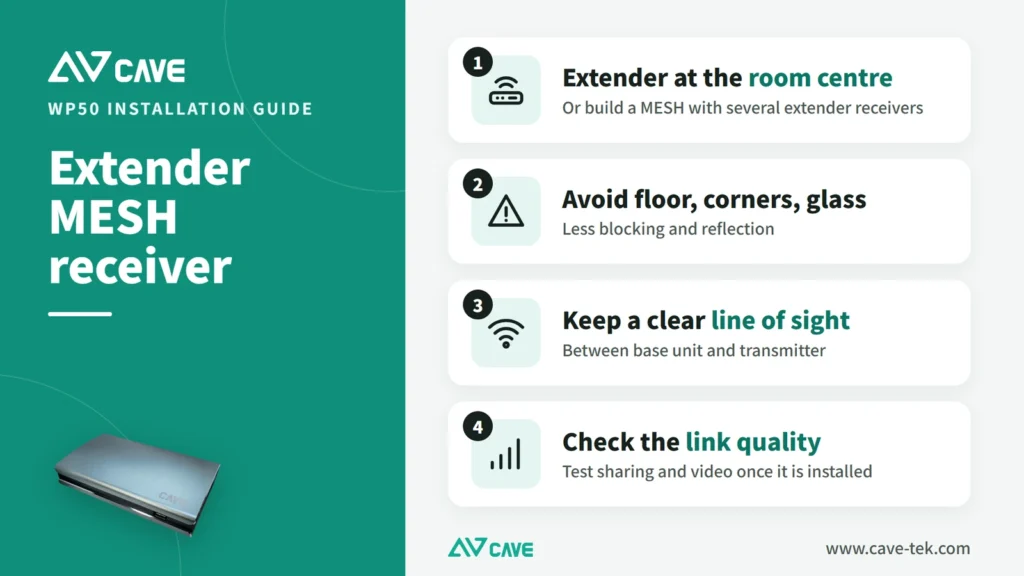
The base unit can hide in a rack and still get the signal.
Where the base unit can only go in a rack, behind the display or under the floor, add the optional WiFi 6 MESH extender receiver: it connects by network cable and sits in the middle of the room where reception is best. In a large space several can be chained as a MESH to extend coverage, and the Wi-Fi channel is optimised automatically.
Design
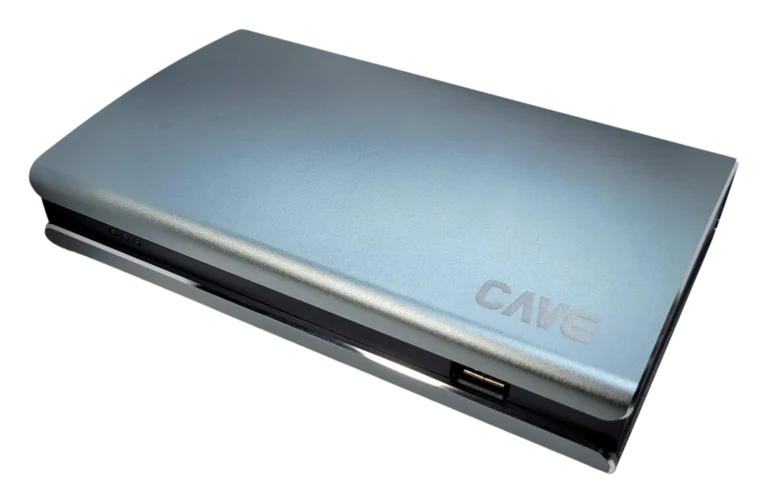
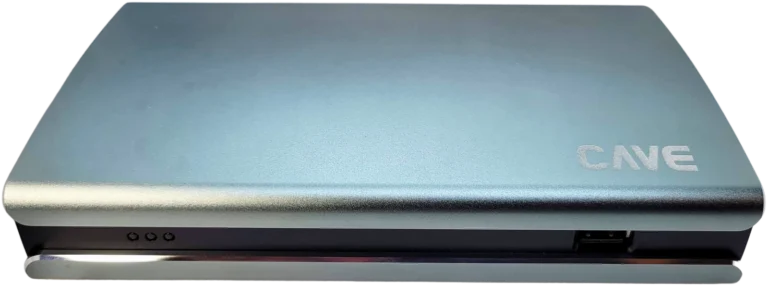
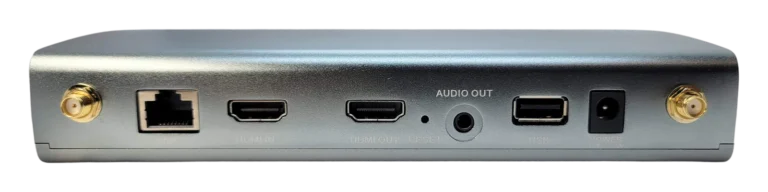
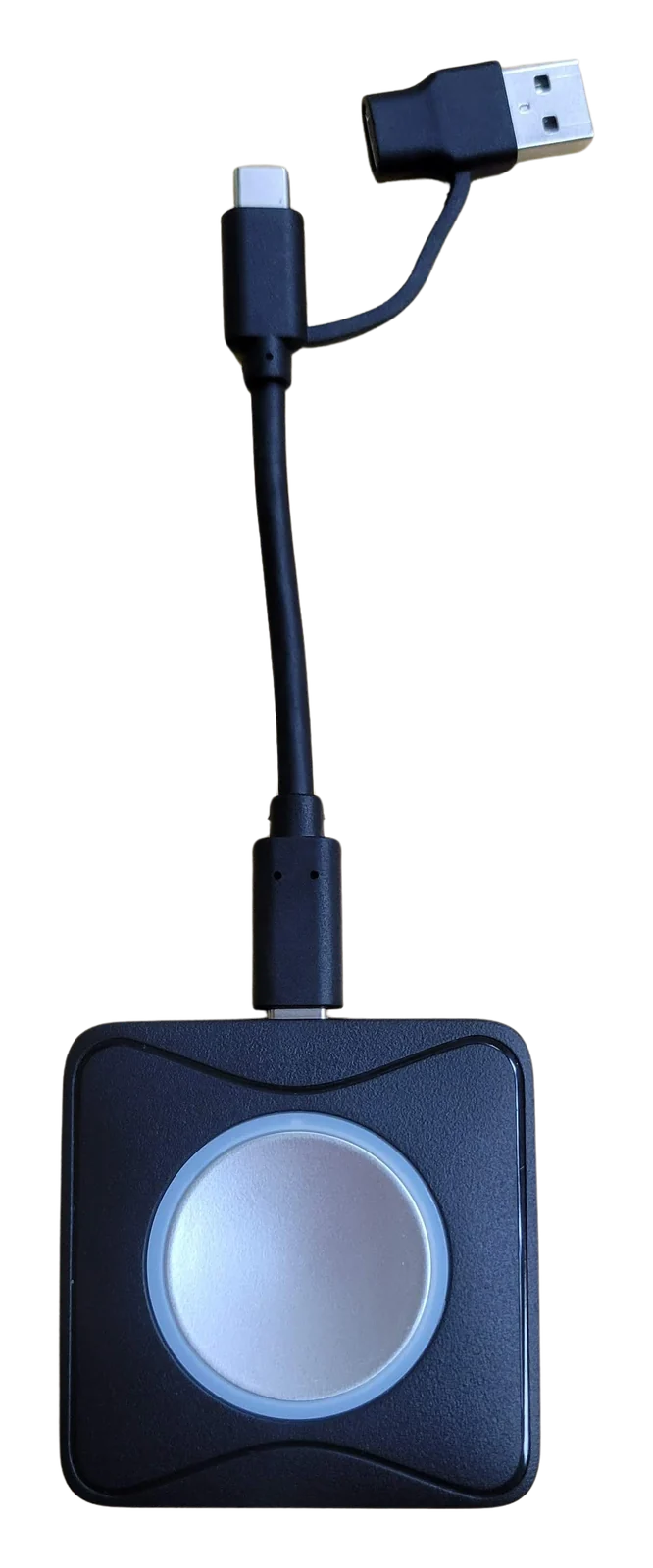
Tech SpecsTranslated from the Chinese spec sheet — pending review
Wireless Presentation (BYOD)
- Output resolutions
- 4K 4096x2160 (p60/p30), 3840x2160 (p60/p30), 1920x1080 (p60)
- Max. connections
- 64
- Max. split-screen views
- 9
- Operation System
- Windows® 7 (1080P or lower resolution), Windows 8.1, Windows 10 or higher macOS™ 10.10 or higher, iOS 14 or higher (AirPlay Mirroring) Google™ Chromebook™ 29.0.1547.70 or higher (HDMI transmitter)
- Compatible transmitters
- Type-C BYOM transmitter HDMI BYOM transmitter (optional) Type-A BYOD transmitter (optional)
- Input resolutions
- 4K 4096x2160 (p60/p30), 3840x2160 (p60/p30), 1920x1080 (p60)
- Wireless
- Wi-Fi 5, 2T2R Protocol: IEEE 802.11 ac/an Data rate: up to 1200Mbps Band: 5GHz Encryption: WPA-PSK
- AirPlay, Miracast
- AirPlay Mirroring, Miracast
- Advanced features
- Wireless touch-back control, Multicast
Wireless Video Conferencing (BYOM)
- Wireless camera
- HDMI camera, USB UVC camera
- Wireless speakerphone
- USB UAC speaker/microphone
Interface
- Video Input
- 1×HDMI
- Video Output
- 1×HDMI
- Audio Output
- 1×3.5 mm phone jack
- USB
- 2×USB 2.0 Host
- Network
- 1×RJ45 10/100/1000Mbps Ethernet
General Specification
- Input Voltage
- DC 12V / 2A
- Power Consumption
- 12W
- Dimension (WxDxH)
- 188 x 152 x 34 mm
- Weight
- 622 g
- Temperature Range
- Operating: 0°C ~ 40°C, Storage: -40°C ~ 60°C
Package
- Accessories
- WP-50 receiver, Power Adaptor, Quick Start Guide, Warranty Card
Specifications are subject to change without notice.
Downloads
FAQ
What is BYOM?
BYOM stands for Bring Your Own Meeting: you run the video meeting on your own laptop while using the room's camera, microphone and speaker wirelessly. With WP-50, plugging a transmitter into the laptop is all it takes, with no USB cables to connect.
Which cameras and microphones work with WP-50?
For video, a USB (UVC) camera or an HDMI camera, so PTZ cameras and an existing switcher can be used. For audio, a USB (UAC) speakerphone.
Can phones and tablets share to WP-50?
Yes. WP-50 supports AirPlay and Miracast. Up to 64 devices can be connected at once, with up to 9 shown on a split screen.
Related guides
Wireless Presentation for Meeting Rooms: AirPlay, Miracast and Transmitters Explained
You want to put a laptop or phone screen on the meeting room display without hunting for cables and adapters. This guide covers the ways to present wirelessly, what to watch for in picture quality and the network, and what native 4K in and 4K out really means.
What is BYOM? How Wireless Video Meetings Work, and How to Set Up Small, Medium and Large Rooms
BYOM stands for Bring Your Own Meeting: you run the video call on your own laptop and use the room camera, microphone and speaker. This guide explains how BYOM works, how it differs from BYOD, how small, medium and large rooms differ, and how WP-50 connects to the equipment already in the room.
How to plan a wireless BYOM meeting room: meet from your own laptop, no cables
Walk into the room, open your own laptop and start the meeting with the room's camera and microphones, without plugging in a tangle of cables. Here is what BYOM is, why Wi-Fi matters most, and how to set it up step by step.
Installations