How to choose a meeting-room camera: 8 things to check, starting with room size
The camera is the most visible part of a video meeting. Whether remote people can see everyone, and see them clearly, depends on it. Work through these 8 points before you choose.
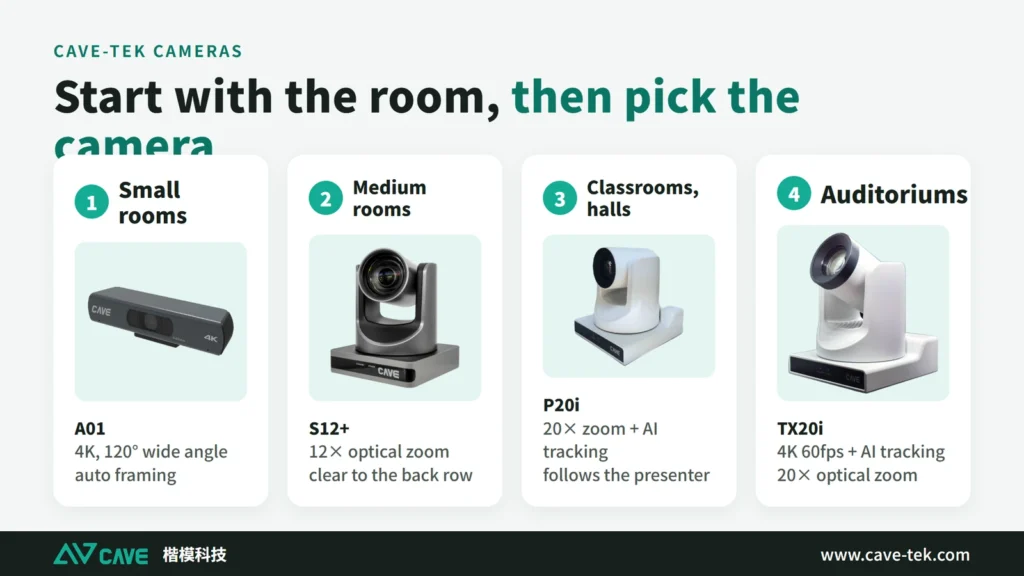
Short answer
Start by measuring how deep the room is. Up to 4 metres, use a wide-angle fixed camera that fits everyone in one shot. From 4 to 6 metres, use a 4K wide-angle camera or a PTZ camera that can be turned and zoomed by remote control. Beyond 6 metres you need an optical-zoom PTZ camera, or close-ups will be blurry. A simple rule for zoom: 12× suits rooms up to 12 metres, 20× suits rooms up to 20 metres. In classrooms and lecture halls where the presenter walks around, add AI auto tracking.
Key takeaways
- Room depth is the first thing that decides the camera
- Optical zoom stays sharp; digital zoom gets blurrier the closer you go
- A higher zoom ratio also means a narrower view at the wide end, so more is not always better
- Mount the camera near eye level and the other side sees you most naturally
The camera matters most in a video meeting because it is the only way remote people can see into the room. Put it at the right height with the right lens and the whole meeting feels better. There is no rush: here are 8 points to go through one at a time.
There are several guides on video conference rooms, each for one job. Start with “What to buy for a video conference room” for the whole picture, then read on as needed:
| Guide | What you will learn |
|---|---|
| What to buy for a video conference room (start here) › | Cameras, audio, connections, and the table of setups by room size |
| How to choose a meeting room camera (you are reading this one) | Camera by room size and headcount, PTZ, auto tracking, mounting |
| How to choose a conference speakerphone › | Fixing sound that is unclear, echo and noise, and choosing an audio setup |
| Huddle room setup › | Small rooms for 2 to 6 people: three setups and how to expand |
| Microphones for large meeting rooms › | Pickup options and how many for a big space, and how to deal with room reflections |
| How to choose a USB extension › | What to check when a short cable works but a long one fails |
| Why medium and large rooms use PTZ › | 5 reasons to use a PTZ camera (for what PTZ is, see “What is a PTZ camera”) |
1. Room size decides the type of camera
The camera is one of the most important parts of a video conferencing room. It is what lets the people at the far end see everyone in the room and feel part of the meeting. Which camera to use depends above all on the size of the room.
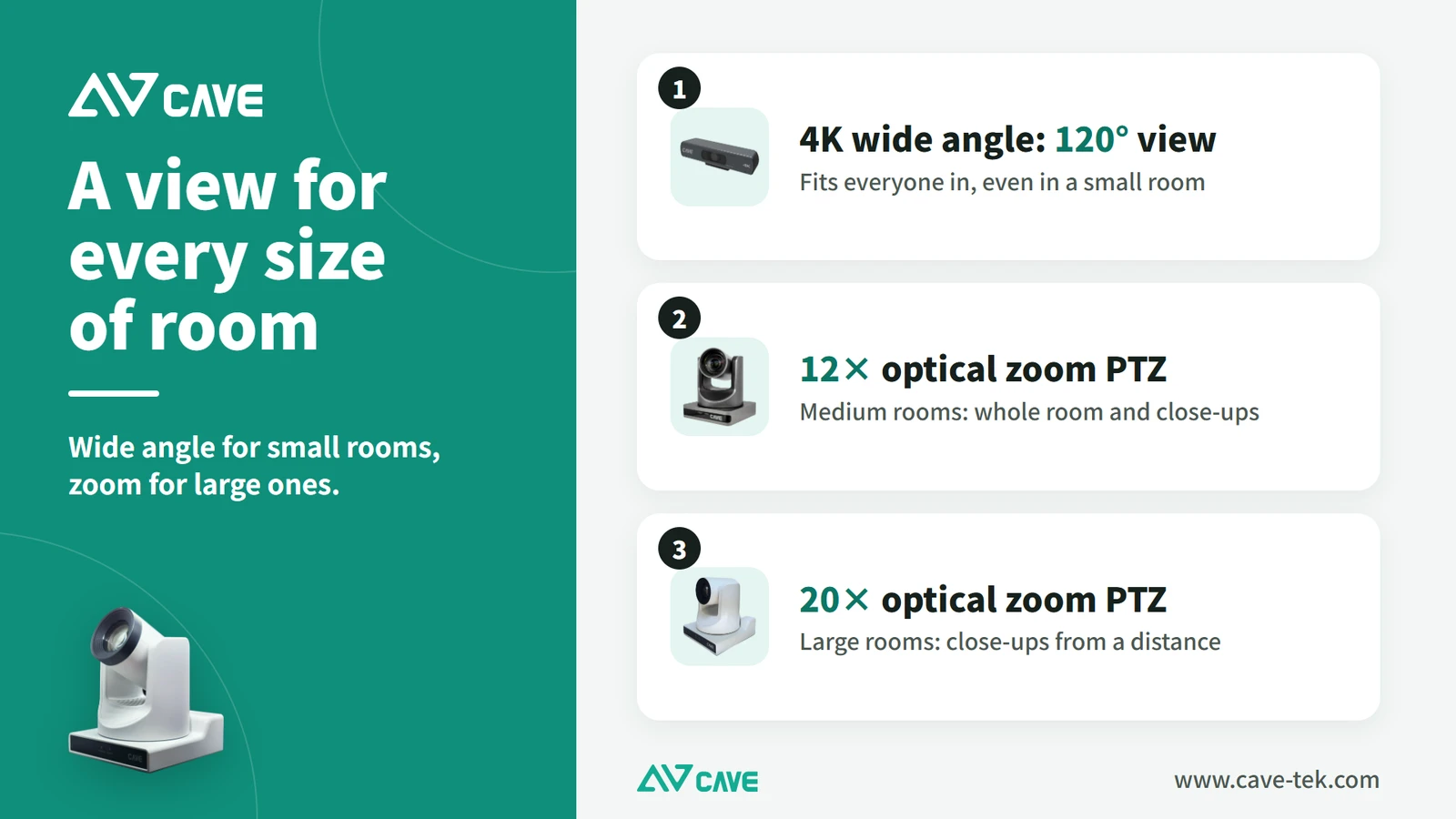
A simple rule: in a small room up to 4 metres deep, use a fixed wide-angle camera. In a medium room of 4 to 6 metres, either a 4K wide-angle camera or a PTZ camera will do. In a large room of 6 metres or more, you need a PTZ camera with optical zoom, so that the picture stays sharp when you zoom in on a person.
- Small rooms: CAVE A01 or A01SE, or the SP-1100 all-in-one conference camera
- Medium rooms: CAVE S12+, or SP-1100
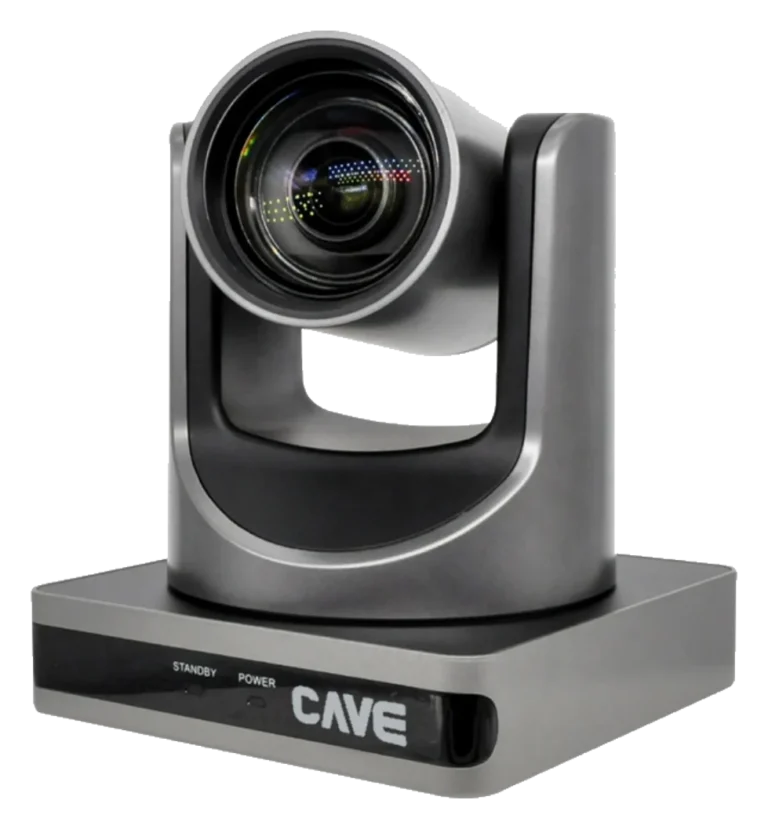
- Large rooms: CAVE P20i, or the TX20i 4K AI tracking camera
What is a PTZ camera?
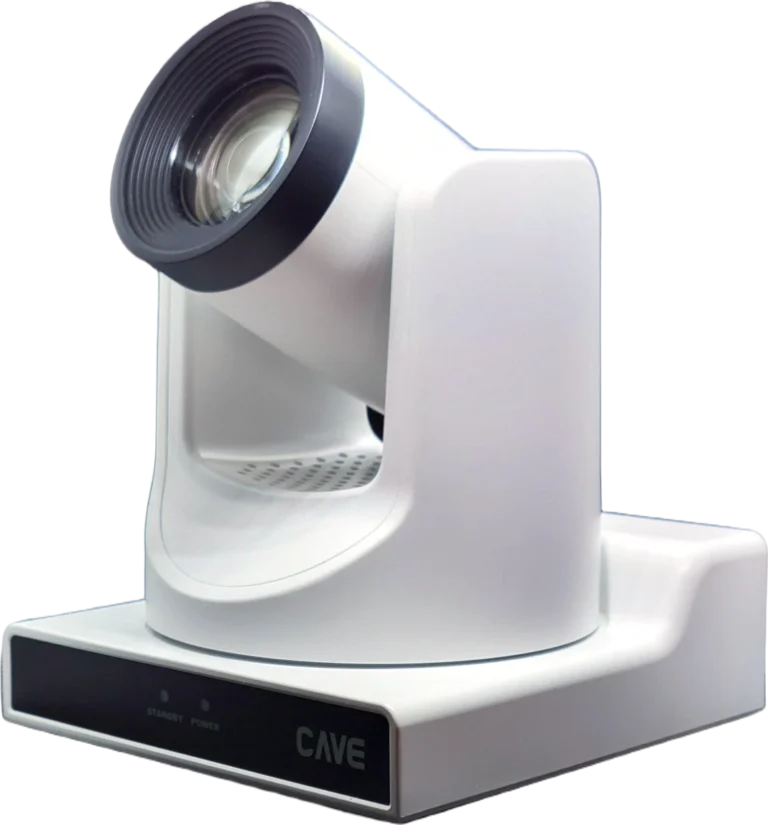
PTZ stands for Pan (turn left and right), Tilt (turn up and down) and Zoom (move in and out). You don’t walk over and turn it by hand: a remote, a keyboard controller or a computer turns it and frames a close-up for you.
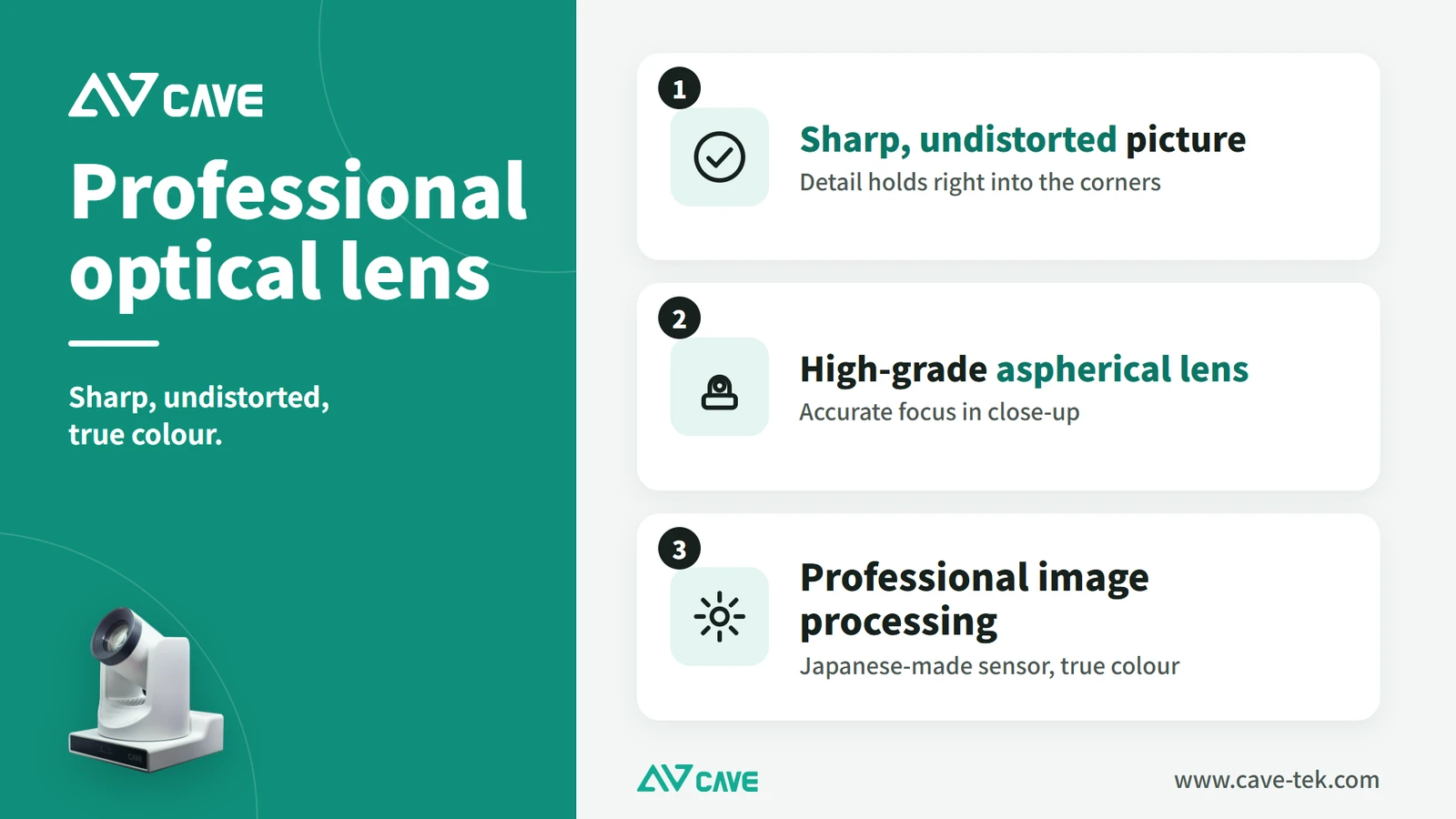
It uses a professional optical lens and enlarges the picture by optical zoom. Like a telescope, it brings distant things closer with glass, so the enlarged picture is still sharp, with no noise and no blocky pixels, much as if you had walked up to the person to film them. It gives a wide, clear view of every corner of the room. As a rule, once a room is more than 5 metres deep a PTZ camera is worth considering, because the picture holds up as you switch between the whole room and a close-up.
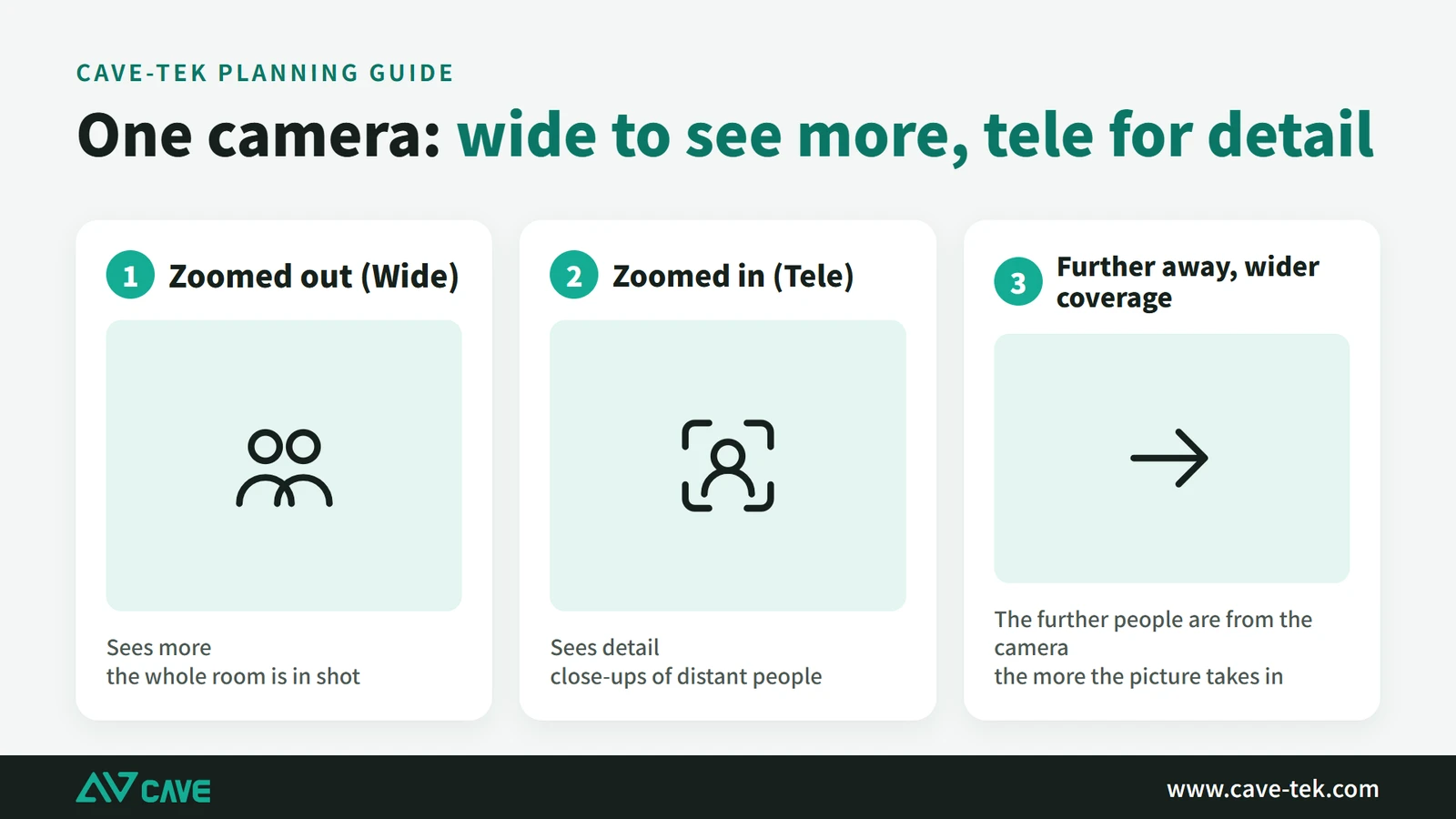
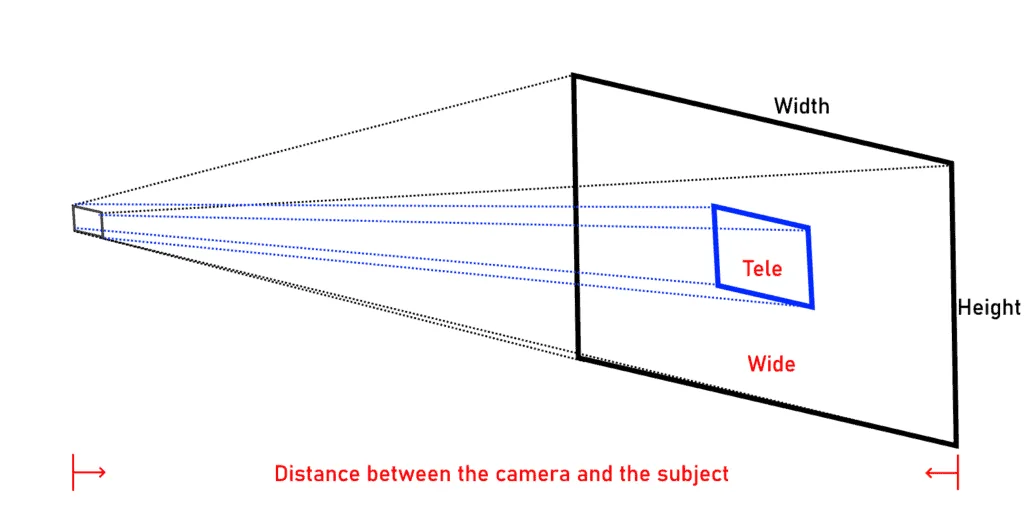
Lenses have a physical trade-off, though: the higher the optical zoom, the narrower the angle the lens can see. No single PTZ camera suits every room, so check two things together when you choose: is the field of view wide enough, and does the zoom reach far enough.
What is field of view?
Field of view is how wide the camera sees in one glance. The larger the angle, the more people fit in the picture. Unless stated otherwise it means the width from left to right (the horizontal field of view). PTZ cameras are mostly between 40 and 90 degrees; a fixed wide-angle camera can reach 120 degrees.
How much zoom do I need?
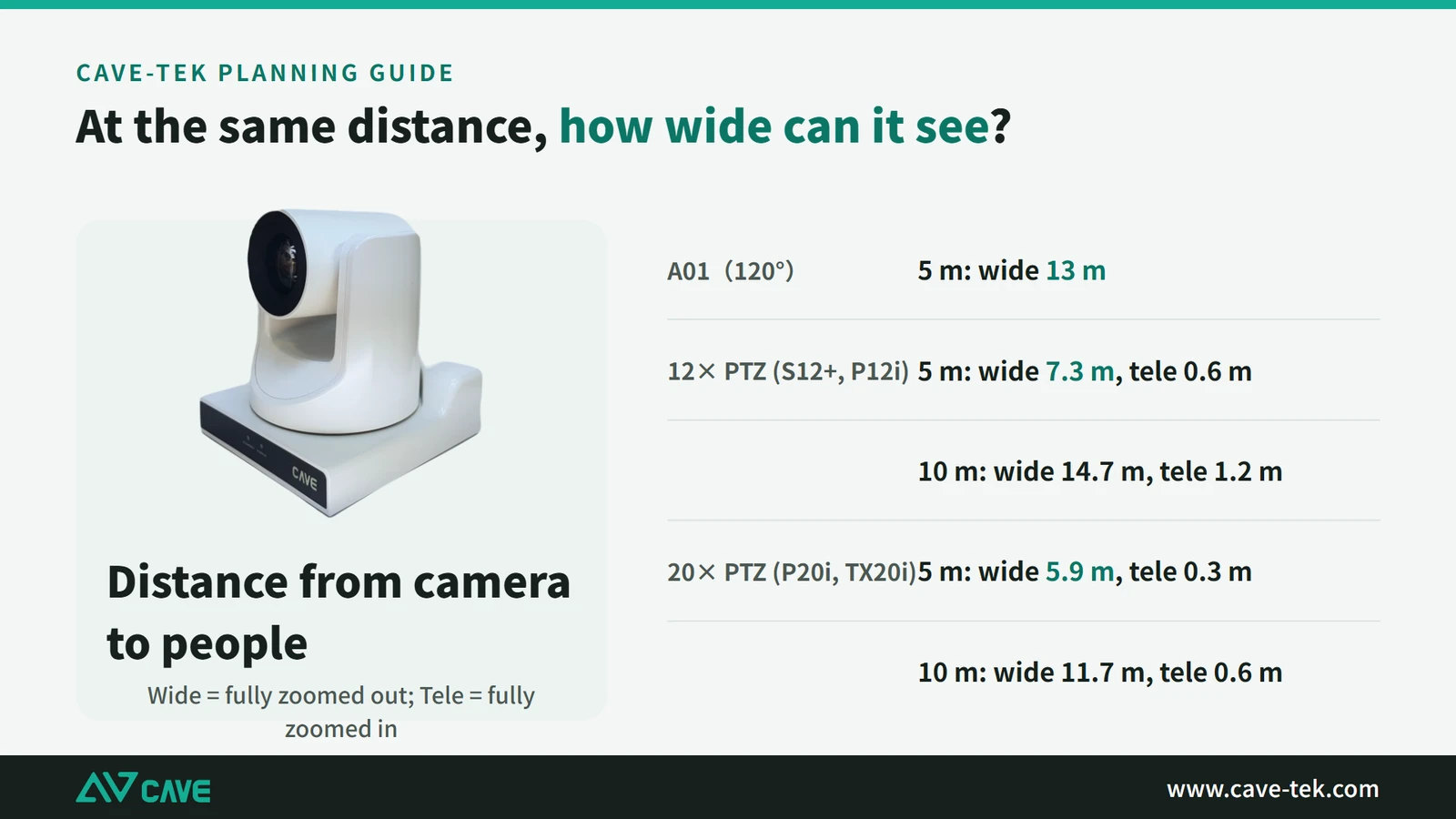
Optical zoom comes in 5×, 10×, 12×, 20×, 30× and so on. How much you need depends on the distance from the camera to the person. In general, 12× suits spaces up to 12 metres and 20× suits spaces up to 20 metres.
One caution: a higher zoom ratio usually means a narrower field of view, so the camera takes in less of what is close to it. Higher is not automatically better. As well as checking that the zoom reaches far enough, check that the whole area you want to show is in the picture.
What are presets?
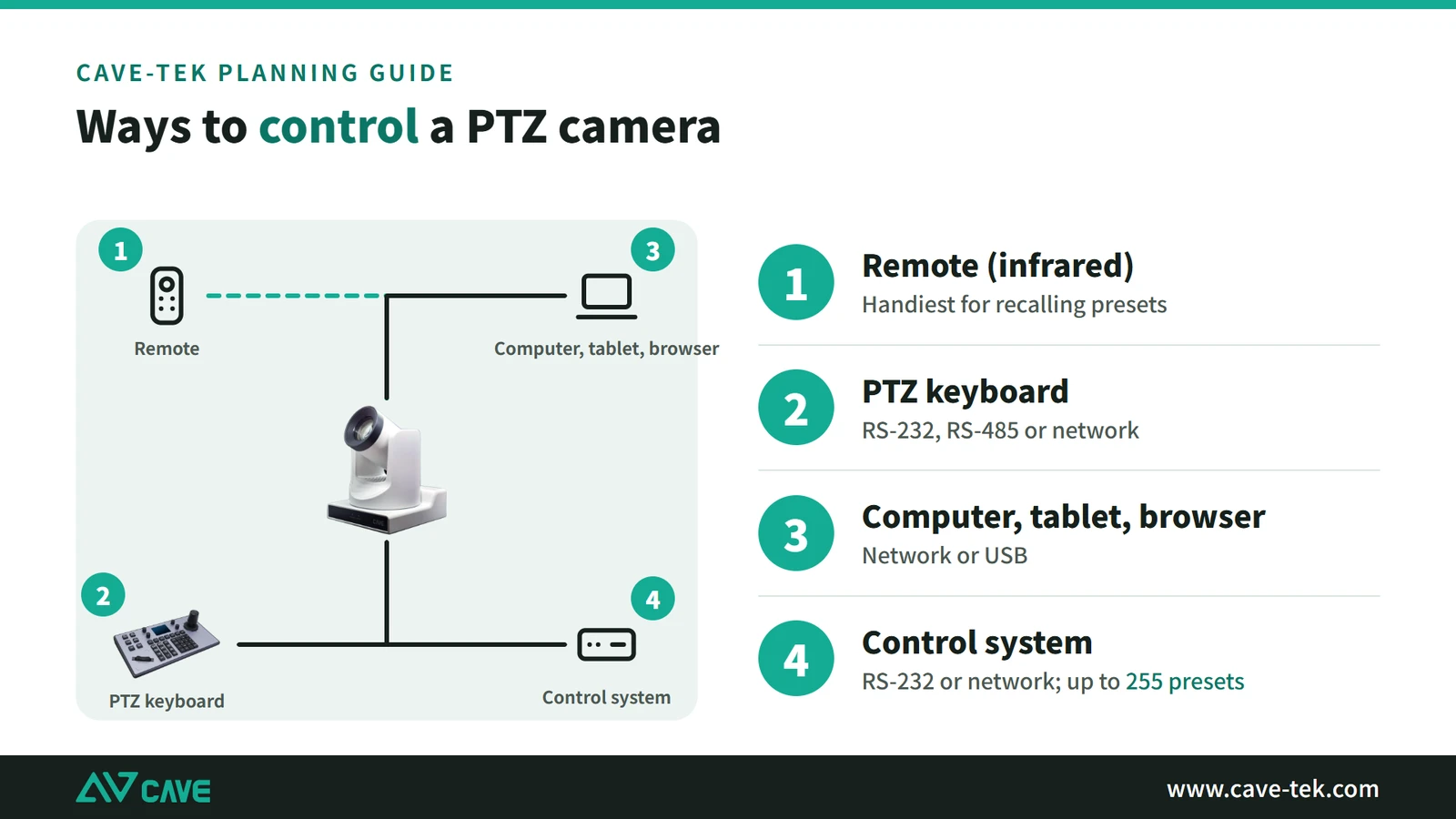
A PTZ camera can remember the positions you use most, such as the chairperson, the whiteboard and the whole room. One button then takes it there, with no slow adjusting each time. A remote switches between about 10 presets; a keyboard controller or control software can use up to 255.
This is especially useful during a meeting. Before it starts, save three positions, say the whole room, the chairperson and the whiteboard. When the chairperson speaks, press 1; when someone goes to the whiteboard, press 2. The meeting doesn’t stop while a camera is adjusted, and the far end always sees what it should.
Who should use a fixed wide-angle camera?
A fixed camera also uses a professional 4K or 1080p lens and gives a very good picture at short range. The lens doesn’t turn, but its view is wider than a PTZ camera’s (usually more than 90 degrees), which makes it a good fit for a small room 2 to 4 metres deep, where everyone can be in shot.
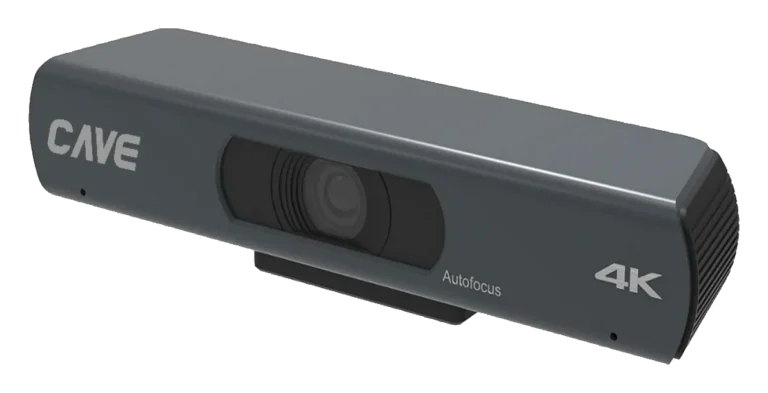
The A01 is another all-round camera, positioned like the S12+: in any space the S12+ covers, when the need is simply to have a picture, with no close-ups and no concern for how large people appear, the A01 can be planned in. It has a 4K picture and a 120-degree wide view, USB and HDMI outputs and a remote control that sets preset positions, and besides sitting above a display it can hang from the ceiling. Where close-ups are needed, choose a PTZ camera such as the S12+ or P20i.
It can enlarge the picture for a close-up too, but by digital zoom: the picture is cropped and blown up, so it gets softer the further you go, and the range is limited. Even so, a 4K camera zoomed in 4× still looks sharp in an ordinary 1080p video meeting.
2. Why not just use the laptop’s camera?
A laptop camera is designed for one person facing the screen. A professional conference camera is a real help to whoever runs the meeting: during the meeting it gives the far end a clear, professional picture, and afterwards the recording is good enough to use as a record of the meeting or for highlights. It can do several things a laptop camera can’t:
- Better picture: a high-quality lens and sensor, with auto exposure, auto white balance, autofocus and colour all specially tuned, so the whole room comes out clear and undistorted.
- Clear in dim light: noise reduction and backlight compensation keep colours looking normal in a poorly lit room.
- Sharp when zoomed in: a PTZ camera has optical zoom, so it can be mounted further from people, wherever the room allows, and still give a sharp close-up. Nobody has to film from right in front of the subject.
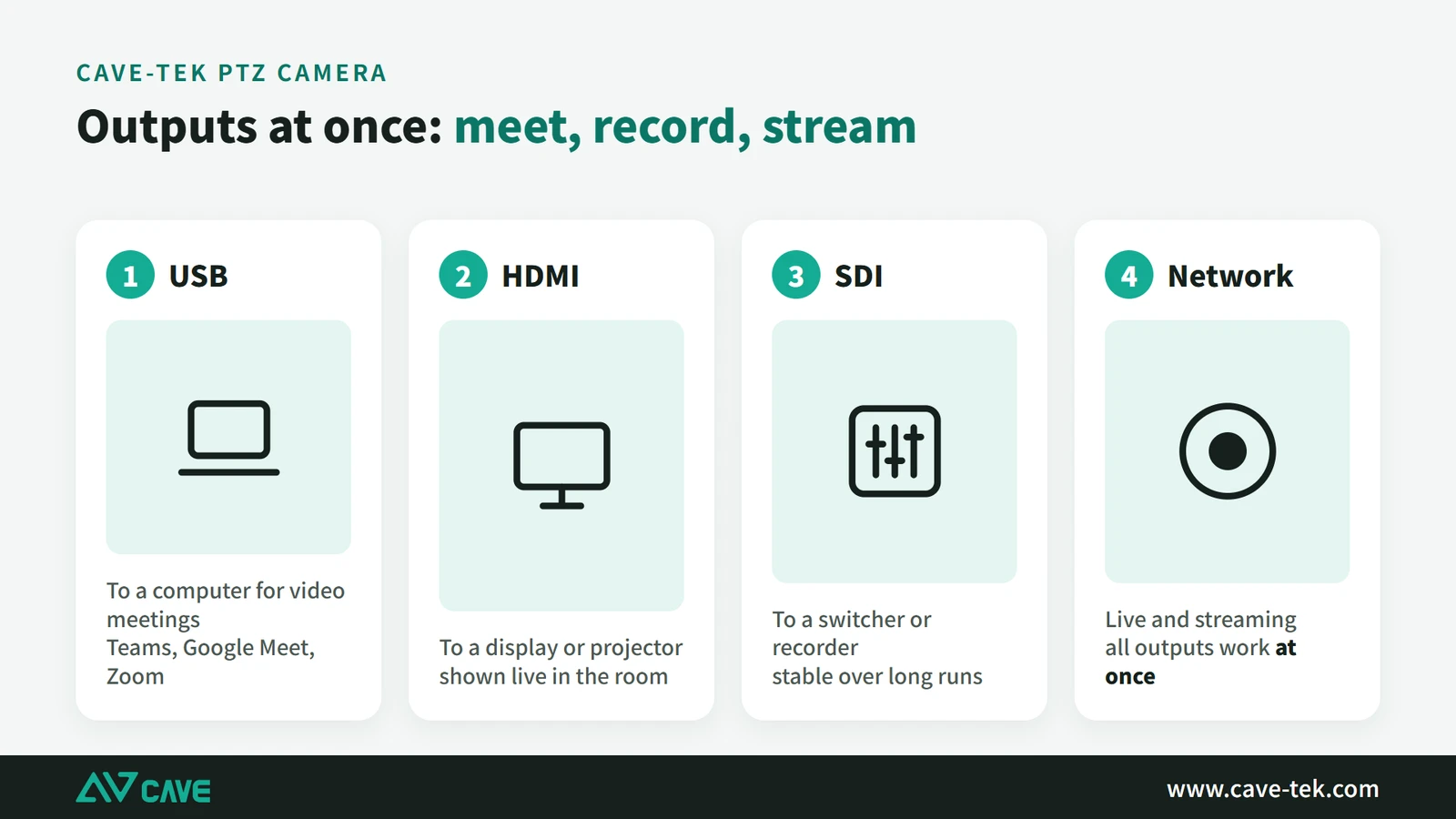
- More connections: HDMI and SDI feed any display or a recording and streaming device; the network output sends the picture to a computer or a professional AV system; USB plugs straight into a computer for a video meeting or a stream, with no HDMI capture card and no complicated set-up.
- Remote operation: the camera sits at a distance, and the remote switches between the whole room and a close-up of one person.
3. How many people are in the room? Check the field of view
How many people have to be in the picture at once is another important question. With more people in the room you need a lens with a wider field of view, so the far end sees as many of them as possible, and sees what is going on in the room, while each person still looks sharp.
A wide-angle lens is essential when there are many people sitting close to the camera. With only a few people you don’t need such a wide view. Typical fields of view are:
| Camera | Horizontal field of view |
|---|---|
| Built-in laptop camera | About 40–50° |
| External 1080p fixed camera | About 70–90° |
| External 4K fixed camera | About 90–120° |
| 12× optical-zoom PTZ camera | About 70–80° |
| 20× optical-zoom PTZ camera | About 55–65° |
4. Do you need a camera that can turn and zoom?
If you want the far end to see different parts of the room, a PTZ camera is the best choice. It turns left and right, tilts up and down, zooms in and out, and jumps to any of the positions you saved in advance at one press.
A fixed-lens camera can’t do this. It doesn’t turn and can only enlarge by digital zoom. In a large room the picture goes soft and you can’t get the best angle, so it isn’t recommended for big spaces. In a small room up to 4 metres, though, a 4K fixed camera is an acceptable choice: 4K holds up at 4× zoom, and within the enlarged picture you can still move the framing a little from side to side and up and down.
Remote control is one of the main reasons to put a PTZ camera in a meeting room. An ordinary camera needs someone beside it working the tripod or moving it to change the shot. A PTZ camera needs nobody standing next to it: a remote, a PTZ keyboard or a room control panel adjusts the angle, position and framing smoothly, or AI switches automatically. Professional-looking framing becomes much easier.
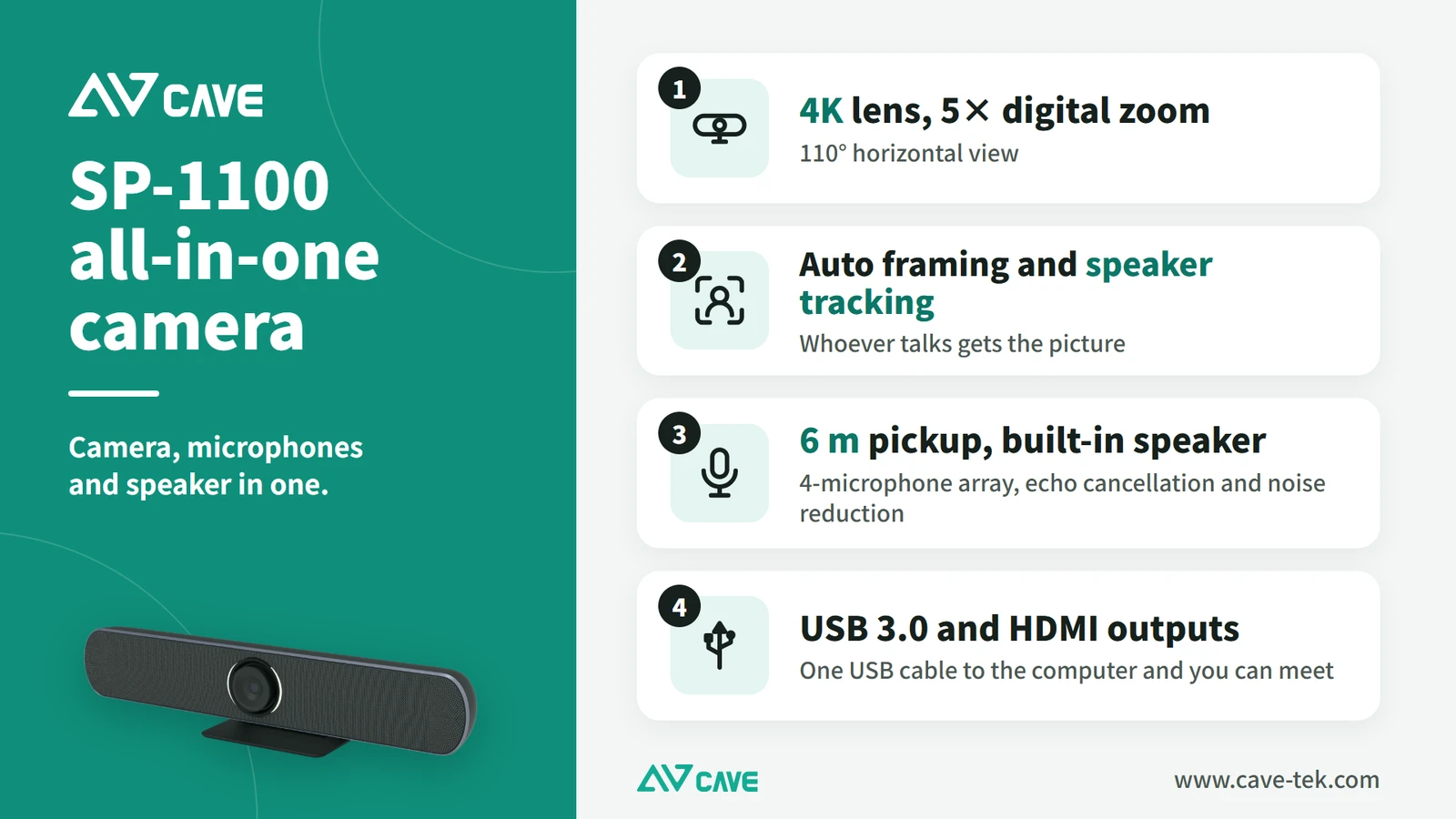
An all-in-one conference camera is another common choice. It combines the camera (fixed or PTZ), the microphones and the speaker in one unit, so installation is much simpler and one cable is enough to start a meeting. In a small room that needs no extra microphones or speakers it is a very good option.
5. What is auto tracking?
An auto-tracking camera pans, tilts and zooms by itself. In a room without one, keeping the picture on whoever is speaking means a camera operator following them, or someone adjusting the remote all the time. Auto tracking lets the camera do the job, which is why more and more rooms use it.
There are really three different technologies: auto framing, auto tracking and speaker tracking.
Auto framing: fit everyone into the picture
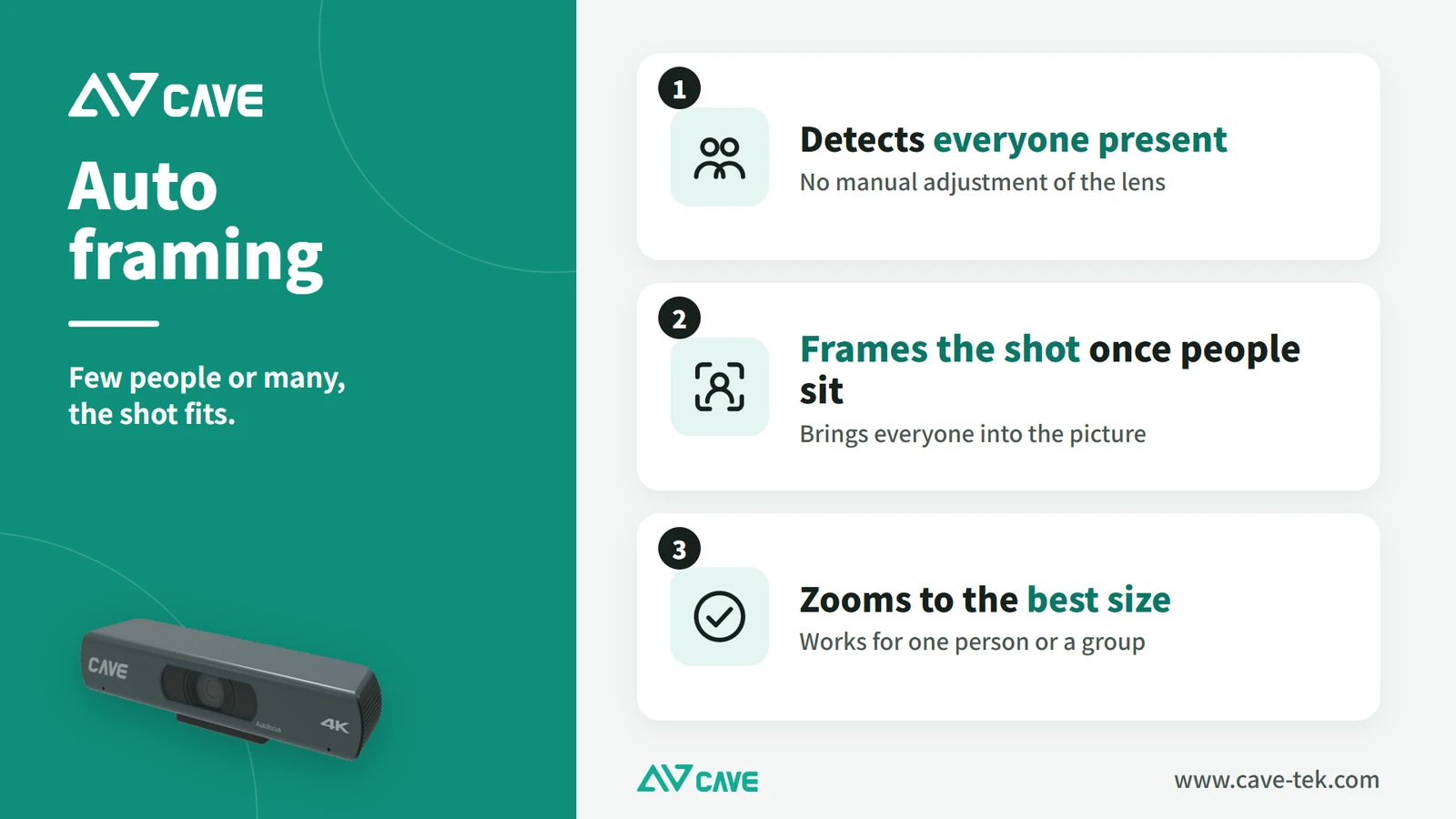
The camera finds every face in view and adjusts the shot to fit them. Whether it is one person or a group, the picture is set to the most suitable size automatically. It is very practical in an ordinary meeting space.
Auto tracking: the camera follows the presenter
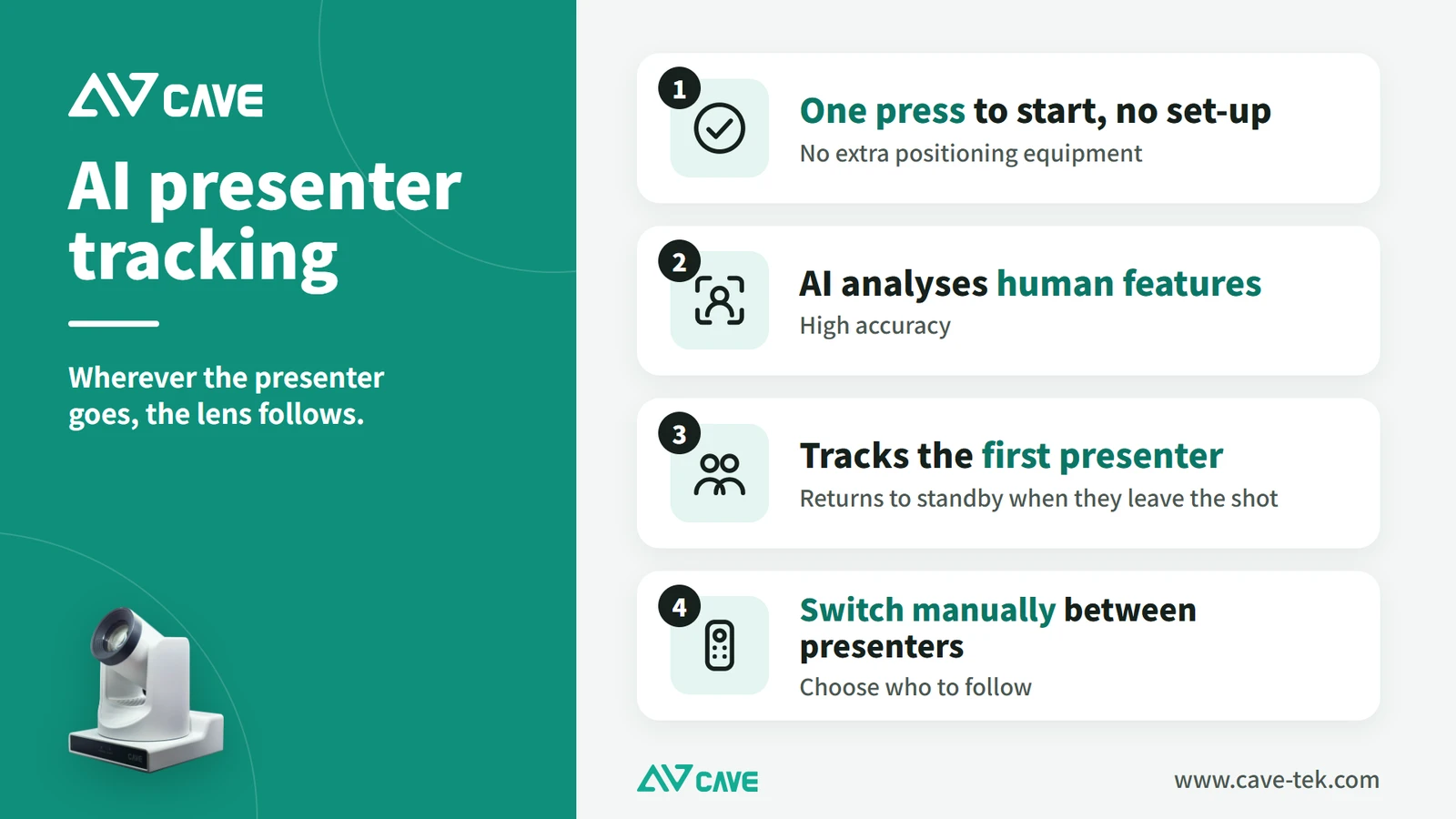
When the presenter walks around the room, the camera moves the picture to follow, with nobody else operating it. There are three ways of tracking:
- Infrared (IR) tracking: the presenter wears an infrared tag, and the camera’s sensor finds the position and direction of the tag.
- Picture analysis: the camera analyses its own picture, works out where the presenter is from human shapes or movement, and turns the lens to follow.
- AI: artificial intelligence analyses the picture and tracks more accurately. It still gives accurate results when the presenter changes position or the background is busy. CAVE TX20i is an example.
Cameras that track by analysing the picture come in single-lens and dual-lens designs. A single-lens camera uses one lens both to analyse the scene and to deliver the picture. A dual-lens camera adds a fixed wide-angle lens that watches the whole room and works out where the person is, then steers the main lens to them.
There are also different ways for the camera to move while it tracks:
- Presenter mode: the camera follows up, down, left and right, keeping the person in the centre of the picture.
- Stage mode: the camera follows left and right only, keeping the person centred horizontally. The aim is to stop the picture bobbing up and down.
- Blackboard mode: designed for classrooms. Several preset positions are set for the board, for example left, middle and right, and the lens switches to whichever zone the presenter walks into. The board is framed the same way every time, and the lens doesn’t keep jumping about.
- Mixed mode: the modes above used together, tuned to the room and the way it is used.
Speaker tracking: whoever talks comes up on screen
A small room does this with an all-in-one conference camera. Its built-in microphone array judges which direction the voice comes from, compares that with where people are in the picture, and switches the shot to that person. The microphones listen from the front, though, so the judgement becomes inaccurate at a distance and tracking suffers. It only suits small spaces. CAVE SP-1100 is an example.
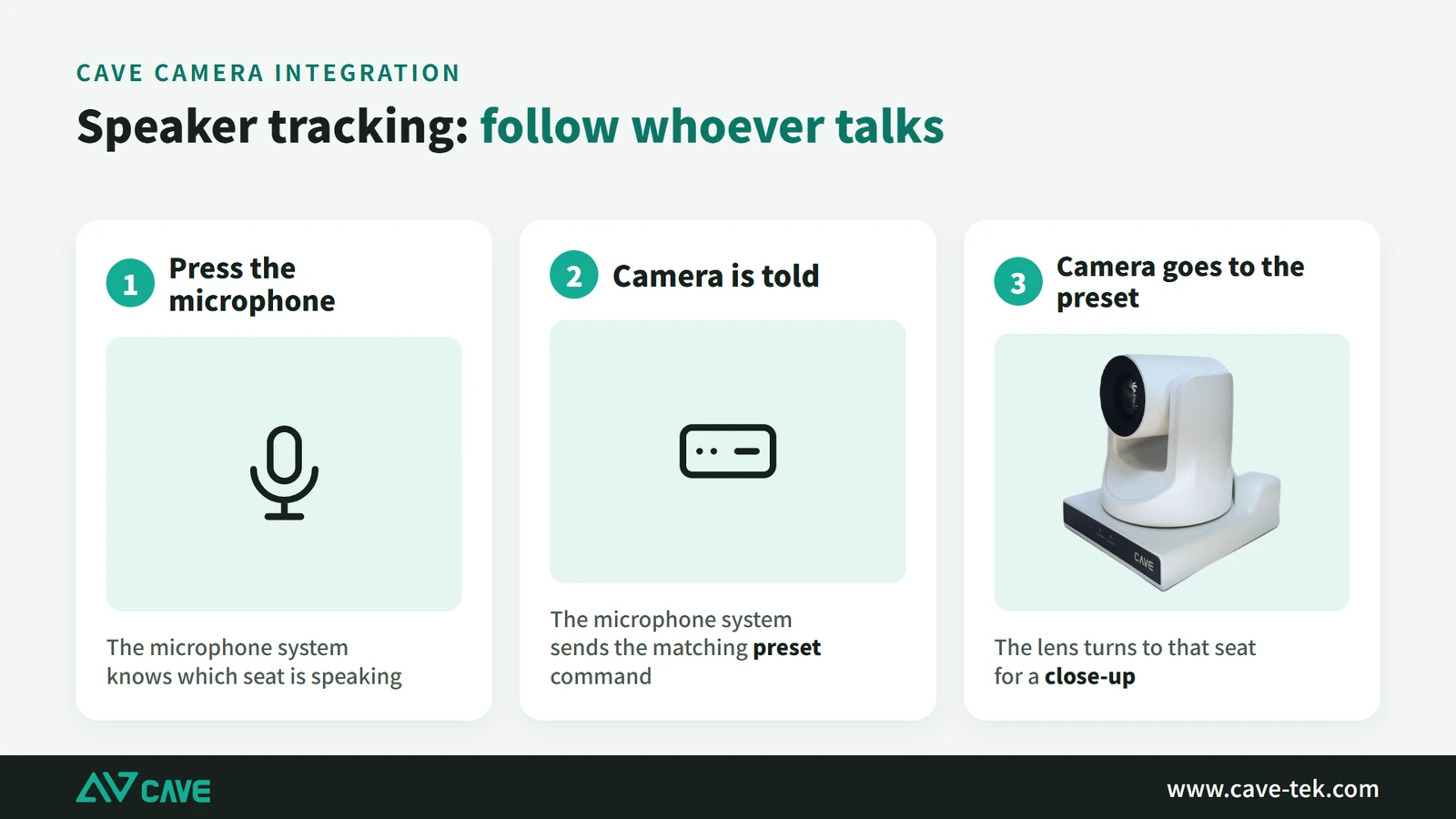
A large room works differently. When someone presses their microphone to speak, we want the camera to switch to that person automatically, so the far end can see who is talking. Many people assume the camera finds and follows the person by itself. It doesn’t. Put simply, the camera does the filming, and the microphone system decides who is speaking.
Before the meeting, the camera’s preset function is used to match each position, for example:
- Seat 1 → camera preset A
- Seat 2 → camera preset B
- Seat 3 → camera preset C
During the meeting, when the person in seat 3 turns their microphone on, the microphone system knows which position is speaking. Over its control link to the camera, it tells the camera to go to position 3. The camera receives the command and turns to that person. Common conference microphone systems, such as Bosch, Shure and Sennheiser, can be integrated in this way.
Newer ceiling array microphones use the same idea, with more convenience and flexibility. A traditional conference system only knows who is speaking once someone presses a microphone. A ceiling array needs no button: its array of microphones works out which direction and position the voice comes from. At installation, positions in the room are matched to camera presets in the same way, for example the left of the table to preset A, the middle to B and the right to C. When someone on the left starts to speak, the system tells the camera to switch to A.
The whole process is: the array microphone detects where the sound comes from → works out where the speaker is → matches a preset position → the camera turns there. So the accurate description is that the camera doesn’t chase the speaker on its own. Speaker tracking is something the microphone system and the PTZ camera do together.
6. Can it work with the room’s control system?
Yes. The camera has its own control interface. It can be operated from a keyboard controller, or the room’s control system (Crestron or AMX, for example) can control it in whatever way you need. The camera’s command list shows everything that can be controlled: lens settings (exposure, white balance), focus and PTZ movement.
The PTZ group is what a room control system uses most: turning the lens up, down, left and right, zooming in and out, saving the current position, and going to a saved preset. The command list is on the product page, or ask us for it.
Advanced: for the engineer writing the control program
Here are two real examples (VISCA, hexadecimal).
| Action | When to send | Command |
|---|---|---|
| Move up | When the button is pressed | 81 01 06 01 17 0E 03 01 FF |
| Stop moving | When the button is released | 81 01 06 01 03 03 03 03 FF |
| Go to preset 1 | When the button is pressed | 81 01 04 3F 02 01 FF |
The camera answers each command twice: first “received” (90 4x FF), then “completed” (90 5x FF) once the action is done. The one most often left out is “stop moving”: if the move command is sent when the button is pressed and no stop is sent when it is released, the camera keeps turning in the same direction. Ask us for the full command list.
Advanced: controlling the camera over the network
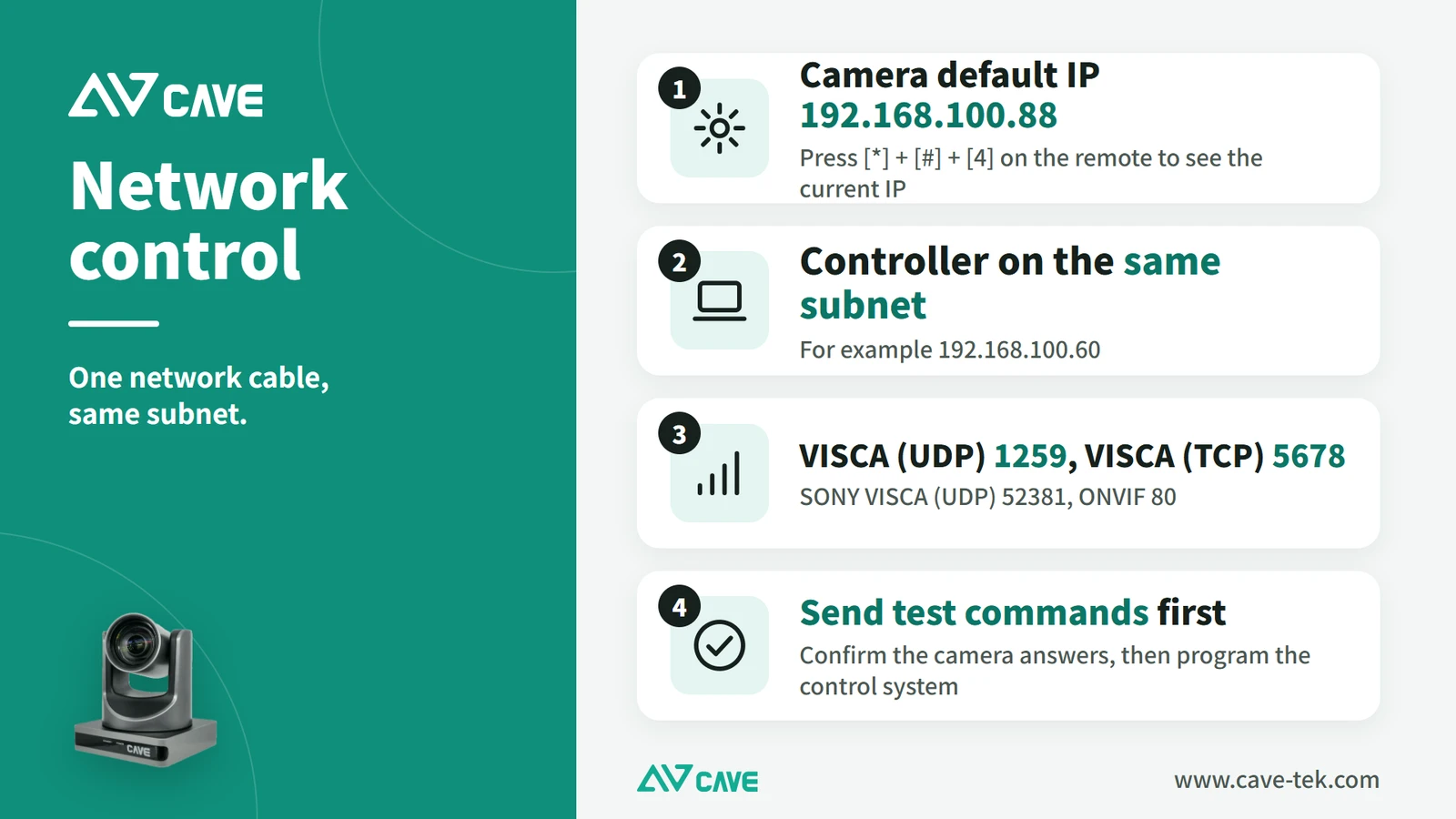
As well as RS-232 and RS-485, the camera can be controlled over the network, with a single network cable. The camera’s default IP address is 192.168.100.88. If you are not sure of the current address, press [*] + [#] + [4] on the remote and it is shown on screen. The controlling device (control processor, keyboard or computer) must be on the same subnet, for example 192.168.100.60.
Use the port that matches your protocol:
| Protocol | Port |
|---|---|
| VISCA (UDP) | 1259 |
| SONY VISCA (UDP) | 52381 |
| VISCA (TCP) | 5678 |
| ONVIF | 80 |
For example, to control a camera on its default settings with VISCA (UDP), connect to 192.168.100.88 on port 1259. Before writing the program, use a network or serial test tool on a computer to send the commands one at a time and confirm that the camera answers and moves correctly. Then write them into the control system.
7. Does it work with Teams, Google Meet and Zoom?
When you choose a room camera, think about how it connects to your video conferencing service. For cloud services such as Google Meet, Microsoft Teams, Webex and Zoom, the camera must have USB: plug it into the computer and it works. For a traditional hardware video conferencing unit, check whether it uses HDMI or SDI.
For a medium or large room, consider a camera with HDMI, USB and network outputs together. While the meeting runs, the picture can also go to a display in the room, a recorder or a live stream, which gives you the most flexibility.
When the camera is a long way from the computer, the USB extension is the most commonly overlooked problem. No picture, or a flickering one, usually comes down to it.
8. Where should the camera go, and how high?
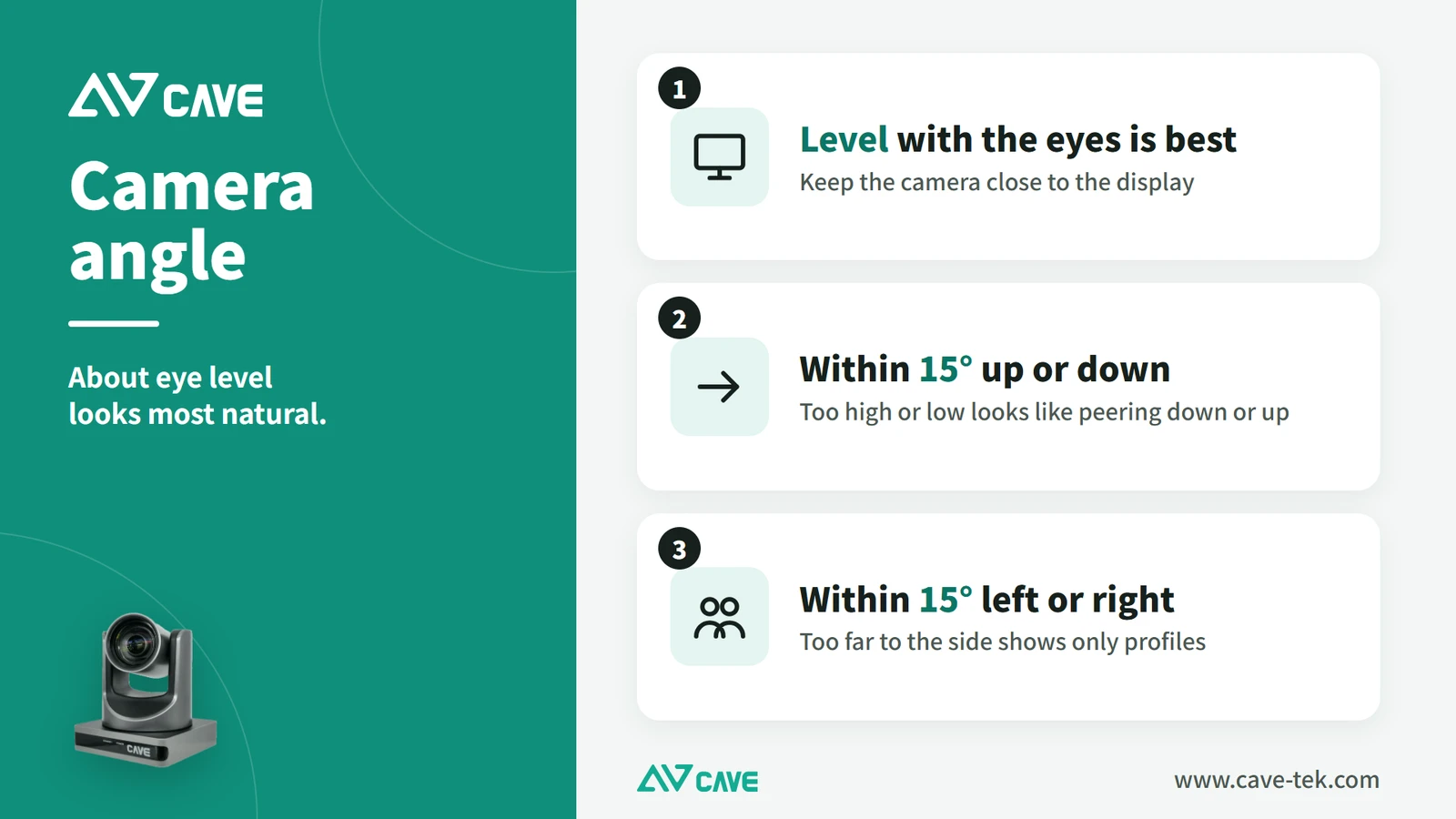
The camera is best placed at about eye level, usually around a large TV or beside the projection screen. That looks most natural to the far end, like meeting face to face. A camera mounted much higher or lower than the people in the room spoils the experience. When the ideal position really isn’t possible, choose a PTZ camera and use its angle to compensate.
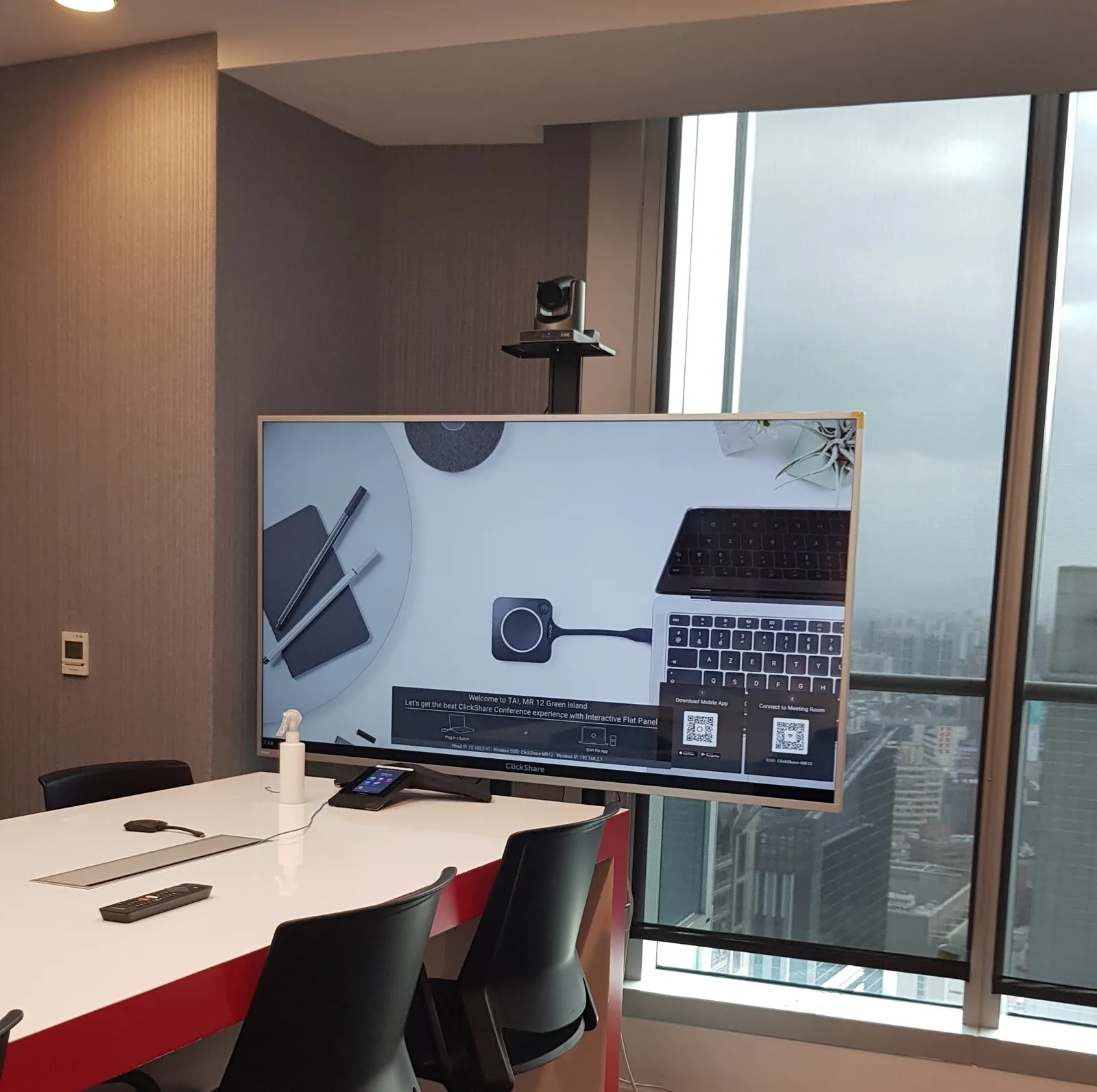
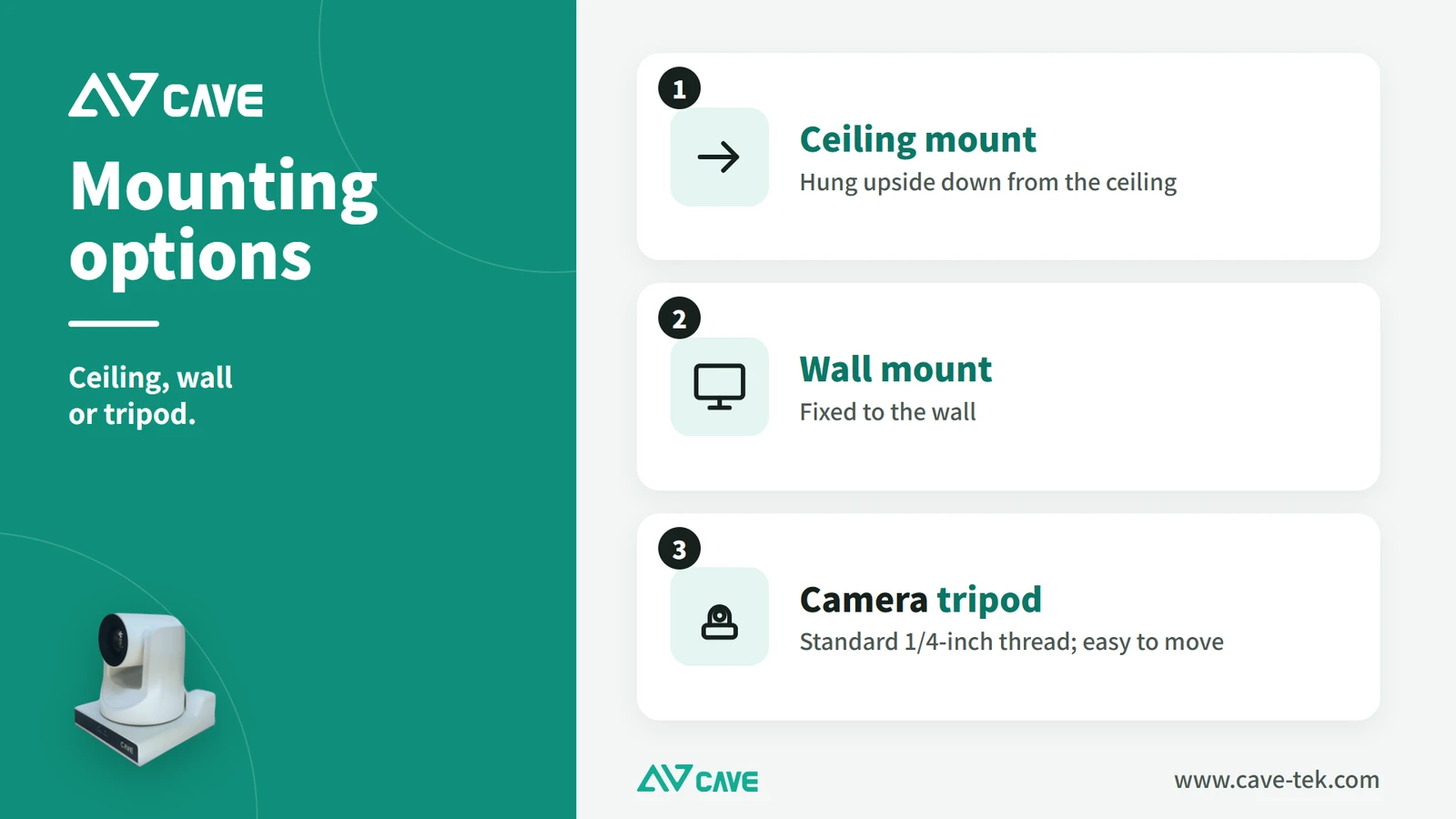
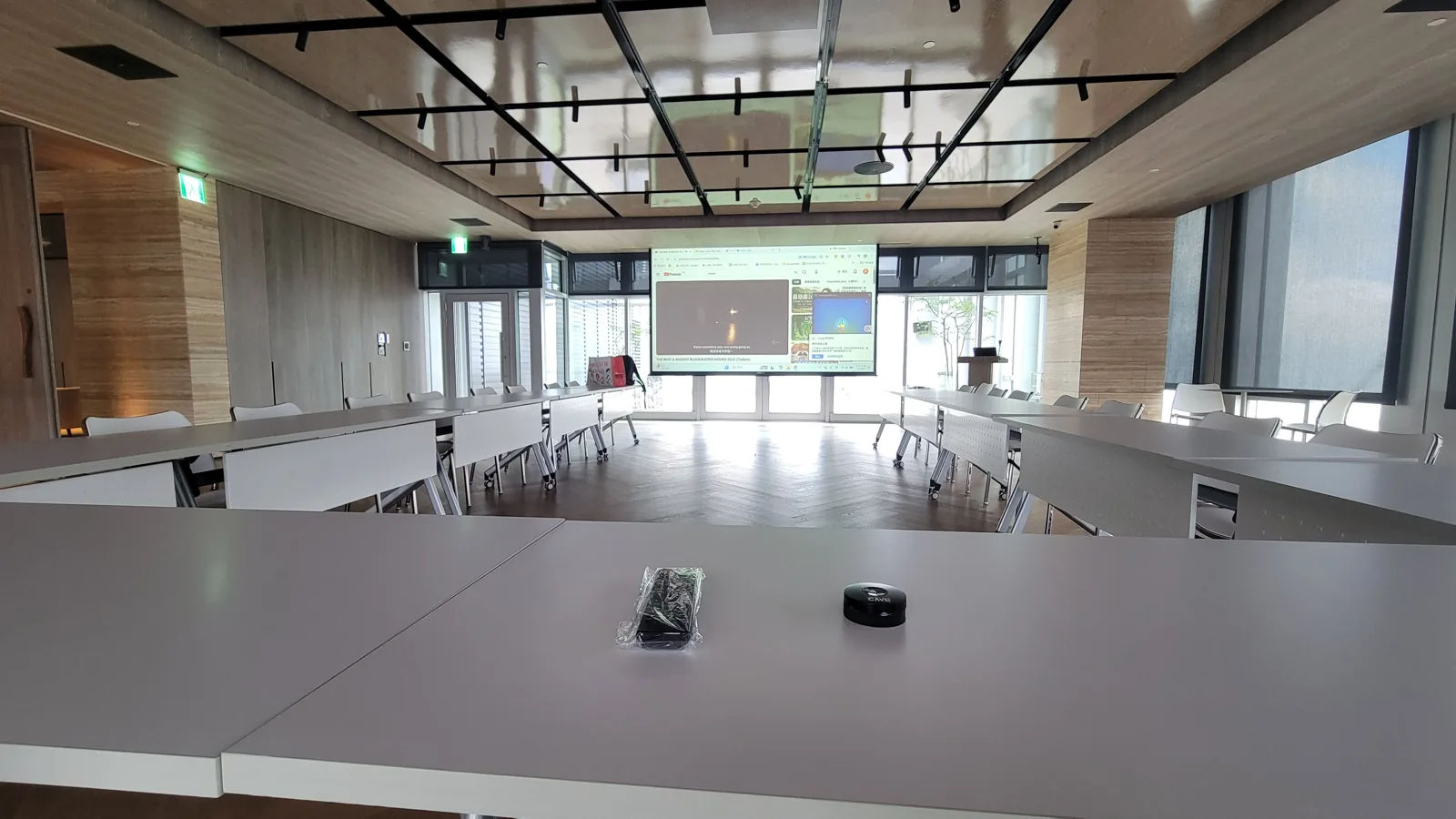
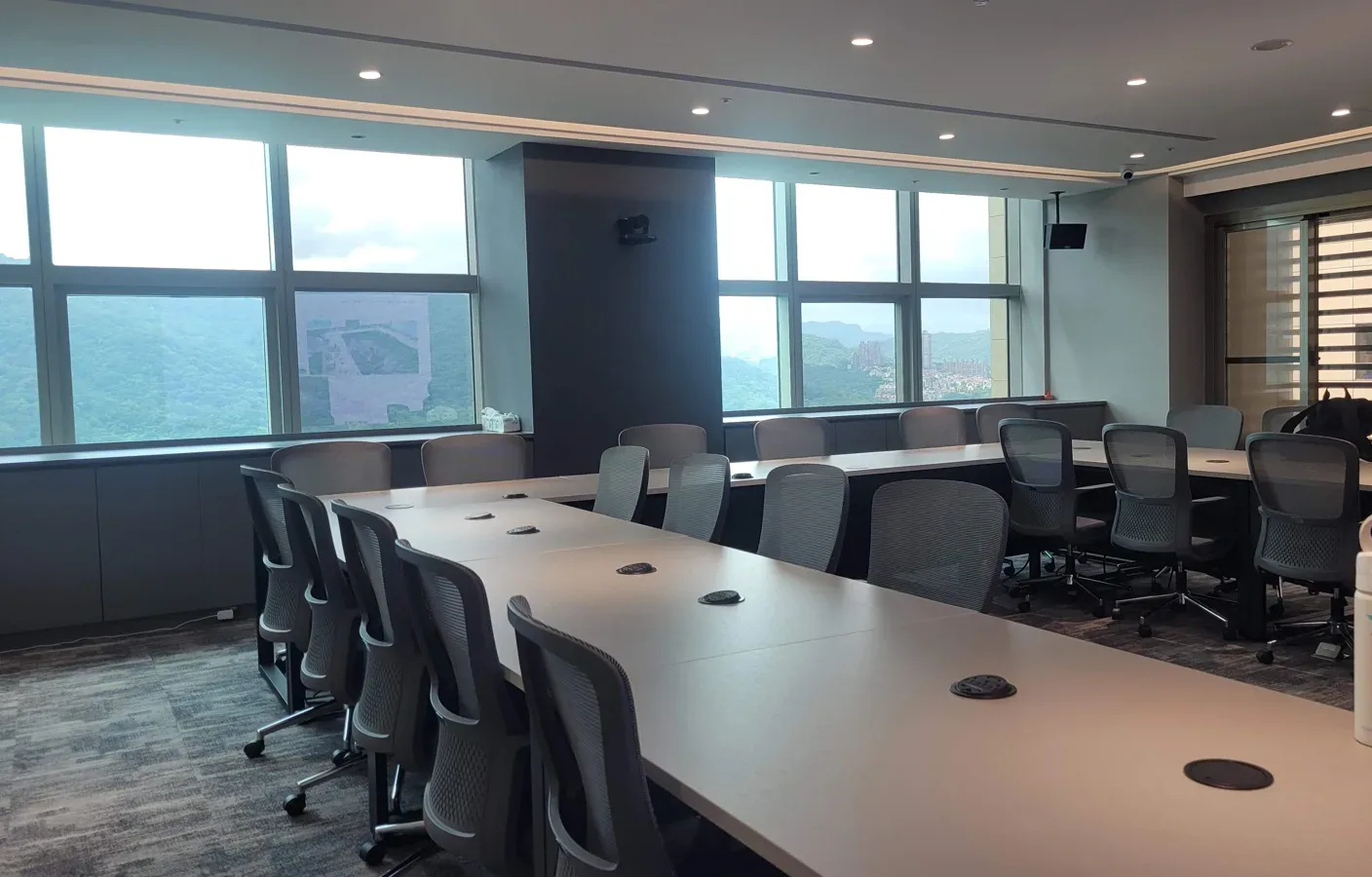
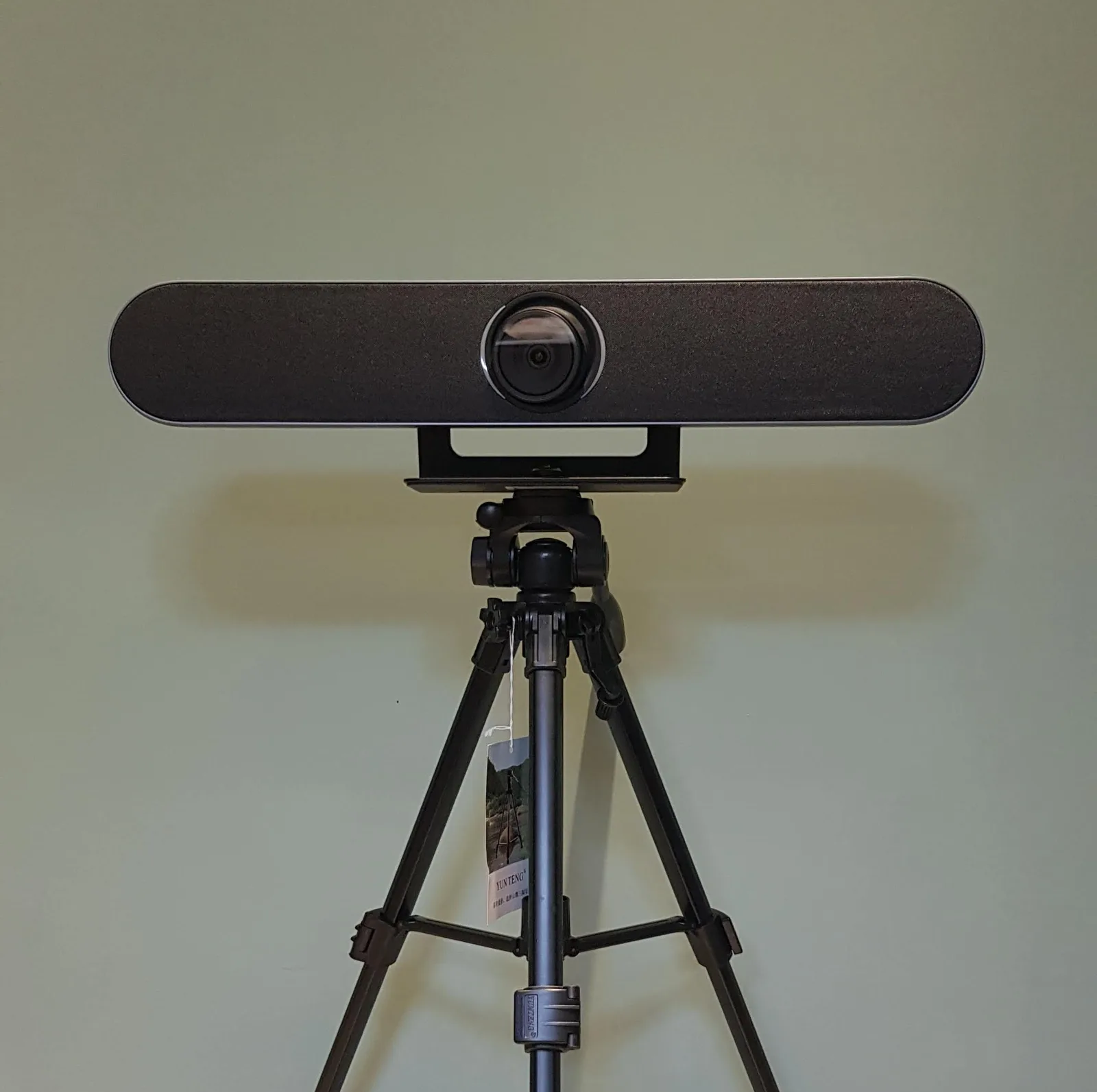
There are four ways to mount a camera: hung from the ceiling, on the wall, on a tripod, or on the table. The position and the mounting kit should suit the room and the equipment already in it, keeping clear of things that would block the lens, such as ceiling fans and loudspeakers. Wall mounting is the most popular, because a higher position isn’t blocked by tables, chairs and furniture. If the room doesn’t suit a wall mount, use a tripod or a table stand to bring the camera close to eye level.
People bringing their own laptops?
Many people now bring their own laptop into the meeting room and start Google Meet, Webex or Teams straight away. For that to go smoothly, plan how people arriving with their own devices can connect to the room’s professional equipment easily and begin at once.
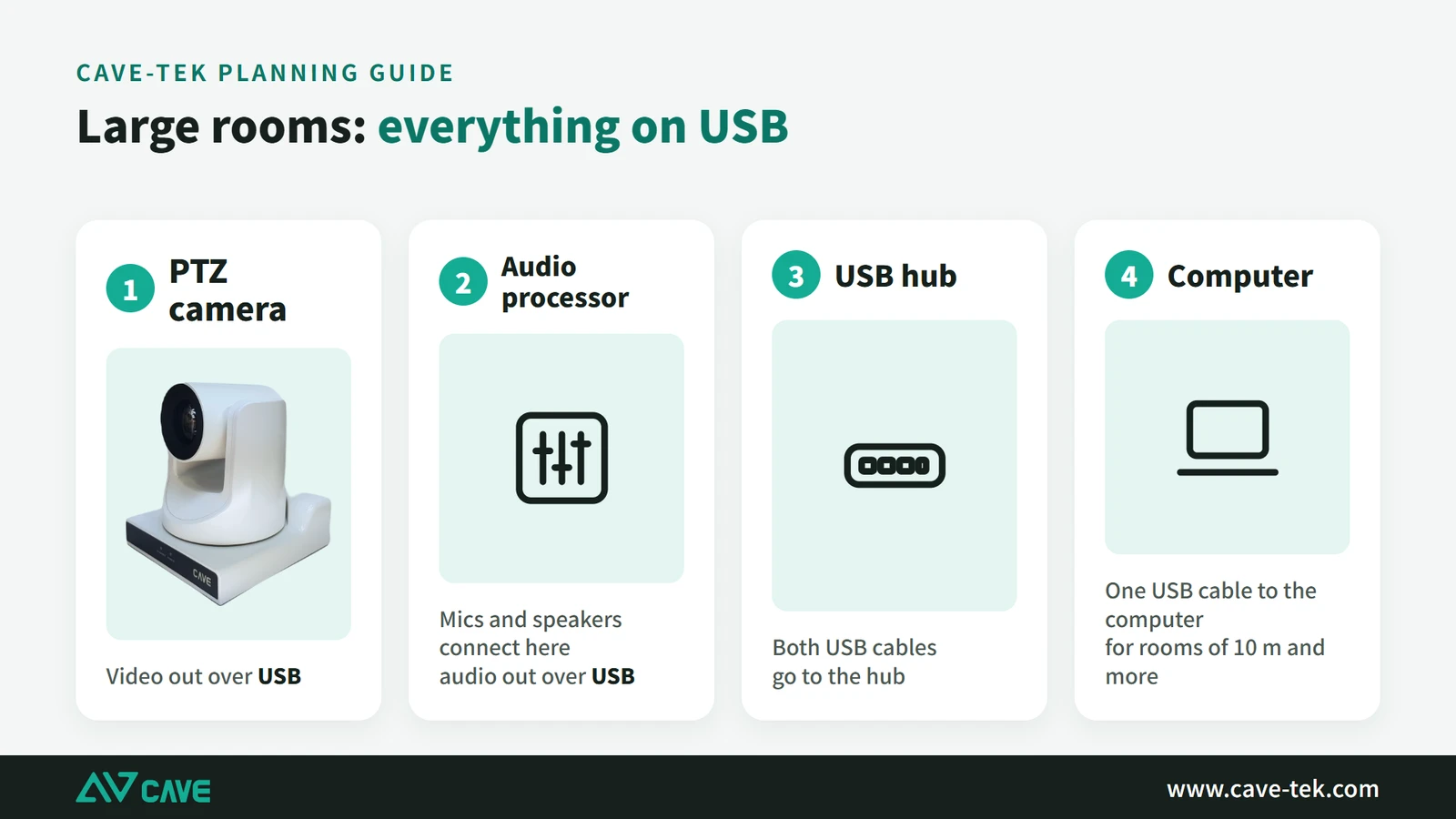
There are two ways. One is to bring the camera, microphones and speakers together onto a single USB cable, so a laptop plugs in and works. The other is a wireless conferencing (BYOM) system, such as CAVE WP-50, where the laptop uses the room’s equipment with no cable at all.
Don’t forget the sound
As cloud video meetings become the norm, the picture is only half the job. The other half is picking up and playing back sound. However good the camera, a meeting can’t go on if people can’t hear.
A laptop’s built-in speaker and microphone only suit one person and can’t make a whole room’s conversation clear. A conference speakerphone picks up and plays back over a longer distance with better sound, and has audio processing made for video meetings built in: echo cancellation (AEC) removes echo, noise suppression (ANS) lowers background noise, and automatic gain control (AGC) evens out people sitting near and far. CAVE SM-500 can be used up to four at a time, depending on the size of the room and the number of people.
If the room already has an amplifier and microphones, you usually do not have to replace them: add a USB audio processor made for video conferencing to stop the echo, and the existing microphones and loudspeakers can be used for cloud video meetings. The three ways to connect them, and what to watch, are in “What to buy for a video conference room”.
Suggested setups by room size
By room size, for the camera: small (up to 4 m) use SP-1100 or A01 or A01SE; medium (4–6 m) use SP-1100 or S12+; large (over 6 m) use S12+ or P20i, and consider TX20i for very large rooms or when you need close-ups. For the full camera and audio pairings, see “What to buy for a video conference room”.
Looking back, the eight points follow one order. First the space: how big the room is and how many people sit in it decide between wide-angle and PTZ, and how much zoom. Then the use: whether shots need to change, whether you want auto tracking, whether the camera joins the room control system. Last, connection and mounting: which conferencing service it works with, where it goes and how high. Taken in that order, the choices narrow quickly and mistakes are less likely.
Choosing a camera for a meeting room is not always easy. There are many kinds on the market, each with its own strengths, so it is worth taking a little time before you decide. We hope these eight points help. If you are still unsure, tell us the size of the room and what it is used for, and we will plan it with you for free.
See more real installations: Installation cases ›
Contact us about your meeting room ›
Setting up a small room for 2 to 6 people: read the huddle room guide ›
* SE stands for single output: the A01SE has the same picture specifications as the A01 but only a USB output, with no HDMI. If you need HDMI output, choose the A01.
Products in this guide
FAQ
Can I use a PTZ camera in a small room?
You can, but you usually don't need to. Within 3 m, a 4K wide fixed camera captures everyone; a PTZ's narrower view may not fit the whole group at close range.
12× or 20× optical zoom?
Go by the furthest shooting distance: 12× up to 12 m, 20× up to 20 m. Also check that the wide end is wide enough at close range.
Do conference cameras need drivers?
Cameras that support the USB UVC standard work without drivers on Windows and macOS, directly in Teams, Google Meet, Zoom and Webex.
How high should the camera be mounted?
Mount it just above or below the display, close to participants' eye level, to avoid a steep downward angle. For ceiling mounts, use the camera's vertical-flip setting.
The planning advice in this guide is general reference. Actual results vary with the room, the equipment and the network. Product specifications follow the manufacturer's documents; we recommend contacting us for an assessment first.
More guides
Huddle Room Setup: One USB Cable, 2 to 6 People on a Call
A huddle room is used all the time and looked after by no one. This guide compares the three simplest setups: the SP-1100 all-in-one, the J01i with an SM-500 (UCB-S), and the A01 with an SM-500, and how to choose by headcount, room size and room to grow.
How to adjust colour on a PTZ camera: lighting, exposure, white balance and colour, in that order
The picture looks yellow or blue, faces are too bright or too dark, or two cameras don't match? Work through lighting, exposure, white balance and colour in that order and the picture comes right.
What equipment does a video meeting room need? Cameras, speakers and microphones explained
Three things ruin a video meeting: you can't hear them, they can't hear you, and the picture is a blur. Here is a plain-English walk through what a meeting room needs and how the pieces fit together.