How to choose a USB extension cable for video meetings: 9 checks when a long cable fails
The camera works with the short cable it came with. Swap in a long extension and the computer can't find it, or the picture freezes. The camera usually isn't broken: the signal and the power can't make the distance.
Short answer
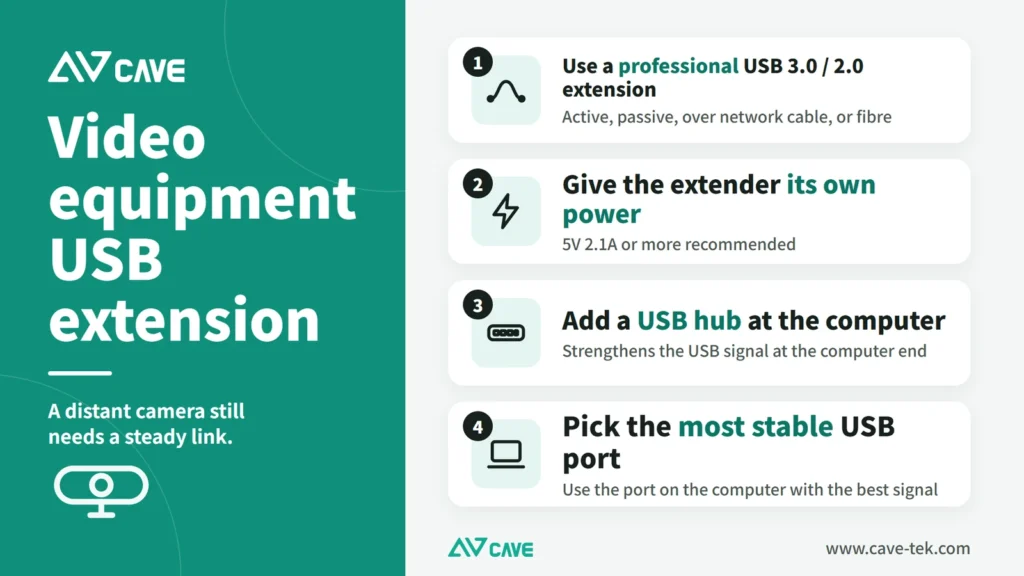
When the camera and microphones are a long way from the computer, use a professional USB extension: an active USB extension cable, a USB extender that runs over network cable, or a USB optical-fibre cable. An ordinary extension lead won't do. When something goes wrong, the first step is always to go back to the original short cable and confirm the device itself works. Then, in order: try another USB port on the computer, add a USB hub, power the extension, use USB 2.0 for the whole run with fewer devices in between, and lower the camera's resolution. For an ordinary video meeting, USB 2.0 is fast enough.
Key takeaways
- Not every USB extension cable can carry video; use professional cable
- Go back to the short cable first: if that works, the problem is in the extension
- The two usual causes are a weakened signal and too little power
- If cabling really is difficult, consider wireless conferencing (BYOM)
In medium and large meeting rooms the camera is often above the display or on the ceiling, the microphones are in the middle of the table, and the computer is at the other end. Once the distance grows, the USB cable in the box isn't long enough. Many people only find out in use: everything is fine with the short cable, and problems appear one after another with the long one.
| Extension method | What it offers | What to watch |
|---|---|---|
| Active USB 2.0 / 3.0 extension cable | The simplest; commonly 3, 5, 10 and up to 30 metres | Too long is still unstable, so test on site |
| USB extender over network cable | Runs over network cable, so routing is flexible | Sender and receiver are used as a pair |
| USB optical-fibre cable | Very long runs, immune to interference | Costs more |
| USB signal booster | Sits mid-run and amplifies the signal | Every extra device is one more place for trouble |
| Wireless conferencing (BYOM) | No cable to run, quick change of user | Needs a stable Wi-Fi environment |
There are several guides on video conference rooms, each for one job. Start with “What to buy for a video conference room” for the whole picture, then read on as needed:
| Guide | What you will learn |
|---|---|
| What to buy for a video conference room (start here) › | Cameras, audio, connections, and the table of setups by room size |
| How to choose a meeting room camera › | Camera by room size and headcount, PTZ, auto tracking, mounting |
| How to choose a conference speakerphone › | Fixing sound that is unclear, echo and noise, and choosing an audio setup |
| Huddle room setup › | Small rooms for 2 to 6 people: three setups and how to expand |
| Microphones for large meeting rooms › | Pickup options and how many for a big space, and how to deal with room reflections |
| How to choose a USB extension (you are reading this one) | What to check when a short cable works but a long one fails |
| Why medium and large rooms use PTZ › | 5 reasons to use a PTZ camera (for what PTZ is, see “What is a PTZ camera”) |
Common problems with USB cameras and microphones
Leave extensions aside for a moment. Whenever video equipment connects over USB, the usual problems are these:
- Poor connection: a loose or damaged USB port, or a cable not pushed in fully
- Drivers: some devices need a driver, and if it is missing or out of date the computer doesn’t recognise them
- Compatibility: some devices don’t get along with a particular operating system or computer
- The USB port itself: a faulty port on the computer, or one that supplies too little power
- Too little power: some devices draw more than a computer port can give and need a powered USB hub
- Unstable signal: the device drops out in use, or picture and sound freeze
- A faulty device: the camera or microphone itself has failed
CAVE cameras use the standard USB video class (UVC). They work on Windows and macOS as soon as they are plugged in, with no driver and no compatibility issues.
The kinds of USB extension
USB 2.0 / 3.0 extension cables
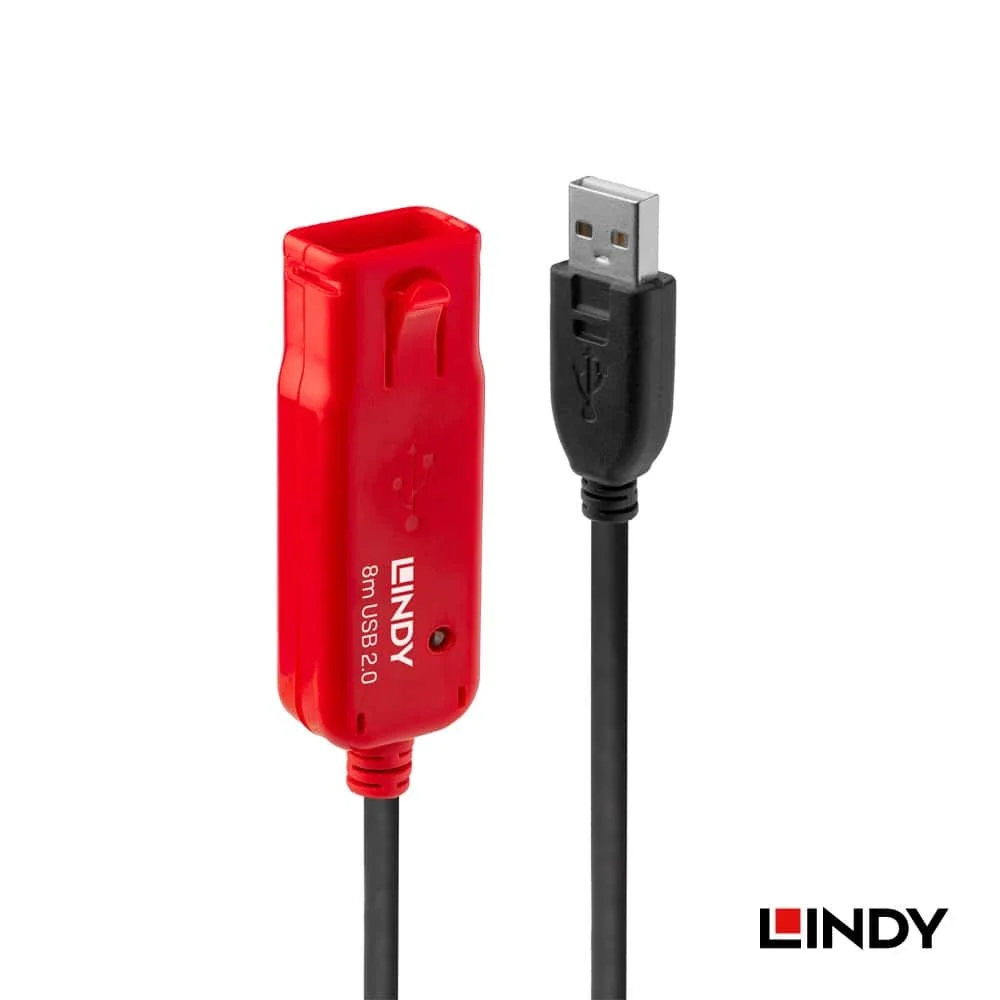
This is the simplest method and the one that needs most care. A video meeting sends video and audio at high speed, and you can’t just plug in any USB extension lead. Professional extension cables use better conductors and shielding against interference so the signal doesn’t fade on the way. Common lengths are 3, 5 and 10 metres, up to 30.
Extension cables are passive or active. A passive cable is simply a longer cable. An active one contains a chip that regenerates the signal, so it reaches further; Lindy’s USB 2.0 and USB 3.0 active extensions are examples. USB 3.0 also comes as optical-fibre extension cable, which reaches further still and ignores interference. Even so, an over-long cable can be unstable, so always test on site.
USB extenders over network cable
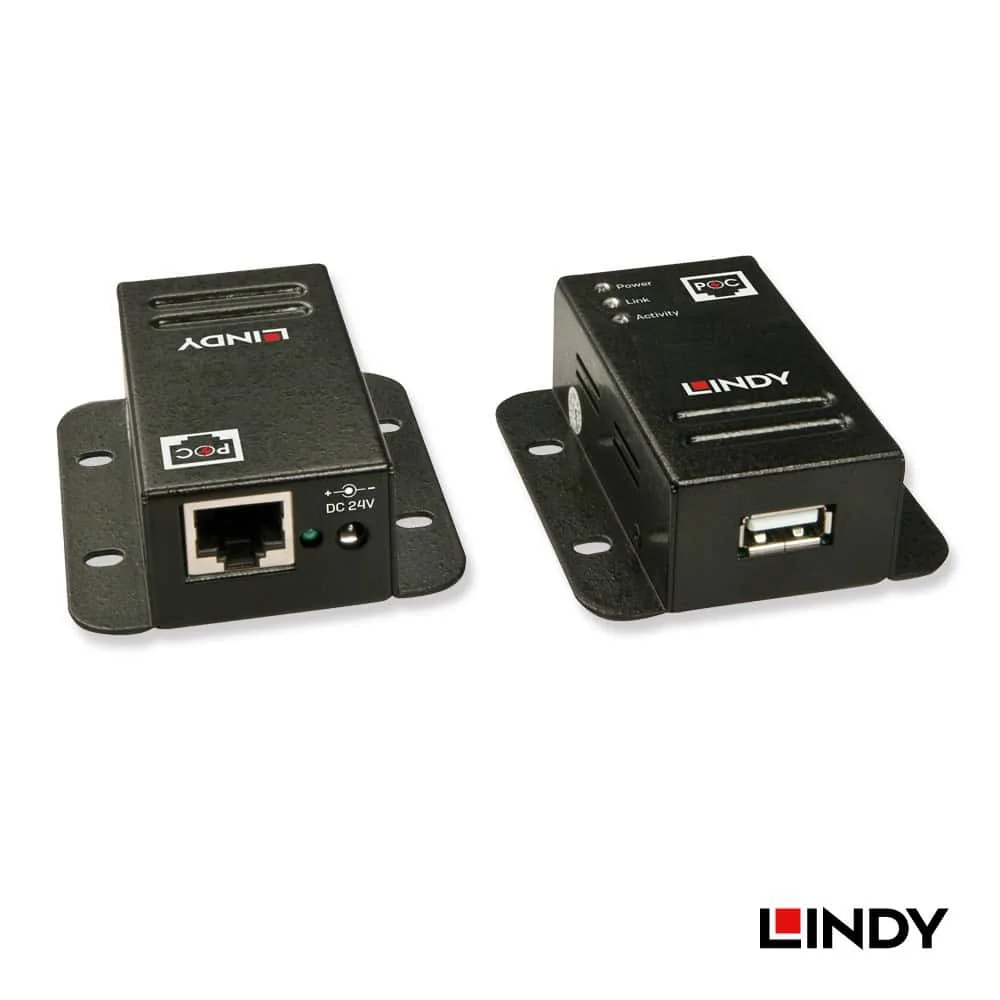
A small box sits at each end with ordinary network cable between them, and the USB signal is converted to travel over it. Network cable is cheap and easy to run, which suits longer distances and cables routed through ceilings and walls.
USB signal boosters
Fitted in the middle of a USB run, a booster amplifies a weakened signal so the cable can go a little further.
USB 3.0 or USB 2.0 extension: what is the difference?
| USB 2.0 | USB 3.0 | |
|---|---|---|
| Speed | Up to 480 Mbps | Up to 5 Gbps |
| Power | Less | More; can run hungrier devices |
| Stability over distance | Average | Better |
| Compatibility | — | Takes USB 2.0 devices, at USB 2.0 speed |
USB 3.0 looks better on every line. But for an ordinary video meeting (720p at 30 frames per second), USB 2.0 is already fast enough. So the point is not 2.0 against 3.0 but choosing a professional extension. When the wiring is complicated, using USB 2.0 all the way is often the more stable choice.
Why does the short cable work and the long one fail?
This is the situation people ask about most: everything works on the short cable that came in the box, but with an extension the computer can’t find the camera, or the picture keeps flickering. Usually nothing is broken. USB was simply never meant to travel far. The common causes are these:
- Weaker signal and interference: the longer the cable and the more devices in between, the more the signal fades, and transfers slow down or fail to connect
- Too little power: power is lost along a long cable, and a camera that doesn’t get enough can’t run properly or isn’t recognised
- Compatibility: some devices are sensitive to extensions and hubs and become unstable
- Wear: cables and connectors on extensions and hubs can fail with age and cause a poor contact
- A distance limit: the USB standard has one, and beyond it the signal always gets worse
The computer can’t find the camera? Check these 9 things (most important)
If the computer sometimes can’t find the camera after you fit an extension, the cause is usually an unstable signal or devices in conflict. Go through these in order.
1. Go back to the original short cable (the most important first step)
Connect the camera straight to the computer with the short cable it came with. If that works, the problem is in the extended section and you can concentrate on it. If even the short cable fails, the extension isn’t to blame: check the camera, the cables, the computer and the meeting software first.
2. Try a different USB port on the computer
Plug straight into a port on the computer itself, not through a dock or the USB ports on a monitor. In our experience some ports on the same computer have a better signal than others.
3. Add a professional USB hub at the computer end
Connect the extension to a separate USB hub, and the hub to the computer. The signal arriving from the extension is tidied up by the hub before it reaches the computer, which makes it much steadier.
4. Make sure it is a professional USB extension
A camera sends high-quality video and audio, which not every USB cable can carry. Use a professional USB 2.0 or 3.0 extension.
5. Power the extension
If a weak signal is the cause, change to an active extension, whose chip amplifies it. Adding a dedicated power supply to the extension (5 V 2.1 A or more) solves a shortage of power.
6. Simplify the run: USB 2.0 throughout, fewer devices in between (advanced)
If the installation is complicated, with several hubs in a row or USB 3.0 and 2.0 mixed, problems are likely. Simplify it: USB 2.0 all the way, and as few hubs as possible. Every connection point is one more place the signal has to be handled, and a signal that is already unstable won’t cope.
7. Lower the camera’s resolution and frame rate
A smaller picture and fewer frames per second mean less data, a lighter load on the USB cable and a steadier link.
8. Keep away from sources of interference
Don’t run the USB extension close to wireless access points, Bluetooth devices or microwave ovens. They interfere with the USB signal and make the picture flicker.
9. Restart the computer
Sometimes the computer has simply got stuck, and after a restart it finds the device again.
Cabling really is difficult? Go wireless
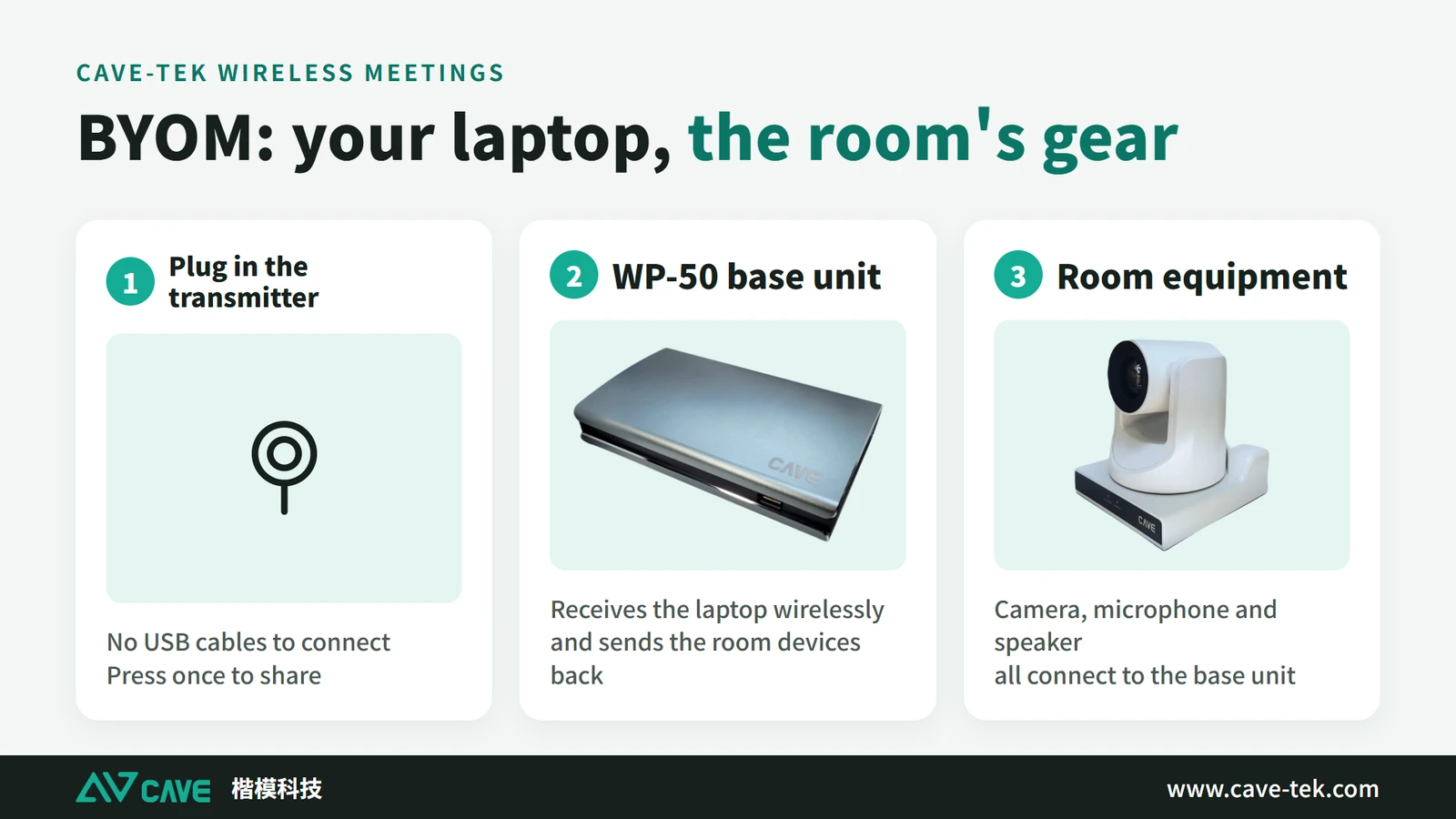
If the distance is too great, the walls and ceiling are awkward to work on, or different people’s computers are swapped in and out during meetings, consider wireless conferencing (BYOM). A wireless base unit sits next to the camera and microphones, connected with short cables. The computer only needs a transmitter plugged in, and video and audio arrive wirelessly. It solves the distance problem and makes changing user quick.
Summary
USB extension problems come down to two things, signal and power, and both weaken as the cable gets longer. So the rules are simple: use a professional extension, give it its own power, and keep the chain as simple as possible. When something goes wrong, go back to the original short cable first to confirm whether the extension is the cause. If the cable really is hard to run, go wireless.
How to pair cameras and audio for rooms of different sizes is in “What to buy for a video conference room”.
How to run the cable and which extension to use depend on the distance and the route on site, and are hard to settle from specifications alone. If you can’t decide, tell us the distance from the camera to the computer and how the cable has to run, and we will suggest a suitable way to extend it.
Products in this guide
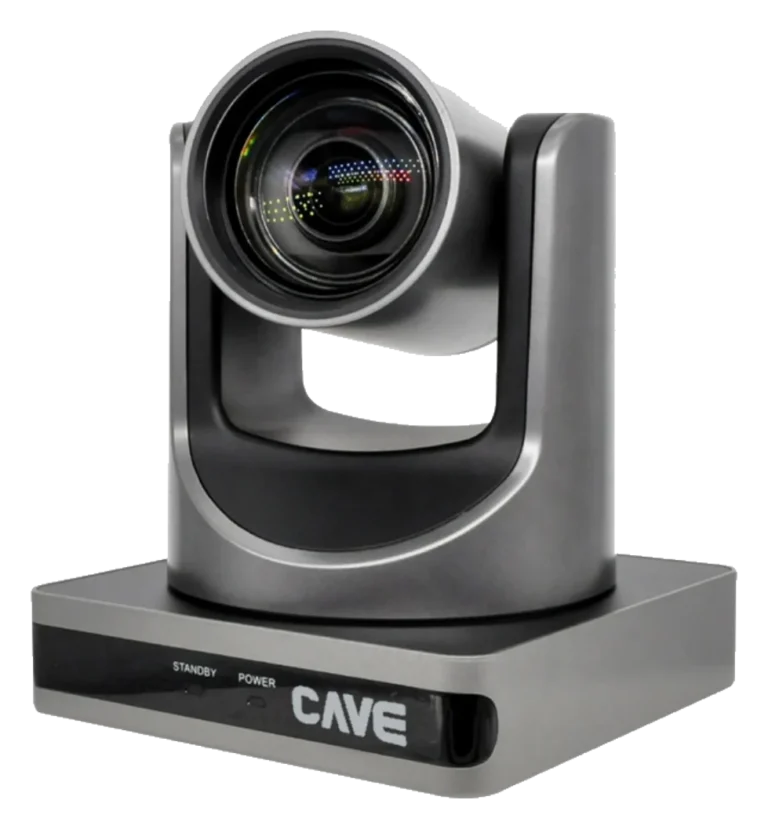
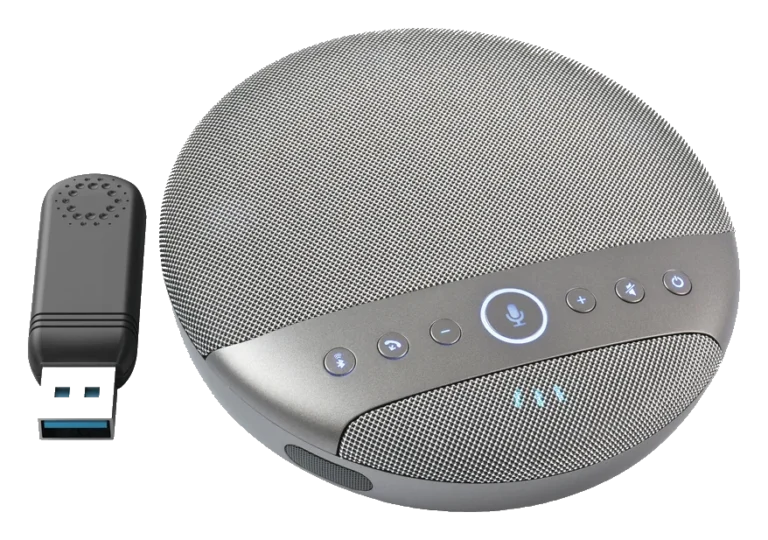
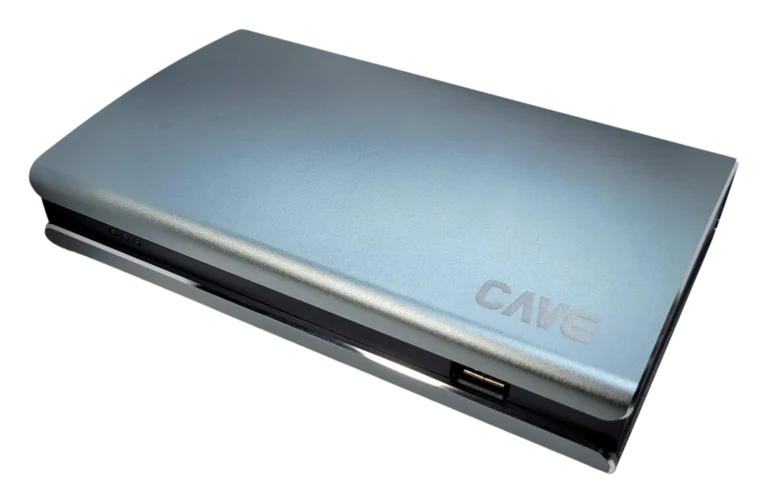
FAQ
Do I need a USB 3.0 extension cable for video meetings?
Not necessarily. For video meetings at 720p or 1080p and 30 fps, USB 2.0 has enough bandwidth. What matters is using a professional active extension cable.
How long can a USB extension cable be?
Professional active extension cables commonly come in 3, 5, 10 and up to 30 metres. The longer the cable, the more the signal weakens, so test on site before installing.
Do CAVE cameras need a driver?
No. CAVE cameras support the USB UVC standard and are plug-and-play on Windows and macOS.
Why does the computer sometimes fail to detect the camera?
The usual causes are a weakened signal or too little power. Confirm the equipment works with the original short cable first, then try another USB port, add a hub, and add external power, in that order.
The planning advice in this guide is general reference. Actual results vary with the room, the equipment and the network. Product specifications follow the manufacturer's documents; we recommend contacting us for an assessment first.
More guides
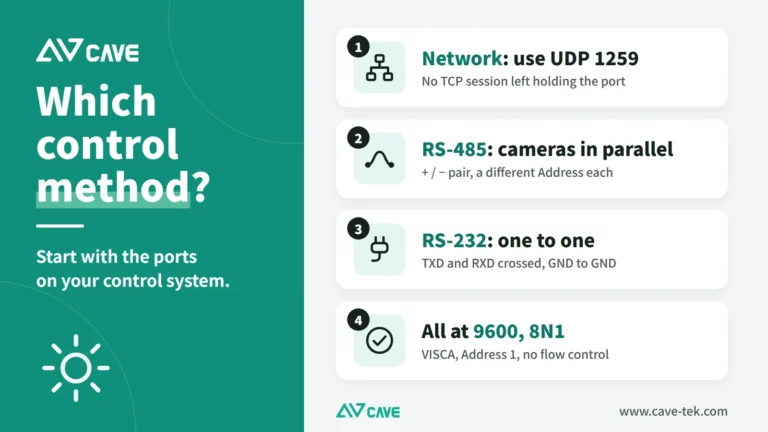
PTZ Camera Control System Integration: Wiring, Testing and Speaker Tracking
One-touch meeting modes and cameras that turn to whoever is speaking come from integrating PTZ cameras with control systems and conference systems. This guide covers control methods, wiring, VISCA commands and troubleshooting, step by step.
Huddle Room Setup: One USB Cable, 2 to 6 People on a Call
A huddle room is used all the time and looked after by no one. This guide compares the three simplest setups: the SP-1100 all-in-one, the J01i with an SM-500 (UCB-S), and the A01 with an SM-500, and how to choose by headcount, room size and room to grow.
How to choose a meeting-room camera: 8 things to check, starting with room size
The camera is the most visible part of a video meeting. Whether remote people can see everyone, and see them clearly, depends on it. Work through these 8 points before you choose.