What equipment does a video meeting room need? Cameras, speakers and microphones explained
Three things ruin a video meeting: you can't hear them, they can't hear you, and the picture is a blur. Here is a plain-English walk through what a meeting room needs and how the pieces fit together.
Short answer
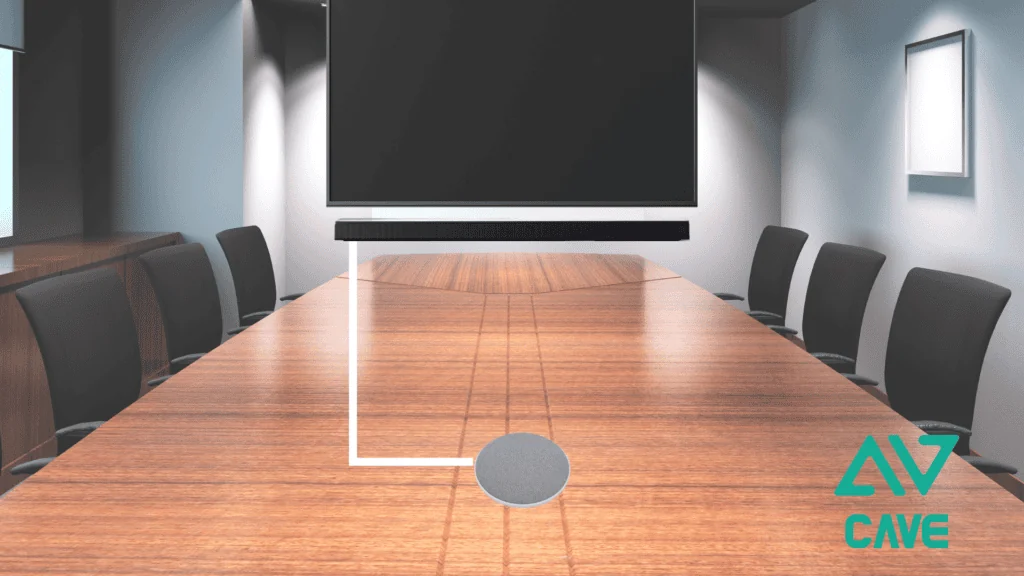
A room needs four things for a good video meeting: a camera so the other side can see you, speakers so you can hear them, microphones so they can hear you, and an audio processor that removes echo and noise (most conference speakerphones have one built in). In a small room up to 4 metres deep, an all-in-one conference camera, or a wide-angle camera plus one speakerphone, is enough. In a bigger room, switch to a PTZ camera that can turn and zoom in for close-ups, and add more microphones. All of it connects to the computer over USB and works with Teams, Google Meet and Webex.
Key takeaways
- Work out the room size, headcount and table layout before you pick equipment
- A soft picture is tolerable. Sound nobody can follow ends the meeting
- Echo is the most common complaint, and built-in echo cancellation plus sensible placement usually fixes it
- If the room already has an amplifier and microphones, you don't have to replace them
Choosing video equipment is like choosing an air conditioner. If the unit is too small for the room, turning it to maximum won't help. The same goes for a camera, speaker or microphone that doesn't suit the space: no setting will rescue it.
There are several guides on video conference rooms, each for one job. Start with “What to buy for a video conference room” for the whole picture, then read on as needed:
| Guide | What you will learn |
|---|---|
| What to buy for a video conference room (start here) (you are reading this one) | Cameras, audio, connections, and the table of setups by room size |
| How to choose a meeting room camera › | Camera by room size and headcount, PTZ, auto tracking, mounting |
| How to choose a conference speakerphone › | Fixing sound that is unclear, echo and noise, and choosing an audio setup |
| Huddle room setup › | Small rooms for 2 to 6 people: three setups and how to expand |
| Microphones for large meeting rooms › | Pickup options and how many for a big space, and how to deal with room reflections |
| How to choose a USB extension › | What to check when a short cable works but a long one fails |
| Why medium and large rooms use PTZ › | 5 reasons to use a PTZ camera (for what PTZ is, see “What is a PTZ camera”) |
Before you plan, take stock
When meeting-room equipment is badly chosen, it never feels right in use. Many rooms are in the same position: the camera, speakers and microphones have all been bought, yet in every video meeting the far end still says “we can’t see you properly” or “we can’t hear you properly”. Usually nothing is broken, and the equipment was not too cheap. It simply doesn’t suit the room.
Choosing equipment is like choosing an air conditioner: a small bedroom and a large living room need different capacities, and with the wrong capacity the room never cools however low you set it. Video conferencing equipment works the same way. A camera, speaker or microphone that doesn’t suit the space will not give the picture and sound you expect, whatever you change in the settings afterwards. So the point is not to buy the most expensive kit, but to choose what this particular room needs.
How do you choose well? Step one is to state the need. Most meeting rooms want much the same: to hold cloud video meetings (Teams, Google Meet, Webex and the like) with people outside; a camera that clearly shows whoever is speaking, or the whiteboard; speakers that let us hear the far end clearly; microphones that send our voices across clearly; no echo during the call; and, ideally, a camera that can switch between speakers.
Step two is to take stock of the room. The same needs lead to completely different answers in different spaces. Before buying anything, answer these questions:
- Space: how long and wide is the room? What is the largest number of people who sit in it?
- Furniture: are the tables and chairs fixed, or moved around often?
- Display: is the picture shown on a projector screen, or on a TV or monitor?
- Seating: where do the main speakers sit, and in which part of the room?
- Use: meetings only, or presentations and teaching as well, or in-room and online at the same time?
- Existing equipment: does the room already have microphones and loudspeakers?
- Installation limits: where is the rack? How can cables be run? Can a camera be fixed to the wall or ceiling? Is the room often rearranged?
The answers decide which kind of camera you need, how many microphones, and where the speakers go. For example, a room where the tables are often moved is a poor place for microphones fixed to the table; and if the walls can’t be drilled, the camera has to go on a tripod or a cabinet instead. Settling these first saves you from buying something that turns out not to fit.
The larger the room and the longer the wish list, the more complicated things get: picture, pickup, playback and call processing each need to be worked through, or you end up with the wrong product. One answer is to adjust expectations: decide which part of the room is the main area for video meetings and do the camera, pickup and playback properly there. The budget then goes where it matters, and you get the combination that fits best.
With the room understood, the rest of this guide goes through the camera, the sound, and how they connect.
Camera: the bigger the room, the more you need real zoom
The camera’s job is a clear picture. Choose it to suit the size of the room, the way the room is used and the conditions on site, and put it in the right place, or it can’t do its best.
Room size is the key, because the further people are from the camera, the smaller they appear. A small room up to 4 metres can use a fixed wide-angle camera that gets everyone into one picture; a medium room of 4 to 6 metres, a PTZ optical-zoom camera or a 4K wide-angle camera; a large room of 6 metres or more needs a PTZ optical-zoom camera to bring the back row closer, so that the enlarged picture stays sharp. The sections below take each size in turn.
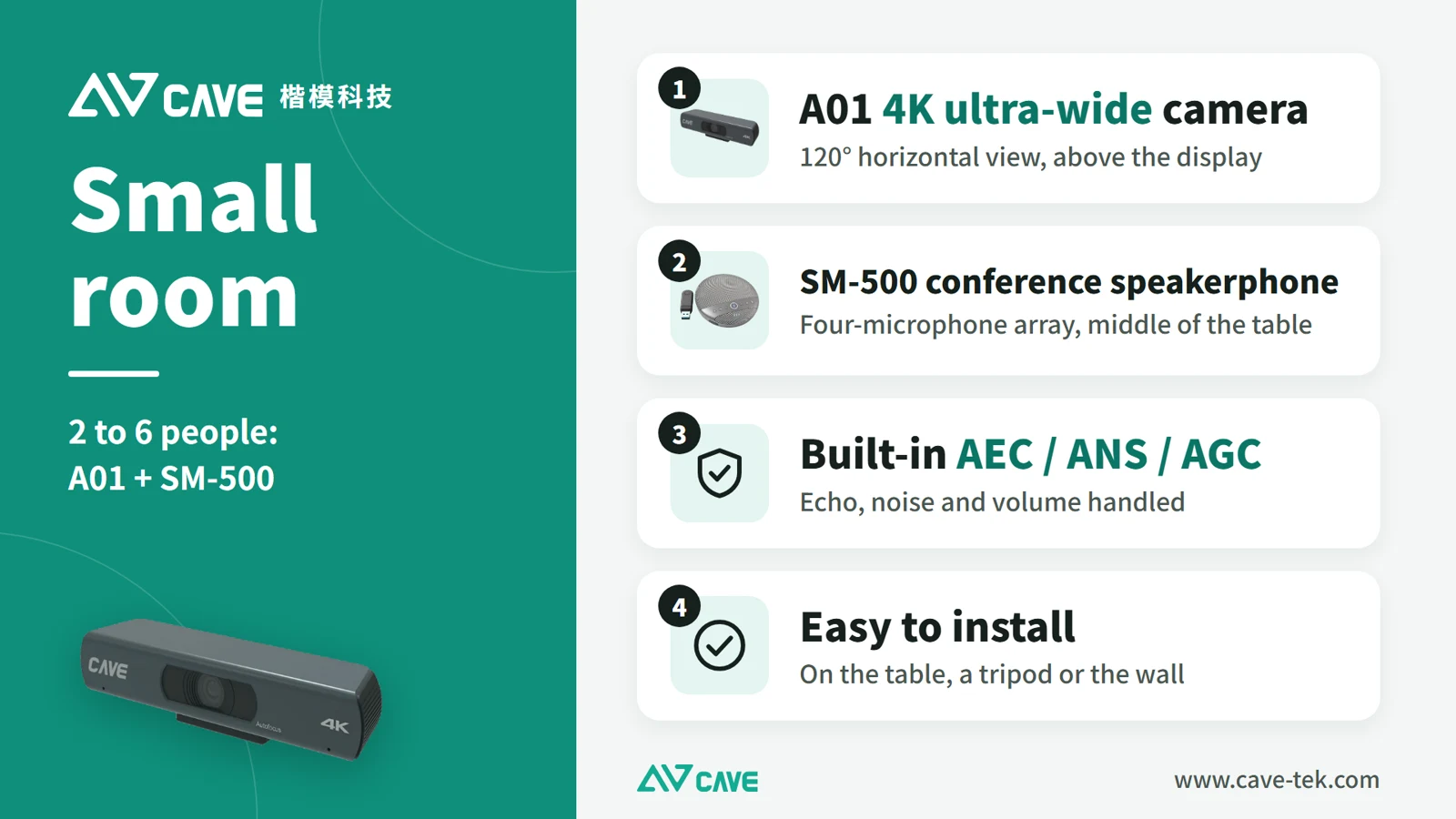
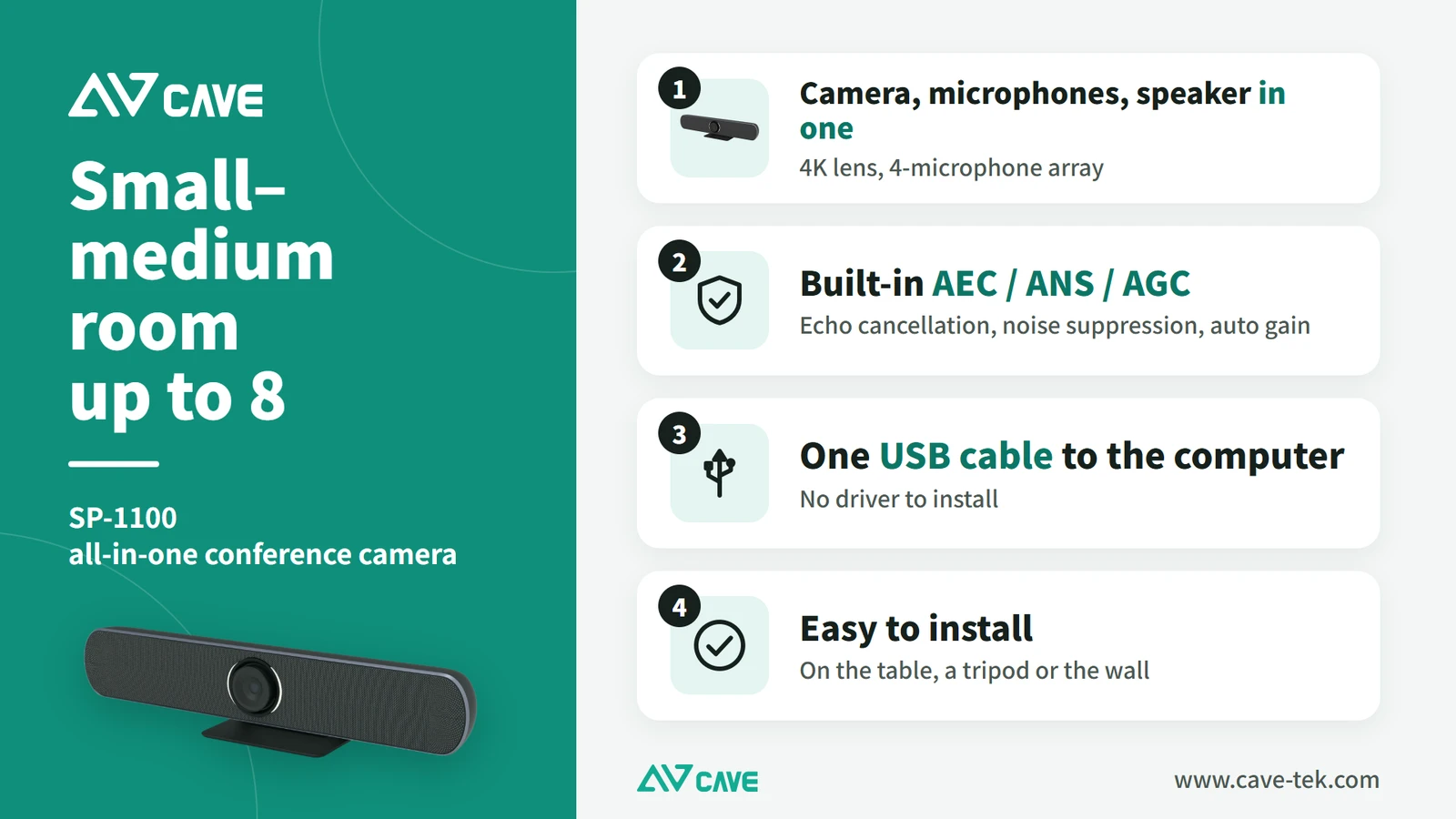
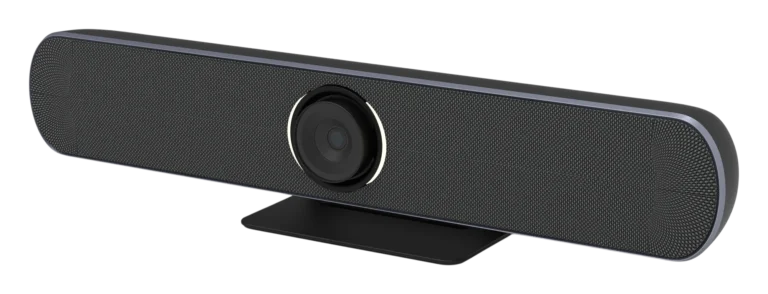
In a small room up to about 4 metres with no special requirements, an all-in-one conference camera (camera, microphones and speaker in one unit, such as SP-1100) gives good picture, pickup and playback, or a 4K wide-angle camera (such as A01 or A01SE) gets everyone into the picture. One USB cable to the computer starts the meeting. Installation is simple too: on the table or on the wall.
The A01 is another all-round camera, positioned like the S12+: in any space the S12+ covers, when the need is simply to have a picture, with no close-ups and no concern for how large people appear, the A01 can be planned in. It has a 4K picture and a 120-degree wide view, USB and HDMI outputs and a remote control that sets preset positions, and besides sitting above a display it can hang from the ceiling.
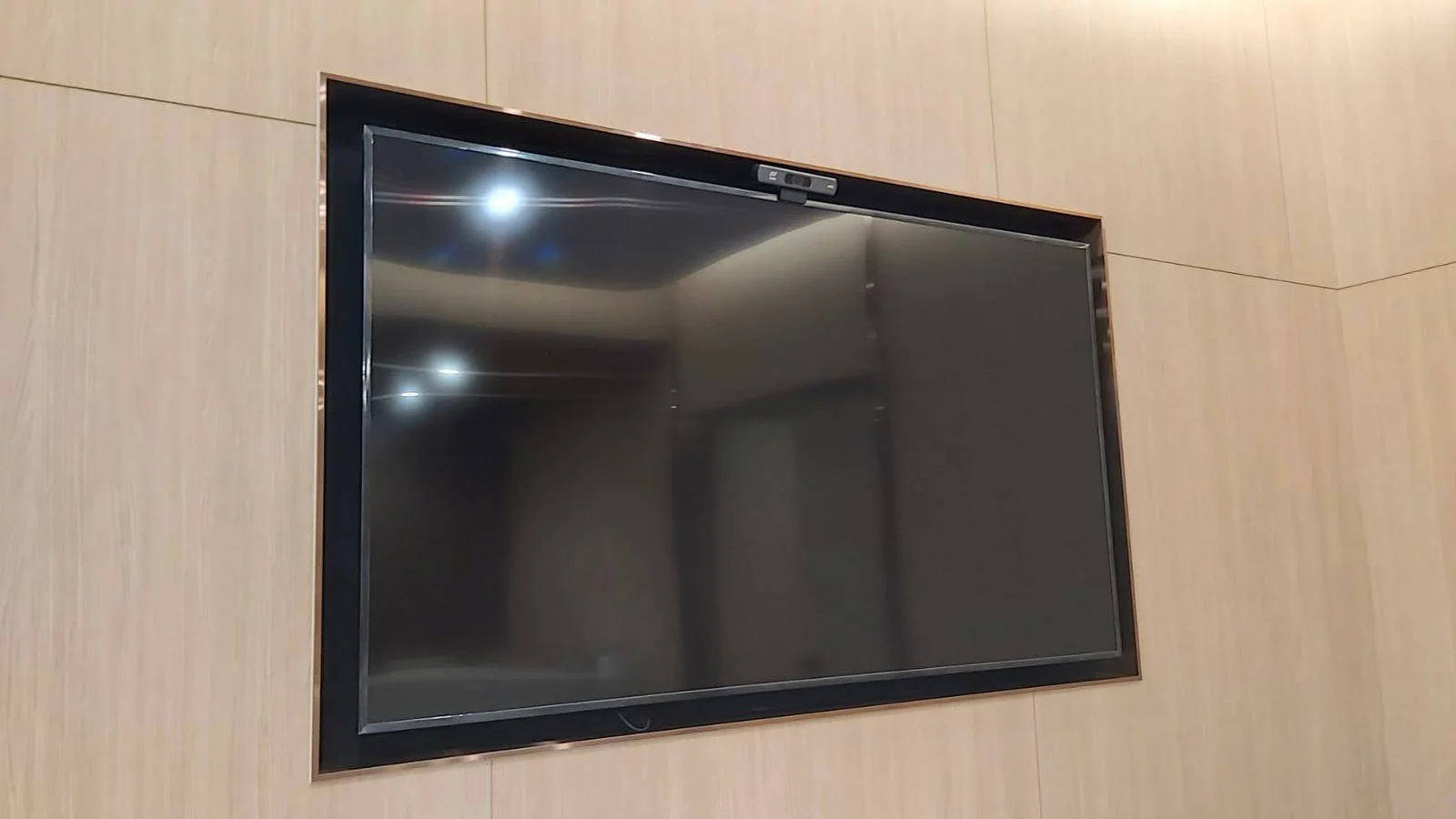
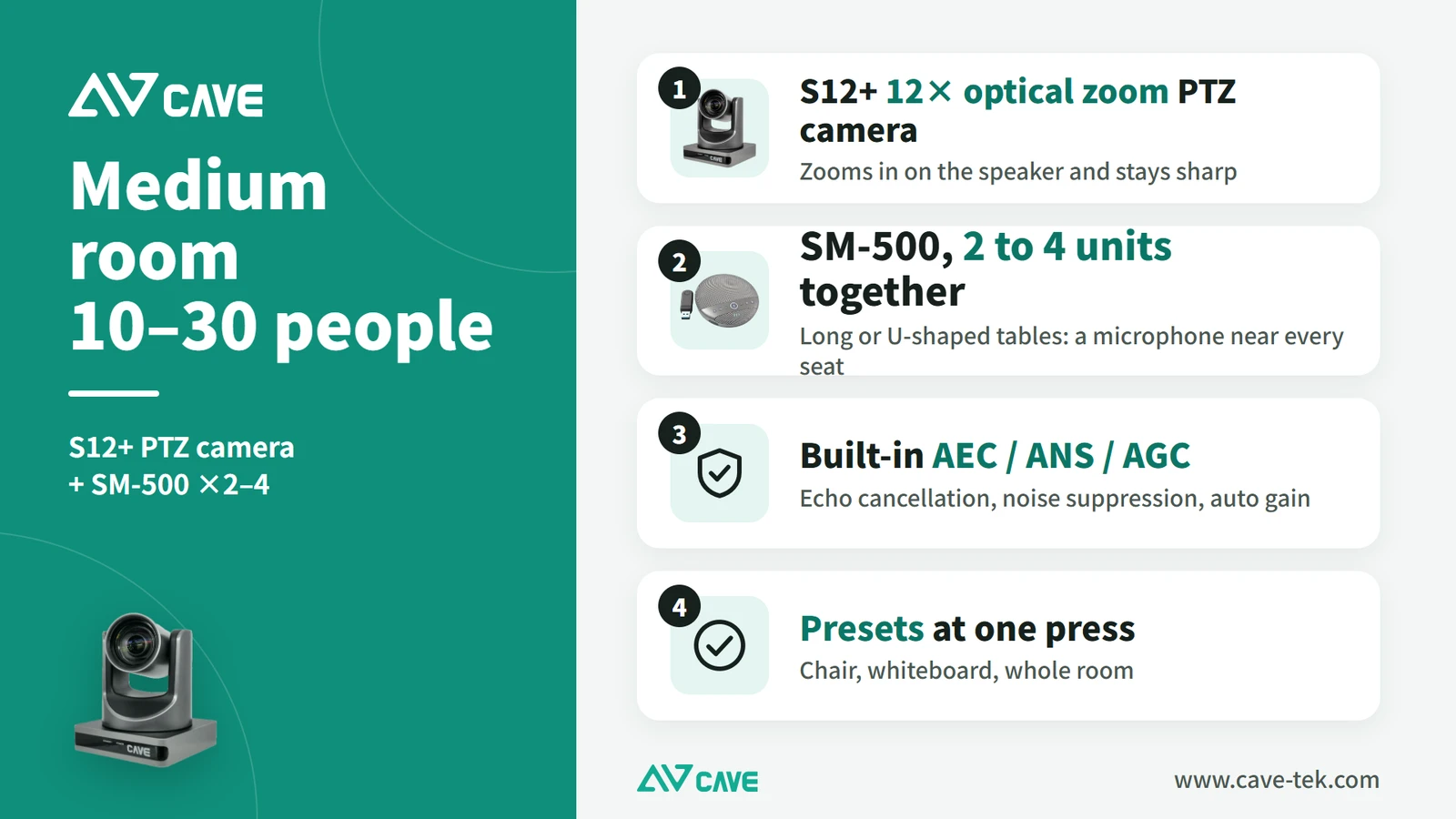
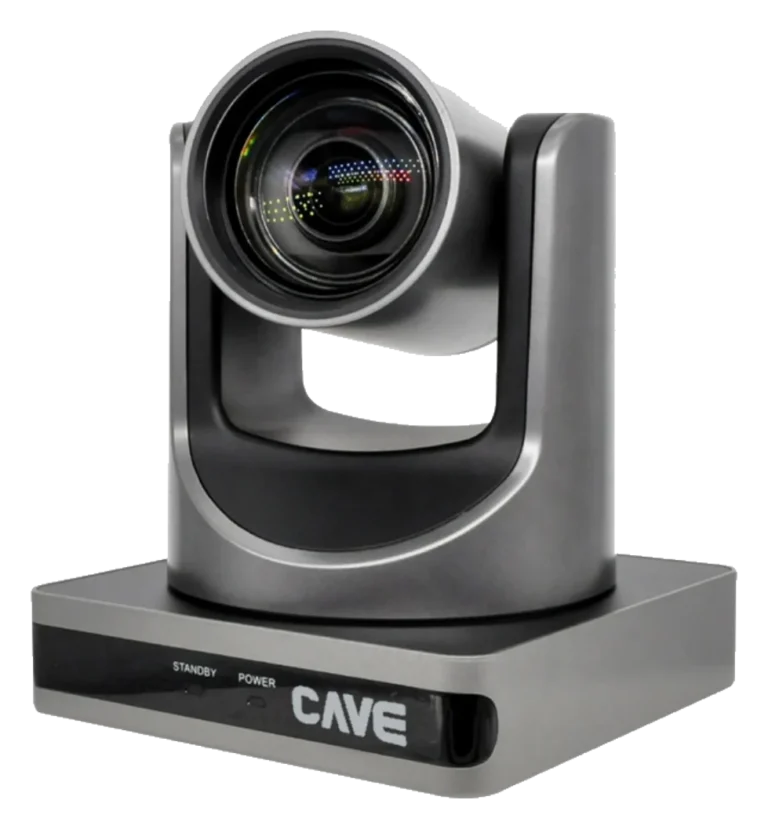
Once the room is more than 4 metres deep, people at the back become very small in the picture, and the back of the room is often where the boss or the senior managers sit. To show them clearly, use a PTZ camera (such as S12+). PTZ stands for Pan (left and right), Tilt (up and down) and Zoom (in and out). Unlike an ordinary camera, you don’t move or turn it by hand: a remote, a keyboard controller or control software operates the lens from a distance, quickly changing angle and framing to find the best shot.
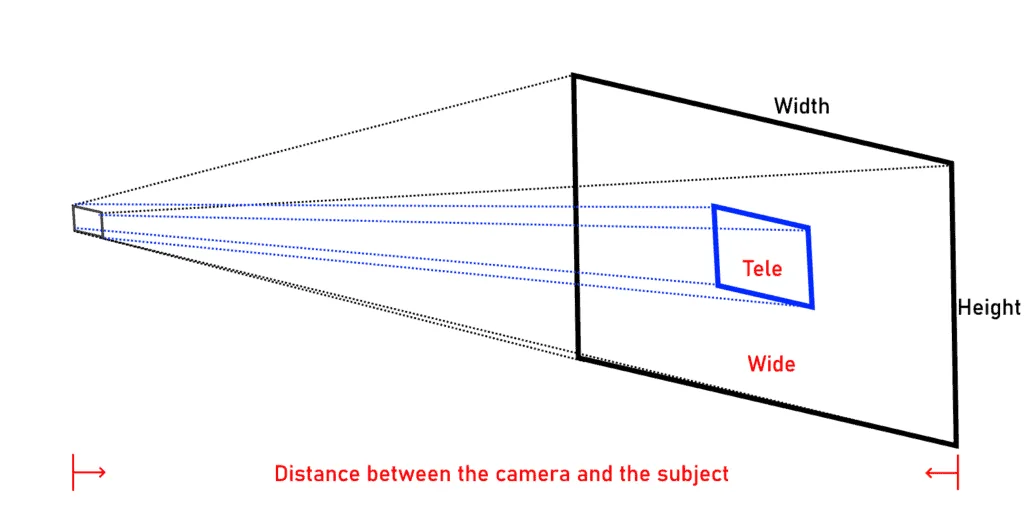
It uses a professional optical lens and enlarges by optical zoom. Like a telescope, it brings distant things closer with glass, so the enlarged picture is just as sharp and every corner of the room is within reach. The digital zoom on an ordinary webcam only crops and enlarges the picture, which gets softer and blockier the further you go. This is the main advantage of a PTZ camera.
The second advantage of a PTZ camera is how fast it changes the shot. It can remember the positions you use most (called presets), such as the chairperson’s seat, the whiteboard and the whole room, and go to any of them at one press during the meeting. An ordinary camera needs someone beside it working the tripod to change the shot; a PTZ camera has several kinds of remote control, by remote, by PTZ keyboard or built into the room control panel, which makes professional framing much easier.
If the presenter walks about at the front, choose a model with AI auto tracking. Without it, keeping the picture on the person takes a camera operator, or someone working the keyboard all the time. With it, the camera follows the person by itself and nobody extra is needed, which is why more and more rooms use it.
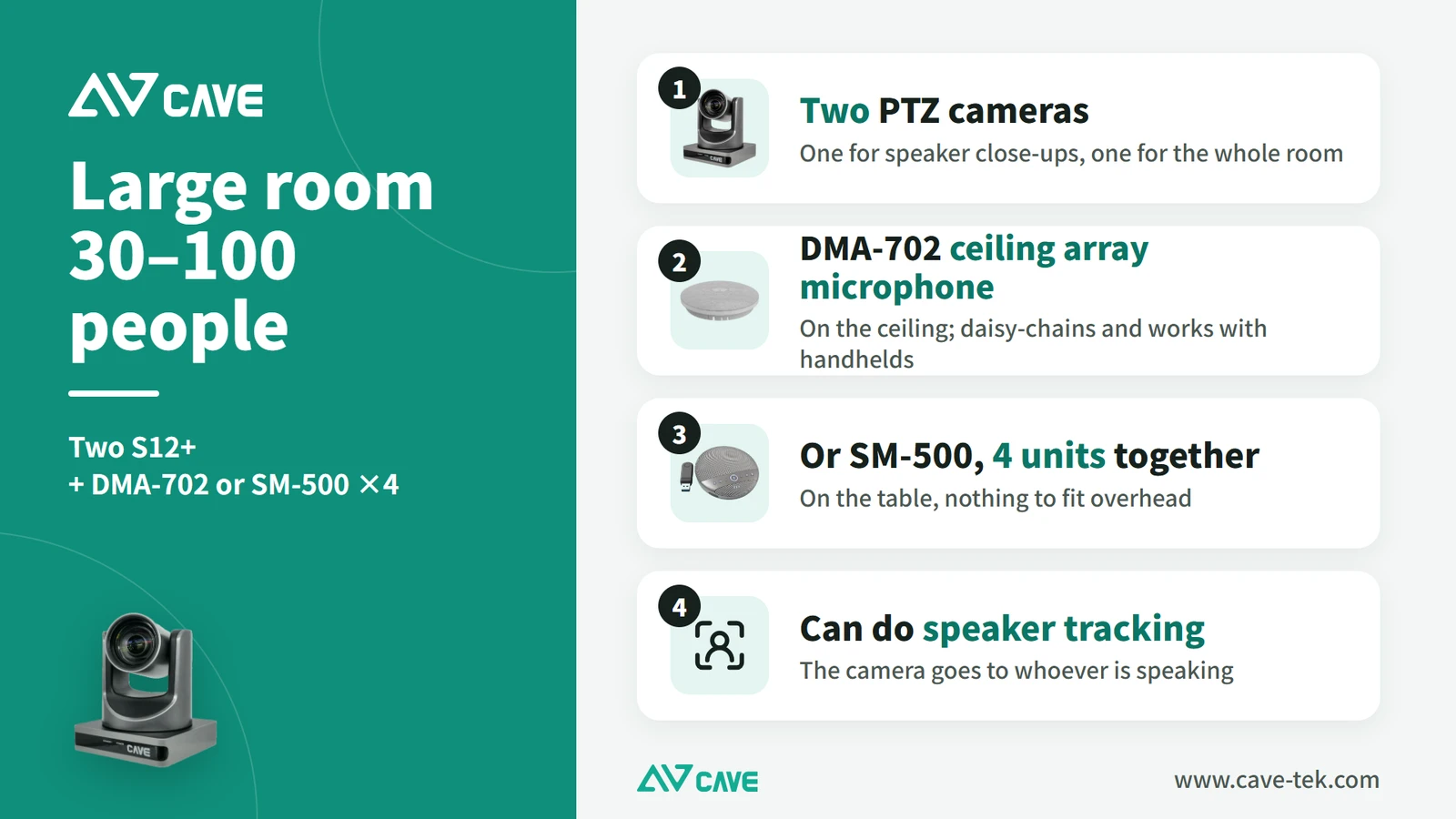
Auto tracking comes in several kinds with different uses. Auto framing adjusts the picture to the number of people in the room and gets everyone in. Auto tracking locks onto one presenter and follows them. Speaker tracking shows whoever is talking. Large rooms often use the last of these by linking the camera to the conference microphone system: whoever switches on their microphone, the camera goes to that person’s preset.
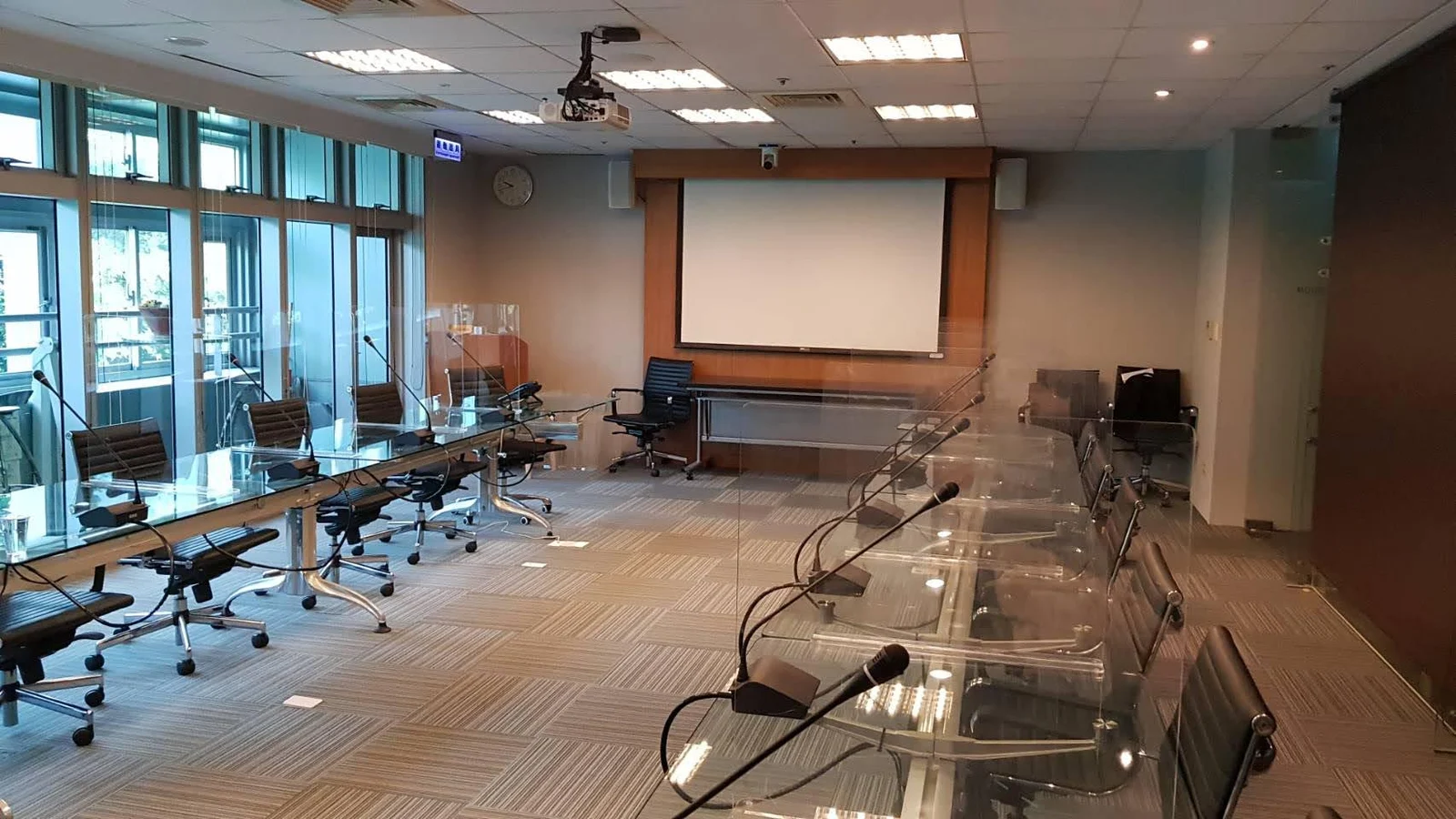
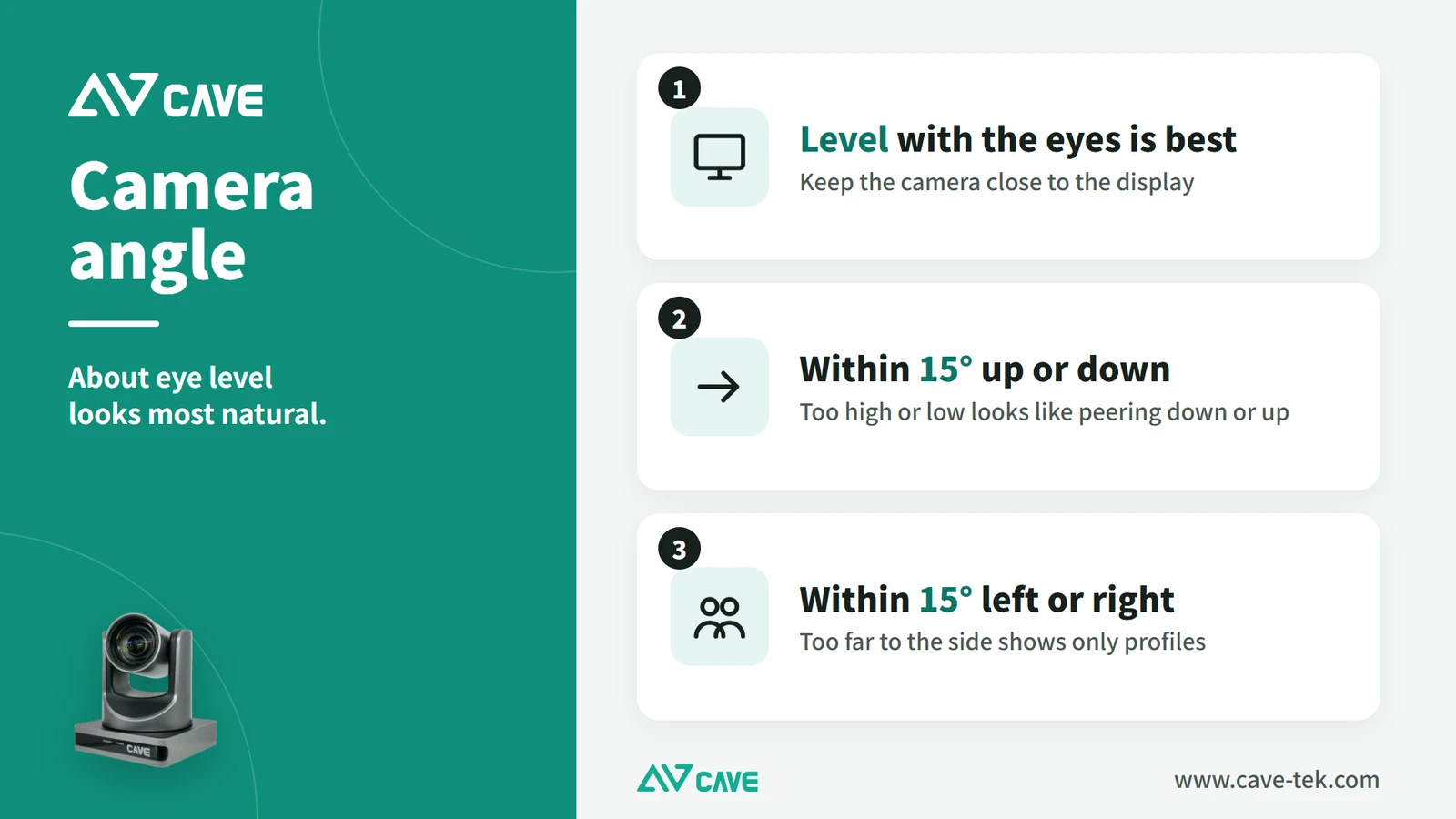
With the camera chosen, it still has to go in the right place. It is best mounted just above or below the display, at about eye level and within 15 degrees up, down, left or right. Everyone looks at the display during a meeting, so with the camera beside it the far end sees a picture that feels like a face-to-face conversation, not a view from the ceiling.
To sum up: a small room suits A01, A01SE or SP-1100; a medium room, S12+ or SP-1100; a large room, the 20x P20i, or the TX20i with 4K and AI tracking.
More on choosing a camera: How to choose a meeting-room camera ›
Sound: it matters more than the picture
When planning a meeting room, most people think of the picture first. In a real meeting, though, a slightly soft picture doesn’t stop the conversation; broken-up sound or an echo does. That is why the sound deserves the extra care.
The point of the room’s audio is clear conversation: we hear the far end clearly, they hear us clearly, there is no echo and no background noise during the call, and different speakers come across at about the same volume. Three things make that happen: microphones, speakers and a digital audio processor (DSP). Each is explained below.
Microphones
Start with what gives the best pickup: a microphone each, whether a lapel microphone, a handheld or a gooseneck on the table. Because the speaker is close to the microphone the voice is clear, little unrelated sound gets in, and echo and noise are less of a problem.
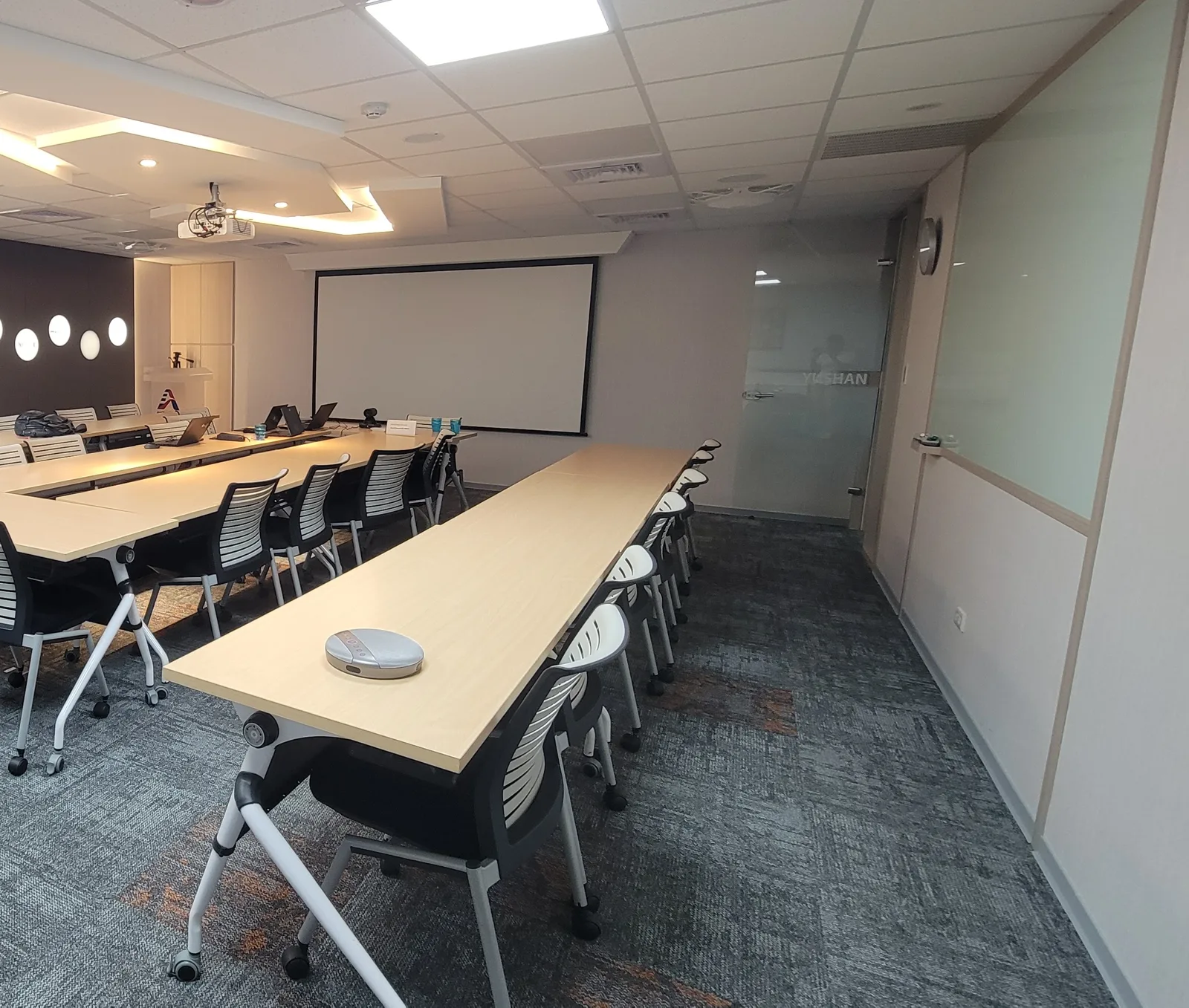
With many people in a meeting, though, the idea that everyone has their own microphone is usually a long way from reality. The more common approach now is an omnidirectional microphone shared by a group, such as a boundary microphone on the table, a conference speakerphone or a ceiling microphone. It picks up sound through 360 degrees, and nobody has to hold it. Remember one principle: the closer people are to a microphone, the clearer they sound. The more professional the conference microphone, the better it keeps the voices that matter and removes the sounds that don’t.
Speakers
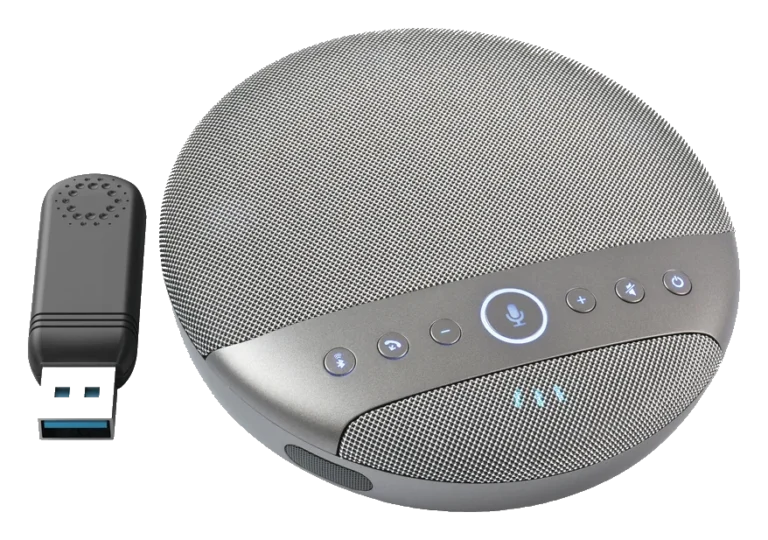
A speaker for video meetings has to reproduce speech clearly, at a level that suits the room, so every seat can hear. A two-in-one conference speakerphone has echo cancellation built in and keeps the microphone and speaker together in one unit that sits right in front of the people using it. Both pickup and playback are close by, so this is where people hear best.
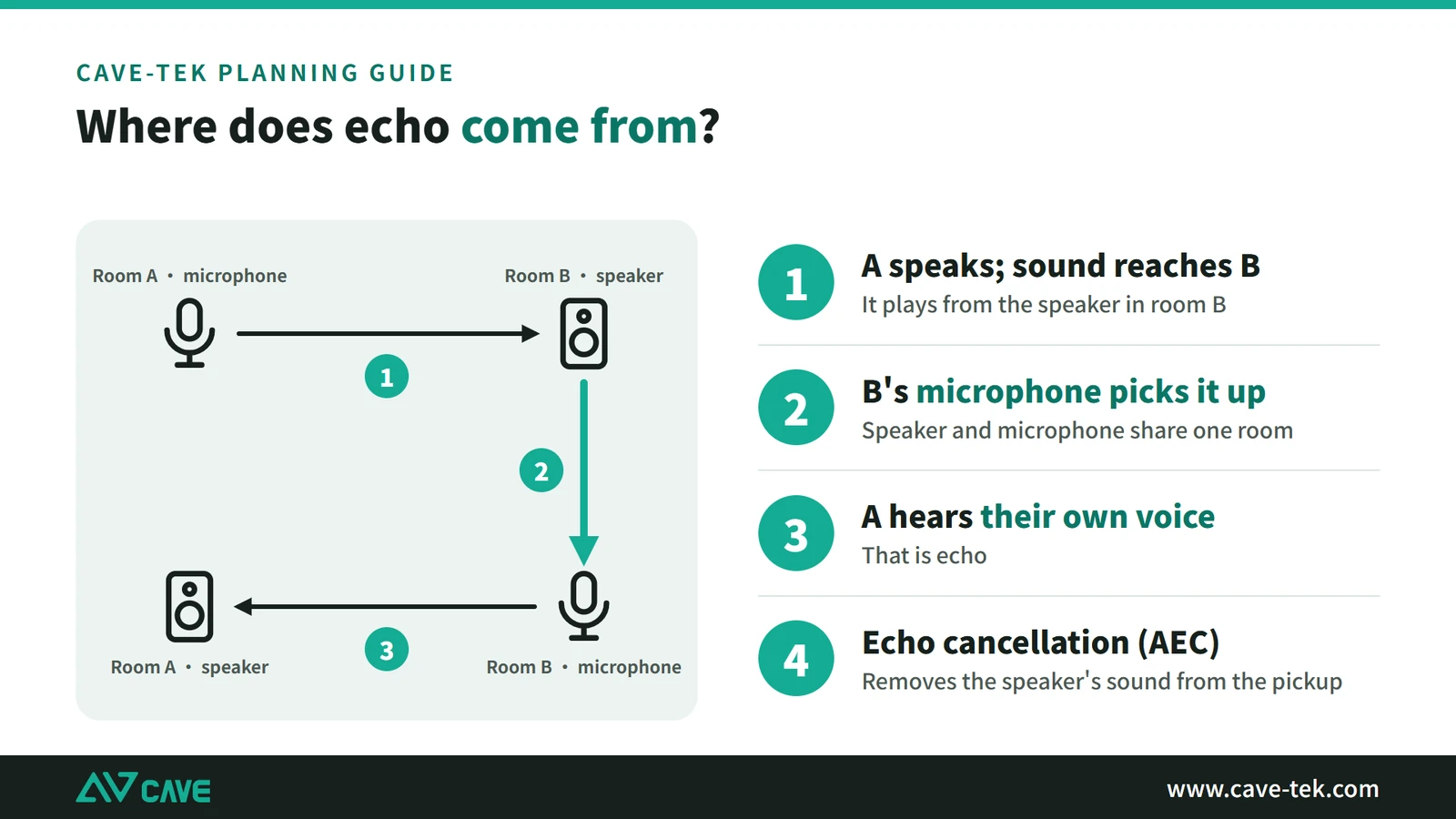
When the speakers and microphones are installed separately, their relative position matters too: plan the microphone pickup area and the speaker coverage area first, and never point a speaker at a microphone. Why? The far end’s voice comes out of our speakers. If our microphones pick it up again and send it back, the far end hears their own echo.
Audio processor (DSP)
Echo is dealt with by an audio processor (DSP), a device that prepares sound for meetings. It does several things: cancels the echo (AEC), lowers background noise from air conditioning and keyboards (ANS), brings loud and quiet speakers to about the same level (AGC), and in some cases strengthens the pickup of whoever is talking.
You don’t necessarily need a separate audio processor. A conference speakerphone puts the microphone, the speaker and the audio processor in one unit, which is why it is simple to install and covers a wide area: put it on the table, connect it and it works. For a large meeting, choose a model that can be used several at a time (CAVE SM-500, up to four) to extend the coverage, so that every seat has a microphone and a speaker nearby.
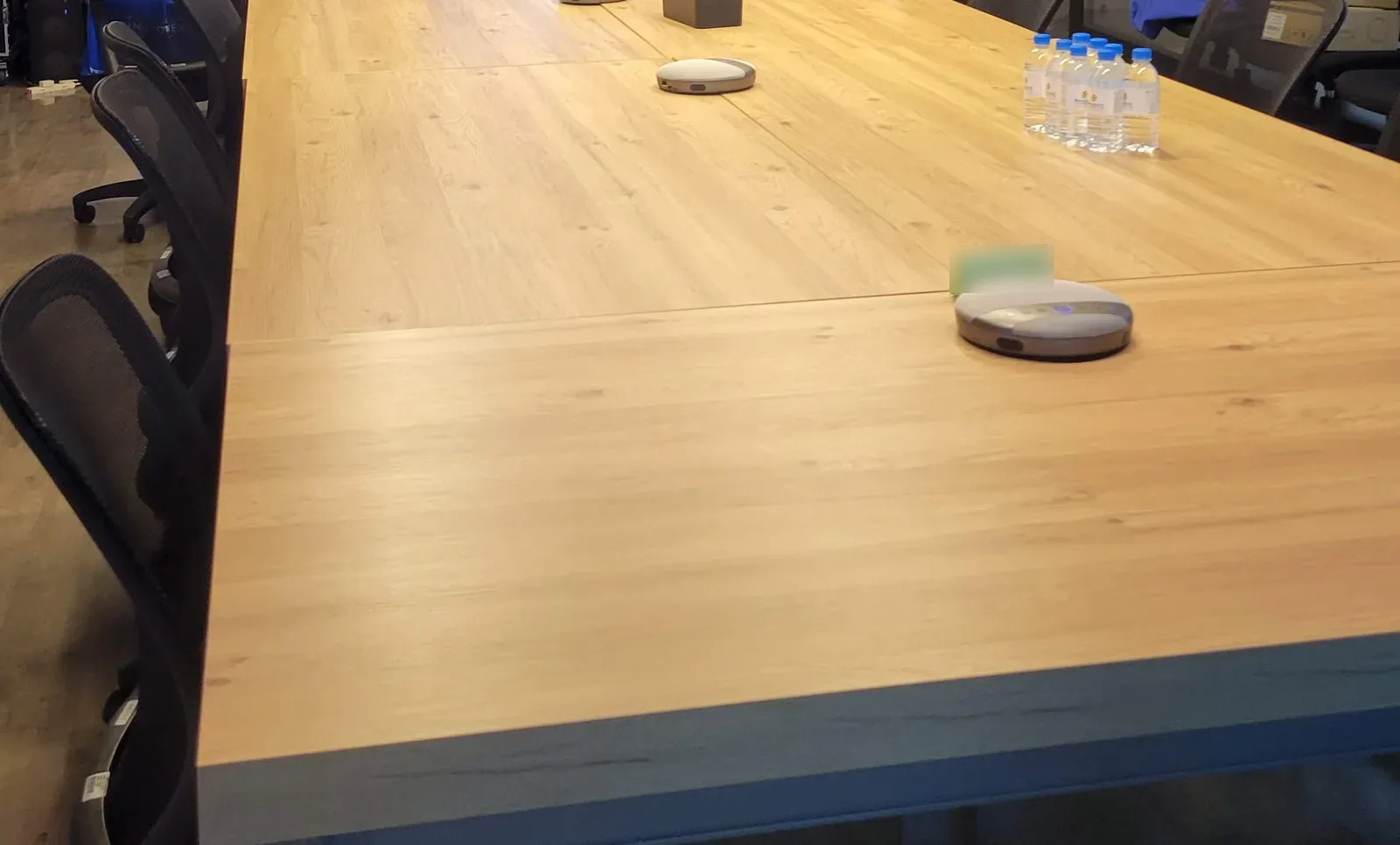
More on speakerphones: How to plan audio for a video conference room ›
We already have an amplifier and microphones. Can we use them?
Many meeting rooms, classrooms and halls already have an amplifier, loudspeakers and handheld microphones, used every day for in-room meetings and teaching. When video conferencing is added, the first question is usually: can we still use them?
Yes, and usually without replacing the whole system. One more thing has to be done, though. That equipment was only ever meant to let the people in the room hear; it does nothing about the echo of a video call, and it can’t connect straight to a computer. The room’s sound has to be cleaned up first and then handed to the computer over USB. There are three common ways:
- Add an audio processor made for video conferencing: connect the room’s microphones and loudspeakers to it. Think of it as an interpreter: it cleans up the sound (removing echo, reducing noise, balancing each person’s level) and hands it to the computer over USB.
- Use the CAVE DMA-702 conference microphone system: it can bring handheld microphones into the system. Its own microphones cover the area where people sit close together, the main speaker or people at the edges use handheld microphones, and the system switches between the two automatically while handling echo and noise for both.
- Use a USB audio interface or USB mixer: connect the microphones and speakers to the computer through it. With this method you arrange the signal path yourself. The rule is that the far end’s voice from the computer goes only to the room’s loudspeakers, and is not mixed with the room microphones and sent back to the computer, or the far end hears an echo. The echo processing built into the conferencing app can also handle basic echo.
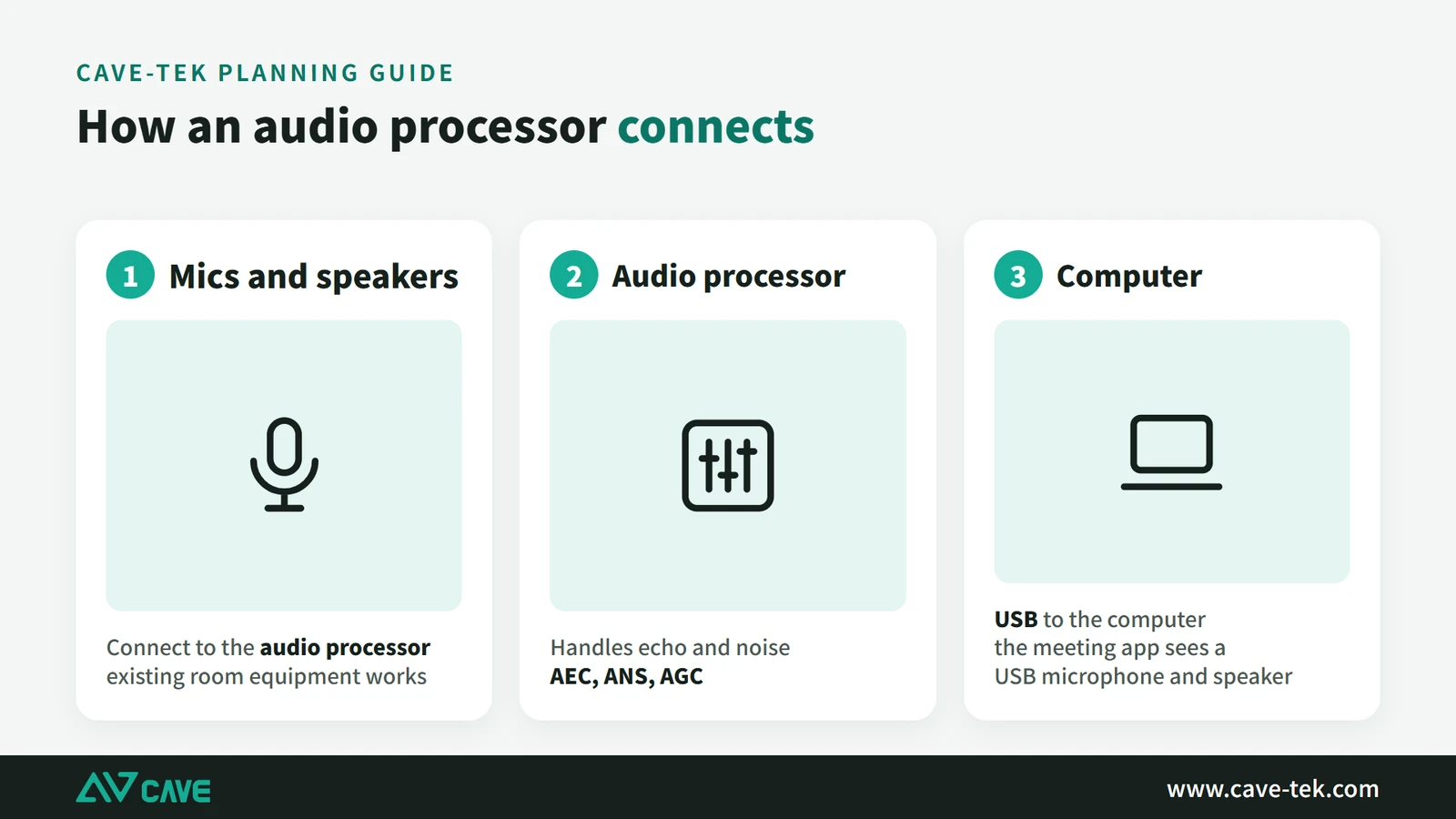
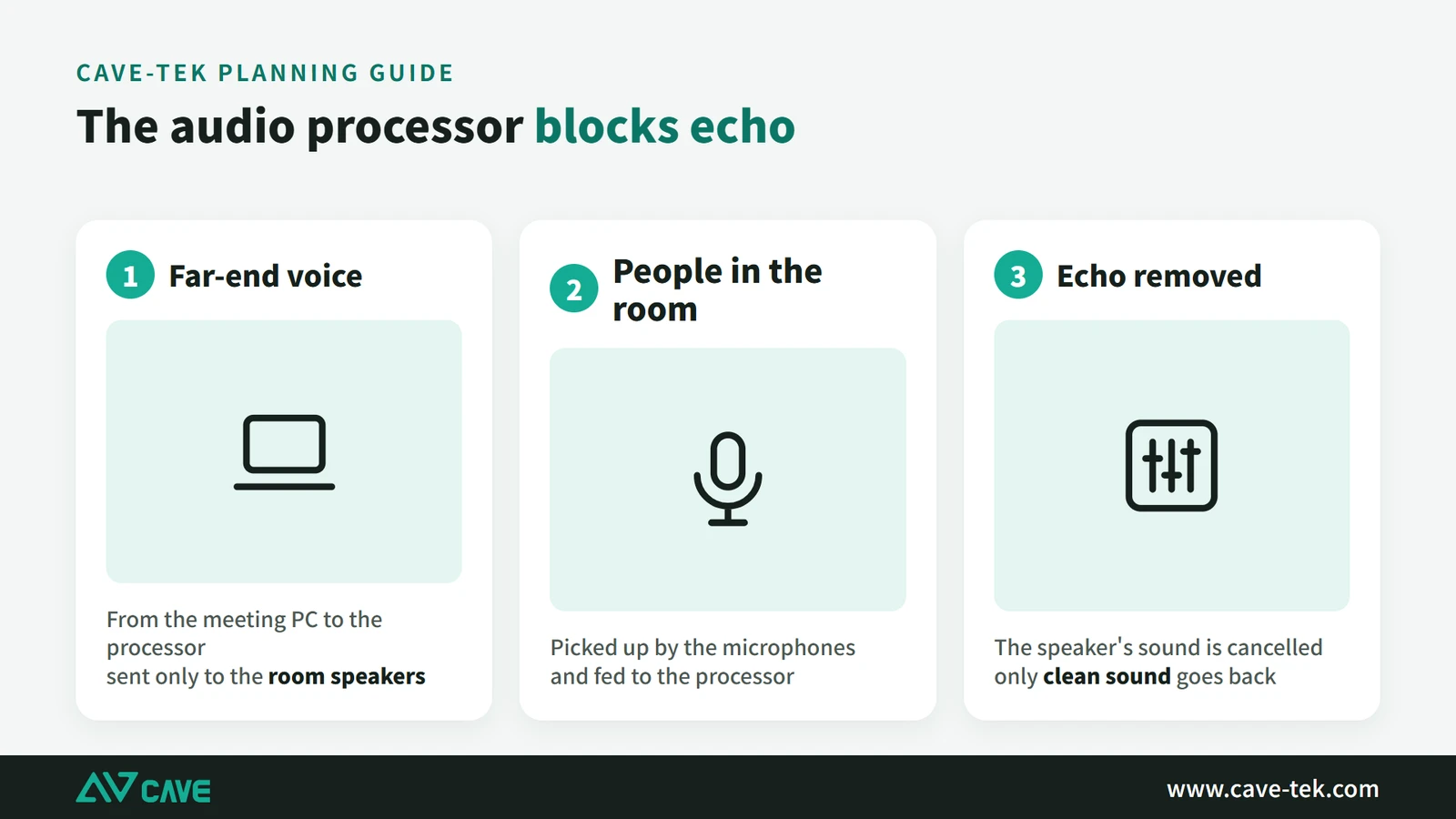
In a space of 10 metres or more, the equipment is usually further from the computer as well. The camera and the audio processor then go to a USB hub first and on to the computer together, as in the diagram below.
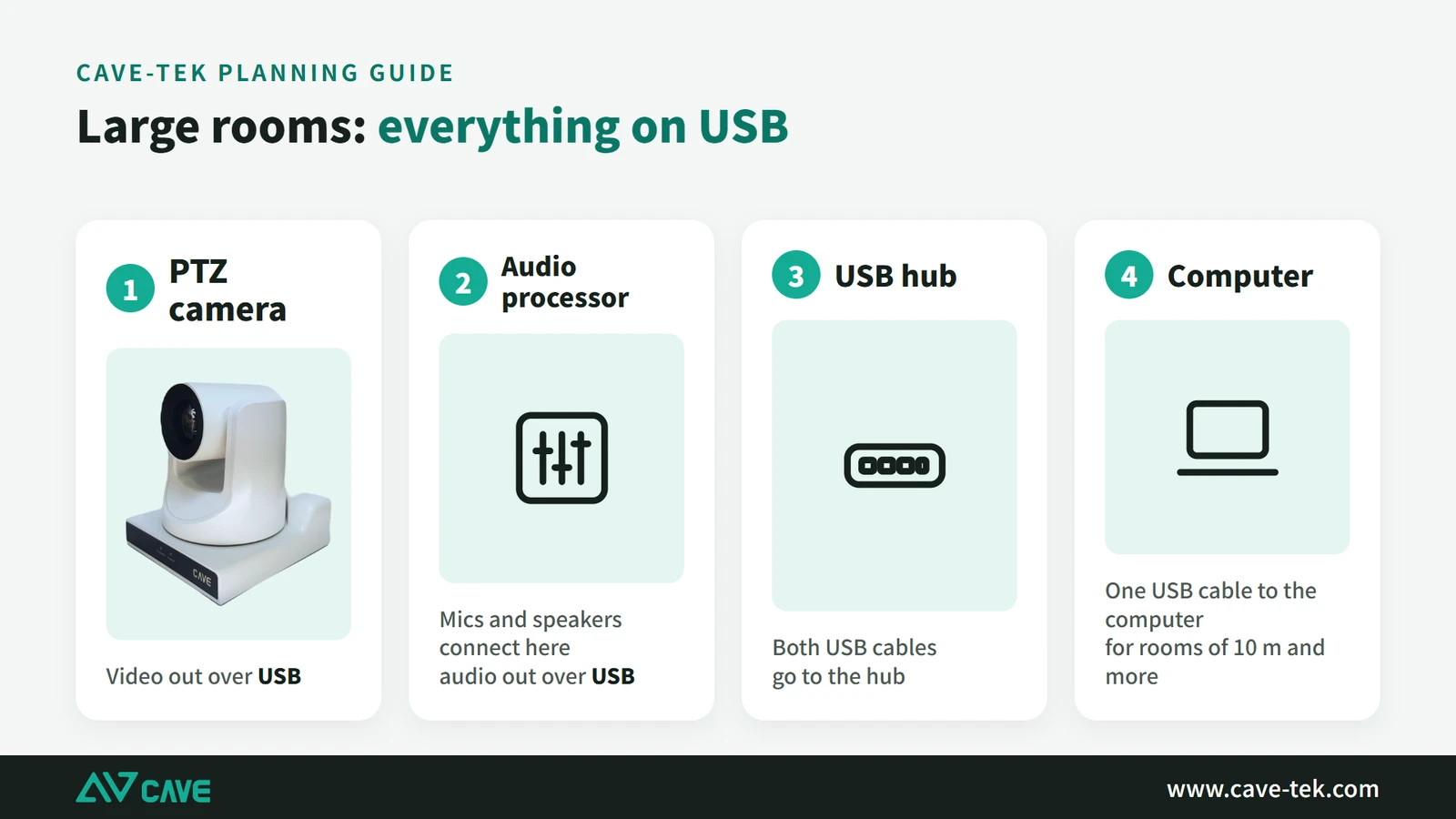
How does it all connect to the computer?
For a cloud video meeting on a computer, USB is the only way in, because apps such as Teams, Google Meet and Webex use the camera, microphone and speaker as USB devices of the computer. Whether you use a USB camera, a USB speakerphone, an audio processor or mixer with a USB output, a USB video capture device, a USB audio interface or a wireless conferencing (BYOM) system, it all arrives over USB.
Once connected, the computer shows an extra USB microphone and USB speaker. There is one more step: open Settings in Teams or Google Meet and change the microphone and speaker to the external conference device. This step is the one most often forgotten. Everything is connected, yet the computer is still using the laptop’s own microphone, and of course the far end can’t hear properly.
Common problems in a meeting, and how to improve them
The room is already equipped, but meetings don’t go as well as expected? When the equipment doesn’t suit the room, the problems usually look like this:
- Camera: it can’t get everyone in, the picture is unclear when zoomed in, the colour looks poor, and it can’t switch quickly to the person you want.
- Microphone: pickup is poor and people must be very close to be clear; people at the back can’t be heard at the far end; passing a handheld around is awkward; it interferes with the speakers.
- Speaker: hard to hear, with echo, poor quality and a hollow sound.
Most of these can be improved without buying everything again. The four cases below are taken one at a time: they can’t see us, they can’t hear us, we can’t hear them, and there is an echo.
They can’t see us clearly
First check that the camera suits the room. A small space wants a 4K wide-angle camera, with adjustable exposure, white balance and focus. A large space must have a PTZ camera with optical zoom, or the enlarged picture lacks resolution and shows noise.
Next, position and angle. Decide what you want to show and how the room is used, then decide where the camera goes. For video meetings it belongs in front of the speakers, around the TV or projection screen, close to eye level.
Finally, save the positions you use most as presets and switch between them with the remote or the control system, or use a camera with auto tracking so the person speaking stays in the picture.
They can’t hear us
The most effective fix is to get the person speaking closer to a microphone. A dedicated microphone each (handheld, gooseneck or lapel) is best: speaking at close range gives the clearest pickup and filters out the most room noise.
When one each isn’t possible, use omnidirectional microphones with a longer pickup range (ceiling or tabletop), or add more conference microphones (SM-500 can be used up to four at a time) so there is one near every seat. Be prepared for one thing: the further away the pickup, the more hollow and distant the voice sounds. When adjusting positions, also take care not to put microphones too close to the speakers.
We can’t hear them
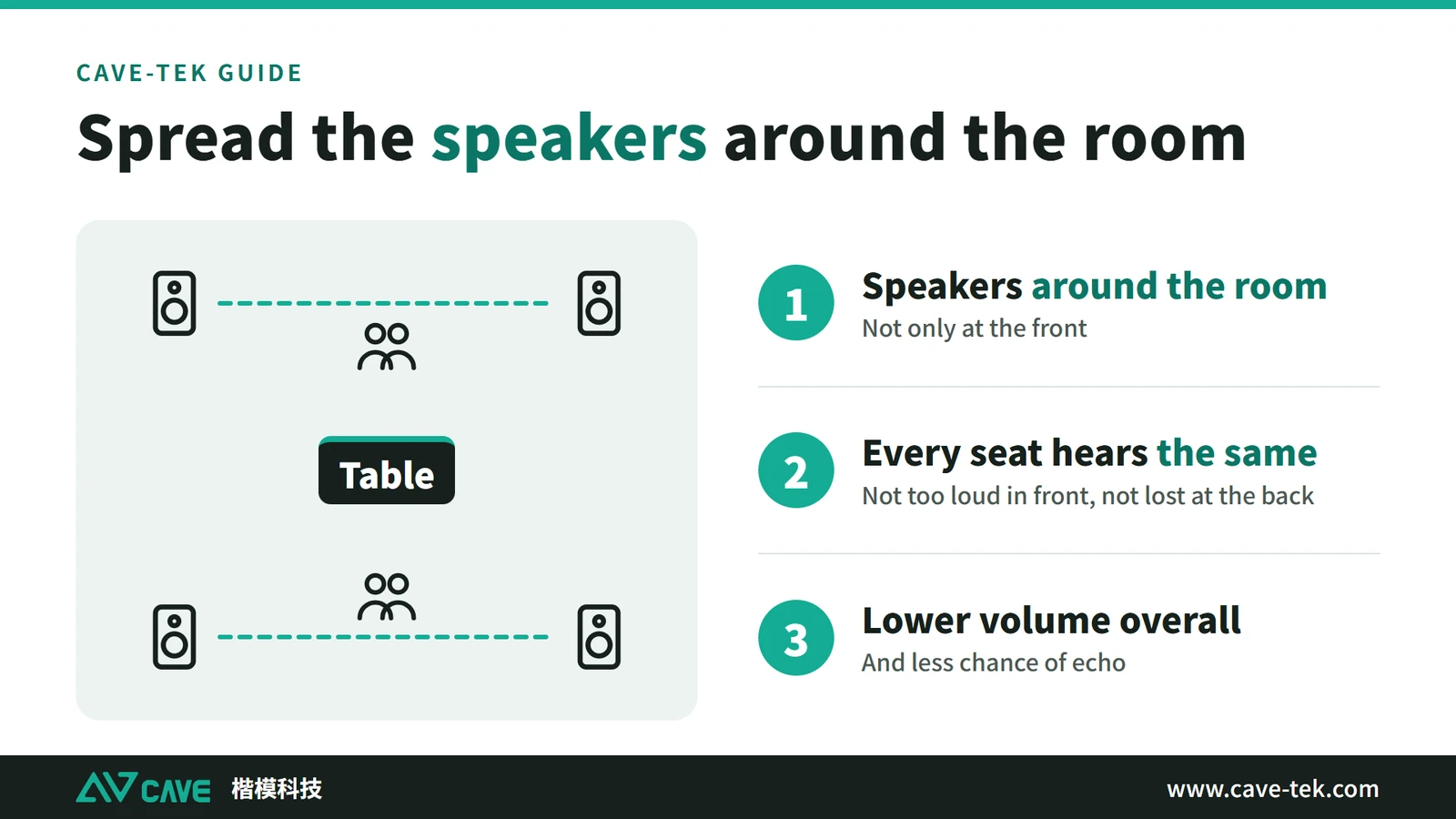
The speakers must be of a grade that suits the room, with volume and position that cover the whole room, or at least the main seating area. In a large space, several speakerphones spread around the table work better than one turned up to maximum. An audio processor used with the room’s existing loudspeakers is another option.
There is an echo
Start by switching to a conference speakerphone with built-in echo cancellation; that usually solves it. If there is still an echo, adjust the positions of the speaker and microphone, move them further apart, turn the speaker down a little and lower the microphone sensitivity, so that sound from the speaker isn’t picked up again.
With separate microphones and loudspeakers, a video conferencing audio processor has to deal with it: the far end’s voice is played only through the speakers and is blocked from getting back into the microphone signal.
The room itself matters too. Large areas of glass, tile or bare concrete make sound bounce around, so voices come across hollow and reverberant. Absorbent foam, acoustic panels, partition walls, curtains or carpet make a clear difference.
Tired of cables? Try wireless conferencing
A cloud video meeting needs the computer and the room’s equipment connected for good quality. The drawback of cables is that you work around them: the computer has to sit in a fixed place, people can’t move freely about the room, and a change of presenter means unplugging and plugging in.
Wireless conferencing (BYOM) is the other direction. People meet from their own laptops and, without any cable, connect to the room’s camera, speakers and microphones. Wherever they sit, they get a meeting with good picture and sound. CAVE WP-50 is an example.
Suggested setups by room size
Finally, here are the camera and the sound put together as four common combinations by room size. Compare them with your own room and pick the closest.
| Room | People | Camera | Audio |
|---|---|---|---|
| Small | 2 to 6 | A01 / A01SE | SM-500 |
| Small to medium | Up to 8 | SP-1100 | Built into SP-1100 |
| Medium | 10–30 | S12+ | SM-500 ×2–4 |
| Large | 30–100 | S12+ ×2, or P20i / TX20i | DMA-702 or a conference microphone system |
See real installations in companies, schools and government offices: Installation cases ›
Summary: look at the room first, then choose the equipment
Planning a video conference room comes down to three things: seeing clearly, hearing clearly, and being simple to use. Choose the camera by room size: wide-angle for a small room, an optical-zoom PTZ camera for a medium or large one. Sound depends on microphones, speakers and an audio processor working together: people as close to a microphone as possible, and no speaker pointing at a microphone. Then everything connects to the computer over USB, and the right devices are selected in the conferencing app.
If you remember only one thing, make it this: look at the room first, then choose the equipment. The same kit in a 3-metre room and a 10-metre room gives very different results. Once the room size, the number of people and the way it is used are clear, the rest of the choices become much simpler.
Every room is a little different, and it is quite normal to finish this guide still undecided. Tell us the size of the room, the number of people and what it is used for, and we will plan the equipment and its placement for you, free of charge.
Contact us about your meeting room ›
Setting up a small room for 2 to 6 people: read the huddle room guide ›
* SE stands for single output: the A01SE has the same picture specifications as the A01 but only a USB output, with no HDMI. If you need HDMI output, choose the A01.
Products in this guide
FAQ
What’s the simplest setup for a small meeting room?
An all-in-one conference camera such as SP-1100, or a 4K wide camera plus a speakerphone such as A01 or A01SE + SM-500, connected to the PC over USB.
How do I stop echo in video calls?
Make sure echo cancellation (AEC) is on in the speakerphone or audio processor, keep speakers and microphones apart, and add absorption where there's a lot of glass or hard wall.
Can my existing amplifier and microphones be used for video calls?
Yes — integrate them through a conferencing audio processor that removes echo and noise and connects to the PC over USB.
The planning advice in this guide is general reference. Actual results vary with the room, the equipment and the network. Product specifications follow the manufacturer's documents; we recommend contacting us for an assessment first.
More guides
Huddle Room Setup: One USB Cable, 2 to 6 People on a Call
A huddle room is used all the time and looked after by no one. This guide compares the three simplest setups: the SP-1100 all-in-one, the J01i with an SM-500 (UCB-S), and the A01 with an SM-500, and how to choose by headcount, room size and room to grow.
How to choose a meeting-room camera: 8 things to check, starting with room size
The camera is the most visible part of a video meeting. Whether remote people can see everyone, and see them clearly, depends on it. Work through these 8 points before you choose.
How to adjust colour on a PTZ camera: lighting, exposure, white balance and colour, in that order
The picture looks yellow or blue, faces are too bright or too dark, or two cameras don't match? Work through lighting, exposure, white balance and colour in that order and the picture comes right.