How to adjust colour on a PTZ camera: lighting, exposure, white balance and colour, in that order
The picture looks yellow or blue, faces are too bright or too dark, or two cameras don't match? Work through lighting, exposure, white balance and colour in that order and the picture comes right.
Short answer
Adjust a PTZ camera's colour in order. First make the lighting even. Then set exposure (brightness). Then correct white balance, so that white looks white. Only then fine-tune saturation and hue. Don't rely on your eyes alone: two displays help. A waveform shows whether the picture is too bright or too dark, and a vectorscope shows whether the colour has drifted. Both are found on external field monitors, and can be added to the free OBS software.
Key takeaways
- Order matters: lighting, exposure, white balance, colour
- If the lighting is wrong, nothing you adjust afterwards will rescue it
- The waveform shows brightness: the picture should sit between 0% and 100%
- The vectorscope shows colour: aimed at white paper, the dot should sit in the centre
Accurate colour makes the picture clearer, more lifelike and more professional. During a stream or recording the colour stays consistent from start to finish, and with several cameras a cut doesn't jump from yellow to blue. Getting the camera right first also saves a great deal of work in editing.
There are several guides on PTZ cameras, live streaming and recording, each for one job. Start with “What is a PTZ camera” for the basics, then read on for your situation:
| Guide | What you will learn |
|---|---|
| What is a PTZ camera (start here) › | Pan, tilt and zoom, presets, how to control it, AI tracking, and five questions for choosing |
| Why medium and large rooms use PTZ › | 5 reasons to use a PTZ camera |
| 10 things to watch when streaming or recording with PTZ › | Planning the shot, control, exposure, white balance, focus, depth of field, sound, mounting and power |
| How to adjust colour on a PTZ camera (you are reading this one) | Lighting, exposure, white balance and colour, in order |
| How to plan a recording system › | What to record, fixed or PTZ, who operates it, sound, the recorder and common setups |
| Live streaming and recording for churches › | A setup volunteers can run: presets, a keyboard and a streaming recorder |
| How to live stream a sports match › | Nine steps from one phone to a multi-camera broadcast |
| Planning a hybrid classroom › | Lectures, demonstrations and discussion classes |
| PTZ control and meeting-system integration › | Wiring, testing and speaker tracking (for projects and integrators) |
Why correct colour?
You may have seen it: in a stream or a recording, faces look yellow and a white shirt looks blue; or you cut to another camera and the colour suddenly changes. Usually the camera isn’t faulty. Its colour just hasn’t been corrected yet.
Colour correction makes what the camera shoots accurate and good to look at. With the colour right, the picture is more vivid and true, viewers are comfortable watching, and the result looks professional.
A corrected camera gives the same colour every time, live or recorded, and several cameras no longer each show a different colour. It also compensates for the colour cast of different lighting, which makes later editing and grading easier and saves post-production time and cost.
Common colour problems
These are the colour problems met most often when shooting with a PTZ camera:
- Wrong colours: what is shot doesn’t match what you see in the room. Usually a setting is off; occasionally it is the sensor itself.
- Colour cast: the whole picture leans towards one colour, mostly because white balance isn’t set properly.
- Uneven colour: different parts of the picture don’t match, because the lighting is uneven or the camera is set inappropriately.
- Oversaturation: colours are too strong, and detail becomes harder to see and recognise.
- Too bright: brightness is too high and colours wash out towards white, common in strong light.
Colour correction solves these. Work through it step by step in the recommended order: lighting first, then exposure, then white balance, and colour last.
Step 1: Lighting
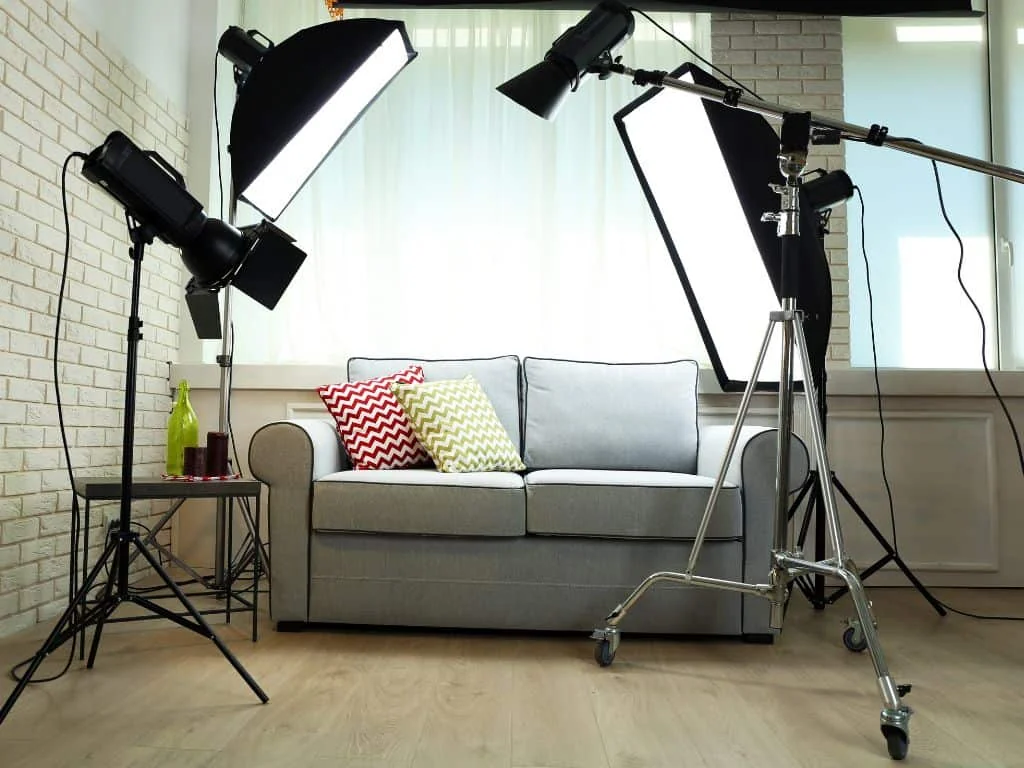
The lighting in the venue matters a great deal. It directly affects how clear the picture is and whether the colours are right. If the lighting is wrong, no amount of adjusting the camera afterwards will fully rescue it.
- Even: brightness should be much the same across the whole area being shot, with no patches of shadow or glare.
- Not into the lens: a light pointing at the lens causes reflections and flare, and the picture looks unclear.
- The right colour temperature: choose a colour temperature (warmer or whiter) to suit the scene, so colours are accurate and natural.
- Matched to white balance: the colour of the lighting must agree with the camera’s white balance setting, or there will be a cast.
- The right level: choose a brightness that suits. Too bright overexposes; too dark underexposes.
- Position and angle: place the lights to suit the subject, lighting it well and giving pleasing light and shade.
Step 2: Exposure (brightness)
Exposure is the brightness of the picture. The aim is just right: neither too bright nor too dark, with detail visible in both the bright and the dark areas.
- Choose an exposure mode: auto, manual or semi-automatic, depending on the shoot and the conditions.
- Mind the light source: watch its strength and direction, and avoid strong direct light that causes glare or deep shadow.
- Fine-tune with exposure compensation: if auto looks too bright or too dark, add or subtract a little to suit the light.
- Look after both ends: the brightest and darkest parts of the scene should both be captured, not burnt out to white or lost in black.
- Adjust as you test: watch the picture during the actual shoot and correct it a little at a time.


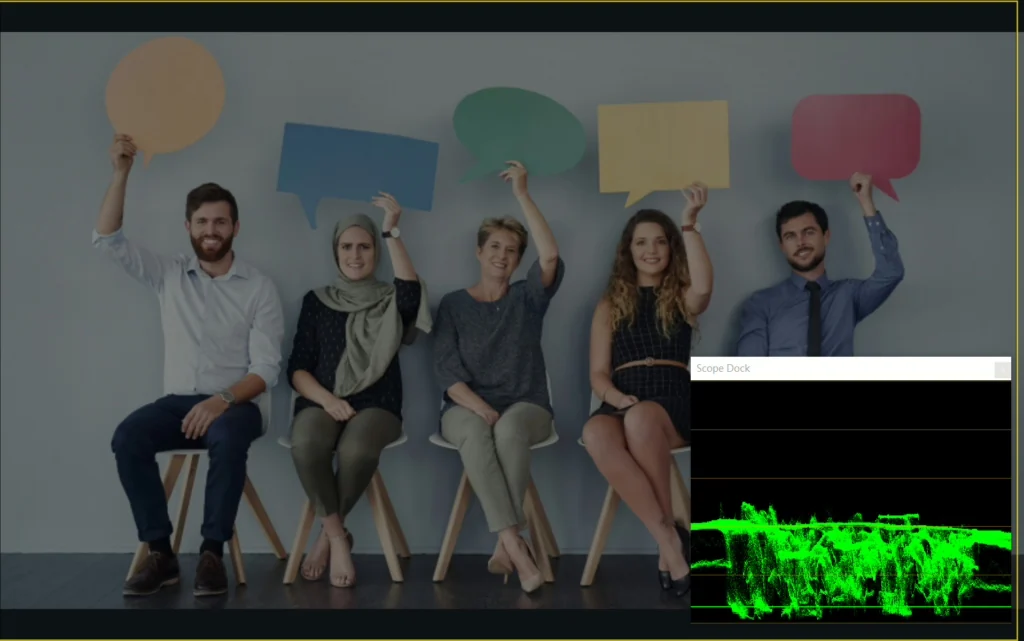
Setting exposure with the waveform on a field monitor
By eye alone it is hard to judge whether brightness is really correct. A waveform helps: it draws the distribution of brightness in the picture as a graph, and is a very common way of setting exposure. Many external field monitors have this function (Atomos monitors, for example).
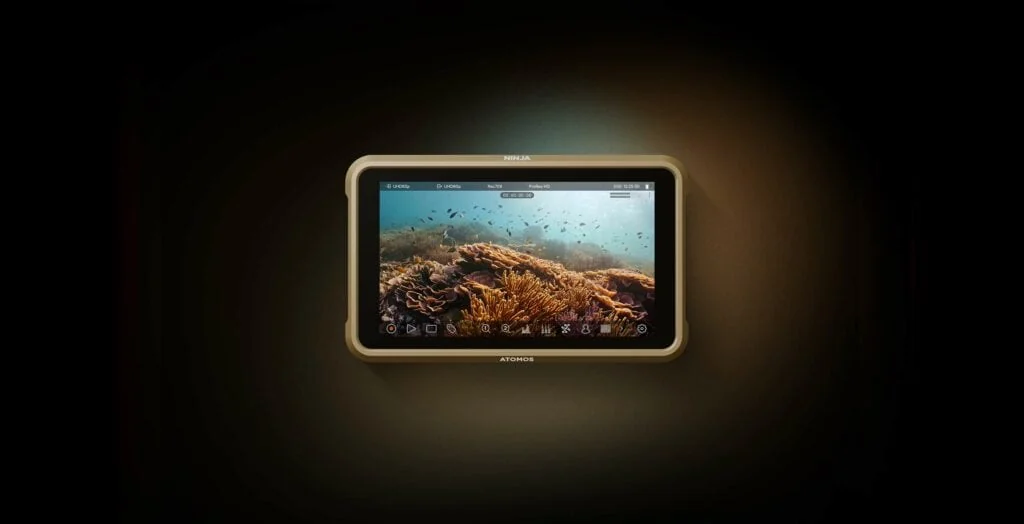
The horizontal axis of a waveform corresponds to left and right in the picture; the vertical axis is brightness, from 0% to 100%. The steps are:
- Turn the waveform on: enable it in the monitor’s settings.
- Read it: a correctly exposed picture has a waveform spread between 0% and 100%, neither going above 100% nor falling below 0%.
- Too bright (above 100%): reduce exposure, for example with a faster shutter, a smaller iris or lower gain.
- Too dark (close to 0%): increase exposure.
- Avoid both extremes: areas that are too bright lose detail, and so do areas that are too dark. The aim is for most of the picture to sit between 0% and 100%.
- Check again: after adjusting, look at the actual picture and at the waveform once more, to confirm the picture looks natural and evenly bright.
A waveform is a very useful tool. It lets you capture detail and contrast at every level, bright and dark.
Seeing a waveform in the free OBS software
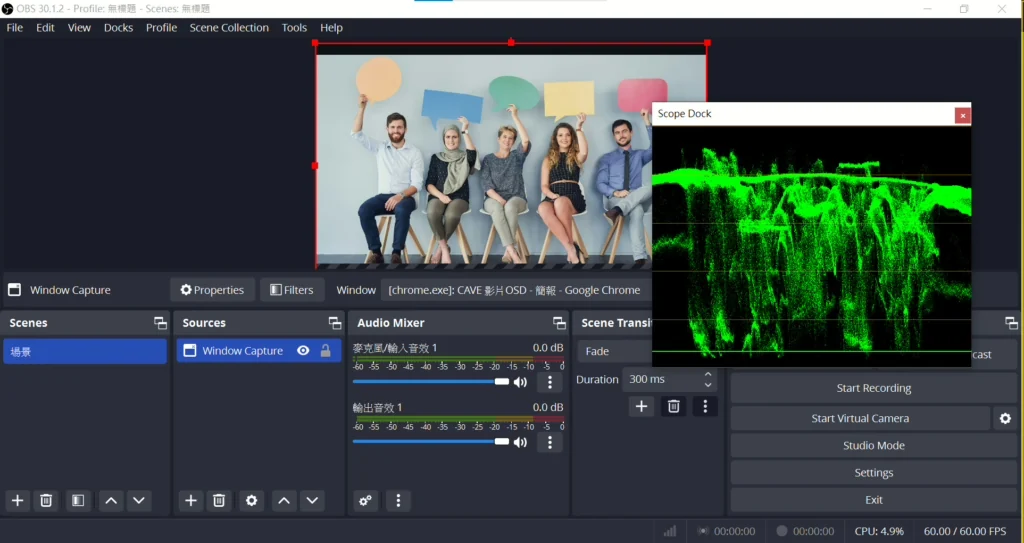
Without a field monitor, you can use OBS. OBS (Open Broadcaster Software) is free streaming and recording software used by a great many people, and with a waveform plug-in added it does the same job.
- Download and install the latest version from the OBS website (obsproject.com).
- Install the waveform plug-in and enable it in OBS.
- In the plug-in’s settings, adjust how the waveform is displayed.
- Watching the waveform, adjust the camera’s exposure or the lighting until the waveform sits in a suitable range, neither too bright nor too dark.
- Once it is set, keep using the same settings for later shoots, so brightness stays consistent.
Step 3: White balance
White balance tells the camera what white is under this particular light, so that white things are shot as white under any light source. It is the key to natural-looking colour.
Different light sources have different colours: warm indoor bulbs lean yellow, and daylight leans blue. Without white balance correction the whole picture leans yellow or blue with them. Correcting white balance has these benefits:
- Natural colour: objects look different under different lighting. After correction the camera shows their real colour and the picture looks natural.
- No cast: it avoids a yellow cast indoors and a blue one outdoors.
- Better picture: with the colour right, the picture looks clearer and more vivid. That matters for both recording and streaming, especially when the detail of the scene has to be shown accurately.
- Easier to recognise: with accurate colour, people and objects are easier to tell apart.
Correcting white balance with a vectorscope on a field monitor
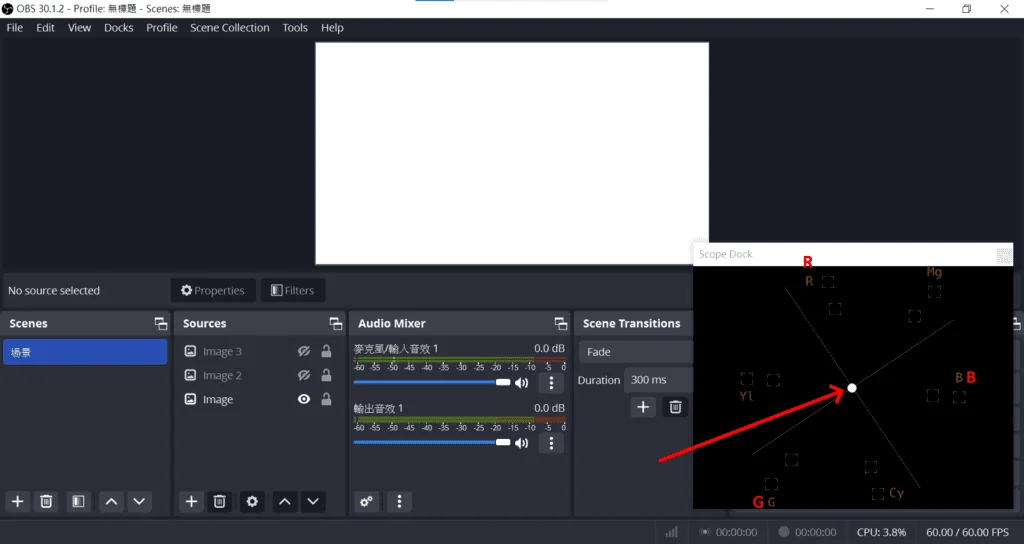
A vectorscope is a circular graph showing which colours are in the picture, how strong each is and which way they lean. Things with no colour, such as white and grey, should sit right in the centre. It is an effective way to correct white balance:
- Find a white reference: something white in the venue, such as a sheet of paper or a white card, and point the camera at it.
- Turn the vectorscope on: enable it in the settings of the camera or monitor.
- Look at the dot: in the centre, white balance is accurate; off to one side, the picture leans towards that colour.
- Adjust white balance: use the camera’s white balance control to change the colour temperature until the dot returns to the centre.
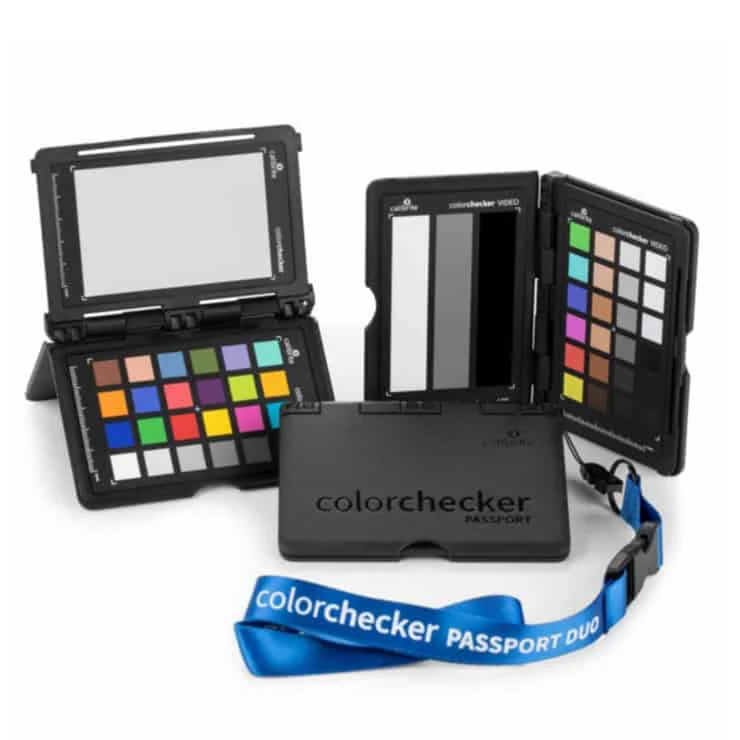
With white balance corrected on a field monitor, colour is accurate and consistent through shooting and recording, and the finished result is better.
Seeing a vectorscope in OBS
OBS has a vectorscope plug-in too, a practical tool for colour correction. It is installed and enabled in the same way as the waveform. With it open, watch the graph and adjust the camera’s colour settings until the colour no longer leans to one side. Then keep the settings, as before, so later shoots are consistent.
Step 4: Colour (saturation and hue)
Only once white balance is set do you fine-tune colour, meaning saturation and hue. The purpose of this step is to make every colour correct, and to make every camera show the same colour.
- True colour: under different light, objects look the way they really are. Video meetings and streams both need this.
- More comfortable to watch: in a video meeting, the far end sees people and objects in natural colour, which makes communication easier.
- Easier to recognise: with accurate colour, people, objects and detail are all easier to see.
- A better-looking picture: streams and videos gain in quality, and viewers are drawn in more easily.
- Matching cameras: especially important when shooting with several cameras. Once corrected, the colour doesn’t change from camera to camera when you cut, and the whole thing looks consistent.




Correcting colour with a vectorscope
A vectorscope helps with saturation and hue as well. It shows which colour is off and by how much:
- Point the camera at a standard colour chart.
- Turn the vectorscope on.
- First confirm that the white dot is in the centre, meaning white balance is accurate.
- Then look at the other colours: their positions on the graph should be evenly spread.
- Whichever colour is off, correct it with the camera’s saturation and hue settings until the colours on the graph are balanced.
- When everything is adjusted, look at the actual picture once more and confirm the colour is natural and accurate.
Once it is set
Note down the settings you arrived at and use the same set for every shoot, so colour stays consistent. If the lighting in the venue changes, or you move to another venue, go through the same order again: lighting, exposure, white balance, colour.
What matters most in the whole process is the order. Lighting is the foundation of the picture, exposure sets the brightness, white balance decides whether colours are true, and only then come saturation and hue. Done the other way round, later steps undo what you set earlier and you start again.
You don’t have to get everything right at once. Even out the lighting and set white balance once against a sheet of white paper, and the picture usually improves a great deal. When you are comfortable with that, use the waveform and the vectorscope to refine the detail. If you can’t get colour you are happy with, you are welcome to ask us.
What else to check before going live: 10 things to get right when streaming with a PTZ camera ›
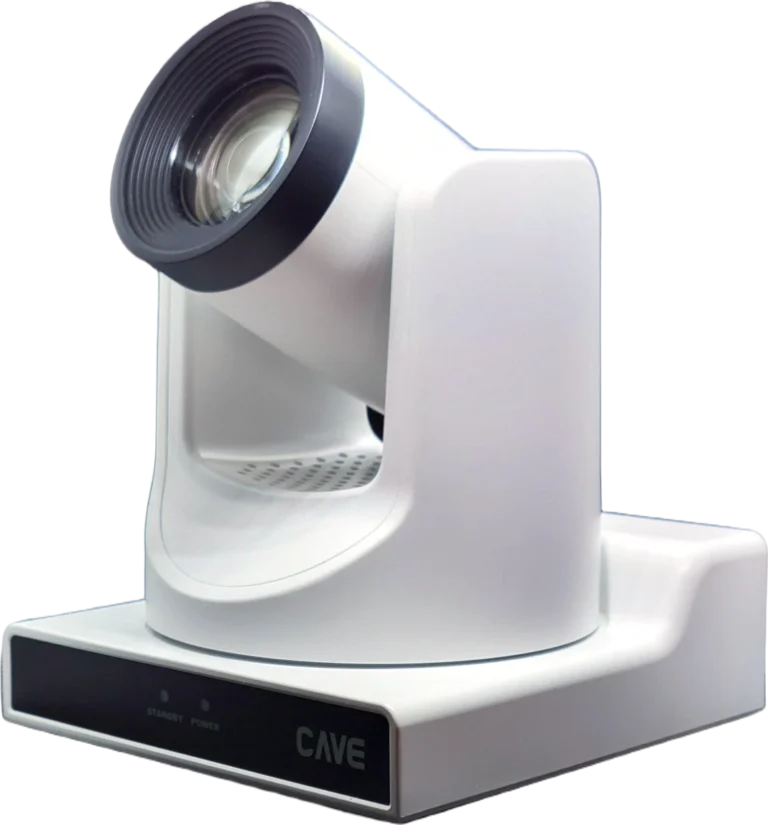
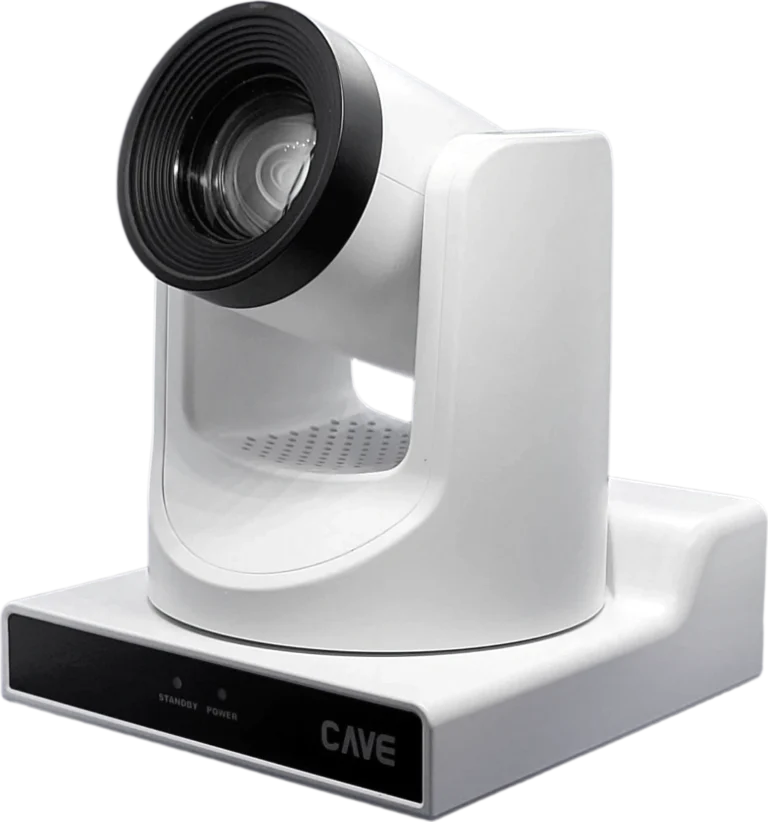
Products in this guide

FAQ
In what order should I adjust a camera’s colour?
Make the lighting even first, then set exposure (brightness), then correct white balance, and only then fine-tune saturation and hue. If the lighting is wrong, nothing you adjust afterwards will rescue it.
What do I do if the picture looks yellow or blue?
That is a white balance problem. Aim the camera at white paper or a grey card and adjust white balance (colour temperature) until white looks white.
Can I see a waveform without an external field monitor?
Yes. With plug-ins installed, the free OBS software shows a waveform and a vectorscope on the computer, for checking whether brightness and colour have drifted.
The planning advice in this guide is general reference. Actual results vary with the room, the equipment and the network. Product specifications follow the manufacturer's documents; we recommend contacting us for an assessment first.
More guides
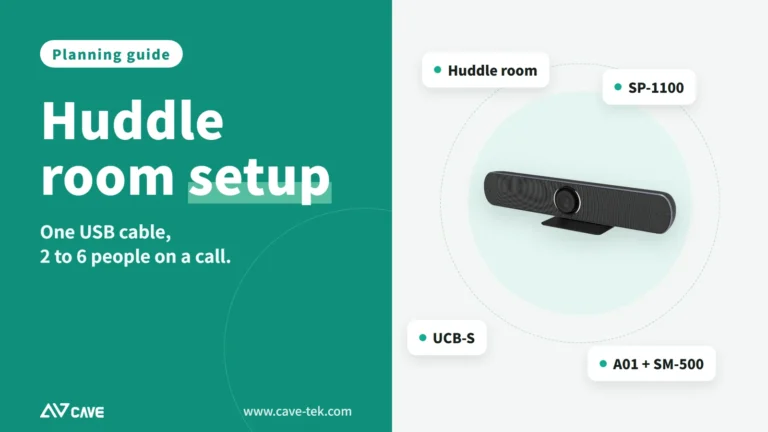
Huddle Room Setup: One USB Cable, 2 to 6 People on a Call
A huddle room is used all the time and looked after by no one. This guide compares the three simplest setups: the SP-1100 all-in-one, the J01i with an SM-500 (UCB-S), and the A01 with an SM-500, and how to choose by headcount, room size and room to grow.
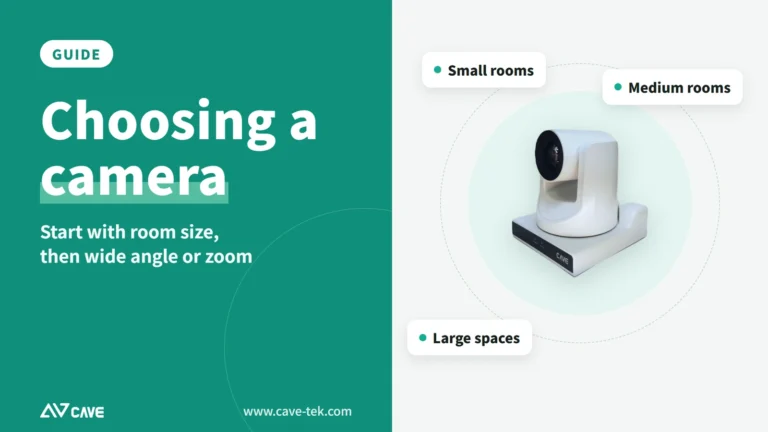
How to choose a meeting-room camera: 8 things to check, starting with room size
The camera is the most visible part of a video meeting. Whether remote people can see everyone, and see them clearly, depends on it. Work through these 8 points before you choose.
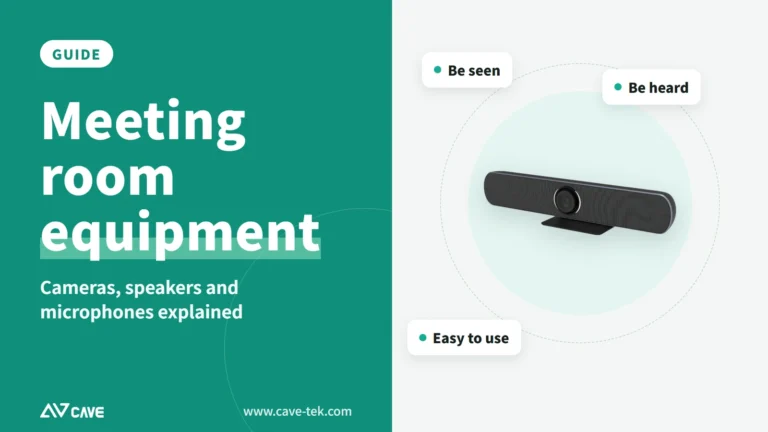
What equipment does a video meeting room need? Cameras, speakers and microphones explained
Three things ruin a video meeting: you can't hear them, they can't hear you, and the picture is a blur. Here is a plain-English walk through what a meeting room needs and how the pieces fit together.