What Is a PTZ Camera? Pan, Tilt and Zoom Explained in Plain Words
You hear "PTZ camera" in meeting rooms, classrooms and halls. How does it differ from an ordinary webcam? This guide takes it apart: how it turns, how it zooms, what presets are, how to control it and how the picture gets out.
Short answer
PTZ stands for Pan, Tilt and Zoom. A PTZ camera can be turned and zoomed by remote control: nobody has to stand next to it, and a remote, a controller or a computer can point the lens at the pulpit, the whiteboard or whoever is speaking and zoom in for a close-up. It has three parts: a head that turns, a lens with optical zoom, and a way to control it. The CAVE S12+ has 12x optical zoom and the P20i has 20x; they pan ±170° and store 255 presets, each recalled with one button.
Key takeaways
- PTZ = Pan (left and right) + Tilt (up and down) + Zoom (in and out): the point is remote control, with zoom that stays sharp
- A PTZ camera has three parts: the head (movement), the lens (optical zoom) and the control; look at all three when choosing
- Optical zoom brings things closer with glass and keeps the picture sharp; digital zoom only enlarges and crops, and gets blurrier the closer you go
- Presets save a position so one button brings it back, which is what makes PTZ easy to use; CAVE PTZ cameras store 255
- The picture can go out by USB, HDMI, SDI or the network; control can be a remote, a controller, a room control system or a computer
In video meetings, lessons, recording and streaming, someone often says "we need a PTZ camera". But what is PTZ, and how does it differ from the camera on a laptop or an ordinary webcam?
This guide explains it in plain words. It starts with what PTZ means, then looks at the three parts of a PTZ camera, how to control it and how the picture gets out, and finally which places need one and which questions to ask when choosing.
There are several guides on PTZ cameras, live streaming and recording, each for one job. Start with “What is a PTZ camera” for the basics, then read on for your situation:
| Guide | What you will learn |
|---|---|
| What is a PTZ camera (start here) (you are reading this one) | Pan, tilt and zoom, presets, how to control it, AI tracking, and five questions for choosing |
| Why medium and large rooms use PTZ › | 5 reasons to use a PTZ camera |
| 10 things to watch when streaming or recording with PTZ › | Planning the shot, control, exposure, white balance, focus, depth of field, sound, mounting and power |
| How to adjust colour on a PTZ camera › | Lighting, exposure, white balance and colour, in order |
| How to plan a recording system › | What to record, fixed or PTZ, who operates it, sound, the recorder and common setups |
| Live streaming and recording for churches › | A setup volunteers can run: presets, a keyboard and a streaming recorder |
| How to live stream a sports match › | Nine steps from one phone to a multi-camera broadcast |
| Planning a hybrid classroom › | Lectures, demonstrations and discussion classes |
| PTZ control and meeting-system integration › | Wiring, testing and speaker tracking (for projects and integrators) |
In one sentence: what is PTZ?
PTZ stands for Pan, Tilt and Zoom: Pan is turning left and right, Tilt is turning up and down, and Zoom is bringing things closer or further away. A PTZ camera is one where you can control these three movements remotely: you do not have to walk up to it. With a remote, a controller or a computer, you can point the lens at the pulpit, the whiteboard or the person speaking, and zoom in for a close-up.
When the room gets bigger, people sit far away, the speaker walks around, or one camera has to shoot several positions, a fixed-lens camera is not enough. A PTZ camera is designed for exactly this.
Taking it apart: the three parts of a PTZ camera
Part one: the head, which turns
The head is the base that turns the lens. Its range and speed decide how much of a space the camera can cover:
- Horizontal (pan): the CAVE S12+, P20i, P30i and TX20i all pan ±170°, almost a full circle.
- Vertical (tilt): these four tilt from -30° to +90°, so the lens can point up towards the ceiling, and ceiling-inverted mounting is supported; the A12 tilts ±30°.
- Speed: horizontally from 1.7° to 100° per second, slow enough for fine adjustment and fast enough to switch position quickly. The S12+ uses a wide, quiet head, so its movement does not disturb a meeting.
Part two: the lens, which brings things closer
The lens of a PTZ camera has optical zoom. Optical zoom works by moving glass elements inside the lens, like a telescope, and the picture stays sharp when enlarged; digital zoom, in contrast, only enlarges a small area from the middle of the picture and gets blurrier the closer you go. So when choosing a PTZ camera, look at the optical zoom ratio.
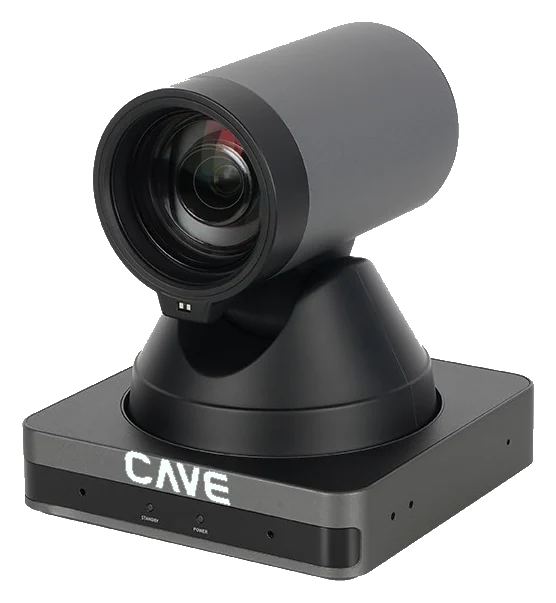
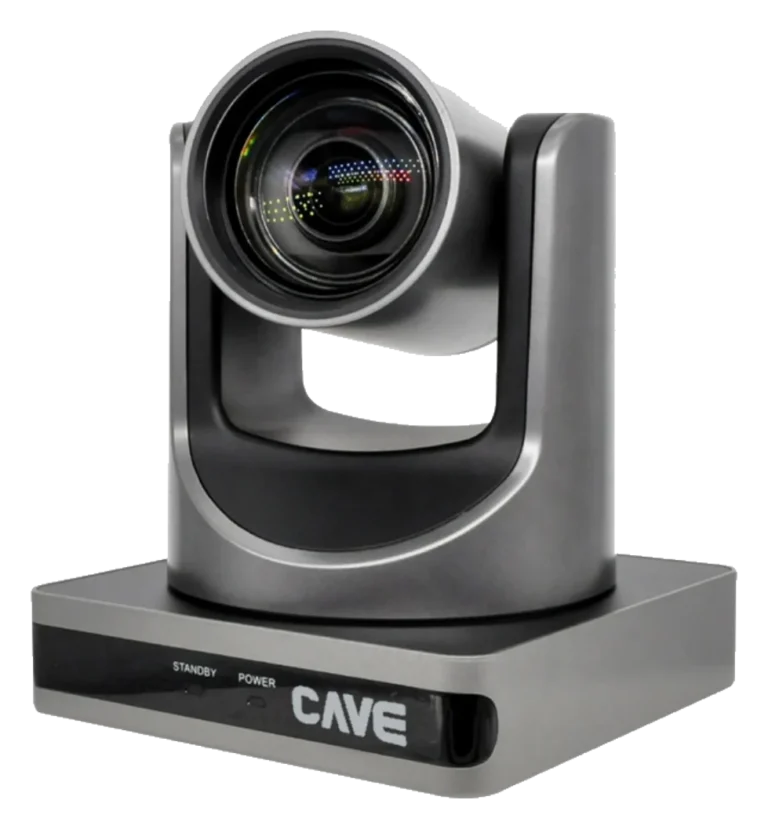
- S12+ and A12: 12x optical zoom, horizontal field of view from 72.5° to 6.9°.
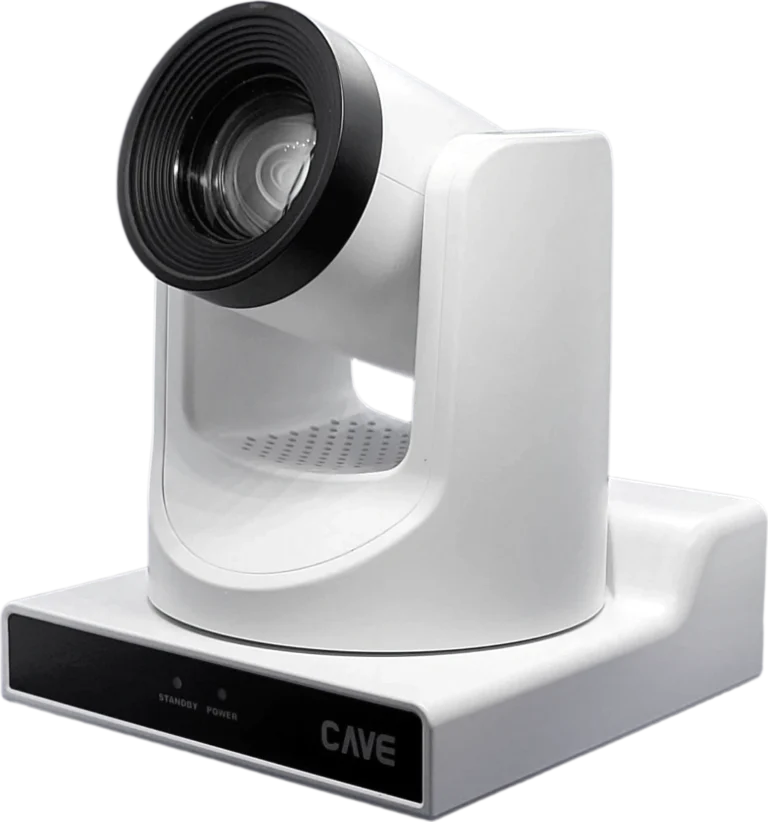
- P20i: 20x, from 60.7° to 3.36°.
- P30i: 30x, only 2.28° at the telephoto end, reaching a very long way.
- TX20i: 20x, with 4K output.
The higher the ratio, the further it reaches, but the narrower the area it can see, so higher is not always better. A simple rule of thumb: 12x suits a space of about 12 metres, and 20x about 20 metres. In practice, decide by the depth of the room and the area you want to cover.
Part three: control, which decides how easy it is to use
However good the head and the lens are, if someone has to walk over and adjust the camera every time, there is no point in PTZ. So look at whether it is pleasant to use: how it is controlled, whether positions can be saved, and whether you want automatic tracking. These are covered in the next two sections.
Presets: what makes PTZ easy to use
The preset is the most useful feature of a PTZ camera: turn the camera to a position, set the zoom, and save it under a number; recalling that number later makes the camera turn back to the same position by itself, with no manual adjustment.
For example, a classroom can store three presets: the lecturer, the whiteboard and the wide shot. During the lesson, one button moves the picture from the lecturer to the whiteboard, and the teacher does not have to steer the camera while teaching. The CAVE S12+, P20i, P30i and TX20i each store 255 presets, with a position accuracy of 0.1°.
How do you control a PTZ camera?
There are a few common ways to control a PTZ camera; choose according to the place:
- Remote: the simplest, supplied with the camera, suited to a small room, though a remote usually recalls only a few presets (with the S12+, 10).
- PTZ controller: a joystick and buttons, suited to places with an operator or several cameras. The K10 controls up to 6 cameras over a network cable; the K20 also supports RS-232 and RS-422 and controls up to 7 cameras.
- Room control system: the central control of a meeting room or classroom can control the camera over RS-232 or RS-485 (with VISCA, Pelco-D or Pelco-P) or over the network (VISCA over IP, ONVIF), for “one button starts the meeting”.
- Computer: when connected by USB, video software can also move and zoom the lens.
How does the picture get out?
The picture the camera captures has to go to a computer, a display or a recorder. Different models have different connections, so first ask where the picture is going:
| Connection | Use | Models |
|---|---|---|
| USB | Connect to a computer for video meetings (Teams, Google Meet, Zoom) with no driver to install | S12+, A12, P20i, P30i, TX20i |
| HDMI | Connect to a display, a recorder or a switcher | All |
| SDI (3G-SDI) | Professional recording and switching equipment, with longer cable runs | P20i, P30i, TX20i |
| Network streaming (RTSP, RTMP, SRT) | Stream live, record, or integrate into other systems; with PoE one network cable can also power the camera | S12+ (RTSP, RTMP), P20i and P30i (RTSP, RTMP, SRT), TX20i (RTSP, RTMP) |
In short: for video meetings only, USB is enough; for a display or recorder, use HDMI; for professional switching or longer distances, use SDI; to stream live or integrate with a network system, use network streaming.
AI tracking: a PTZ that follows people by itself
Some PTZ cameras have built-in AI person tracking. Once it is on, the camera follows the speaker by itself and nobody has to stand by and operate it. The CAVE P20i, P30i and TX20i have it. It is a bonus, not a necessity: if the speaker stays in one place, presets work very well; where the speaker walks around, as in classrooms, lecture halls and worship halls, it is especially useful.
Where are PTZ cameras used?
Wherever the space is large, there is more than one position to shoot, and you do not want someone beside the camera all the time, a PTZ camera helps. Common places are:
- Meeting rooms: medium and large rooms, where every speaker has to be shown and you need to zoom in.
- Classrooms: the teacher walks around, and the lecturer, the whiteboard and the wide shot all need to be shot.
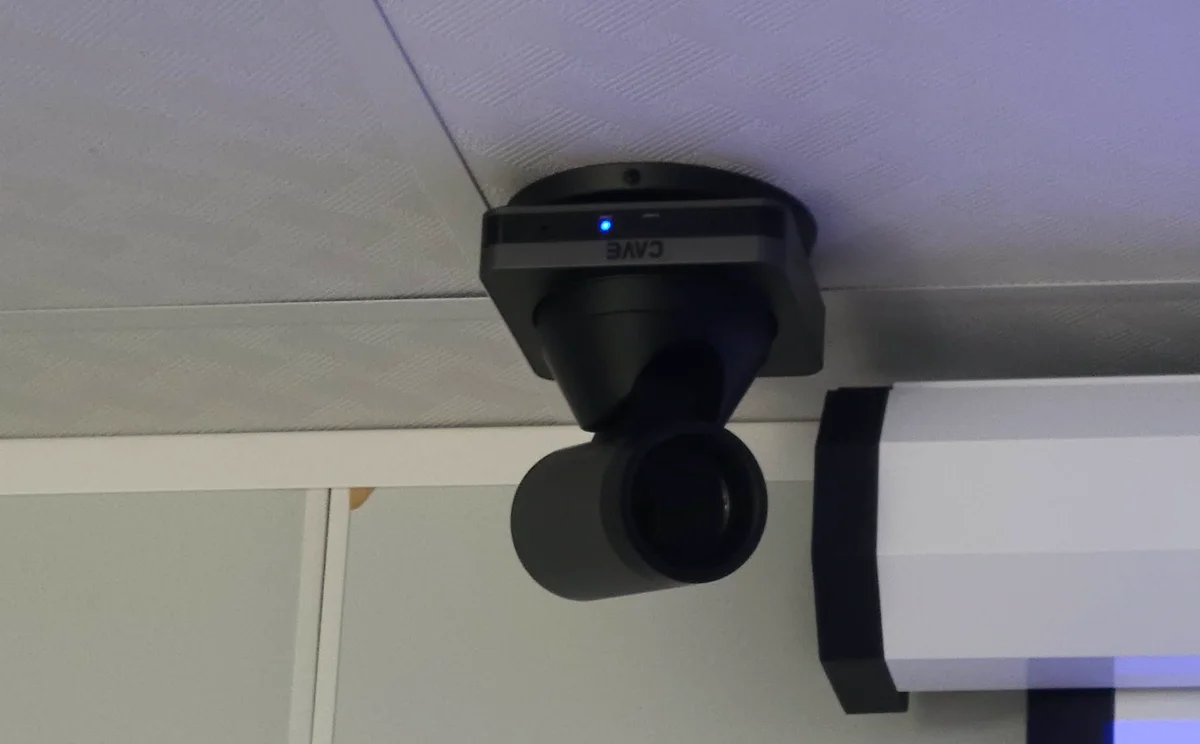
- Demonstration teaching: hang the camera from the ceiling above the demonstration position to capture close-ups of the hands.
- Auditoriums and worship halls: long distances, with the speaker, the choir and the congregation to shoot.
- Sports and event streaming: several cameras, switched from a controller.
Read how to choose a meeting room camera ›
Choosing a PTZ camera: five questions to ask
- How deep is the space? Measure from the camera to the furthest person, then decide how much optical zoom you need.
- Where does the picture go? Video meetings only: USB; a recorder or switcher: HDMI or SDI; live streaming: the network.
- How many positions will you shoot? Many positions call for presets, and for deciding who operates them.
- Does the speaker walk around? Only then consider AI tracking.
- Does it have to join a room control system? If so, check that the model supports the control method your system uses (RS-232, RS-485 or the network).
For most meeting rooms and classrooms, the 12x S12+ or the 20x P20i is enough. For a very large space or a need for finer picture quality, consider the 30x P30i or the 4K TX20i.
Summary: PTZ means it turns, it zooms, and you can control it remotely
In one line: a PTZ camera can be turned left and right, up and down, and zoomed in and out by remote control. The head turns, optical zoom brings things closer, and presets and the way you control it make everyday use easy. When choosing, first ask how deep the space is, where the picture goes and how many positions you will shoot, then decide the zoom ratio, the connections and whether you want AI tracking.
If you are not sure which kind suits your space, tell us its size and what it is used for, and our team will get in touch to help you plan.
Products in this guide
A12
PTZ, made simple.
S12+
The meeting-room standard.
P20i
The workhorse for halls and auditoriums.
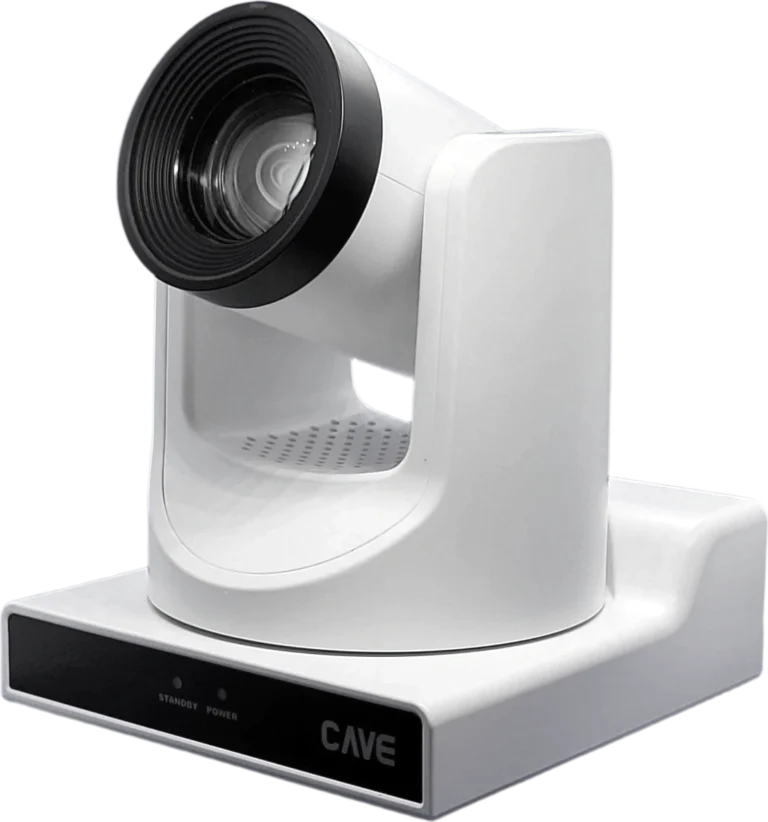
P30i
Long reach for large venues.
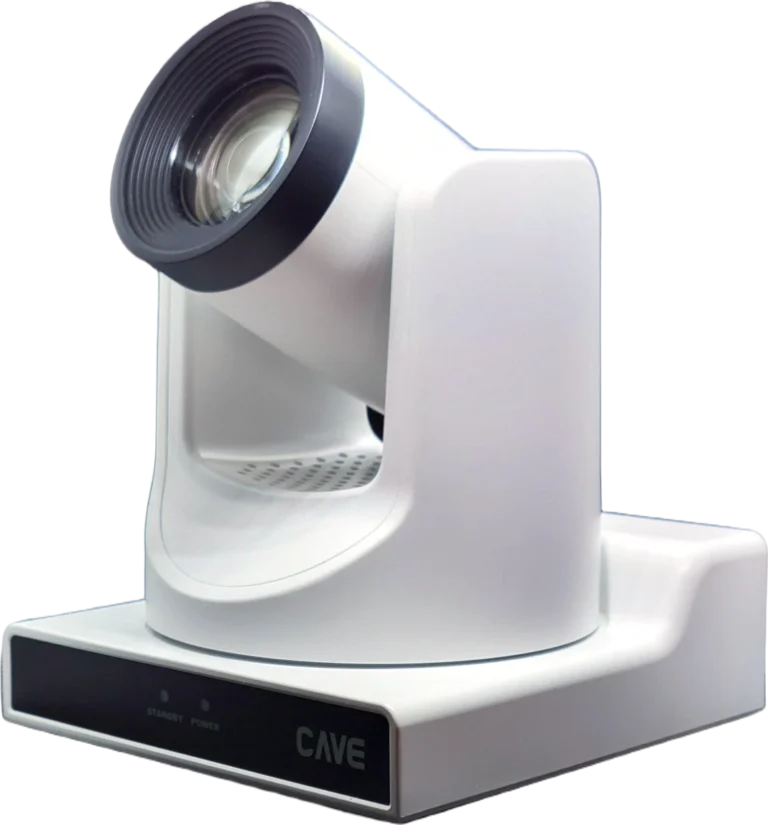
TX20i
See further. Follow smarter.
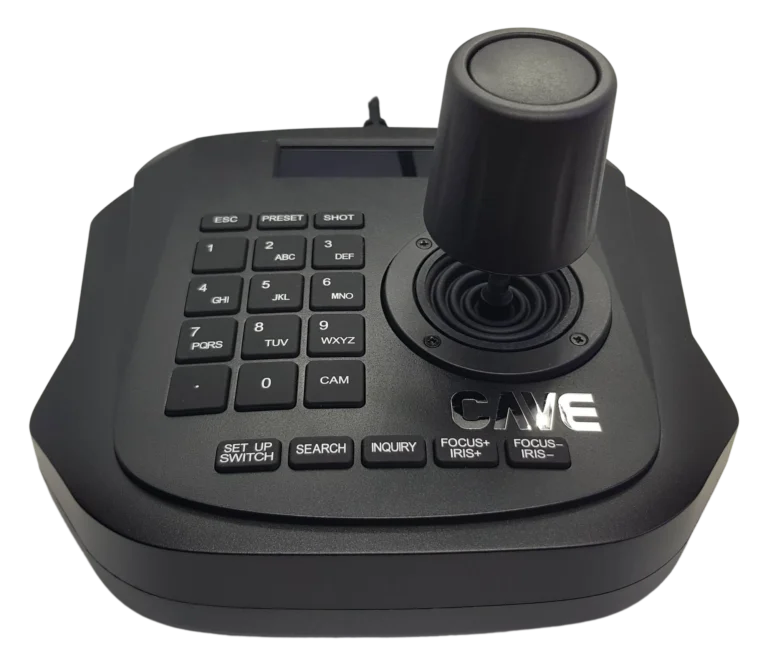
K10
One cable. Six cameras.
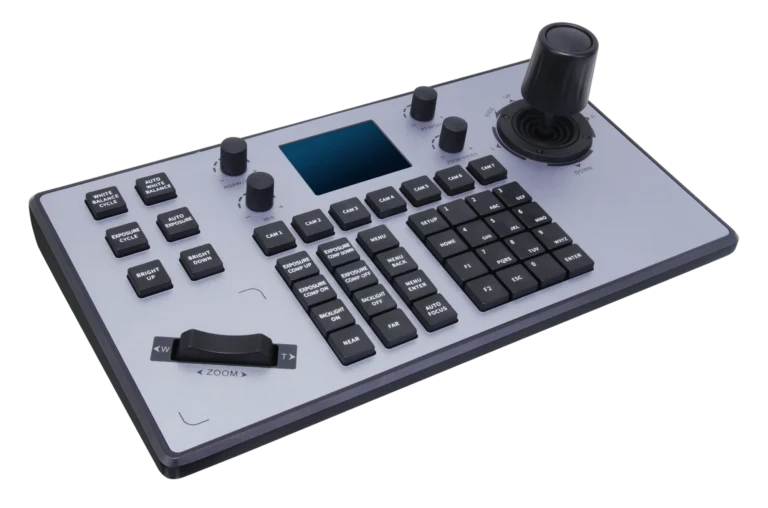
K20
Pro control at your fingertips.
FAQ
What do the letters PTZ stand for?
Pan (left and right), Tilt (up and down) and Zoom (in and out).
How is a PTZ camera different from a webcam?
An ordinary webcam has a fixed lens, and changing what it shows means turning it by hand; a PTZ camera can be turned by remote control and uses optical zoom to bring distant things closer. In a small room where one picture covers everyone, a webcam is enough; in a large room, with people far away or when you want close-ups, you need PTZ.
What is the difference between optical and digital zoom?
Optical zoom moves glass elements inside the lens to bring things closer, like a telescope, and the picture stays sharp. Digital zoom just enlarges a small area from the middle of the picture and gets blurrier the closer you go. When choosing a PTZ camera, look at the optical zoom ratio.
What is a preset?
After you turn the camera to a position and set the zoom, you save it as a preset; recalling the preset later makes the camera return to the same position by itself. The CAVE S12+, P20i, P30i and TX20i each store 255 presets, with a position accuracy of 0.1°.
How do you control a PTZ camera?
With a remote, a PTZ controller (K10, K20), the control system of a meeting room or classroom, or software on a computer. Common connections are RS-232 and RS-485, with VISCA, Pelco-D and Pelco-P as protocols, and on the network VISCA over IP and ONVIF.
Does a PTZ camera have to have AI tracking?
No. AI tracking only makes the camera follow the speaker. If the speaker stays in one place, presets work very well. AI tracking suits classrooms, lecture halls and worship halls where the speaker walks around.
The planning advice in this guide is general reference. Actual results vary with the room, the equipment and the network. Product specifications follow the manufacturer's documents; we recommend contacting us for an assessment first.
More guides
Huddle Room Setup: One USB Cable, 2 to 6 People on a Call
A huddle room is used all the time and looked after by no one. This guide compares the three simplest setups: the SP-1100 all-in-one, the J01i with an SM-500 (UCB-S), and the A01 with an SM-500, and how to choose by headcount, room size and room to grow.
How to choose a meeting-room camera: 8 things to check, starting with room size
The camera is the most visible part of a video meeting. Whether remote people can see everyone, and see them clearly, depends on it. Work through these 8 points before you choose.
How to adjust colour on a PTZ camera: lighting, exposure, white balance and colour, in that order
The picture looks yellow or blue, faces are too bright or too dark, or two cameras don't match? Work through lighting, exposure, white balance and colour in that order and the picture comes right.