10 things to get right when streaming or recording with a PTZ camera
You bought the right camera, and the picture is still too dark, too yellow or soft? The cause is usually where the camera is placed and a few basic settings. Here are the 10 things to check before going live.
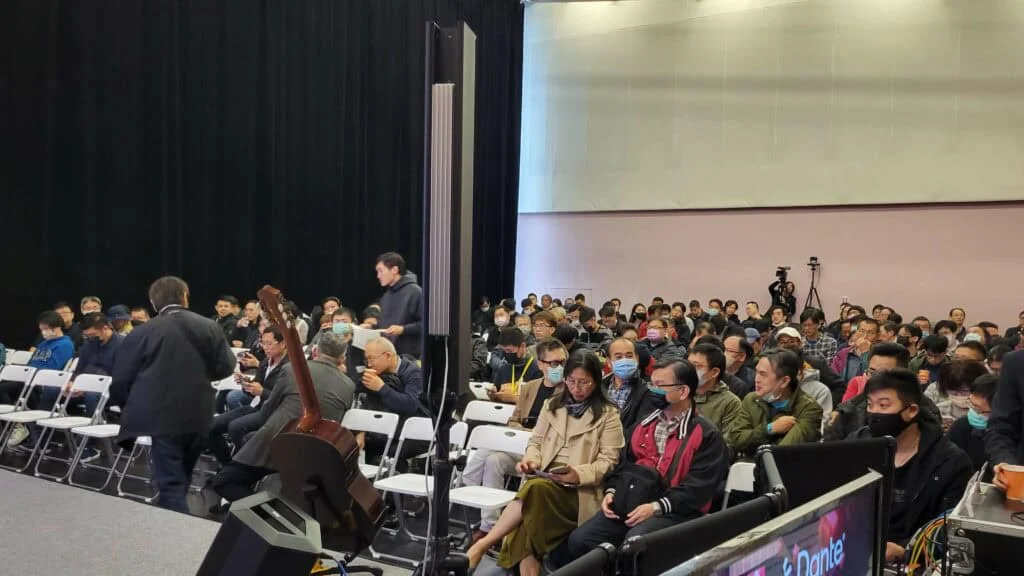
Short answer
Streaming or recording with a PTZ camera comes down to 10 things: where the camera goes, how far away it is, how the lens is controlled, exposure (brightness), white balance (colour), focus, depth of field, noise in the room, whether the camera is fixed firmly, and whether the power is stable. Exposure and white balance cause the most trouble: viewers notice at once when the picture is too bright, too dark or the wrong colour. Set those two before you start, save a few camera positions on a keyboard, and you can switch steadily during the broadcast.
Key takeaways
- Decide what you are shooting, then where the cameras go and how many
- For long distances choose a higher optical zoom; don't rely on digital zoom
- Exposure and white balance affect the look most, so set them before going live
- Use a keyboard and presets so the camera moves smoothly
A PTZ camera can be turned left and right, up and down, and zoomed by remote control, and one person can look after several. That is why more and more people use them for streaming and recording. But however good the camera, the result still looks poor if it is in the wrong place or the settings haven't been adjusted.
There are several guides on PTZ cameras, live streaming and recording, each for one job. Start with “What is a PTZ camera” for the basics, then read on for your situation:
| Guide | What you will learn |
|---|---|
| What is a PTZ camera (start here) › | Pan, tilt and zoom, presets, how to control it, AI tracking, and five questions for choosing |
| Why medium and large rooms use PTZ › | 5 reasons to use a PTZ camera |
| 10 things to watch when streaming or recording with PTZ (you are reading this one) | Planning the shot, control, exposure, white balance, focus, depth of field, sound, mounting and power |
| How to adjust colour on a PTZ camera › | Lighting, exposure, white balance and colour, in order |
| How to plan a recording system › | What to record, fixed or PTZ, who operates it, sound, the recorder and common setups |
| Live streaming and recording for churches › | A setup volunteers can run: presets, a keyboard and a streaming recorder |
| How to live stream a sports match › | Nine steps from one phone to a multi-camera broadcast |
| Planning a hybrid classroom › | Lectures, demonstrations and discussion classes |
| PTZ control and meeting-system integration › | Wiring, testing and speaker tracking (for projects and integrators) |
1. Decide what you are shooting and where the camera goes
Before anything else, be clear about the subject. Is it a meeting room, a gym or a theatre? A stream, a seminar or an awards ceremony? With a clear aim you can plan the whole shoot, know where the camera should point and how much it has to take in, and end up with the content you actually wanted.
Think about the camera’s position relative to the subject in four ways:
- Position: put the camera reasonably close to the subject, to catch expressions and detail. Check that nothing is in front of the lens and that the whole area you want is in view.
- Height: set it where you can see the whole subject and still make out the detail.
- Angle: choose the side that looks best. Consider the light and the background together, so nothing blocks or disturbs the picture.
- Background: the simpler and cleaner the better, so the subject stands out. A cluttered background pulls the viewer’s attention away.
When you use several cameras
A PTZ camera has another advantage: because it is operated remotely, a multi-camera shoot is easy to set up. With several cameras each shot can use the best angle, the picture is richer, and when one angle doesn’t work you cut to another. When streaming with several cameras, watch these points:
- Plan ahead: before the stream, fix each camera’s position, angle and coverage. They shouldn’t duplicate each other, and together they should cover the whole venue.
- Control them together: use a keyboard or system that controls several cameras at once, so cuts aren’t late or mismatched.
- Use an experienced operator: where possible, have an experienced camera operator in control, for smoother cuts and steadier operation.
- Rehearse: run a full test and rehearsal before the event, confirm that every setting and control works, and solve the problems early.
- Have a spare: an extra camera and related equipment mean one failure doesn’t stop the show.
- Cut smoothly: changes of shot should be even and natural, not abrupt.
- Use the different angles: give each camera a different angle and distance, so viewers see the venue more completely.
- Label everything: mark what each camera covers and where it is, so the operator finds the shot at once.
- Keep the sound consistent: volume and tone must not change when the picture does, so the sound stays steady through the whole stream.
2. How far away is the camera?
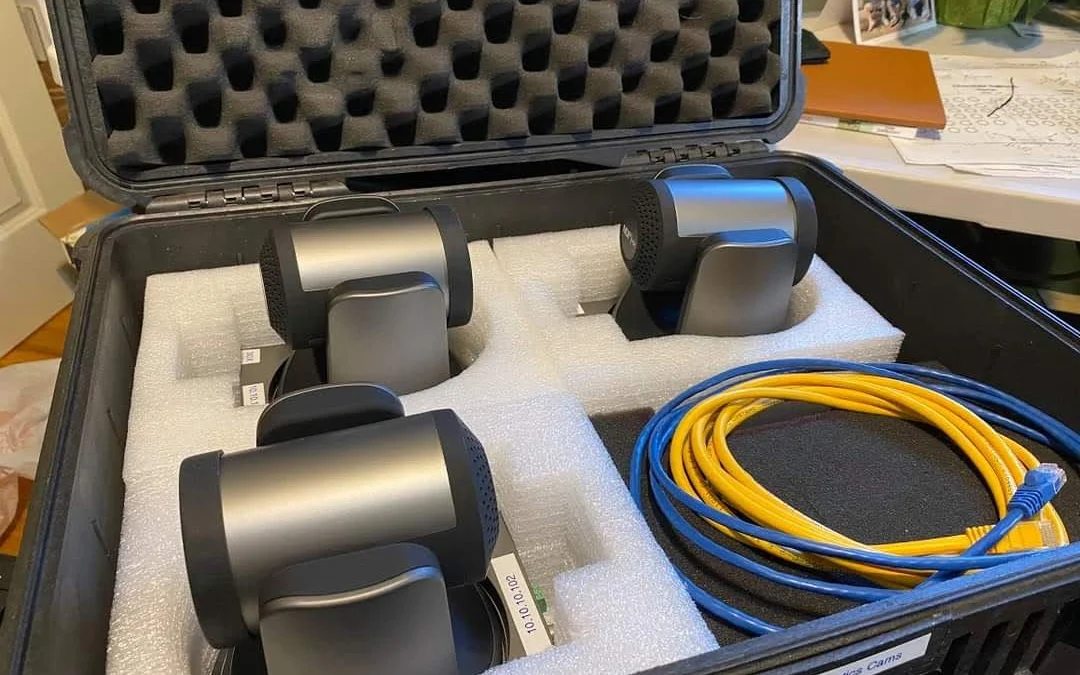
Distance decides which camera you need. Near or far, you get the detail you want by adjusting focal length and zoom. In general a PTZ camera has a wide view and a long reach, but how far it can really shoot depends mainly on four things:
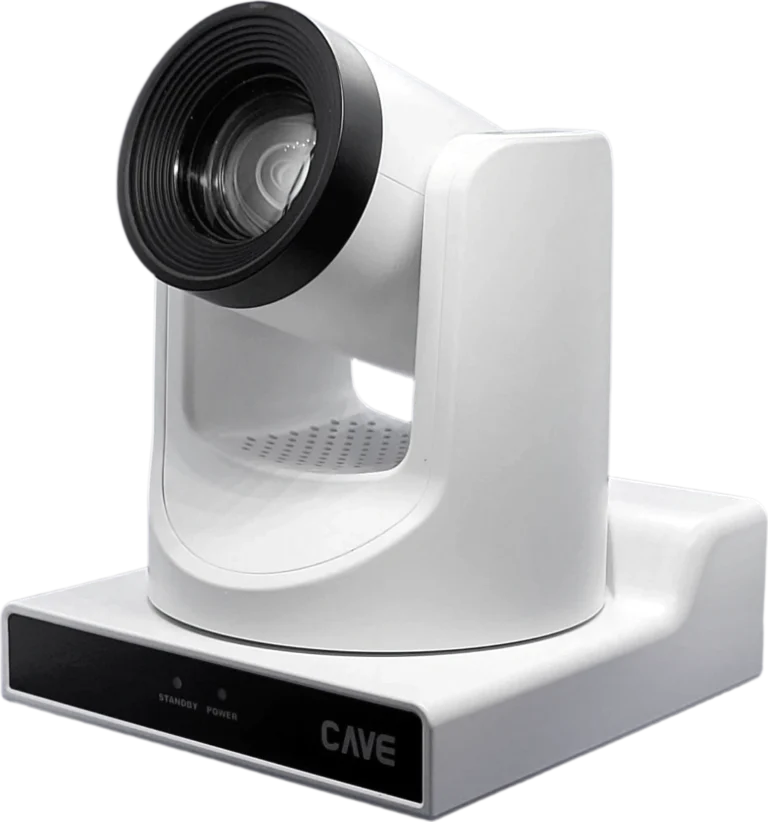
- Zoom ratio: the lens’s focal length sets the range. The higher the ratio, the further you can shoot, as with 12×, 20× and 30× PTZ cameras (P12i, P20i, P30i). A fixed-lens camera that can’t zoom (such as A01) suits close range.
- Sensor size: the sensor affects picture quality and performance in the dark. A larger sensor (the 1/1.8-inch in TX20i, for example) does better in low light.
- Resolution: resolution decides how much detail is captured. With high resolution (the 4K TX20i, for example) distant detail stays clearer.
- Light in the room: with plenty of light you can shoot further and more clearly.
3. How is the lens controlled?
On a live stream the camera has to move smoothly. Whether it pans, turns or tilts, the movement must be even for the picture to flow. A picture that speeds up, slows down and jerks is uncomfortable to watch.
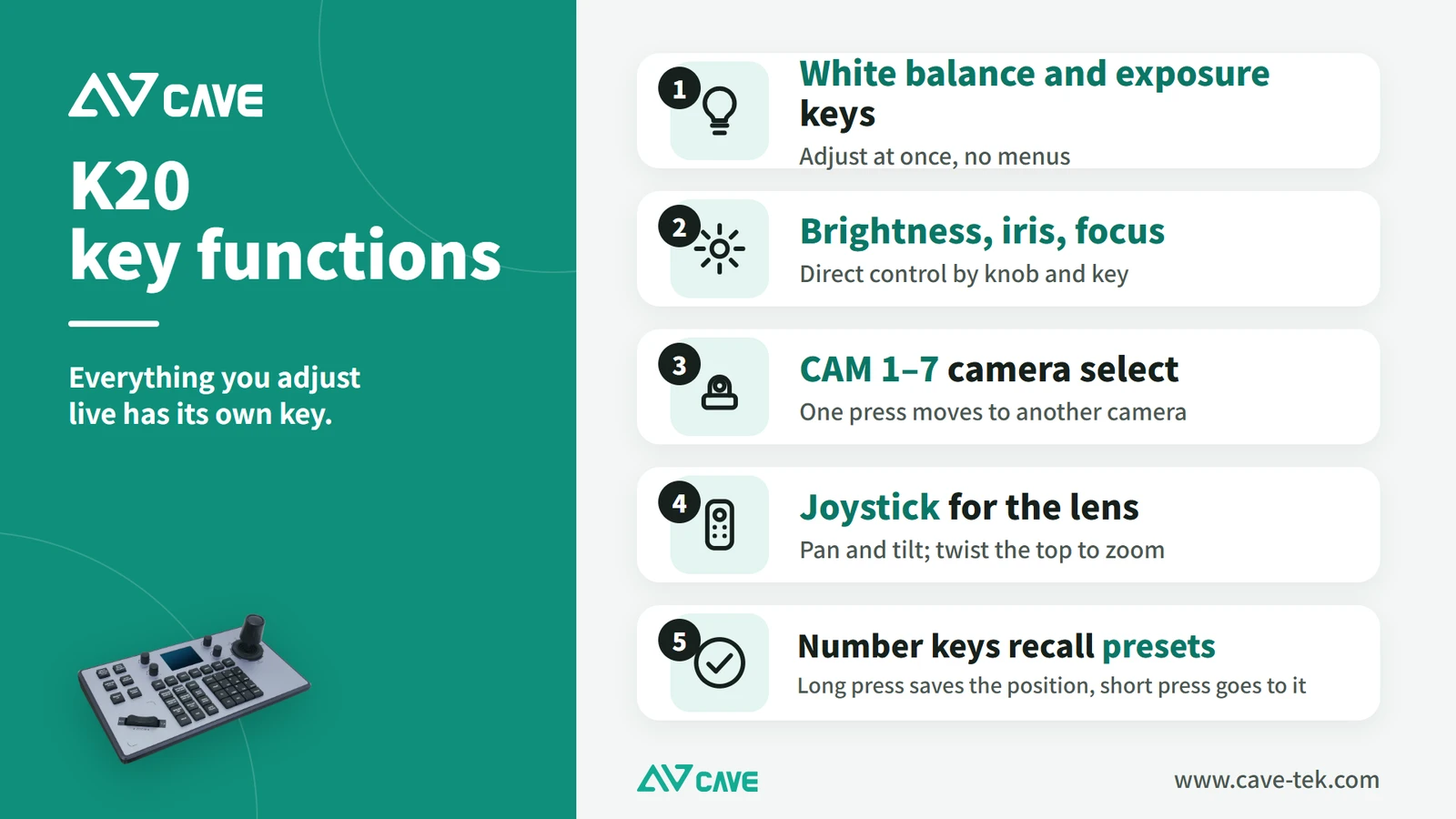
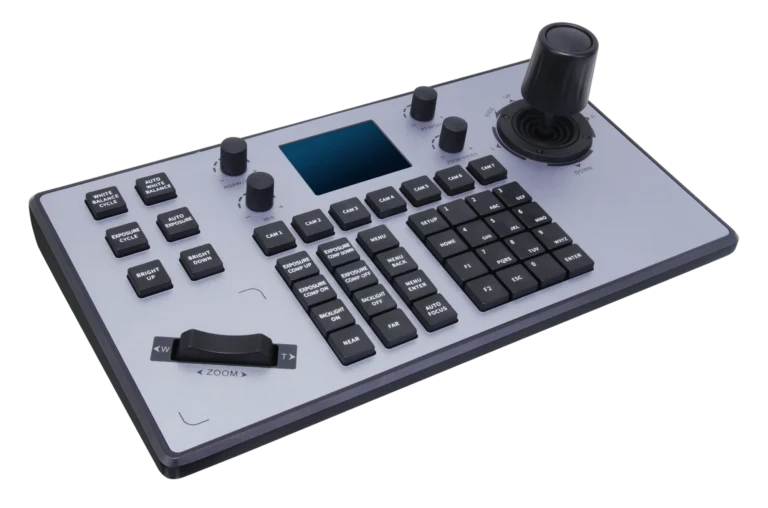
The best tool on site is a keyboard with a 4D joystick. A push of the joystick turns and zooms intuitively, and shortcut keys beside it adjust exposure, white balance and focus directly, so you can bring the lens to the position you want and get the picture you want quickly. Keep four things in mind while operating:
- Move evenly: no sudden acceleration or stops, so it is comfortable to watch.
- Keep focus: when following a moving person, the camera must focus promptly and accurately, and the picture mustn’t go soft.
- Right speed: set it to the subject’s speed and the needs of the event. Too fast makes viewers dizzy, too slow misses the moment.
- Set presets first: save the positions you use most and return to them at one press, for steady, consistent results.
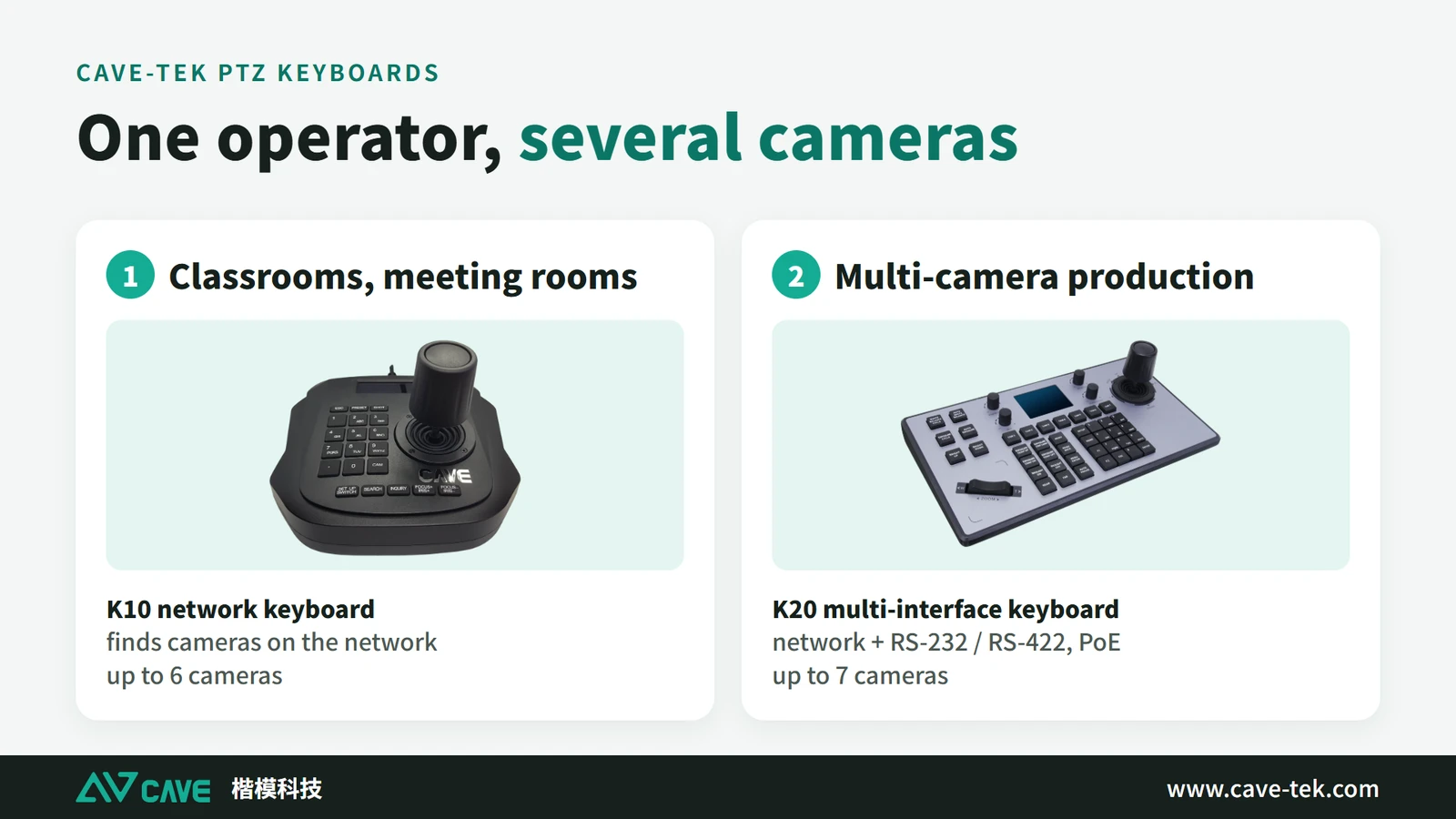
So we recommend a dedicated PTZ keyboard (such as K20), which brings these benefits:
- Precise control: professional keys and a joystick move the lens more accurately and flexibly, and feel natural to use.
- Plenty of function keys: quickly change camera modes and adjust exposure, focus and white balance, for more efficient operation.
- Preset positions: many presets can be stored, and one press takes the lens to a set angle, saving time and people.
- Smooth following: the joystick and zoom control make the picture natural and even while following someone.
- Remote operation: the camera can be controlled from a distance, so nobody has to stay beside it.
- Easy to learn: the layout is intuitive and operation is simple, so a beginner picks it up quickly.
- One unit, several cameras: a single keyboard manages a number of cameras.
4. Exposure: too bright or too dark
Exposure is the brightness of the picture. As the light in the venue changes, exposure has to follow. Set right, the picture is bright and clear. Too much and it burns out to white; too little and it sinks into black. Either way the detail is lost.
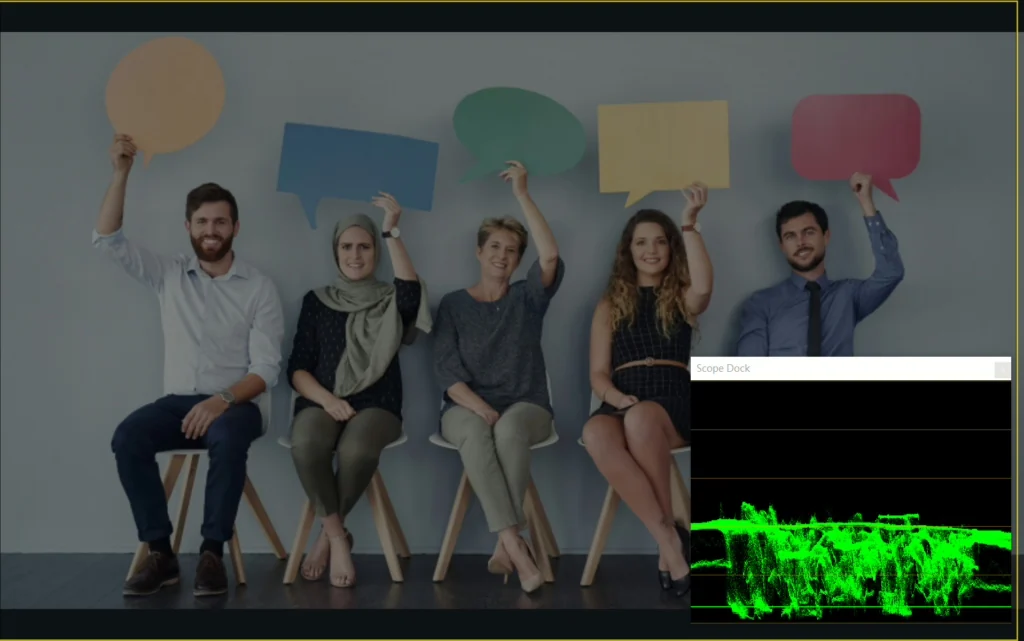
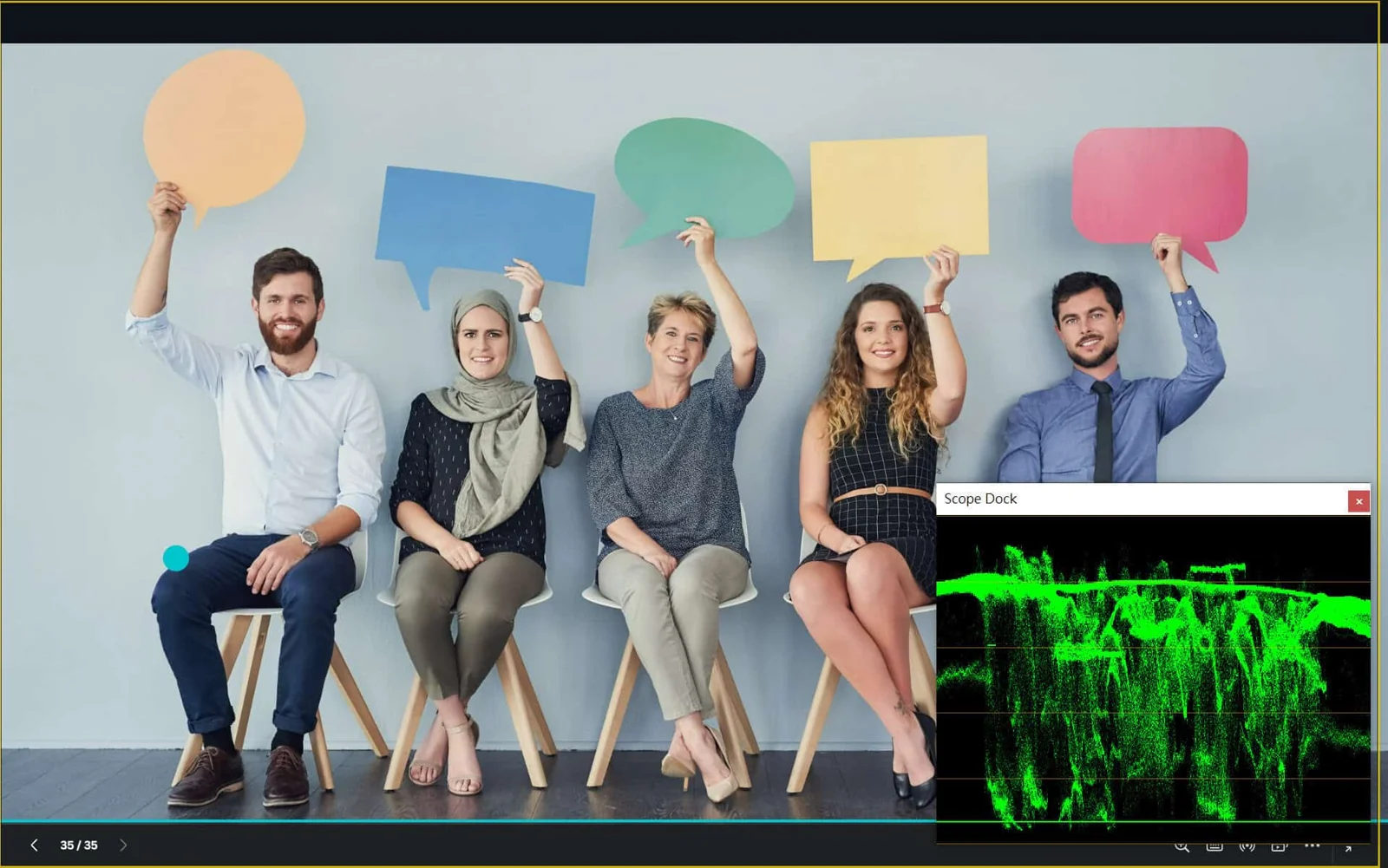
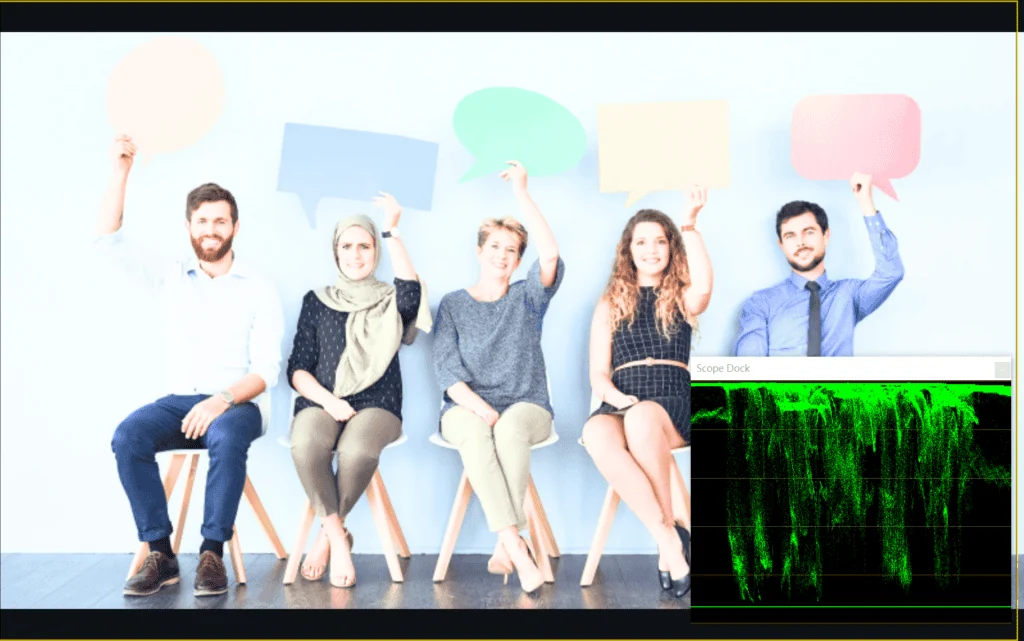
The most common trouble in a live shoot is a window behind the subject, where light and dark differ too much. Start with auto exposure and go manual only if it is not accurate enough; when a person moves, the camera has to bring exposure back quickly; and check the preview before you go live. For the full order, from lighting to exposure, white balance and colour, see “How to adjust colour on a PTZ camera”.
5. White balance: too yellow or too blue
White balance tells the camera what white is, and it is the key to accurate colour. Set correctly for the lighting in the venue, colours look natural and true. Set wrongly, the whole picture turns yellow or blue.
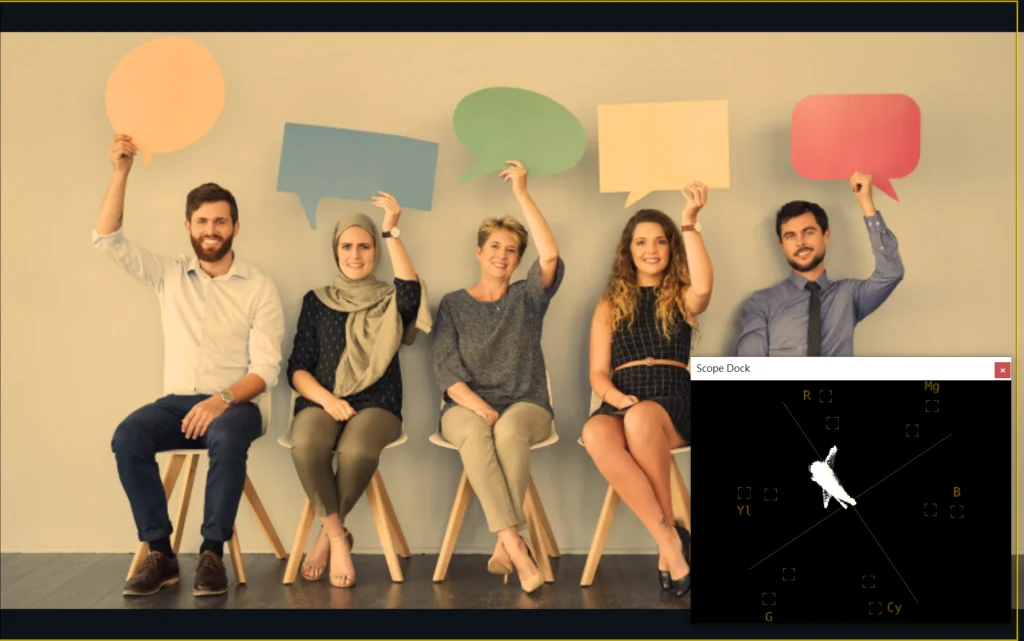
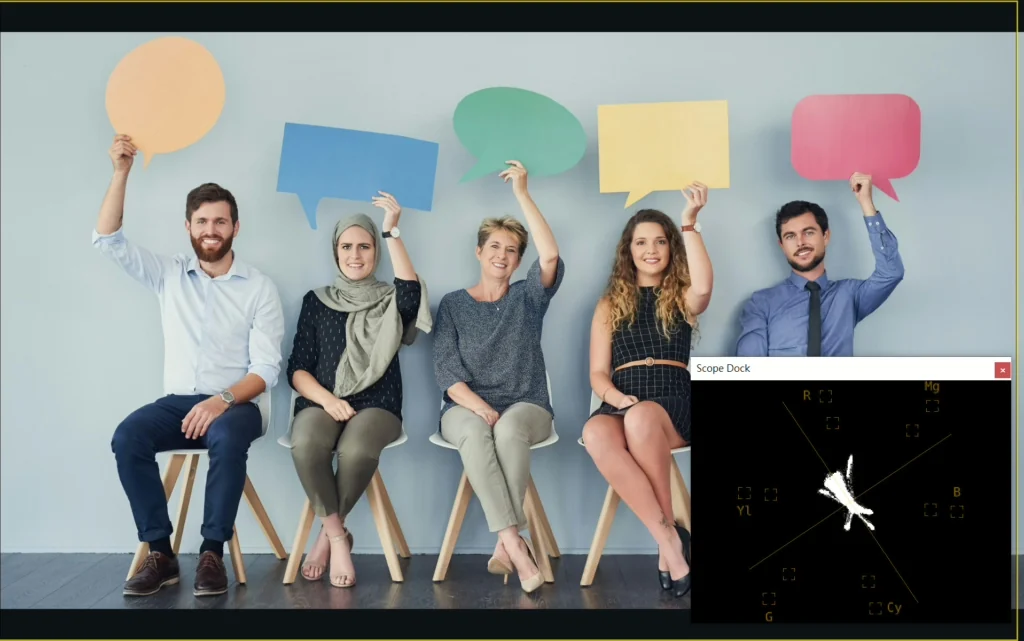
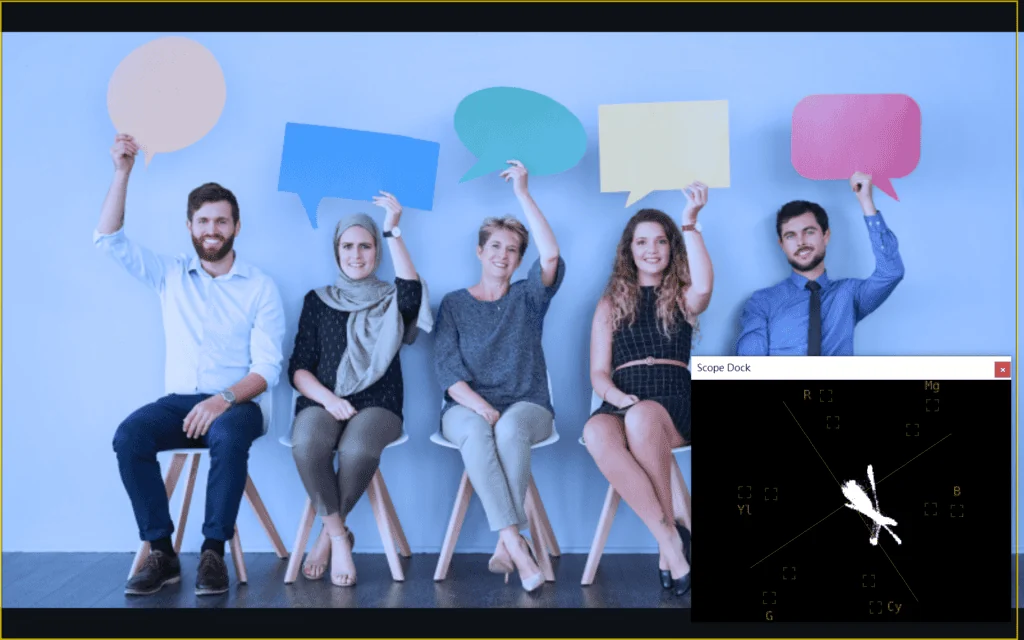
Choose auto or a preset (sunny, cloudy, indoor) to suit the light source; for the most accurate colour, calibrate once on white paper or a grey card. If the lighting changes during the shoot, adjust again at once.
6. Focus: is the picture sharp?
Focus decides whether the picture is sharp. When it is accurate the picture is crisp; with a moving subject especially, if focus doesn’t keep up the picture goes soft.
- Check the subject is sharp: once focus is set, the person or object you are shooting should be clearly visible. Use auto or manual focus, whichever suits the situation.
- Choose the right mode: autofocus suits ordinary scenes that don’t change much; switch to manual when focus has to be exact.
- Put the focus point in the right place: in a moving scene especially, set the focus point to where the subject is, so the subject stays sharp.
- Moving subjects: turn on continuous autofocus so the camera keeps adjusting to the subject.
- Focus speed: adjust it to the scene. Too fast may miss, too slow loses the shot.
- When autofocus struggles: switch to manual and correct it, to make sure the picture is sharp enough.
- Keep an eye on it during the stream: watch the sharpness all the time and adjust the moment it goes soft.
7. Depth of field: background sharp or blurred?
Depth of field is how much of the picture, front to back, is sharp. Shallow depth of field keeps the person sharp and the background soft, so the subject stands out. Deep depth of field keeps everything sharp. Adjusting it gives the picture more depth. Three things mainly affect it:
- Iris: opened wide, depth of field is shallower and the background blurs more; closed down, it is deeper and front and back are both sharp. Choose according to the shot and the venue.
- Distance: the further the camera is from the subject, the larger the sharp zone; the closer, the smaller.
- Focal length: a short focal length (zoomed out) keeps front and back sharp; a long one (zoomed in for a close-up) blurs the background more easily.
When setting it, first decide what the shot should emphasise. For people, a shallower depth of field is usual: a slightly soft background makes the subject stand out and gives the picture a better feel. Remember to put the focus point on the subject; with the subject sharp, the soft background shows properly. Check that exposure is right as well, because wrong brightness changes how the depth of field looks.
8. Noise in the room
A stream is not only the picture; sound is half of what viewers experience. When streaming with a PTZ camera, pay particular attention to noise in the venue:
- Make the room quieter: reduce background noise in the venue as far as you can, by keeping away from the source or using sound insulation and absorption.
- Choose a quiet camera: pick a model that runs quietly, so the mechanical sound of the camera moving doesn’t affect the stream.
- Choose the right microphone: use a good directional microphone, which picks up mainly what is in front and little from the sides. Avoid an over-sensitive microphone that picks up everything.
- Microphone position: keep it away from things that make noise. Clip it to the host, or put it close to the main sound source.
- Monitor on headphones: during the stream someone should listen on headphones or monitors, to deal with noise the moment it appears.
- Use noise reduction: a noise reducer or noise gate removes part of the background noise and improves the sound.
- If you record sound separately: choose a quiet place for that as well.
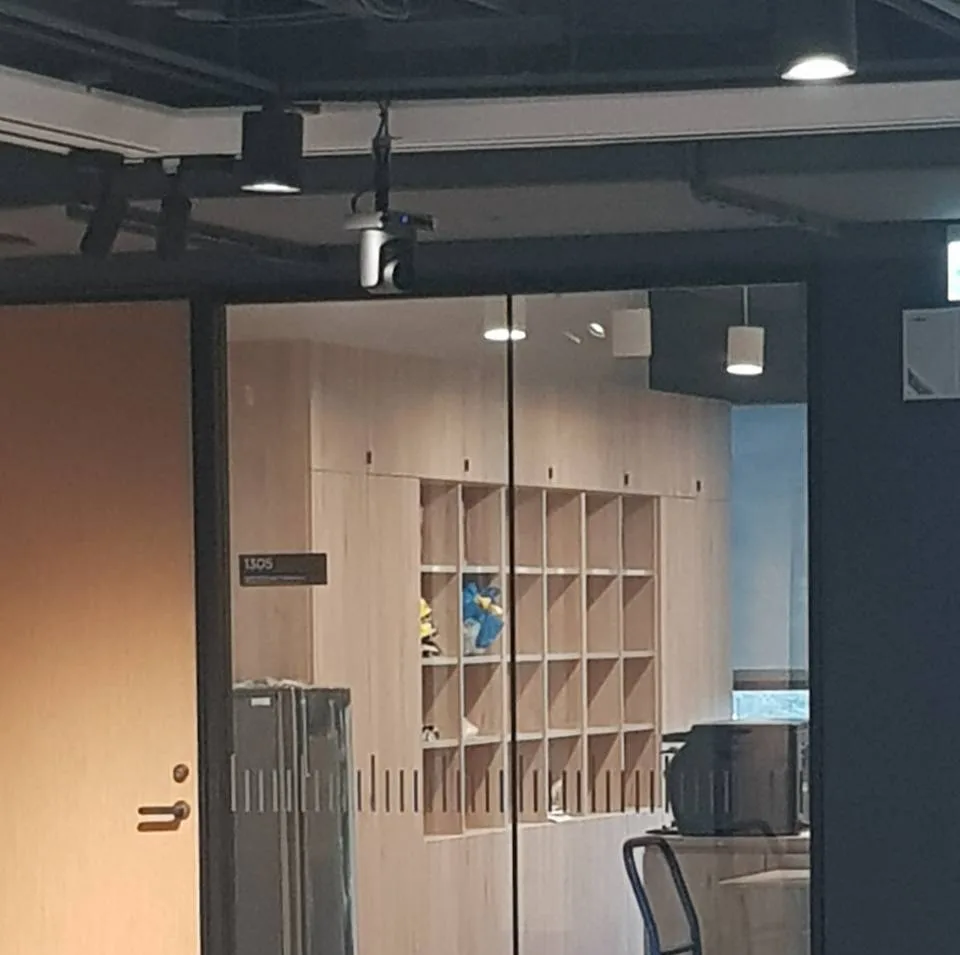
9. Fix the camera firmly
How steady the camera is directly affects the result. Mounted firmly, the picture isn’t disturbed by vibration or shake, and what you shoot is even and smooth.
- Mount it somewhere solid: use a secure bracket or support, away from places subject to knocks or vibration.
- Tighten everything: lens, bracket and base should each be fixed, so nothing shifts or wobbles through vibration or wind.
- Have it installed professionally: where possible, use a professional installer. It is steadier and safer, and they can choose the mounting that best suits the venue.
- Where vibration is likely: add an anti-vibration mount or pad to reduce its effect.
- Check and maintain regularly: look for anything that has worked loose and readjust if needed.
- Keep it balanced: once mounted, the camera’s weight should be centred. Leaning to one side makes it wobble.
- Set a suitable angle: confirm the angle gives the shot you want without being so steep that the camera becomes unstable.
10. Stable power
Enough power, steadily supplied, is the key to a shoot that runs without trouble. Have a backup supply ready, so that a power cut doesn’t interrupt the shoot and the recording stays complete.
- Steady voltage: an unstable supply or a sudden cut can make the camera misbehave or even damage it.
- Suitable cable and socket: the power cable shouldn’t be too long or too thin. The longer and thinner it is, the more power is lost along it and the less steady the supply at the camera.
- Over-current protection: fit it to stop excess current burning out the camera or the power supply, and to make the system safer.
- Earthing: both the camera and the power equipment should be earthed, to avoid damage or danger from static or lightning.
- An uninterruptible power supply (UPS): if conditions allow, use a UPS as backup. Through a power cut or voltage dip the camera keeps running, and both equipment and recordings are protected.
A PTZ camera with PoE takes power and signal over one network cable, which makes the wiring much simpler.
Summary: check these 10 things before you go live
The ten points fall into three groups. The first is planning before the shoot: what you are shooting, where the camera goes, how far away it is and how it is controlled. The second is the picture: exposure, white balance, focus and depth of field; with all four set, the picture is sharp and the colour natural. The third is the basics that are easy to overlook: sound, mounting and power. They attract little attention, but any one of them can stop a stream.
The worst moment to find a problem is after going live, because there is no second take. So the most important habit is this: before the real thing, go through all ten points and run a full rehearsal. The better prepared you are, the calmer the day will be.
Planning a stream or a recording for the first time, and unsure how many cameras you need or where to put them? Contact us and we will advise for your venue and event.
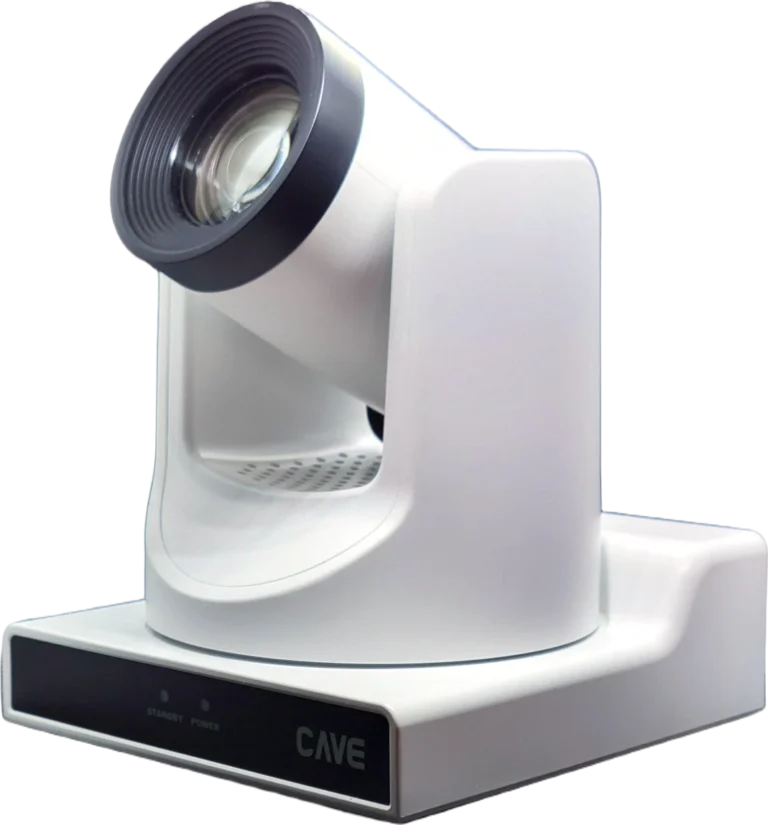
Products in this guide
FAQ
The picture is too dark or too bright on a stream. What do I adjust first?
Exposure. Auto exposure gives a suitable brightness in most cases. With a window or strong light behind the subject, faces go dark: add a light, change the angle, or set iris, shutter and gain by hand.
The camera is a long way from the stage. What should I choose?
A model with higher optical zoom; don't rely on digital zoom. P12i, P20i and P30i are 12×, 20× and 30×, and the higher the ratio, the further you can shoot.
Is a remote control good enough for operating the camera on a stream?
It works, but a PTZ keyboard with a joystick is far smoother. The joystick sets direction, a knob sets zoom, and one unit manages several cameras. Save your usual positions as presets and recall them at one press during the stream.
The planning advice in this guide is general reference. Actual results vary with the room, the equipment and the network. Product specifications follow the manufacturer's documents; we recommend contacting us for an assessment first.
More guides
How to stream a sports event: from one phone to multi-camera coverage in 9 steps
School teams and community leagues want to stream their games too, and you don't have to buy a pile of equipment to begin. This guide starts with a single phone and works up to professional multi-camera coverage.
How to plan a recording system: cameras, control, audio and the recorder explained
When people want to record a class, a talk or an event, and perhaps stream it too, the first thing they ask is which recorder to buy. That isn't the first question. Answer these 6 questions, then choose the equipment.
How to Plan a Hybrid Classroom: Lectures, Demonstrations and Discussions, With Remote Students Following Along
The teacher teaches in the classroom while some students join online at the same time. This guide uses three kinds of class (lecture, demonstration, discussion) to explain the cameras, microphones and controls for a hybrid classroom, and sorts out the terms.