PTZ Camera Control System Integration: Wiring, Testing and Speaker Tracking
One-touch meeting modes and cameras that turn to whoever is speaking come from integrating PTZ cameras with control systems and conference systems. This guide covers control methods, wiring, VISCA commands and troubleshooting, step by step.
Short answer
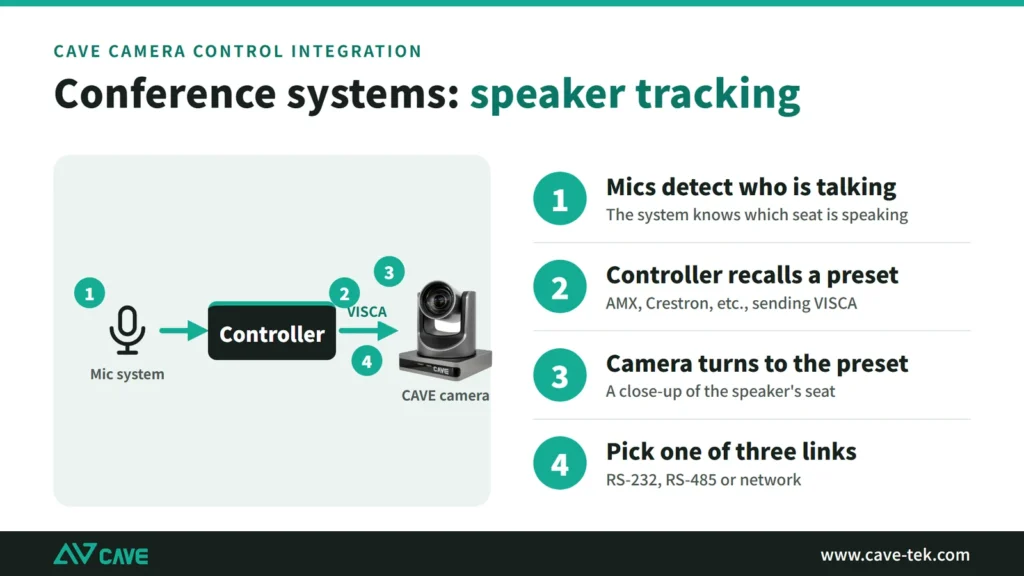
CAVE PTZ cameras integrate with control systems and conference systems over RS-232, RS-485 or the network, using VISCA, Pelco-D, Pelco-P, VISCA over IP or ONVIF. Save presets on the camera first, then let the control system or conference system recall them for one-touch switching and automatic speaker tracking. After wiring, use a test tool to confirm the camera moves and replies before you start programming the control system.
Key takeaways
- Speaker tracking is not the camera finding people on its own: the microphone system detects who is talking, then recalls a camera preset
- There are three ways to connect: RS-232 (one to one), RS-485 (several cameras in parallel) and the network (UDP port 1259 recommended)
- Start with these settings: VISCA, Address 1, 9600, 8N1, no flow control
- Use a test tool to confirm the camera moves and replies before programming the control system
Large meeting rooms, classrooms and auditoriums often have more than one camera, and nobody stands next to them steering the lens. What people usually want is simple: press one button to start a meeting with the camera on the wide shot, and have the camera turn to a seat automatically when someone there starts talking.
All of this comes from integrating the camera with the control system and the conference (microphone) system: an outside system sends a command and the camera follows it. This guide explains how CAVE PTZ cameras work with control systems, conference systems and automatic speaker tracking, from the available control methods and wiring to testing and troubleshooting, so that field engineers and system integrators can follow it step by step.
There are several guides on PTZ cameras, live streaming and recording, each for one job. Start with “What is a PTZ camera” for the basics, then read on for your situation:
| Guide | What you will learn |
|---|---|
| What is a PTZ camera (start here) › | Pan, tilt and zoom, presets, how to control it, AI tracking, and five questions for choosing |
| Why medium and large rooms use PTZ › | 5 reasons to use a PTZ camera |
| 10 things to watch when streaming or recording with PTZ › | Planning the shot, control, exposure, white balance, focus, depth of field, sound, mounting and power |
| How to adjust colour on a PTZ camera › | Lighting, exposure, white balance and colour, in order |
| How to plan a recording system › | What to record, fixed or PTZ, who operates it, sound, the recorder and common setups |
| Live streaming and recording for churches › | A setup volunteers can run: presets, a keyboard and a streaming recorder |
| How to live stream a sports match › | Nine steps from one phone to a multi-camera broadcast |
| Planning a hybrid classroom › | Lectures, demonstrations and discussion classes |
| PTZ control and meeting-system integration (you are reading this one) | Wiring, testing and speaker tracking (for projects and integrators) |
The big picture: types of control system integration
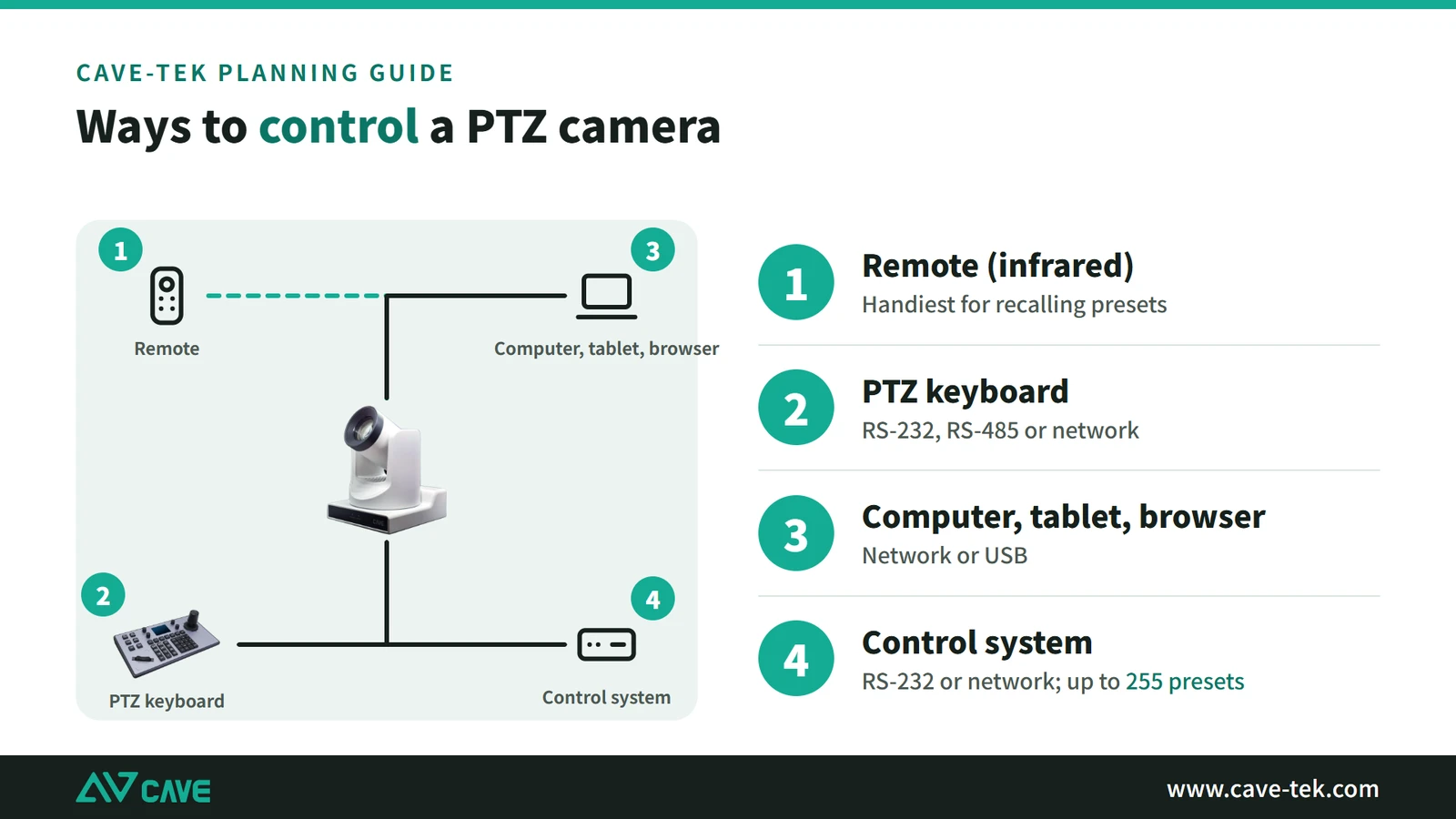
In meeting rooms, CAVE PTZ cameras are usually integrated in one of three ways. The difference is who decides how the camera moves:
| Type | Who decides | Typical example |
|---|---|---|
| Manual control | A person pressing buttons | Remote control, PTZ keyboard, control panel (touch panel or keypad) |
| Speaker tracking | The microphone system detects who is talking | A conference/discussion system, or ceiling array microphones with a control system |
| AI tracking and VIP tracking | The camera follows people itself; the control system only turns it on and off | TX20i, P12i, P20i, P30i, DX12i |
Whichever type you use, the control system and the camera speak the same language: actions such as “recall preset 3” or “tilt up” are turned into commands sent to the camera. Here is how each type works.
Manual control: panel buttons mapped to commands
This is the simplest type. The control panel can be a touch panel or a physical keypad, and each button is mapped to one camera command. For example, button 1 recalls preset 1; holding an arrow key sends “move”, and releasing it sends “stop”.
| Method | Connection | Best for |
|---|---|---|
| Simple control panel (touch panel or keypad) | Sent by the panel’s built-in system or program over RS-232, RS-485 or the network | Rooms that only need basic camera control |
| Control system panel (touch panel or keypad) | Sent by the control processor over RS-232, RS-485 or the network | Rooms that need a one-touch meeting mode, a preview image, or control of several kinds of equipment at once |
Always send a Stop command when an arrow key is released, or the camera will keep turning. This comes up again in the programming and troubleshooting sections below.
Conference system integration and automatic speaker tracking: the microphones decide, the camera recalls a preset
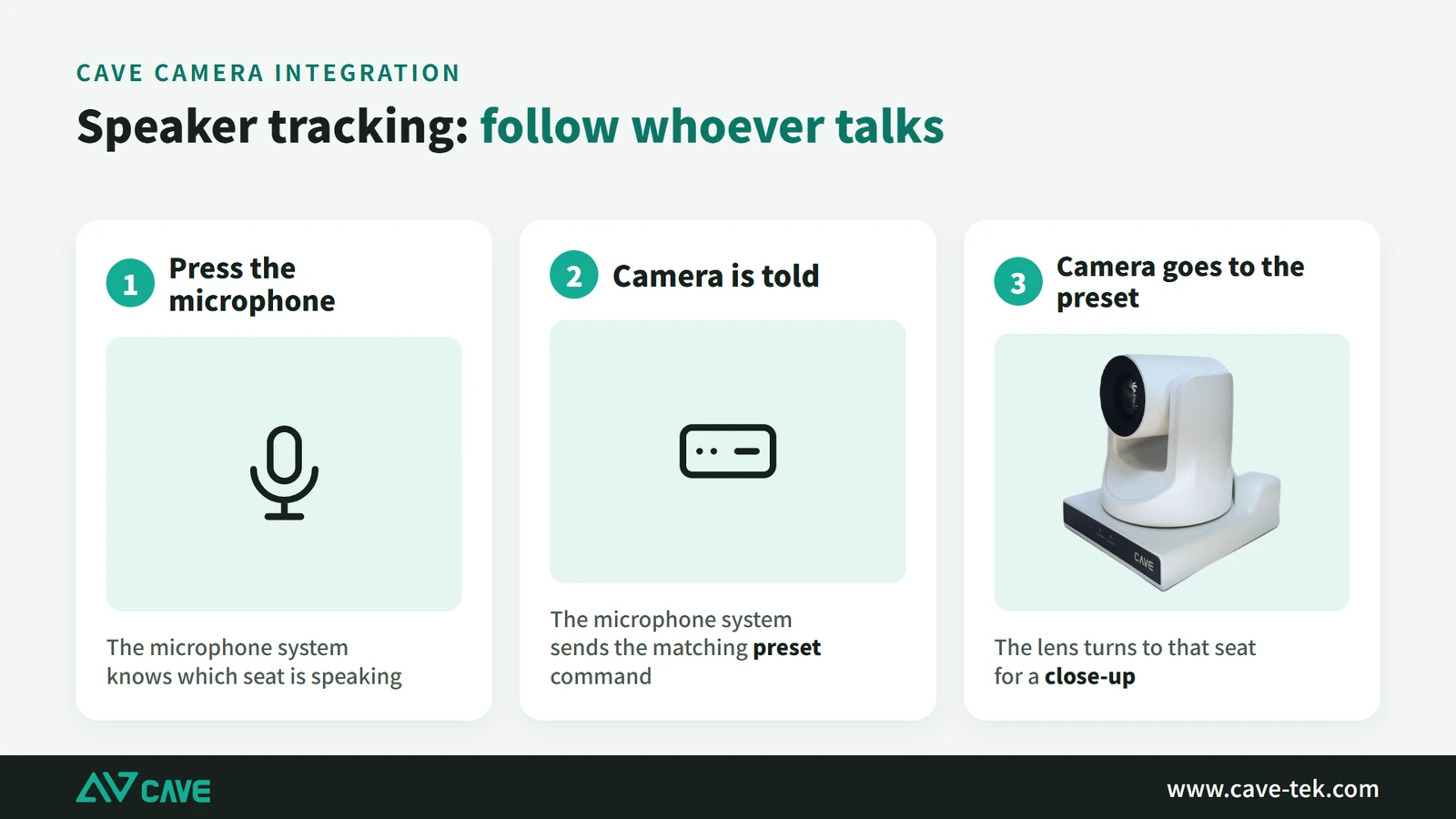
First, a common misunderstanding: speaker tracking is not the camera looking for people on its own. The microphone system works out who is speaking, then a control command tells the camera to turn to that position. Cameras generally do not include a microphone system, and even a built-in microphone becomes unreliable once the speaker is farther away, so integrating with a dedicated microphone system works better.
One switch to a new speaker goes like this:
- Save presets on the camera first: seat 1 is preset 1, seat 2 is preset 2, and so on.
- In the conference system (or control system), set up a table mapping each seat or zone to a preset number.
- Someone speaks, and the conference system works out which seat or zone it is.
- The system sends “recall preset N” over RS-232, RS-485 or the network. For preset 3 that is
81 01 04 3F 02 03 FF. - The camera turns to the preset and frames the speaker.
There are two common ways to detect the speaker:
| Approach | Who detects the speaker | Mapping | Best for |
|---|---|---|---|
| Push-to-talk conference microphones (e.g. Bosch, Shure, Sennheiser) | A participant presses the microphone button, so the system knows which one it is | Each seat maps to one preset | Boardroom tables and council chambers with fixed seats |
| Ceiling array microphones | The array detects which direction the voice comes from | Zones map to presets, e.g. left of the table is A, center is B, right is C | Rooms where people should not have to press a button, or that need more flexibility |
The conference system can reach the camera in two ways:
- Direct: the conference system has its own camera control and sends VISCA commands (or uses ONVIF) to the camera.
- Through the control system: the conference system only reports events such as “seat 5 pressed talk” or “voice detected from the left” to the control processor (e.g. AMX, Crestron), and the control processor’s program sends the VISCA commands.
AI tracking and VIP tracking: the control system only turns it on and off
AI tracking runs inside the camera. TX20i, P12i, P20i and P30i all have it built in, with no extra software to install. The control system only decides when it starts and stops.
A common setup puts a preview image on the control panel so the operator can see the camera’s standby position. When the presenter walks into that area, the operator presses “Start tracking” and the camera follows them. When they leave, the operator presses “Stop tracking” and the camera returns to standby.
- Tracking settings: choose full body, half body or close-up framing, and center, left or right placement. There is also zone tracking (ZONE MODE, with 4 zones), zoom lock (fixed size), tilt lock, and automatic touring of several presets.
- VIP tracking (DX12i): register up to 5 VIPs with a priority order in the camera’s web interface; this only has to be done once. The camera waits at its standby position and starts tracking as soon as a VIP appears, stays locked on the VIP even when many people are in the shot, and returns to standby when the VIP leaves.
For the commands that turn AI tracking and VIP tracking on and off, see the control command document for each model.
Which control methods do CAVE cameras support?
CAVE PTZ cameras have three control interfaces: RS-232, RS-485 and the network. Supported protocols are VISCA, Pelco-D, Pelco-P, VISCA over IP and ONVIF. These models currently support the same set:
| Model | RS-232 | RS-485 | Network control | Protocols |
|---|---|---|---|---|
| S12+ | ✓ | ✓ | ✓ | VISCA, Pelco-D, Pelco-P, VISCA over IP, ONVIF |
| P12i, P20i, P30i | ✓ | ✓ | ✓ | VISCA, Pelco-D, Pelco-P, VISCA over IP, ONVIF |
| TX20i | ✓ | ✓ | ✓ | VISCA, Pelco-D, Pelco-P, VISCA over IP, ONVIF |
| DX12i | ✓ | ✓ | ✓ | VISCA, Pelco-D, Pelco-P, VISCA over IP, ONVIF |
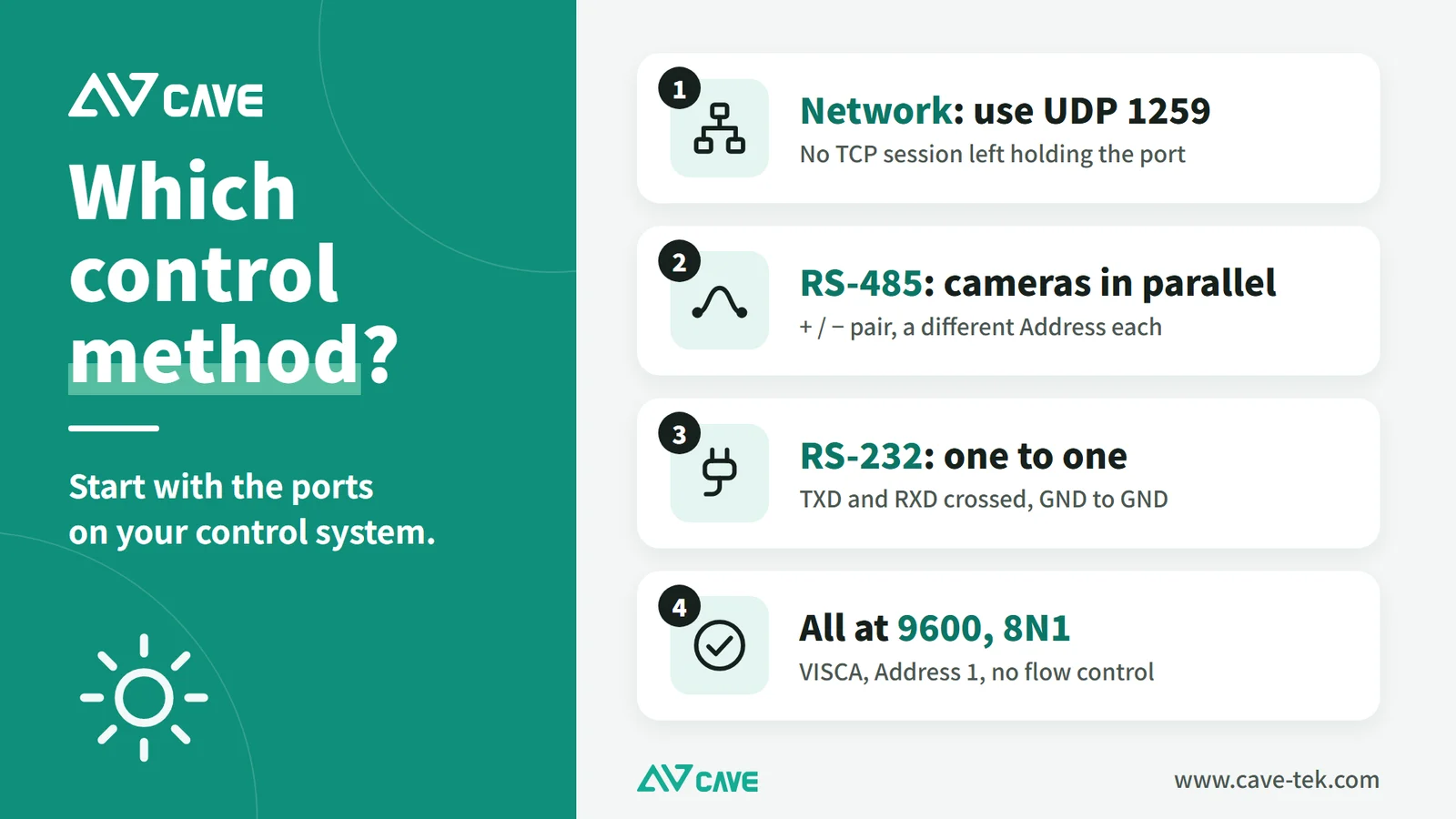
Choose based on the site and the control equipment. RS-232 (one to one) is the easiest for most control system programs. Use RS-485 for long runs or to put several cameras on one line. Use the network if you only want one cable in the ceiling and there is already a PoE switch on site.
| Method | Cable | Connection | Recommended settings |
|---|---|---|---|
| RS-232 | RS-232 cable (DB9 to Mini DIN) | DB9 end to the control device, Mini DIN end to the camera’s RS-232 IN | VISCA, Address 1, baud rate 9600, 8 data bits, no parity, no flow control |
| RS-485 | Two single-core wires | Control device TA to camera 485+, TB to 485− | Same as above |
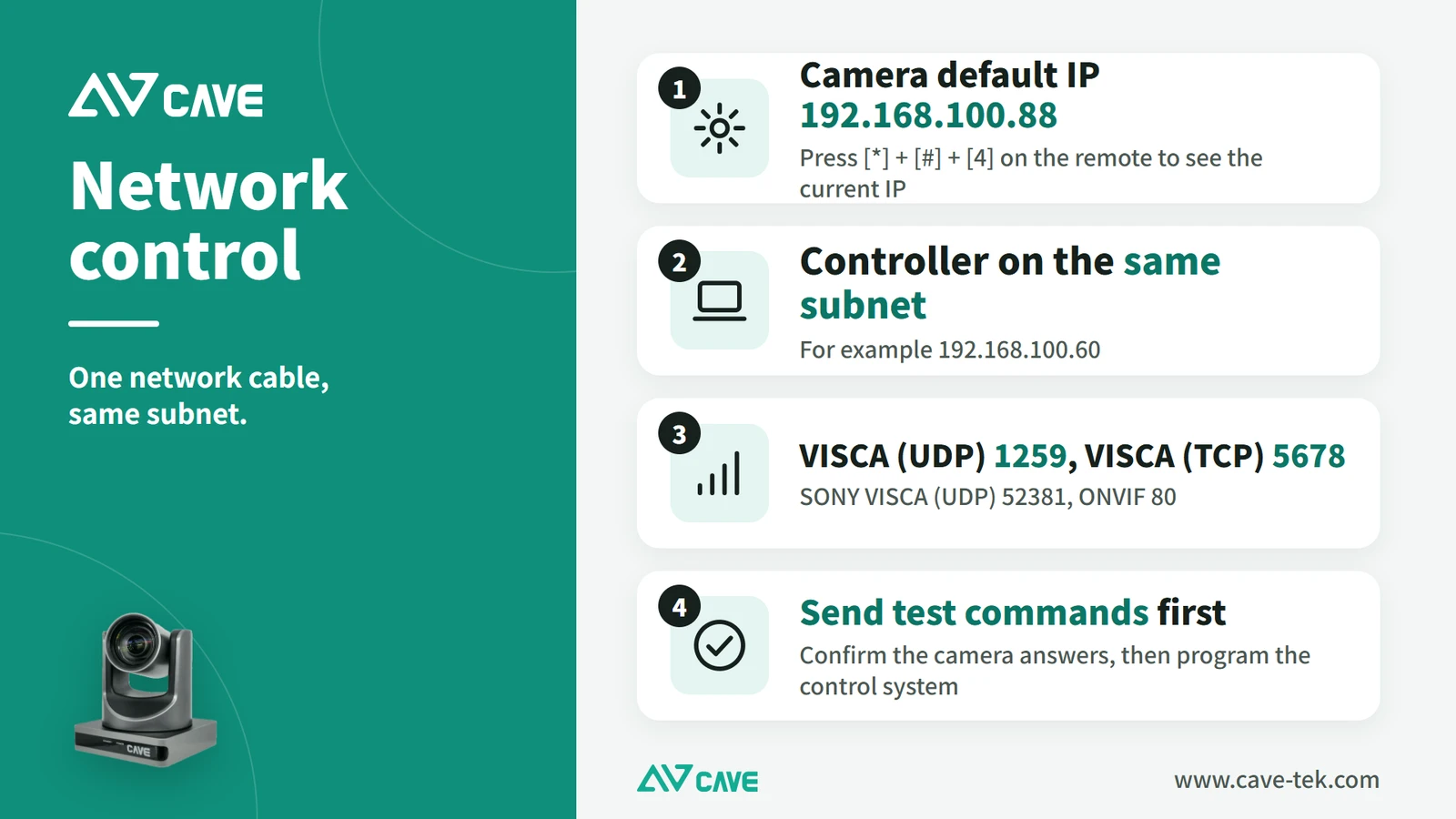
| Network | Network cable | The control device must be on the same subnet as the camera | Camera default IP 192.168.100.88; the control device can use 192.168.100.60 |
The port for network control depends on the protocol:
| Protocol | Port |
|---|---|
| VISCA (UDP) | 1259 |
| SONY VISCA (UDP) | 52381 |
| VISCA (TCP) | 5678 |
| ONVIF | 80 |
We recommend always using UDP (port 1259) for network control. UDP needs no connection to be set up first, so you never get a TCP connection held by one device while others cannot connect.
Wiring: RS-232, RS-485 and the network
RS-232: one to one, the most common choice for control systems
- Use an RS-232 cable (DB9 to Mini DIN).
- Connect the Mini DIN end to RS-232 IN on the camera’s rear panel, and the DB9 end to the control device (e.g. the K20, or the RS-232 port of an AMX or Crestron processor).
- On models with both IN and OUT Mini DIN ports, OUT is for chaining to the next camera; when controlling only one camera, use IN.
- Transmit and receive must cross: the camera’s TXD goes to the controller’s RXD, the camera’s RXD goes to the controller’s TXD, and GND goes to GND.
The Mini DIN 8 pins map to DB-9 as follows. At minimum you only need three wires: TXD, RXD and GND.
| Mini DIN pin | Function | DB-9 pin |
|---|---|---|
| 3 | TXD | 2 (RXD) |
| 5 | RXD | 3 (TXD) |
| 4, 6 | GND | 5 (GND) |
| 1, 2 | DTR, DSR | Usually not needed; follow the manufacturer’s pinout if required |
| 7, 8 | IR OUT, NC | Not connected |
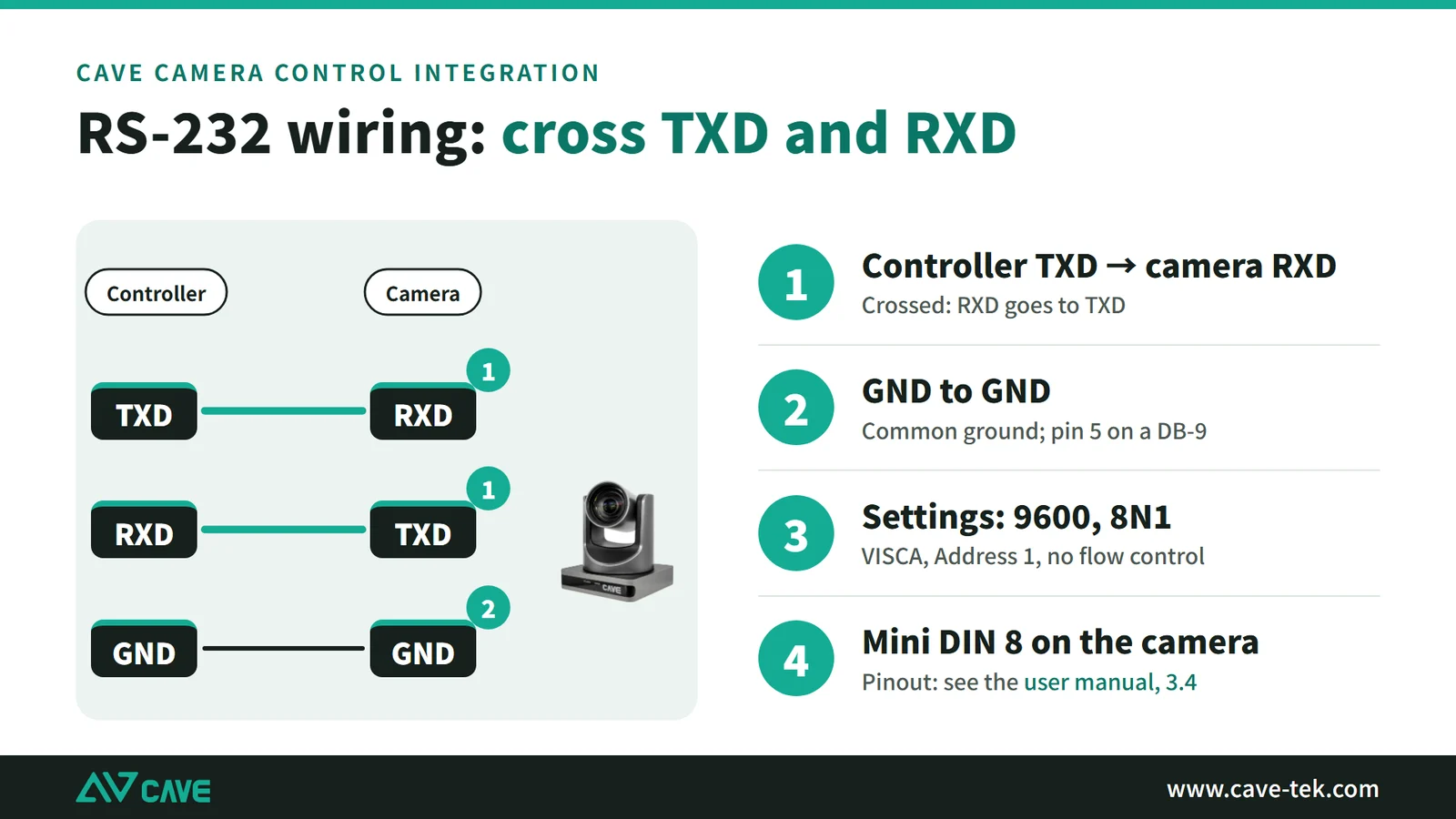
Before making your own cable, confirm the pinout with CAVE. Because transmit and receive are crossed, the tests later on check TX and RX separately.
RS-485: long distances or several cameras
- Use two single-core wires.
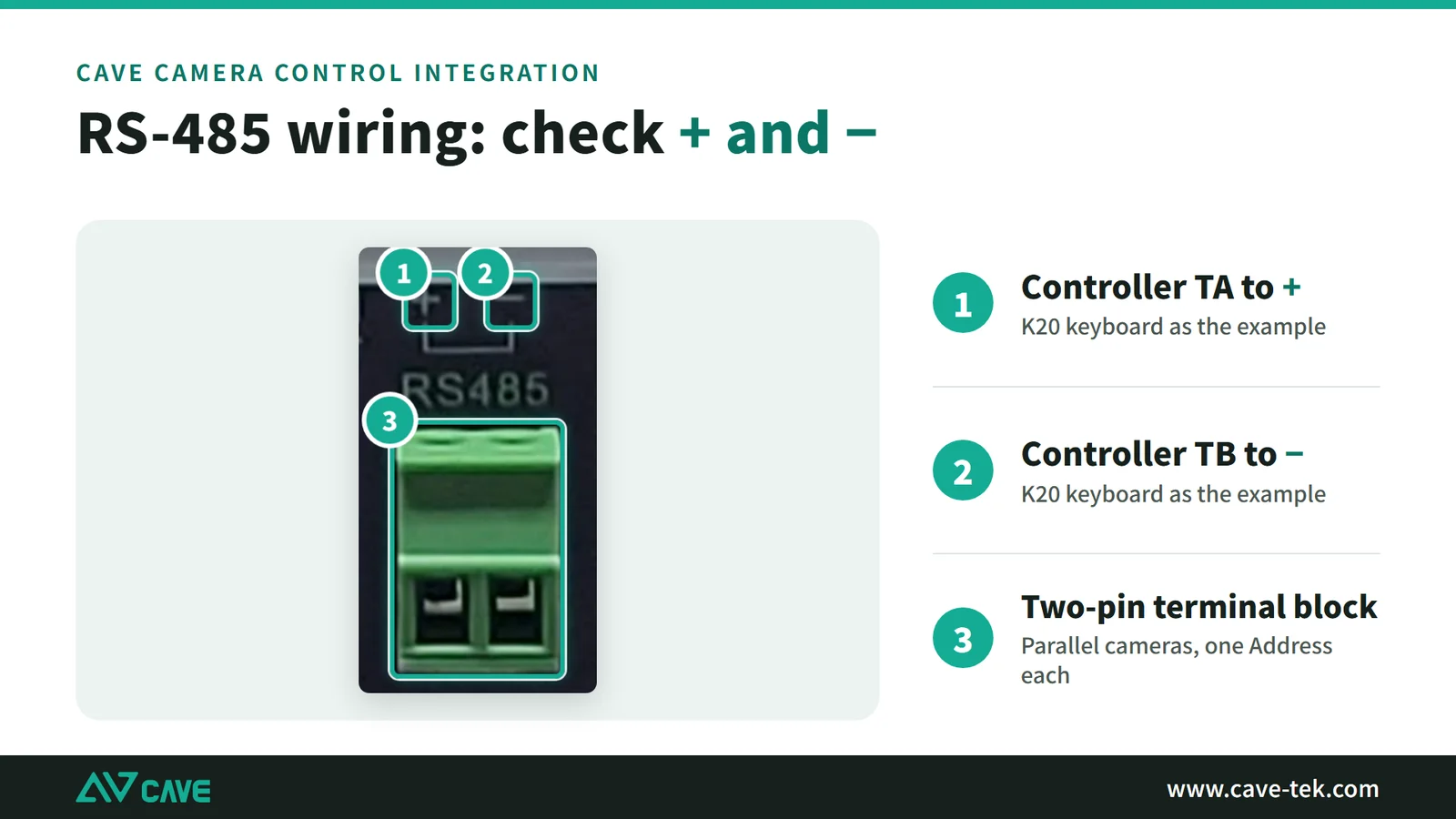
- The camera has a green 2-pin terminal block marked “+” and “−”: the left pin is “+”, the right pin is “−”, with RS485 printed below.
- On the control side, taking the K20 as an example, the terminals are labelled TA, TB, RA, RB and G: TA goes to the camera’s “+”, TB to “−”; RA, RB and G are left unconnected.
- RS-485 sends and receives on the same pair (half duplex), so there are no separate TX and RX wires.
- Reversed polarity will not damage anything, but the camera will not respond. When troubleshooting, check this first.
- The terminal is small, so take a close-up photo before wiring to confirm the pins and markings.
Network: just stay on the same subnet
- Connect the camera and the control device to the same switch, on the same subnet.
- The camera’s default IP is 192.168.100.88; give the control device an address on the same subnet, such as 192.168.100.60.
- If you do not know the camera’s IP, press [*]+[#]+[4] on the remote to show it.
RS-422 vs RS-485, and connecting an RS-422 controller to CAVE’s RS-485
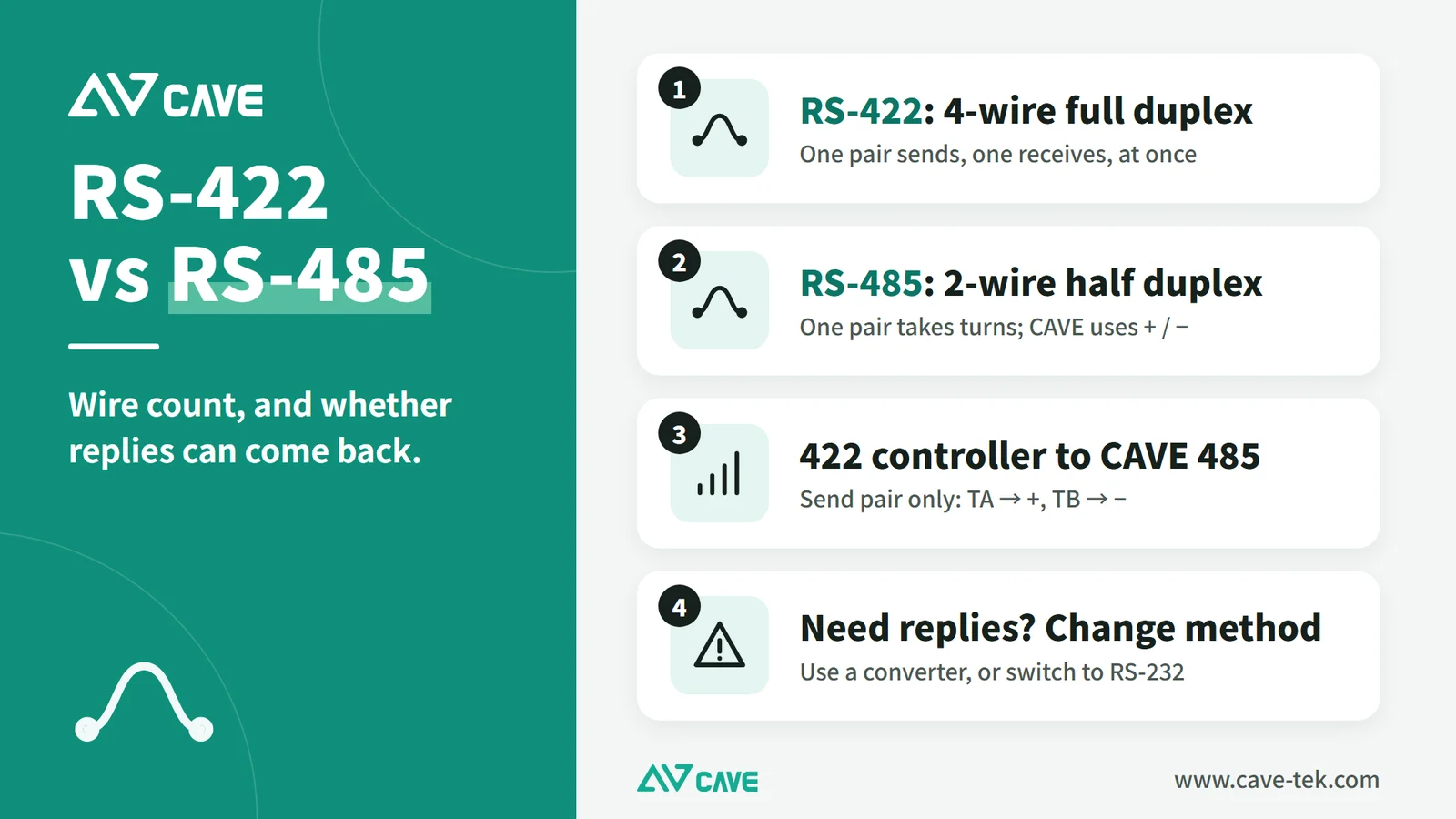
Some control devices (such as the K20) output RS-422. In short: RS-422 uses 4 wires with separate transmit and receive pairs (full duplex); RS-485 uses 2 wires shared for both (half duplex). The RS-485 port on CAVE cameras is 2-wire.
| Item | RS-422 | RS-485 |
|---|---|---|
| Wires | 4 (one transmit pair, one receive pair), plus a common ground | 2 (one pair), plus a common ground |
| Direction | Full duplex: send and receive at the same time | Half duplex: only one side transmits at a time |
| Transmitters | One master transmits, many devices receive | Several devices can take turns transmitting |
| Typical use | One-to-many control | A bus shared by several devices |
Think of RS-422 as a two-lane road with traffic in each direction on its own lane, and RS-485 as a single-lane road where traffic has to take turns.
Connecting an RS-422 controller to CAVE’s RS-485
The K20’s terminals are labelled TA, TB, RA, RB and G: TA and TB are the transmit pair, RA and RB the receive pair. There are three ways to connect, depending on what you need:
- Control only, no replies needed (the simplest, and the way CAVE’s connection diagram shows it): controller TA to the camera’s “+”, TB to “−”; leave RA, RB and G unconnected. The drawback is that ACK and Completion never come back, so the program cannot confirm that a command arrived.
- Replies needed: also connect the controller’s RA and RB to the same pair (TA and RA together to “+”, TB and RB together to “−”). However, the controller’s RS-422 transmitter is usually always on and holds the pair, so the camera’s replies cannot get back and this often fails. For reliable two-way communication, use an RS-422 to RS-485 converter, or use CAVE’s RS-232 instead.
- Several cameras: connect all cameras’ “+” together and all “−” together, then to the controller’s TA and TB, and give each camera its own Address.
Two things to watch for:
- Manufacturers often label the two RS-485 wires A/B, some use +/−, and which one “A” corresponds to differs between brands. If nothing responds, swap the two wires and test again.
- Abbreviations such as TA, TB, RA and RB follow the control device’s manual.
Settings, and IDs for multiple cameras
Once wired, the camera and the controller must use the same settings. Start with these:
| Item | Recommended value |
|---|---|
| Protocol | VISCA |
| Camera address (Address) | 1 (the first command byte is 81) |
| Baud rate | 9600 |
| Data bits / parity / stop bits | 8 / none / 1 |
| Flow control | None |
| Network VISCA | UDP 1259, or TCP 5678 |
With several cameras, each needs a different Address (1–7), and the first command byte changes with it: Address 2 is 82, and so on. Replies also carry the camera’s number: Address 1 replies with 90, Address 2 with A0. If two cameras share an ID, both move and reply at once, which causes collisions on an RS-485 bus.
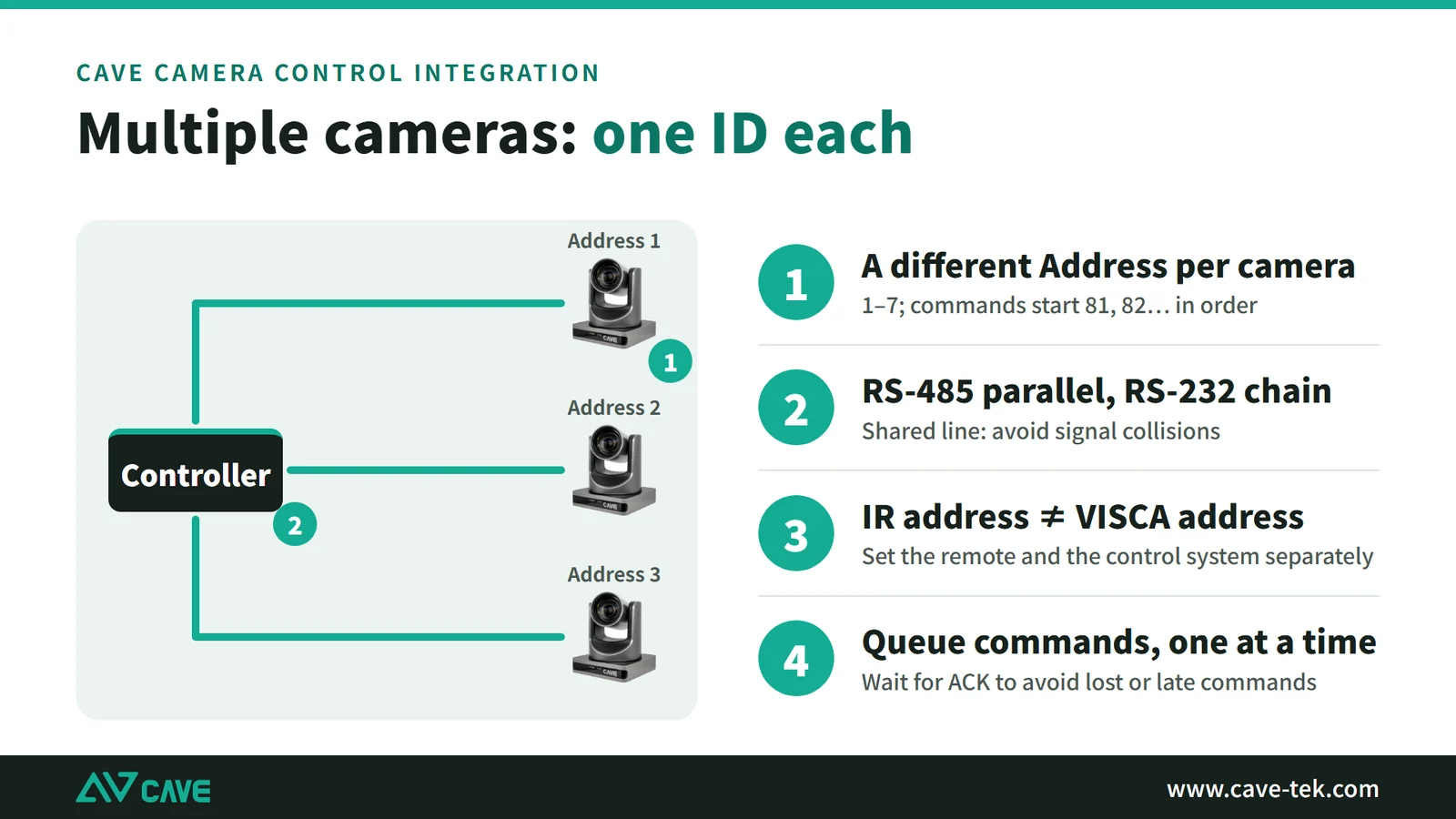
| Connection | Multi-camera wiring | Must differ per camera | Risk |
|---|---|---|---|
| RS-232 | Daisy chain: controller to camera 1 IN, camera 1 OUT to camera 2 IN, and so on (models with OUT only) | VISCA Address 1–7 | The longer the chain, the more one disconnected camera or duplicate ID affects every camera after it |
| RS-485 | Bus: all cameras’ “+” together and “−” together, in parallel to the controller’s TA and TB | VISCA Address 1–7 | Only one side can transmit at a time; commands sent too close together collide |
| Network | Each camera has its own IP; the controller connects to each one | IP (Address usually stays 1) | Devices must be on the same subnet with no duplicate IPs |
For the maximum number of cameras and cable length on an RS-232 daisy chain or RS-485 bus, and whether a terminating resistor is needed, contact CAVE or follow the specifications.
- Keep the two kinds of ID apart: the remote’s IR address (set 1–4 with [*]+[#]+[F1]–[F4]) only decides which camera the infrared remote controls. It is not the VISCA Address.
- Set the VISCA Address on each camera. Where to set it depends on the model; see the manual for each model.
- Recommended on-site routine: connect one camera at a time, confirm with the test tool that it responds to commands starting with 81, label it with its ID, then add the next. For now, set each camera’s ID manually.
Test first, then program the control system
The order is fixed: wire first, then set the camera and controller parameters, and finally use a test tool to confirm the camera really moves before you start programming. If you skip the test and go straight to programming, you cannot tell whether a problem is the cable, the settings or the program. Testing first also means that if the control system does not work later, you know the problem is on the control system side, not the cable or the camera.
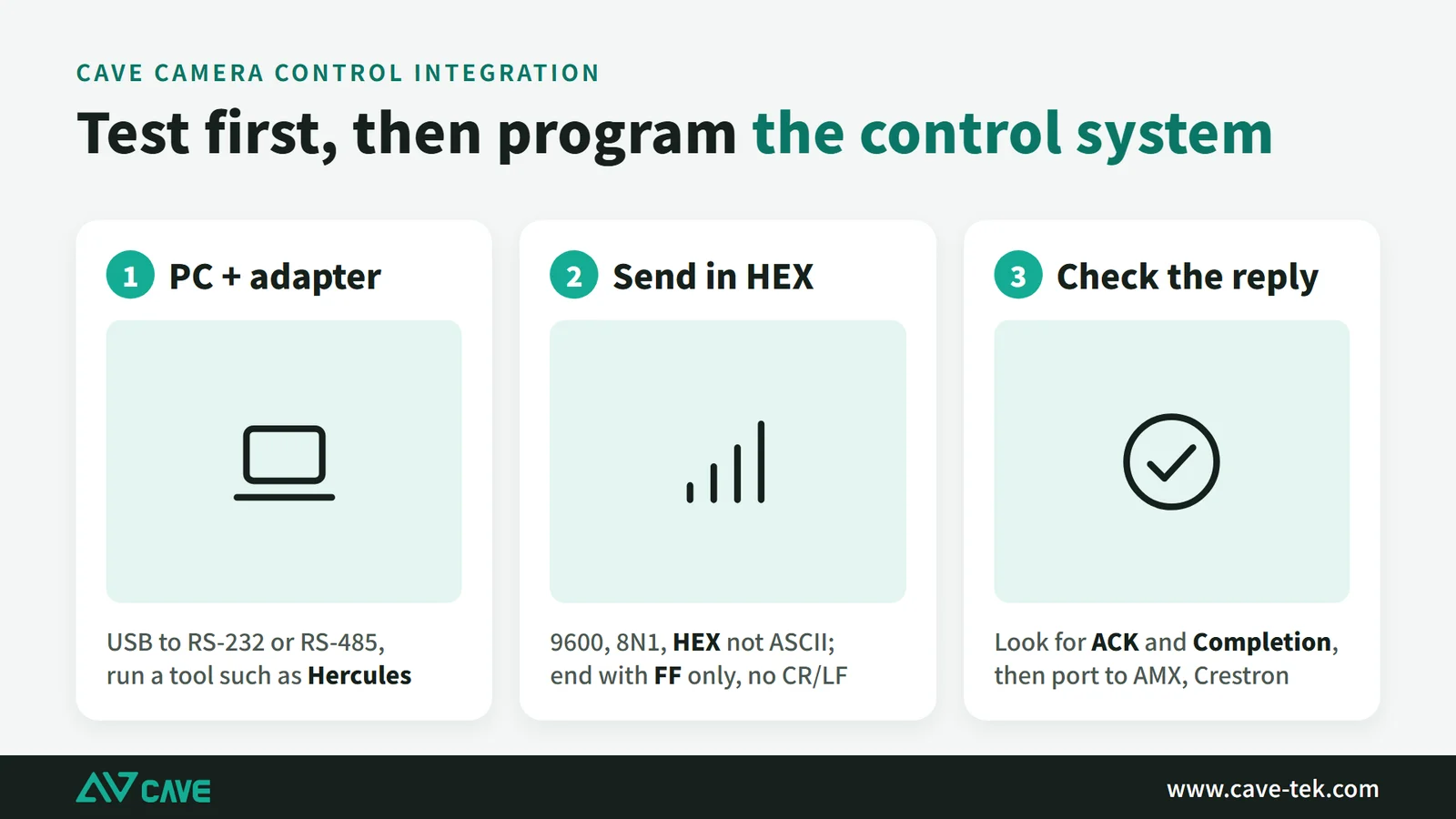
Preparation
Plug a USB to RS-232 adapter (to test RS-232) or a USB to RS-485 adapter (to test RS-485) into a computer. For the test tool, use CAVE’s “Visca Protocol Control v2.3”: the connection settings are on the left, control buttons in the middle, and “Receive message” at the bottom shows the camera’s replies. Contact CAVE to request the tool.
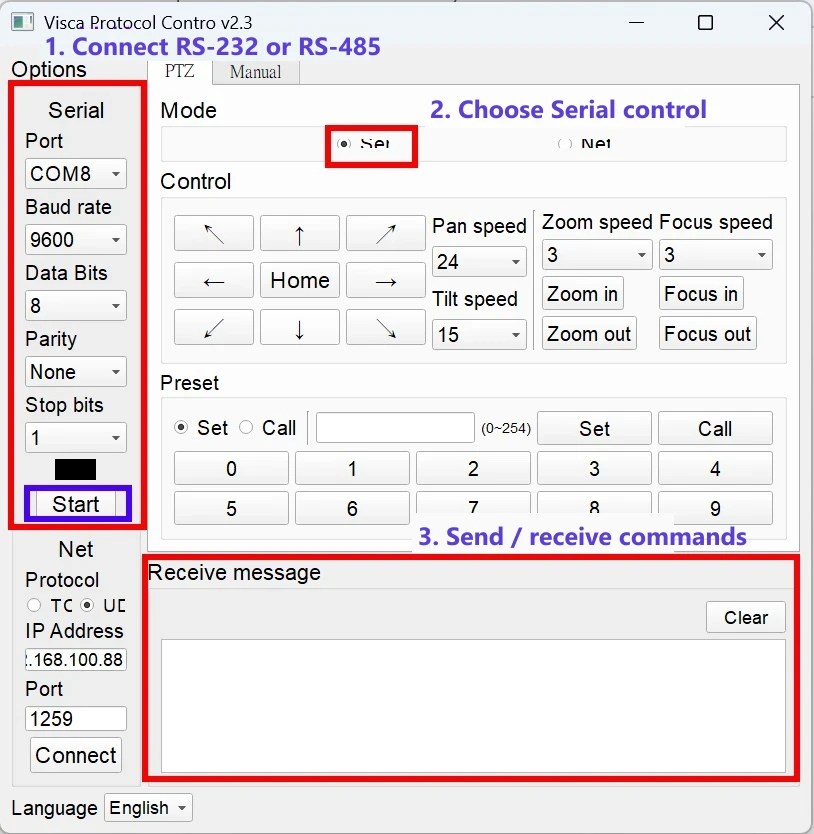
Serial port (RS-232 or RS-485):
- In the Serial section on the left, choose the Port (e.g. COM8), baud rate 9600, Data Bits 8, Parity None, Stop bits 1, then press Start.
- In the middle, set Mode to Ser (Serial).
- Press the ↑ arrow; the camera should tilt up. Press Home to return. Replies appear in Receive message at the bottom.
- In the Preset section, select Set, enter a number and press Set to save the current position; select Call and press Call to recall it.
Network: in the Net section on the left, set Protocol to UDP, IP Address to the camera’s IP and Port to 1259, then press Connect. Set Mode to Net; everything else works the same.
Three tests, from easy to hard
- Transmit test (TX): type the commands below into the HEX field and press Send. Tilt up (slow):
81 01 06 01 05 05 03 01 FF; stop:81 01 06 01 03 03 03 03 FF; recall preset 1:81 01 04 3F 02 01 FF. If the camera moves, the cable, settings and address are all correct. - Receive test (RX): send
81 09 06 12 FF(pan/tilt position inquiry); the message area should show a reply starting with 90 50. If it does, the return path works too. - Compare what the control system sends: connect the control processor’s serial output to the computer’s USB adapter, use Hercules as the receiver with the display set to HEX, and compare the bytes the control system actually sends, one by one, with the commands you sent by hand above. They must match exactly.
Keep HEX and ASCII apart
- VISCA commands are binary data and must be sent as HEX. If 81 01 06 01 … is sent as text (ASCII), what goes out is the character codes for “8” and “1”, and the camera will not respond.
- Show received data in HEX too, so you can see replies such as
90 41 FF; in ASCII they look like garbage or nothing at all. - AMX’s $81 and Crestron’s \x81 notations both mean raw bytes, not text.
Check the end character
- VISCA commands end with FF, which is already part of the command. Do not add line endings (CR 0D, LF 0A).
- Control systems behave differently: some automatically add CR/LF to every string they send, others have a setting for an end character. Use the third test above to look at the bytes actually sent; they should end with FF only, with no 0D 0A.
- The same goes for receiving: camera replies end with FF, so the program should split replies on FF rather than wait for CR/LF.
Sign-off checklist
- Arrow keys: up, down, left and right all move, and the camera stops on release.
- Presets: save 3 presets; each recall returns to the same position.
- Receive message (or the control processor’s debug screen) shows ACK (
90 4y FF) and Completion (90 5y FF). - Power-cycle and test again to confirm the presets are still there.
- Simulate one speaker with the microphone system and confirm the camera turns to the right preset.
Common VISCA commands (Address 1)
These are the most frequently used commands. pp is the preset number; VV and WW are the pan and tilt speeds.
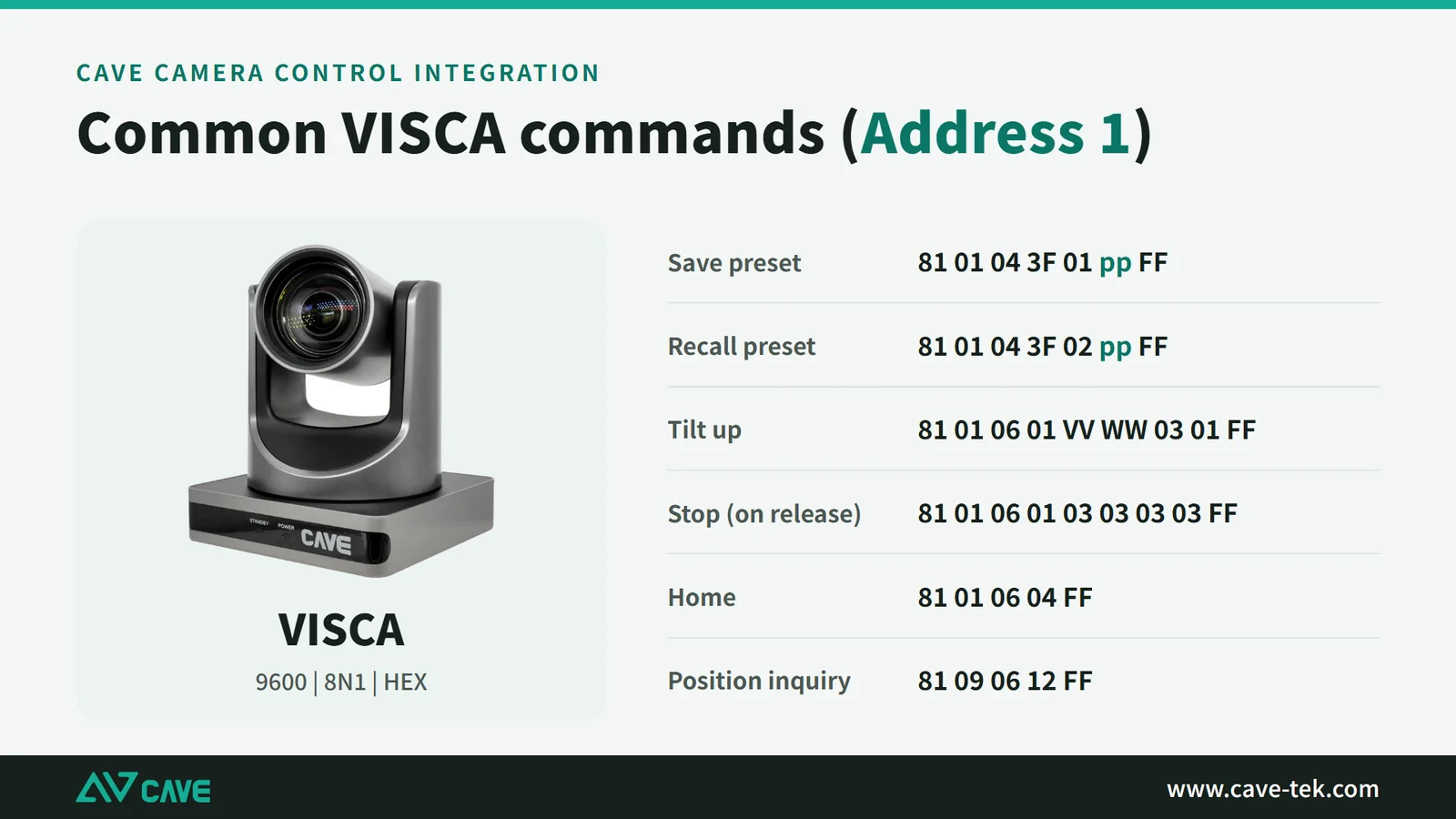
| Action | Command (HEX) |
|---|---|
| Save preset | 81 01 04 3F 01 pp FF |
| Recall preset | 81 01 04 3F 02 pp FF |
| Tilt up (slow example) | 81 01 06 01 05 05 03 01 FF |
| Tilt up (speeds VV, WW) | 81 01 06 01 VV WW 03 01 FF |
| Stop (send on key release) | 81 01 06 01 03 03 03 03 FF |
| Return Home | 81 01 06 04 FF |
| Pan/tilt position inquiry | 81 09 06 12 FF |
| Zoom position inquiry | 81 09 04 47 FF |
Up to 255 presets are specified. The usable range depends on the model and the command, so test the highest preset number you plan to use on the actual camera first.
Programming the control system: AMX and Crestron essentials
Everything above applies to any control system. When it comes to writing the program, each brand has its own syntax, but the bytes sent are exactly the same:
| Item | AMX NetLinx | Crestron SIMPL+ |
|---|---|---|
| Recall preset 1 | "$81,$01,$04,$3F,$02,$01,$FF" | "\x81\x01\x04\x3F\x02\x01\xFF" |
| Tilt up (press) | "$81,$01,$06,$01,$17,$0E,$03,$01,$FF" | "\x81\x01\x06\x01\x17\x0E\x03\x01\xFF" |
| Stop (release) | "$81,$01,$06,$01,$03,$03,$03,$03,$FF" | "\x81\x01\x06\x01\x03\x03\x03\x03\xFF" |
| Serial port settings | SET BAUD 9600,N,8,1 | COM port set to 9600, N, 8, 1, no flow control |
| Network | UDP to the camera IP, port 1259 | UDP to the camera IP, port 1259 |
These are the things most often missed when programming:
- Both the “press” and “release” events need a command: press sends move, release sends stop. Without a stop command, the camera keeps turning.
- Send Stop twice. If it is missed once, the camera keeps turning.
- Queue commands: send one at a time and wait for the camera’s ACK before the next (see “Known issues” below).
- Never leave out the closing FF, and do not add CR/LF.
- AMX’s HSOFF and XOFF correspond to “no flow control”.
- When using RS-485 on AMX, make sure RS-485 mode is enabled on that port. The setting differs between processor models, so check the documentation for yours.
For complete AMX NetLinx or Crestron SIMPL+ sample programs, contact CAVE.
Troubleshooting: check one direction at a time
There is only one rule: check one direction at a time. Controller to camera is TX; camera back to controller is RX. Testing the two paths separately tells you directly which side the problem is on. Use “direction control UP” as the test command: you can see it move, the result is immediate, and no preset has to be saved first.
1. Rule out the small things first (this solves half the problems in five minutes)
- The camera has power: it turns briefly for a self-check at power-on. If it does not move, check the power first.
- The remote works: if even the remote cannot control the camera, check the camera itself and its IR address before looking at the control system.
- All settings match: VISCA, Address 1, 9600, 8 data bits, no parity, 1 stop bit, no flow control. In the test tool, the Port is the COM port actually connected to the device, Start has been pressed, and Mode is Serial.
- Serial or network: an IP filled in under Net at the bottom left of the tool does not mean the network is being used.
2. Check the hardware: cables and terminals
The RS-485 terminal is where problems happen most. Check each point:
- Push the “+” and “−” wires all the way in and tug lightly to make sure they hold; tighten the screws and tug again.
- Too much bare copper can touch the next pin and short the two wires; too little and the screw clamps the insulation.
- Do not let the strands of the copper wire spread apart.
- Controller TA to the camera’s “+”, TB to “−”. If nothing responds, swap the two wires and test again; test both ways rather than guessing.
- Measure the voltage between “+” and “−” with a multimeter; it should change at the moment a command is sent.
- With several cameras, disconnect the others and leave only one.
Three points for RS-232:
- The DB9 end goes to the control device’s RS-232 port, not to a network jack.
- The Mini DIN goes to the camera’s IN, not OUT (OUT is for chaining to the next camera).
- The wrong cable type (straight or crossed) can mean sending works but receiving does not, or neither works. The DB9 to Mini DIN cable supplied by CAVE is the safest choice.
3. TX test (controller → camera)
The goal is to confirm that commands reach the camera. Ignore replies for now; only watch whether the camera moves.
- Open Visca Protocol Control, set the Serial parameters on the left, press Start, and set Mode to Serial.
- Lower Pan speed and Tilt speed first (e.g. 5) so the camera does not hit its mechanical limits right away.
- Hold the ↑ (UP) arrow for one second and release. The tool sends
81 01 06 01 VV WW 03 01 FF, and81 01 06 01 03 03 03 03 FF(stop) on release.
| Result | What it means and what to do |
|---|---|
| The camera tilts up | The controller’s TX, the cable, the camera’s RX, the address and the baud rate are all correct. Go on to the RX test. |
| Nothing moves | The TX path has a problem. Check in order: is the right COM port selected; swap RS-485 “+” and “−” once; is the Address 1; are both ends at 9600; is the camera protocol VISCA; is the cable on RS-232 IN or OUT. |
| It moves but will not stop | The stop command did not arrive. Press an arrow key or Home again; in the program, make sure releasing a key always sends stop. |
4. RX test (camera → controller)
The goal is to confirm that the camera’s replies get back to the controller; watch Receive message at the bottom of the tool. When you press UP you should normally get ACK (90 41 FF), and Completion (90 51 FF) once it finishes. To test RX without moving the camera, send an inquiry: pan/tilt position 81 09 06 12 FF, or zoom position 81 09 04 47 FF; the camera should reply 90 50 … FF. Read the TX and RX results together:
| TX (did it move?) | RX (did it reply?) | Diagnosis |
|---|---|---|
| Moved | Replied | The hardware is fine; the problem is in the control program (command format, timing, encoding) |
| Moved | No reply | The return path from camera to controller has a problem. RS-232: the cable only works in one direction, or uses the wrong pins. RS-485: the pair is not switched to receive when the camera replies (direction switching on the USB to RS-485 adapter, or the controller’s RA and RB not connected), so the tool simply never hears it |
| Did not move | No reply | The TX path has a problem; go back to the previous section and check each point |
| Did not move | Replied (cannot execute) | The line works; read the error code in the reply (see point 6 below) |
5. Troubleshooting network control
- Ping the camera’s IP first. If it fails, check the subnet, network cable and switch. If you do not know the IP, press [*]+[#]+[4] on the remote.
- The control device must be on the same subnet as the camera: camera default 192.168.100.88, control device on an address such as 192.168.100.60.
- In the Net section at the bottom left of the tool: Protocol UDP, Port 1259. If the port and protocol do not match, commands go out but nothing happens. If you must use TCP, the port is 5678, and keep in mind that only one connection can hold it at a time.
- If the camera’s IP was changed, or DHCP assigned a new one: check the IP with the remote, or press [*]+[#]+[Manual] to reset the network settings.
- If a firewall or switch blocks UDP, ask the site’s network administrator.
6. Reading camera replies and error codes
| Reply | Meaning | What to do |
|---|---|---|
90 4y FF | ACK: command received | Normal |
90 5y FF | Completion: command finished | Normal |
90 60 02 FF | Syntax Error: wrong command format or parameter | Check that the command starts with 81, ends with FF and is complete |
90 60 03 FF | Command Buffer Full: commands sent too fast | Leave more time between commands (see the next section) |
90 6y 41 FF | Command Not Executable: cannot run in the current state | For example, manual focus sent during auto focus; switch modes first, then send |
The first byte of the reply differs per camera: Address 1 is 90, Address 2 is A0.
7. The hardware tests pass, but the control program does nothing
- Commands must be sent as raw bytes (HEX), not text. In Hercules, choose HEX sending; in AMX use the $81 notation, in Crestron the \x81 notation.
- Never leave out the closing FF.
- Confirm the control processor’s COM port is set to 9600, N, 8, 1, with no flow control.
- Both the “press” and “release” events need a command.
- With several cameras, go back to one camera at a time: confirm one works, then add the second.
- Speaker tracking does nothing: first use the test tool on the same line to recall the preset manually and confirm it was saved, then check the microphone system’s seat mapping table.
Known issues: control delay and lost commands
When several devices are chained on RS-232 or RS-485, control delay and lost commands are known to occur. The common symptoms, causes and fixes are:
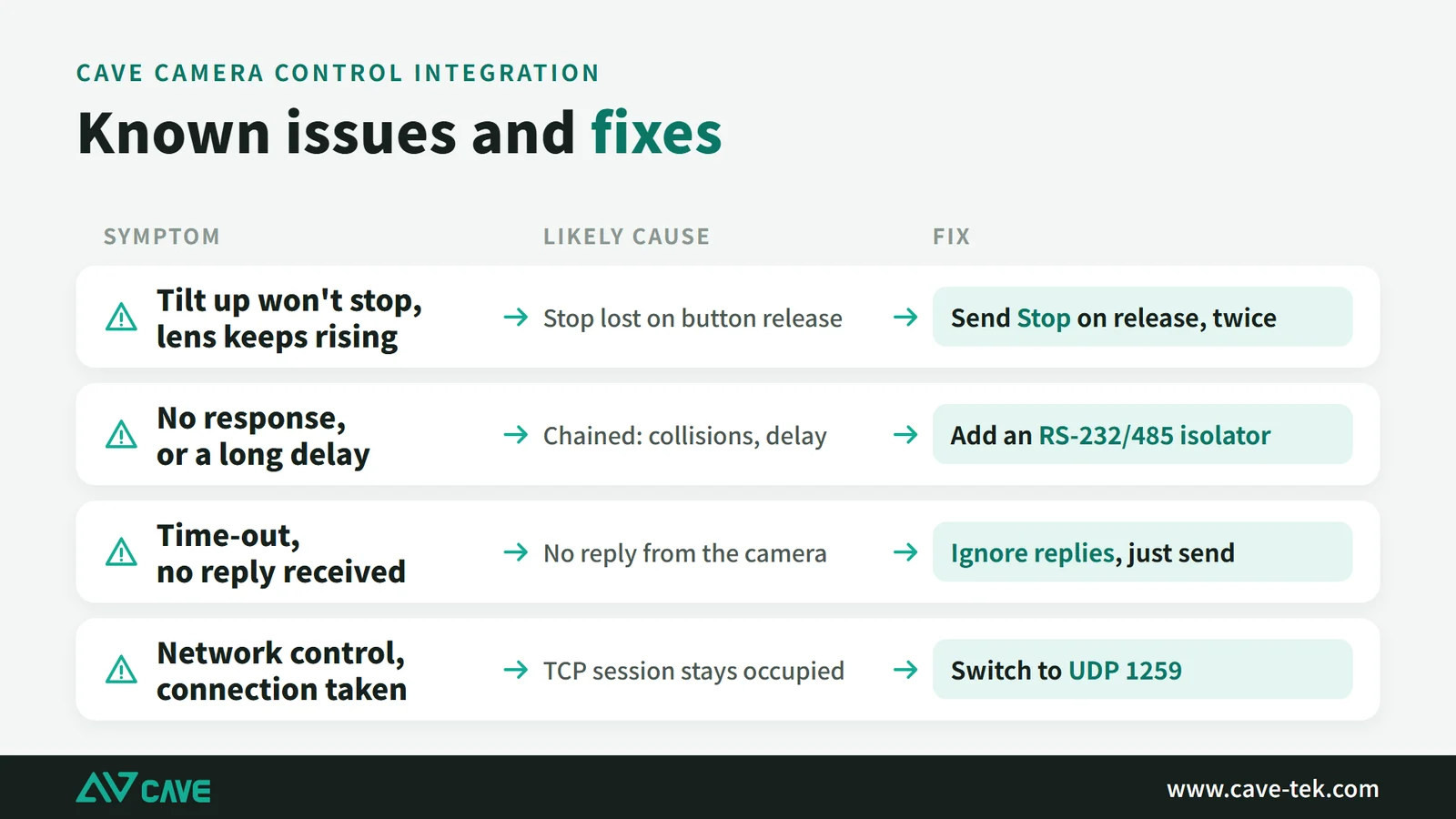
| Symptom | Likely cause | What to do |
|---|---|---|
| Tilt up does not stop; the lens keeps rising | The Stop command was lost when the button was released | Send Stop on release, and send it twice |
| No response, or a long delay before it moves | Several devices chained; signal collisions and delay | Add an RS-232/RS-485 signal isolator |
| Time-out shown; no reply received | No reply from the camera | Ignore replies: send commands only, without waiting for status |
| Network control: the connection is occupied | The TCP connection is held once established | Switch to UDP 1259 |
If a single camera connected straight to a computer works fine and problems only start when several are chained, this is the cause: the signal on the line is disturbed or weakened, commands or Stop do not arrive, and replies do not come back. We recommend:
- Add signal isolators (RS-232 isolator, RS-485 isolator) on the RS-232 and RS-485 lines.
- For long daisy chains, split the line into segments and add an isolator to each.
- Also use the queuing, Stop resending and spacing methods below.
- In the program, you can ignore replies and only send commands without waiting for status, which avoids time-outs.
Preventing collisions, lost commands and delay
The methods below are based on VISCA’s reply mechanism and general RS-485 engineering practice. The times are starting values; adjust them based on testing on site.
- Send one command at a time and wait for the reply before the next. The camera replies with ACK (
z0 4y FF) when it receives a command and Completion (z0 5y FF) when it finishes. The program should queue commands: after sending, wait for ACK and resend once only after a time-out (start with 300–500 ms). - Queue between cameras too. RS-485 is half duplex, so two cameras replying at once will overwrite each other. Space preset recalls to different cameras 100–300 ms apart.
- Never lose Stop. Send
81 01 06 01 03 03 03 03 FFwhen an arrow key is released, ideally twice. - Keep speaker tracking from bouncing. When two people talk back and forth quickly, the microphone system changes position often. Set a minimum hold time in the program (start with 2–3 seconds) so the camera does not keep swinging back and forth.
- RS-232 has no link-level acknowledgement, so ACK and Completion are the only way to know whether a command arrived. If no reply comes back, treat the command as lost.
Another approach: ignore replies and only send commands
The control program does not wait for ACK or Completion and does not process any reply status; it only sends commands to the camera. There are no time-outs, the program is simpler, and it even works with an RS-422 controller connected through the transmit pair only. The cost is that you cannot confirm whether a command arrived, so combine it with:
- Sending Stop twice.
- A fixed gap between commands (start with 100–300 ms; adjust based on testing on site).
- Regularly re-confirming the position, for example by resending the preset recall on a timer, so that one missed command does not leave the camera off target for good.
- During commissioning and sign-off, still use the test tool to watch the replies and confirm the line works end to end.
On-site installation tips: what to do before speaker tracking goes live
Once the wiring works and the commands have passed testing, a few on-site details decide whether speaker tracking really works well. The problems people run into are rarely about the commands. They are about how the presets are saved, what happens when two people open their microphones at the same time, and whether the sign-off was done completely. This section covers four things: setup tips, conflict rules, sign-off, and troubleshooting.
Setup tips
- Use the same number for the seat and the preset. Seat 5 is preset 5. Put a mapping table on site (seat, preset, microphone number) so whoever maintains the room later can read it at a glance.
- Save the wide shot first, then the seats. Give the wide shot the easiest number to remember (for example preset 1). The camera returns to it when nobody is speaking.
- Save one preset per seat, framed as the speaker’s upper body plus the microphone on the table. Leave a little headroom so the shot does not cut off the top of the head when someone else sits down.
- Neighboring seats with almost the same framing can share one preset. In rooms with many seats this saves a lot of presets and makes maintenance easier.
- Place the camera where it can see most seats from the front, for example across the table at the center. From the side or behind, the camera often catches only a profile or the back of a head.
- Before saving a preset, check that zoom and focus are sharp at that seat. After saving, recall each preset once and confirm that every one stops in the right place.
- In rooms with many seats, test on the actual camera to find the highest preset number you can use (the usable range depends on the model and command; see “Common VISCA commands (Address 1)”).
Conflict rules: whose microphone does the camera follow?
A camera can only point at one place at a time, so decide the rule in advance and let the conference system or control program carry it out. There are three common approaches:
| Rule | How it works | Best for |
|---|---|---|
| First on, first served | The first person to open a microphone keeps the camera until that person closes it, then the next one gets it | Meetings with a clear speaking order |
| Last on, first served | The most recent person to open a microphone gets the camera | Lively discussions with frequent interruptions |
| Chair priority | When the chair’s microphone opens, the camera goes to the chair; everyone else follows one of the two rules above | Formal meetings with a chair |
A few settings that go with these rules:
- Return to the wide shot when too many people open their microphones at once. For example, with three or more microphones open, going straight to the wide shot is better than swinging back and forth (suggested starting point: 3 microphones).
- Do not return to the wide shot the moment a microphone closes. Wait a few seconds so that a short pause does not pull the camera away (suggested starting point: 3 to 5 seconds).
- Keep the minimum dwell time from earlier, starting at 2 to 3 seconds. This stops the camera from turning constantly when two people trade remarks quickly.
- Once the rule is chosen, write it into the handover document so the users know why the camera moves the way it does.
Sign-off: run through this before handing over
- Recall every preset by hand. Without going through the microphone system, use the test tool to recall each preset once and check that it points at the right seat.
- Open each seat’s microphone in turn. Check that the camera turns to the right seat, not the one next to it.
- Close all microphones. After the set delay, check that the camera returns to the wide shot.
- Open two microphones at once. Check that the result matches the chosen rule (first on, last on, or chair priority).
- Trade remarks quickly at least three times. Check that the camera does not keep jumping back and forth.
- Power-cycle the camera and test again. Check that the presets are still there.
- Hand the seat mapping table and the chosen rule to the users, with the date and version.
Troubleshooting: if speaker tracking misbehaves, start with this table
| Symptom | Common cause | What to do |
|---|---|---|
| Microphone opens but the camera does not move | The conference system is not sending the event, or the command never reaches the camera | Recall the same preset by hand with the test tool. If it moves, the problem is on the conference system side: check the seat mapping and the connection settings |
| Camera turns to the neighboring seat | Seat numbers and preset numbers are off by one (some systems count from 0, others from 1) | Check against the mapping table posted on site and make sure both sides start counting from the same number |
| Camera turns but the person is not framed | The preset position is inaccurate, or it was overwritten later | Save that seat’s preset again, then recall every preset to confirm |
| Camera keeps jumping back and forth | No minimum dwell time, or two people are trading remarks quickly | Add a minimum dwell time, and switch to “first on, first served” if needed |
| Camera does not return to the wide shot after all microphones close | The “microphone closed” event is not sent, or the wide-shot preset was never saved | Confirm the wide-shot preset exists, then confirm the system sends the close event |
| With several cameras, only one moves | Commands are sent too fast for the camera to keep up, or two cameras share an ID | Leave 100 to 300 ms between switches on multiple cameras; check each camera’s ID one by one (see “Settings, and IDs for multiple cameras”) |
If you work through this table and still cannot find the cause, go back to “Troubleshooting: check one direction at a time” and check TX first, then RX.
Summary: follow the order and integration is easy
The hard part of integration is usually not the commands themselves but the order. First choose your path: RS-232 for a single camera over a short distance, RS-485 for several cameras or long runs, and the network if you want fewer cables. Then set VISCA, Address 1, 9600, 8N1, use the test tool to confirm the camera moves and replies, and only then put the same commands into the control program.
Speaker tracking and AI tracking follow the same logic: save the presets, get the commands working, and let the microphone system and control processor do the rest. When something goes wrong, check one direction at a time, TX first and then RX, and you can usually tell quickly whether it is the cable, the settings or the program.
If your project needs CAVE’s help with integration, or you would like the test tool and sample programs, get in touch with us.
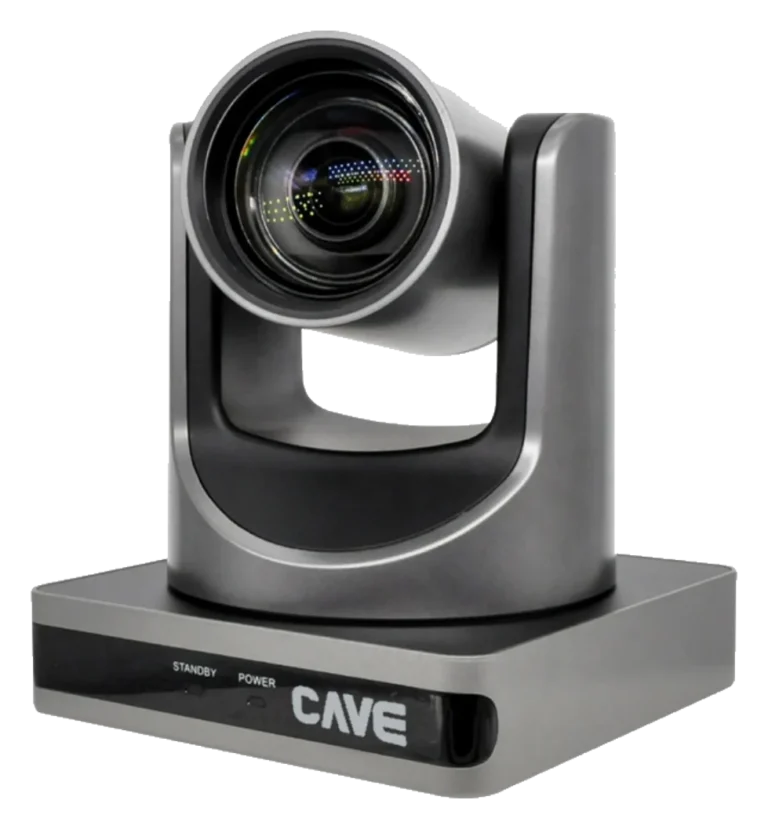
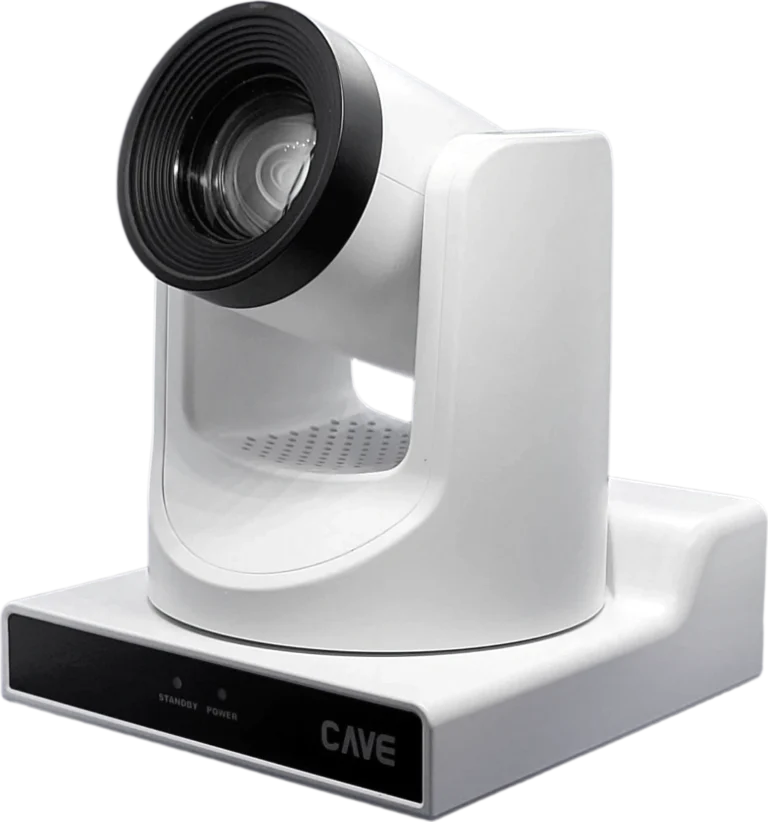
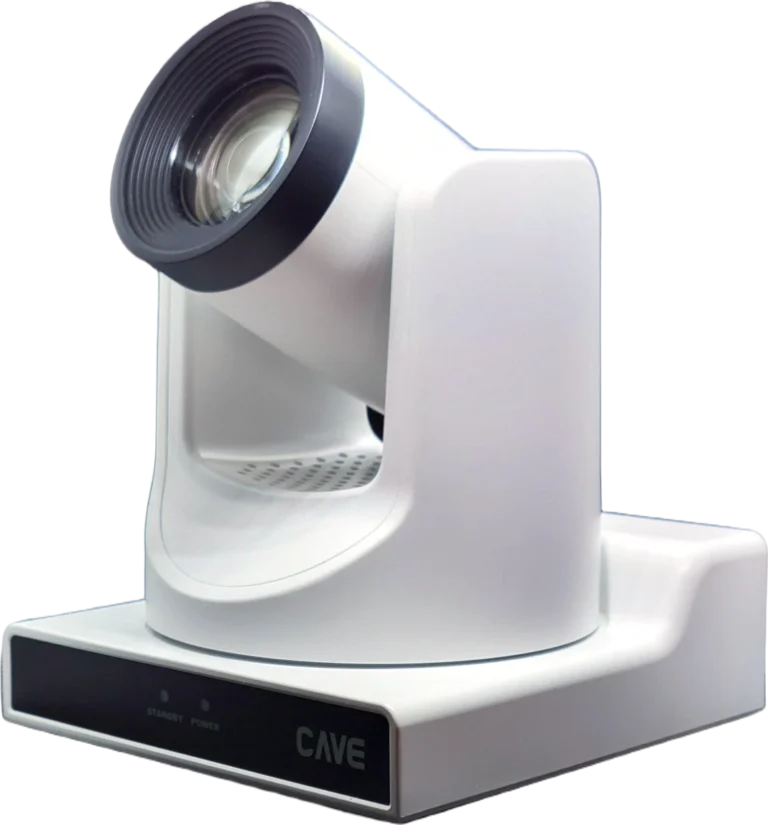
Products in this guide
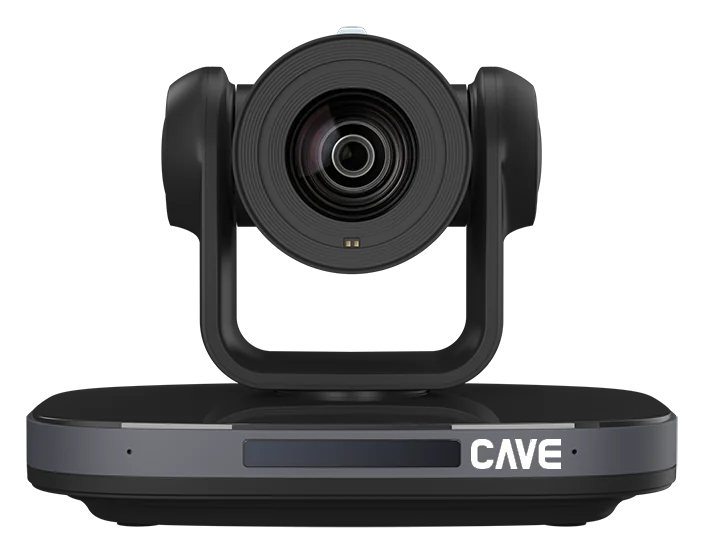
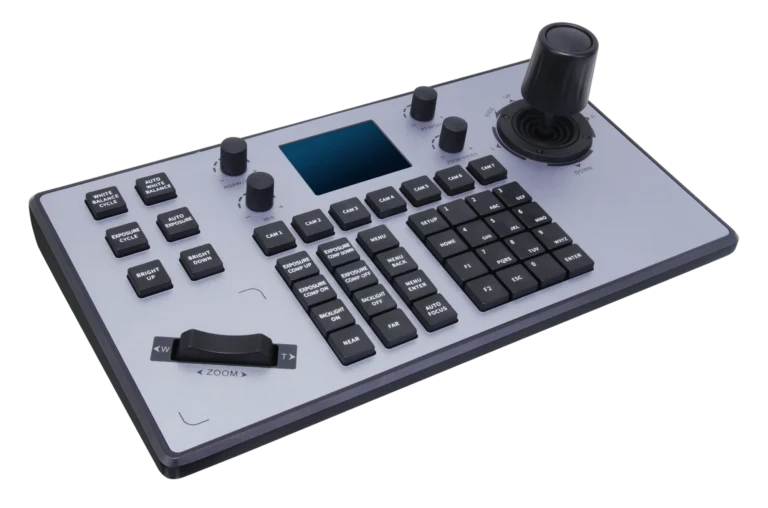
FAQ
Does the camera find the speaker by itself?
No. The microphone system detects who is talking and sends a "recall preset" command to the camera. A camera following people on its own is a different feature, called AI tracking or VIP tracking.
How do I save a preset?
With the remote: move the camera to the position you want with the arrow keys, press [SET PRESET], then a number key 0–9. With commands: 81 01 04 3F 01 pp FF saves and 81 01 04 3F 02 pp FF recalls, where pp is the preset number.
The remote only has 0–9. Can a control system recall more presets?
S12+ and TX20i are specified for up to 255 presets. The usable range depends on the model and the command, so test the highest preset number you plan to use on the actual camera first.
Should network control use UDP or TCP?
UDP (port 1259) is recommended. UDP needs no connection to be set up first, so one device can never hold the connection and lock others out. The TCP port is 5678.
The camera keeps moving after I release the arrow key. What now?
The Stop command did not arrive. Send 81 01 06 01 03 03 03 03 FF when the key is released; sending it twice is recommended.
I send commands from Hercules and the camera does nothing. Why?
First check whether you are sending text (ASCII); switch to HEX. Then check that no CR/LF is added at the end. Finally confirm 9600, 8 data bits, no parity and Address 1.
Should I use RS-232 or RS-485?
Use RS-232 for a single camera over a short distance, and RS-485 for long runs or several cameras. For maximum distance and camera count, contact CAVE or follow the specifications.
Is the remote’s IR address the same as the VISCA Address?
No. The IR address (set 1–4 with [*]+[#]+[F1]–[F4]) only decides which camera the remote controls; the VISCA Address is the address used by serial commands.
Can the control system turn AI tracking on and off?
Yes. The camera runs AI tracking itself; the control system only sends the on and off commands. See the control command document for each model.
What if I forget the camera’s IP address?
Press [*]+[#]+[4] on the remote to show the current IP. To reset the network settings, press [*]+[#]+[Manual]; the camera returns to the default 192.168.100.88. After the first login to the web interface, change the default password right away.
The planning advice in this guide is general reference. Actual results vary with the room, the equipment and the network. Product specifications follow the manufacturer's documents; we recommend contacting us for an assessment first.
More guides
How to choose a USB extension cable for video meetings: 9 checks when a long cable fails
The camera works with the short cable it came with. Swap in a long extension and the computer can't find it, or the picture freezes. The camera usually isn't broken: the signal and the power can't make the distance.
Huddle Room Setup: One USB Cable, 2 to 6 People on a Call
A huddle room is used all the time and looked after by no one. This guide compares the three simplest setups: the SP-1100 all-in-one, the J01i with an SM-500 (UCB-S), and the A01 with an SM-500, and how to choose by headcount, room size and room to grow.
How to choose a meeting-room camera: 8 things to check, starting with room size
The camera is the most visible part of a video meeting. Whether remote people can see everyone, and see them clearly, depends on it. Work through these 8 points before you choose.