How to plan a recording system: cameras, control, audio and the recorder explained
When people want to record a class, a talk or an event, and perhaps stream it too, the first thing they ask is which recorder to buy. That isn't the first question. Answer these 6 questions, then choose the equipment.
Short answer
A complete recording system has five parts: shooting, audio pickup, recording and switching, camera control, and streaming. Before choosing equipment, answer six questions: what you are recording, fixed or PTZ camera, whether the presenter moves, who operates it, how the sound is picked up, and one camera or several. A small classroom needs only an AI tracking PTZ camera and a recorder. For more angles or simultaneous streaming, add a PTZ keyboard and a recorder that takes more sources.
Key takeaways
- Sound matters more than picture: viewers put up with a soft image, but unclear audio wastes the whole recording
- A PTZ camera changes shot with presets, so one can replace several fixed cameras
- If the room already has microphones and an amplifier, feed that sound straight to the recorder; don't point another microphone at the loudspeakers
- More equipment isn't better. Choose a system people will be willing to use every day
When a recording system disappoints, the specifications are rarely the reason. More often the equipment was bought but is too complicated for anyone to use, or the picture is lovely and the sound is muffled and echoing. So this guide starts from how the system is used in practice, and ties the camera, control, audio and recorder together.
There are several guides on PTZ cameras, live streaming and recording, each for one job. Start with “What is a PTZ camera” for the basics, then read on for your situation:
| Guide | What you will learn |
|---|---|
| What is a PTZ camera (start here) › | Pan, tilt and zoom, presets, how to control it, AI tracking, and five questions for choosing |
| Why medium and large rooms use PTZ › | 5 reasons to use a PTZ camera |
| 10 things to watch when streaming or recording with PTZ › | Planning the shot, control, exposure, white balance, focus, depth of field, sound, mounting and power |
| How to adjust colour on a PTZ camera › | Lighting, exposure, white balance and colour, in order |
| How to plan a recording system (you are reading this one) | What to record, fixed or PTZ, who operates it, sound, the recorder and common setups |
| Live streaming and recording for churches › | A setup volunteers can run: presets, a keyboard and a streaming recorder |
| How to live stream a sports match › | Nine steps from one phone to a multi-camera broadcast |
| Planning a hybrid classroom › | Lectures, demonstrations and discussion classes |
| PTZ control and meeting-system integration › | Wiring, testing and speaker tracking (for projects and integrators) |
What is a recording system?
Many people think a recording system is a video recorder. A complete one does five things:
- Shooting: cameras on the presenter, the classroom, the stage or the audience
- Audio: picking up the sound, setting levels and removing echo
- Recording and switching: combining cameras, slides and sound into one video
- Camera control: a keyboard, presets or AI tracking to decide where the camera looks
- Streaming: sending it to YouTube, a company platform or a learning platform while it records
Most people think only of shooting and recording, and the part they miss is the sound. Viewers tolerate a slightly soft picture; if they can’t hear, the video is useless.
Picture quality isn’t only about the camera
1080p (Full HD) is the usual standard for teaching and corporate training: good enough, with files that aren’t too large. 4K has more detail, so you can crop and enlarge in editing and small text on slides stays readable; but files are bigger and streaming needs more bandwidth, so check the network can carry it.
The recorder’s own processing power matters as well. To take several cameras and computers at once it has to handle several video channels together, and combine them into layouts such as presenter beside slides, or a quad split. That is the biggest difference between an entry-level single-channel recorder and a professional one.
When a recorder takes several cameras and a presentation computer at once, it does two jobs together inside: it decodes each channel in real time so you can preview and switch, and it compresses the final picture into a recording file or a live stream. The more channels you connect, the more processing power the recorder needs.
In a multi-camera recording, besides showing one picture at a time, you often need several pictures joined together, such as presenter beside slides, or a quad split. This is especially useful for later editing, or for content where things need to be compared side by side. When planning, check which layouts the recorder has built in, not only whether it can switch full-screen.
Is a recorder the same as a surveillance NVR?
Both look like a box with a hard disk, but they do different jobs. A surveillance NVR or DVR is a watchman: it stores the picture around the clock so you can look back when something happens, and how good it looks or sounds is beside the point. A recording system is a storyteller: it turns a class or a talk into a video for other people to watch, so it has to switch shots, add slides, handle sound and perhaps stream at the same time.
In short, an NVR cares whether it was recorded. A recording system cares whether the result is watchable and usable.
Question 1: What are you recording?
The presenter only
Online courses, personal streams, podcasts. If the presenter stays put, a phone and a microphone, or a laptop with a webcam and USB microphone, will do. If you want half-body, full-body and whiteboard shots, use one PTZ camera and switch with presets, which saves setting up several cameras.
Presenter plus slides
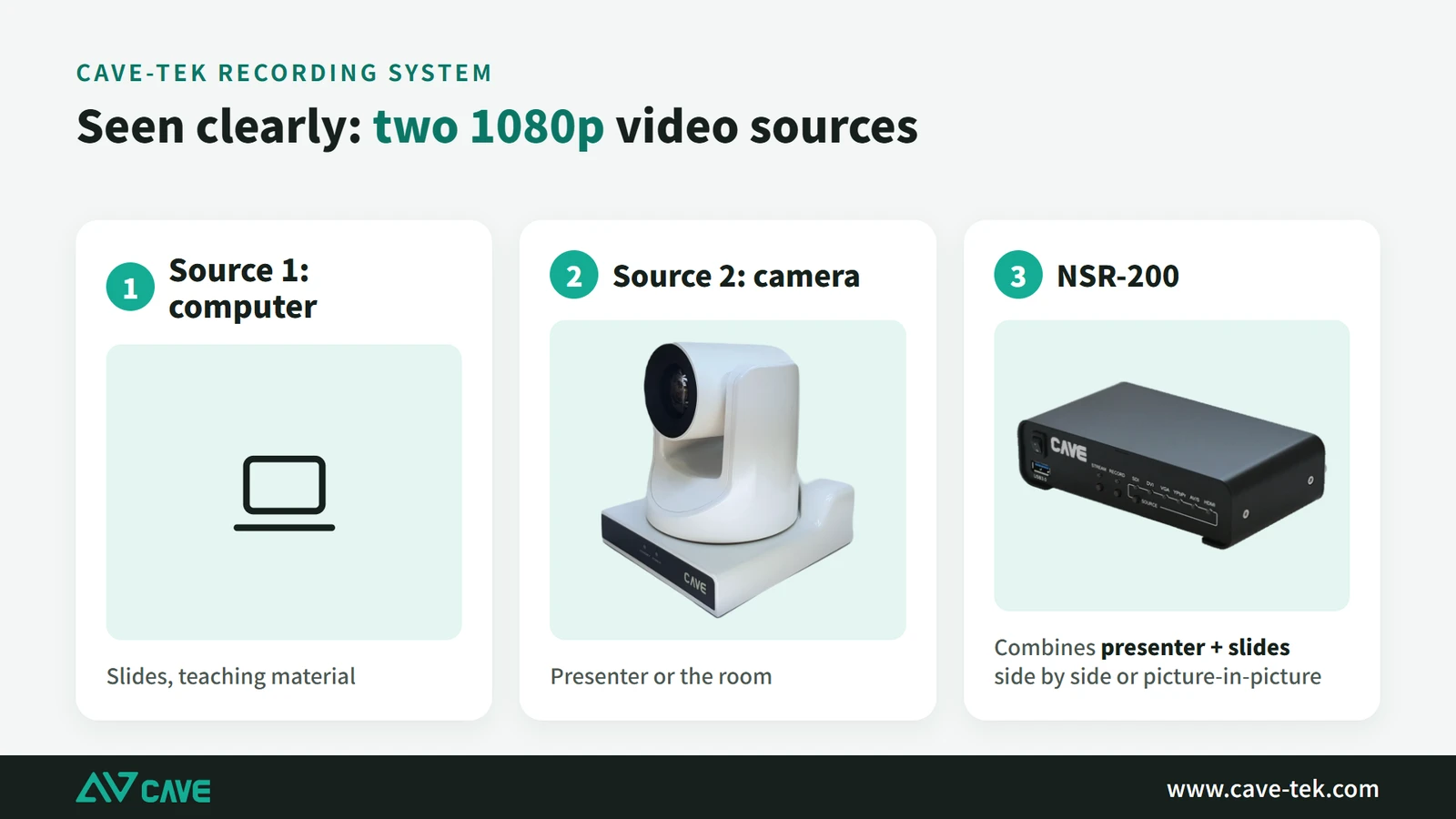
This is the most common case in teaching and corporate training. Viewers don’t have to choose between the person and the slides: the picture can be presenter full screen, slides full screen, picture-in-picture or side by side. There are two ways to do it: a computer running software such as OBS, or a dedicated recorder that takes the camera and the computer as two inputs, plus the sound.
Several cameras
In a bigger space, or for a more professional result, you need several angles: a close-up of the presenter, a wide shot of the room, the audience, and the slides. The picture gets richer, and new questions appear. Who controls the cameras? Who switches? How does the sound stay matched to the picture? A multi-camera setup must be planned together with the keyboard, the audio and the number of sources the recorder accepts.
Question 2: Fixed camera or PTZ camera?
A fixed camera suits a small space where the position never changes. It is simple, cheap and quick to install. The drawback is that the shot is fixed once it is up: if the presenter walks to the whiteboard, or you want to go from a wide shot to a close-up, you can’t.
A PTZ camera can be turned left and right, up and down, and zoomed by remote control. It can also memorise positions you use often, called presets, such as presenter close-up, half-body, whiteboard and wide shot. One press takes you there, and nobody has to move a camera.
When choosing, many people only compare 12× with 20× zoom. What matters more is how far the camera is from the presenter: the same 12× gives a very different size of person at 5 metres and at 12 metres. Measure the distance first, then decide how much zoom you need.
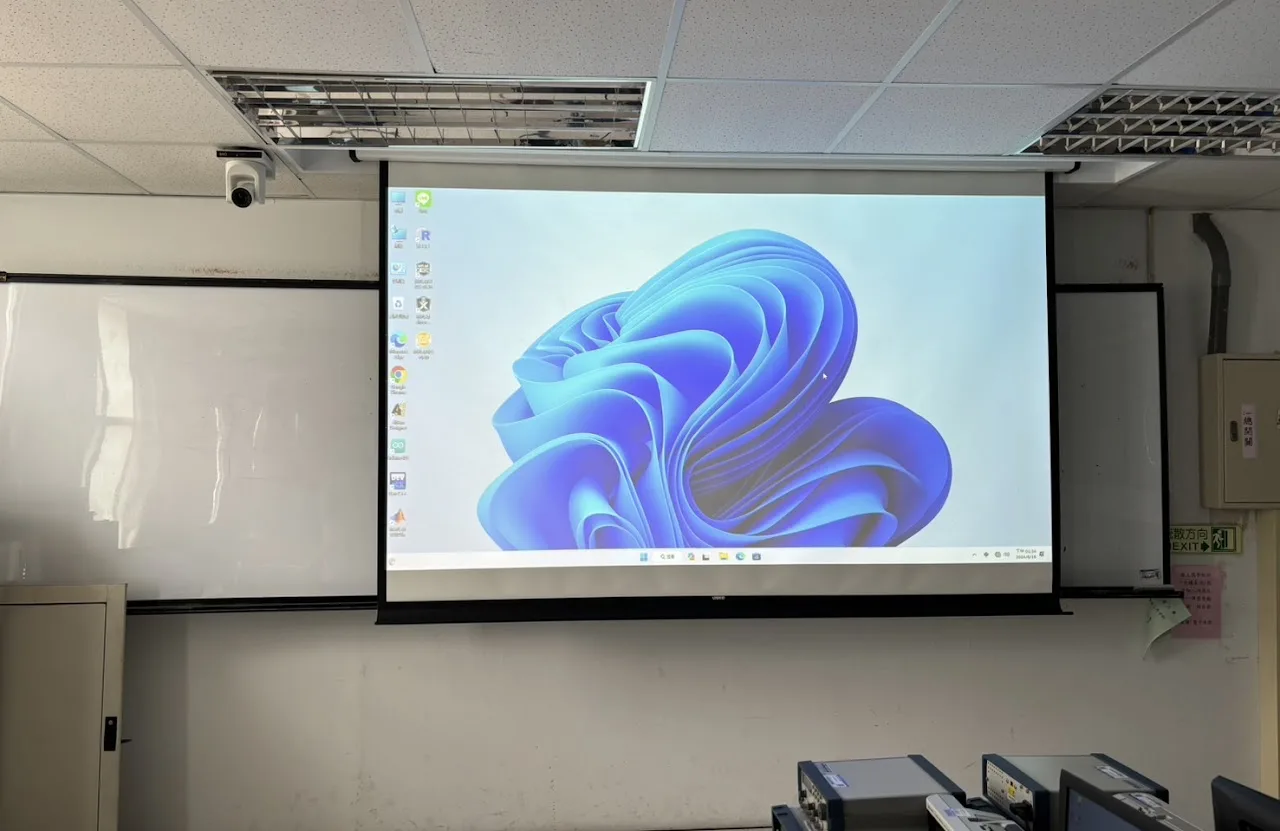
Mounting height matters too. Too low, and the front row or the lectern gets in the way. Too high, and the shot looks down on the presenter. A height of 2.2 to 2.8 metres is the usual recommendation, adjusted for the ceiling and the position of the stage.
How to work out distance and zoom: How to choose a meeting-room camera ›
Which camera for recording?
| Space | Suggested models | Notes |
|---|---|---|
| Small classroom, training room | S12+, P12i | With the camera about 3–6 m from the front, 12× zoom is enough for close-ups; P12i has AI auto tracking |
| Medium and large classrooms, halls | P20i, P30i | Mount at the back and rely on 20× zoom or more, leaving the front aisle clear |
| Smart classrooms, high-quality production | TX20i | 4K, 20× zoom and AI tracking; 4K footage can be cropped and enlarged afterwards |
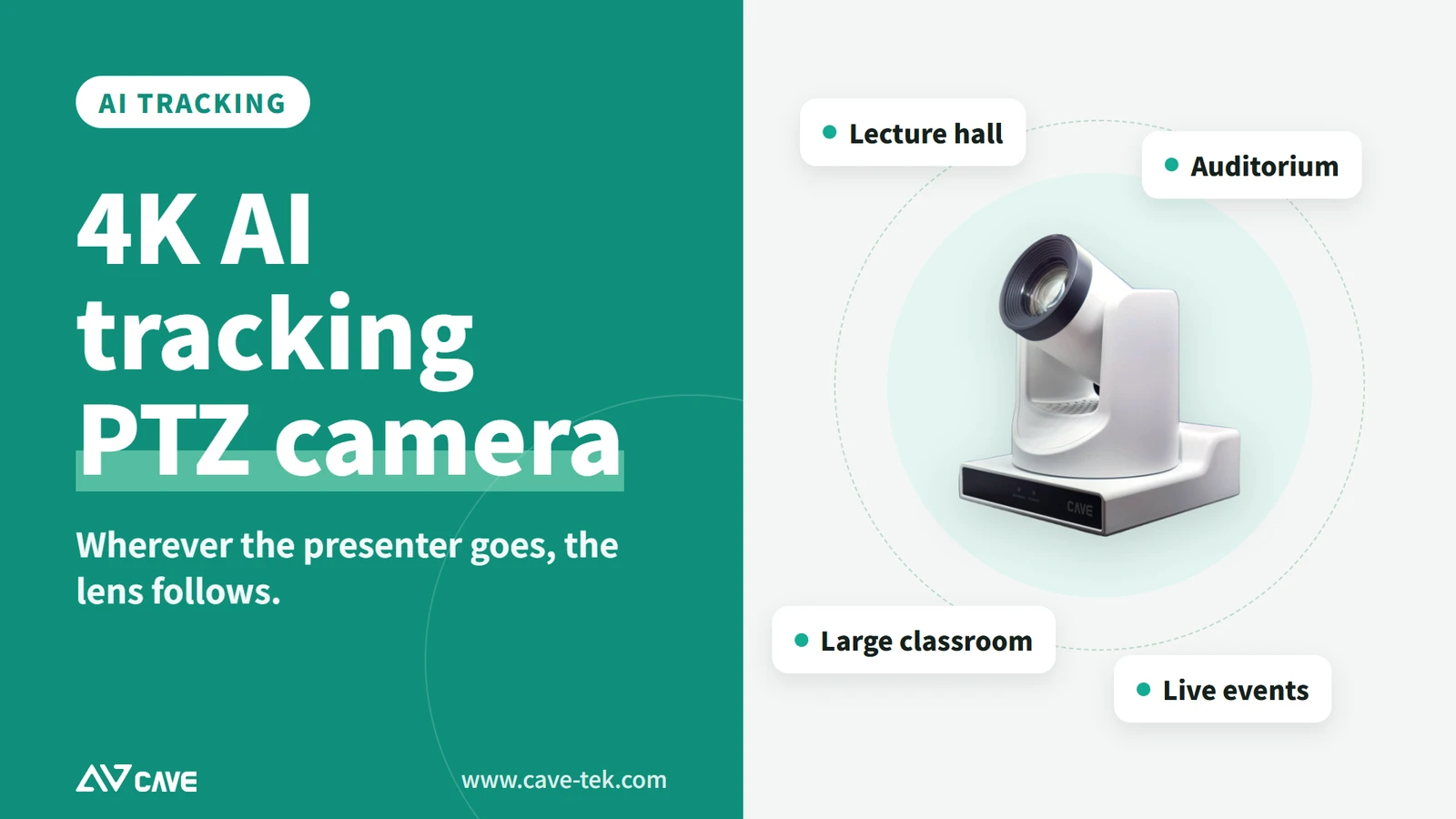
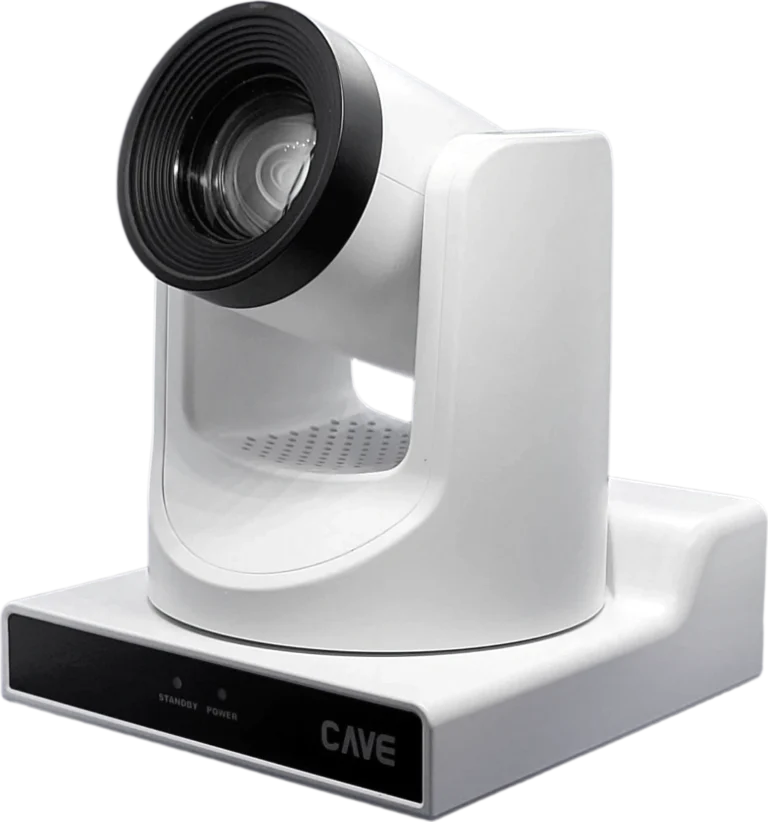
P12i is 1080p with 12× optical zoom, a wide view and AI auto tracking, and outputs over HDMI, SDI, USB and the network. The network output can work with NDI, sending video over network cable, which makes wiring a large venue much simpler. In an ordinary classroom it covers both the wide shot and the presenter close-up.
In a large space the camera doesn’t have to sit right in front of the presenter, where it gets in the way and is easily blocked. More often it is mounted at the back of the room or in the control room, relying on optical zoom to show the presenter clearly while the front aisles stay clear. That is what 20× and 30× models such as P20i and P30i are for.
TX20i is 4K with 20× optical zoom and AI auto tracking. Its value is not only the higher resolution: the camera does part of the work that used to need a person, which matters most in classrooms and training centres with no dedicated camera operator.
Beyond PTZ cameras there are two other common setups. One is a fixed panoramic lens: the view is very wide and can take in the whole space, even 180 or 360 degrees, but it can’t zoom and its working distance is limited. The other is several cameras: one at the front on the presenter and one at the back on the audience, for example, or one on each side for two presenters. Decide what each camera is for before deciding how many and where.
Question 3: Does the presenter move?
Many people discover the problem only after installing: the picture quality is excellent, and the presenter has walked out of the frame. A presenter who stays at the lectern is no trouble. One who walks around the room, writes on the whiteboard or talks with students needs more than a fixed shot. There are three answers: someone operates a keyboard live; you set up presets and switch with the remote; or you use an AI auto tracking camera and let the lens follow the person.
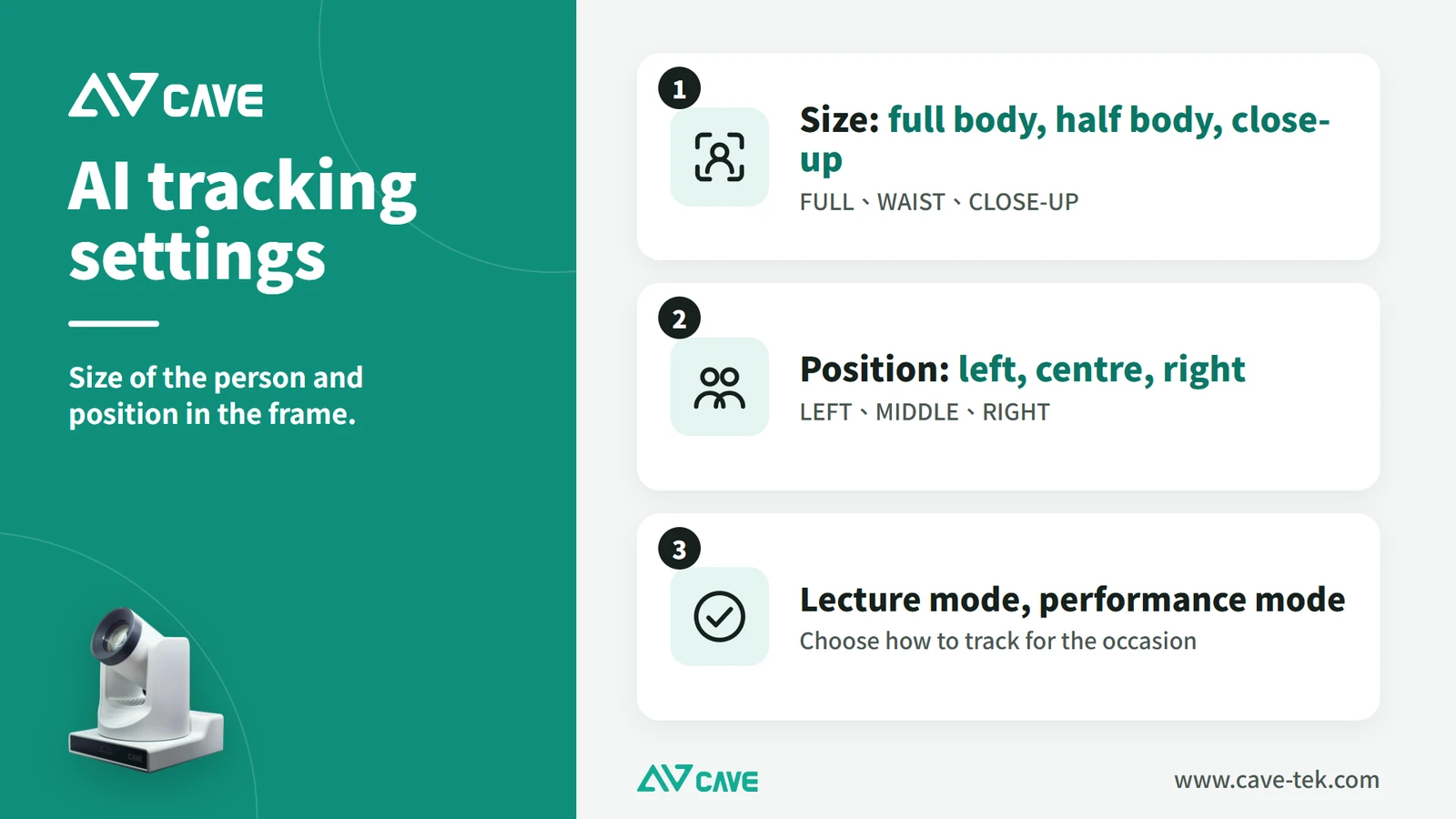
Auto framing and auto tracking: what is the difference?
- Auto framing: the camera sees how many people are in view and adjusts the shot to include them all. It suits meeting rooms
- Auto tracking: the camera locks onto one presenter and follows wherever they go. It suits teaching, talks and training
Be aware that AI tracking can pick the wrong person. It happens when the presenter’s clothes are close in colour to the background, or when many people are moving around. So look at the room’s lighting and the background behind the stage when you plan, and select the person to track by hand if necessary. If the scene really is too busy, go back to manual and switch with presets.
Question 4: Who operates it?
There are three levels of operation:
- Fully automatic: the shot and layout are fixed, and the user only presses start and stop, or recording follows a timetable. It suits daily classes, regular meetings and places with no technical staff
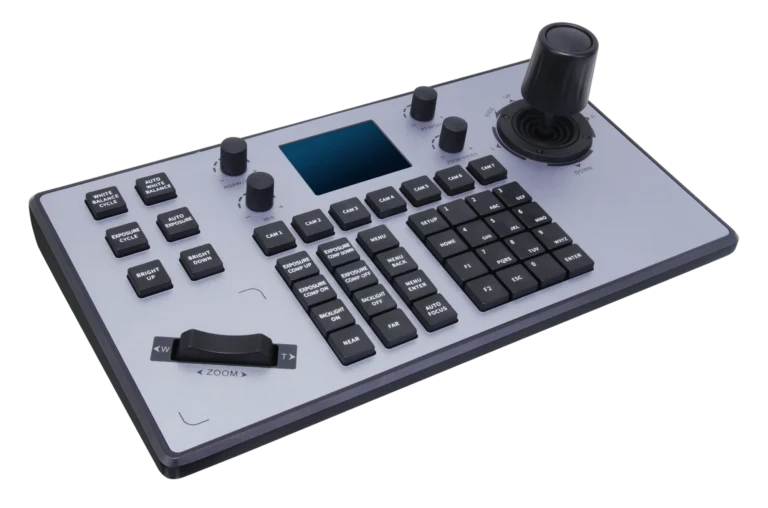
- Simple operation: one PTZ keyboard (the K10, for example) turns the camera and recalls presets, with the occasional adjustment
- Professional multi-camera operation: with several PTZ cameras and live switching, use a fuller keyboard (the K20, for example) that manages several cameras from one unit
People often ask whether a computer and mouse would do. They would, but it is very different while you are recording or streaming. On a computer you find the control software, choose the camera, click a direction and adjust the zoom, which easily takes more than three to five seconds. On a keyboard you push the joystick and it is done in one movement. The value of a keyboard is that it cuts reaction time to a minimum.
K10 suits everyday recording: one or a few PTZ cameras. K20 suits multi-camera and more professional settings, such as lecture halls, corporate events, professional streaming and control rooms.
Question 5: How is the sound picked up? (most underestimated)
If the sound rises and falls, echoes, or stutters when the shot changes, the video is ruined. Sound involves three things: how it is picked up, how it is processed, and how it stays matched to the picture. Get any one wrong and no camera will save it.
The room already has microphones and an amplifier: feed the recorder directly
Most classrooms, meeting rooms and venues already have handheld microphones, an amplifier and loudspeakers. That system’s job is to let the people in the room hear. What recording needs is to borrow a feed of the sound it has already processed and connect it straight to the recorder, not to pick everything up again.
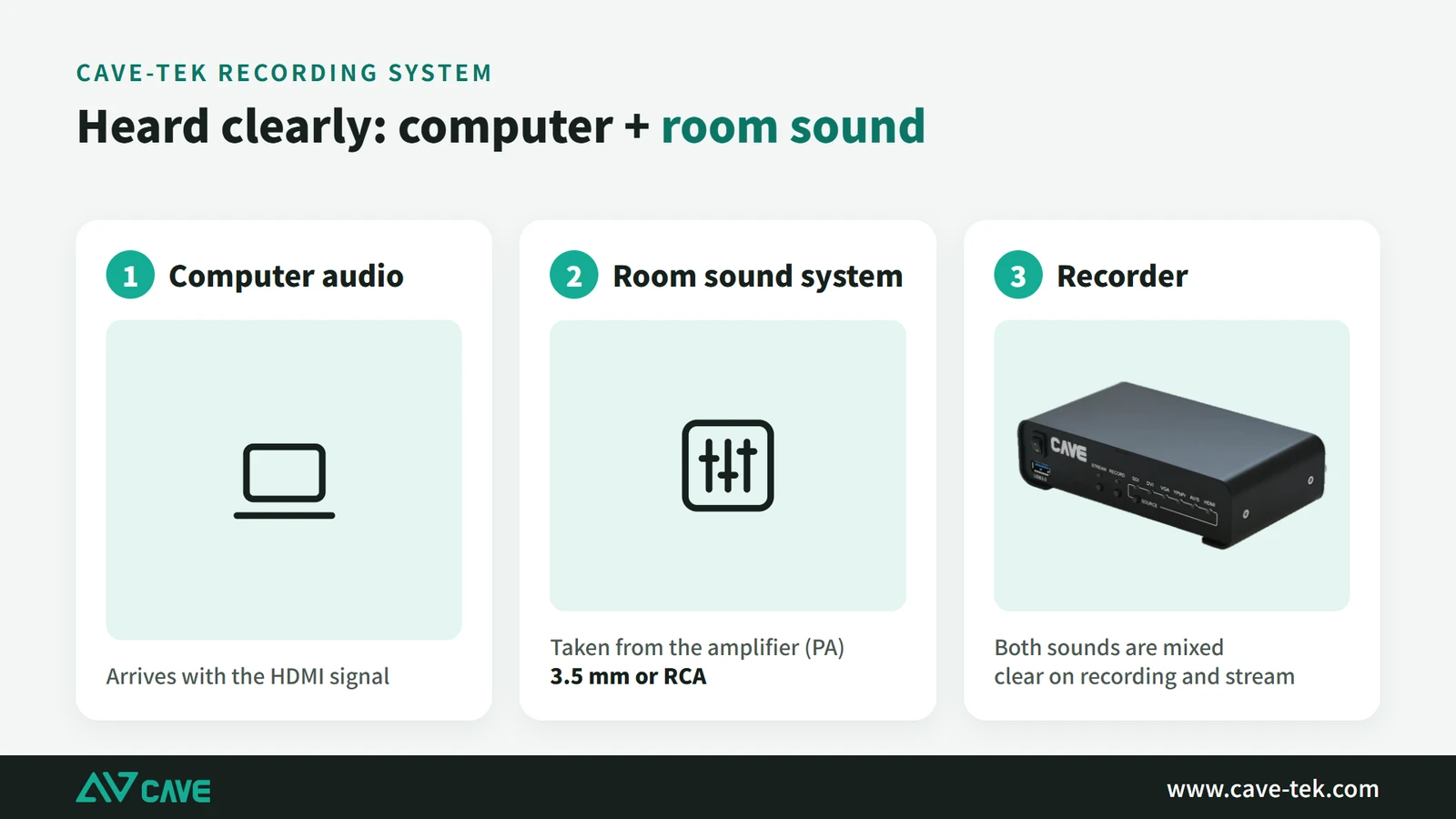
- Don’t use the microphone on the camera, and don’t set up another microphone to record the loudspeakers. That records all the echo and noise in the room. Take a cable from the record output of the amplifier or mixer (Record Out, Aux Out or Line Out) straight to the recorder
- Match the level: an amplifier sends a strong signal (line level). Plugged into an input meant for a microphone (mic level) it will distort; the other way round it is too quiet and noisy. Check which kind of input the recorder has, and add an attenuator if they don’t match
- Convert where connectors differ: amplifiers often use XLR while the recorder may have 3.5 mm or RCA. Long cable runs can pick up a hum; a DI box converts and isolates
- Agree with the sound operator first: if they change the volume during the event, the recording changes too, and you don’t want the sound turned down halfway through a stream
Plenty of systems have a beautiful picture and muffled, echoing sound. The cause is usually not a poor microphone but the lack of a proper feed from the amplifier.
No public-address system: only then add your own microphones
Small classrooms and personal talks with no sound system do need microphones of their own. Two kinds are common: an array microphone in the ceiling, for a fixed space; and a wireless clip-on microphone, for a presenter who moves and is followed by AI tracking.
With many sound sources, tidy them up before the recorder
If the presenter’s microphone, table microphones and the computer’s audio all go straight into the recorder, some will be loud, some quiet, and they will interfere with each other. Put them through a mixer or audio processor (DSP) first to even out the levels, cancel echo and reduce noise, then send the result to the recorder.
The sound must not break when the shot changes
When the picture cuts from camera 1 to camera 2, the sound should not drop out or jump. The way to do it is to give the sound its own input, separate from the video: however the picture is cut, the sound runs on unbroken. Put audio and cameras on the same requirements sheet when planning. Check how many audio inputs the recorder has, which connectors it takes (XLR, 3.5 mm, USB), and whether it can use the audio carried inside the HDMI or SDI signal.
Question 6: One camera or several?
More cameras isn’t better. What counts is that every shot has a purpose. Decide which shots you need, then how many cameras, and not the other way round.
| One camera | Several cameras | |
|---|---|---|
| Presenter | ✓ | ✓ |
| Wide shot | Either this or the close-up | ✓ |
| Presenter close-up | Either this or the wide shot | ✓ |
| Slides | Needs a computer connected as well | ✓ |
| Interaction in the room | — | ✓ |
| Richness | Basic | High |
| Difficulty to operate | Low | Medium to high |
If the video needs to show the presenter’s expression, the text on the slides and what is happening in the room, several cameras do it far better. A common combination is camera 1 on the close-up, camera 2 on the wide shot and a computer sending the slides, all three connected to the recorder.
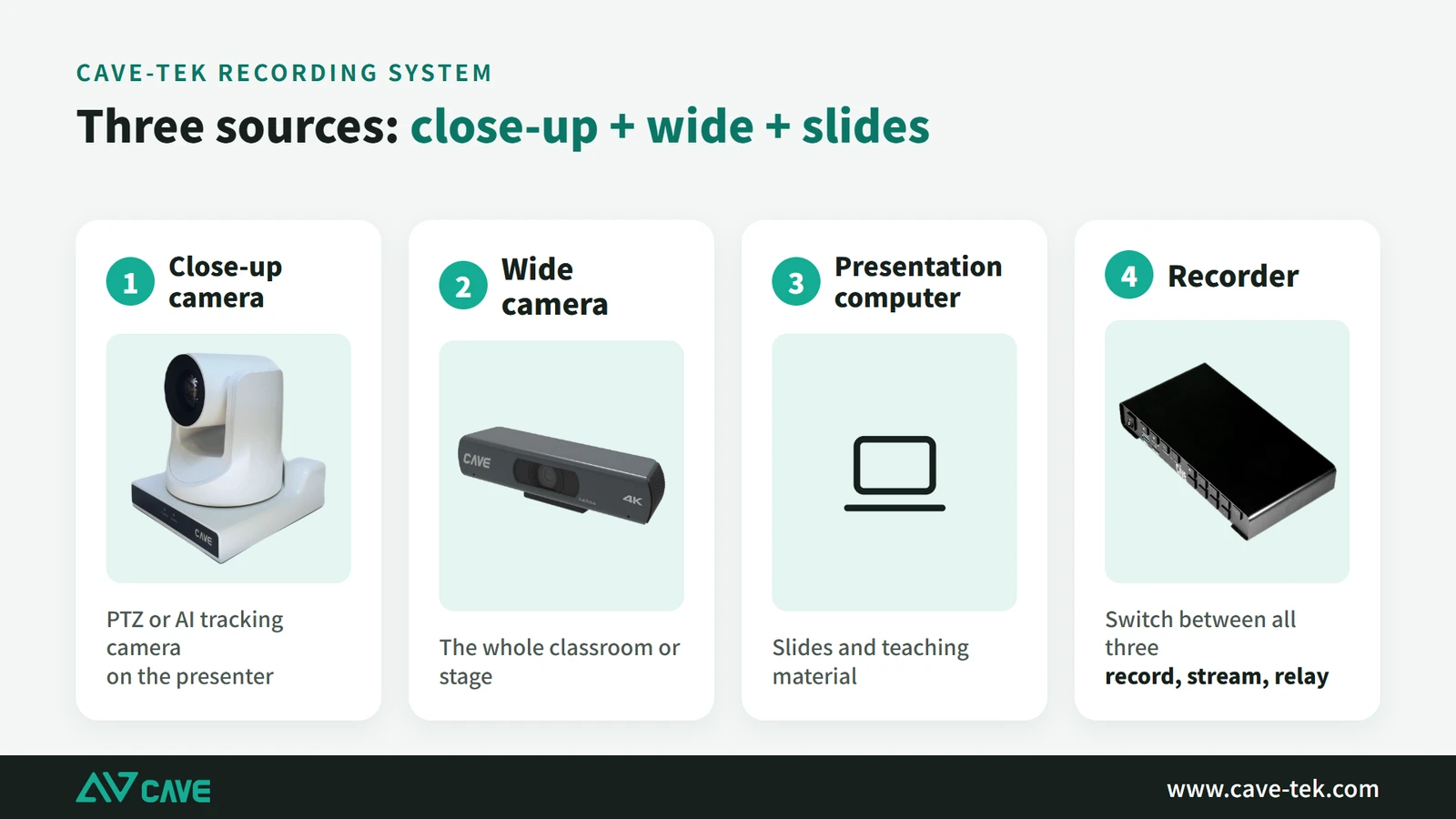
Several cameras shooting together often don’t match in colour: one looks yellow, another blue, and viewers see it the moment you cut. Before recording for real, set white balance and exposure the same on every camera, and make the lighting as even as you can.
Why not just record on a computer?
Plenty of software records video now: OBS, or the recording built into Teams and Zoom. A computer with OBS is free, powerful and expandable. But you have to deal with whether the computer is fast enough, whether the capture card and its drivers work, and whether everything still runs after the software or operating system updates. None of this troubles an AV professional. When the user is a teacher, an administrator or a trainer, though, the more complicated the system, the less it ends up being used.
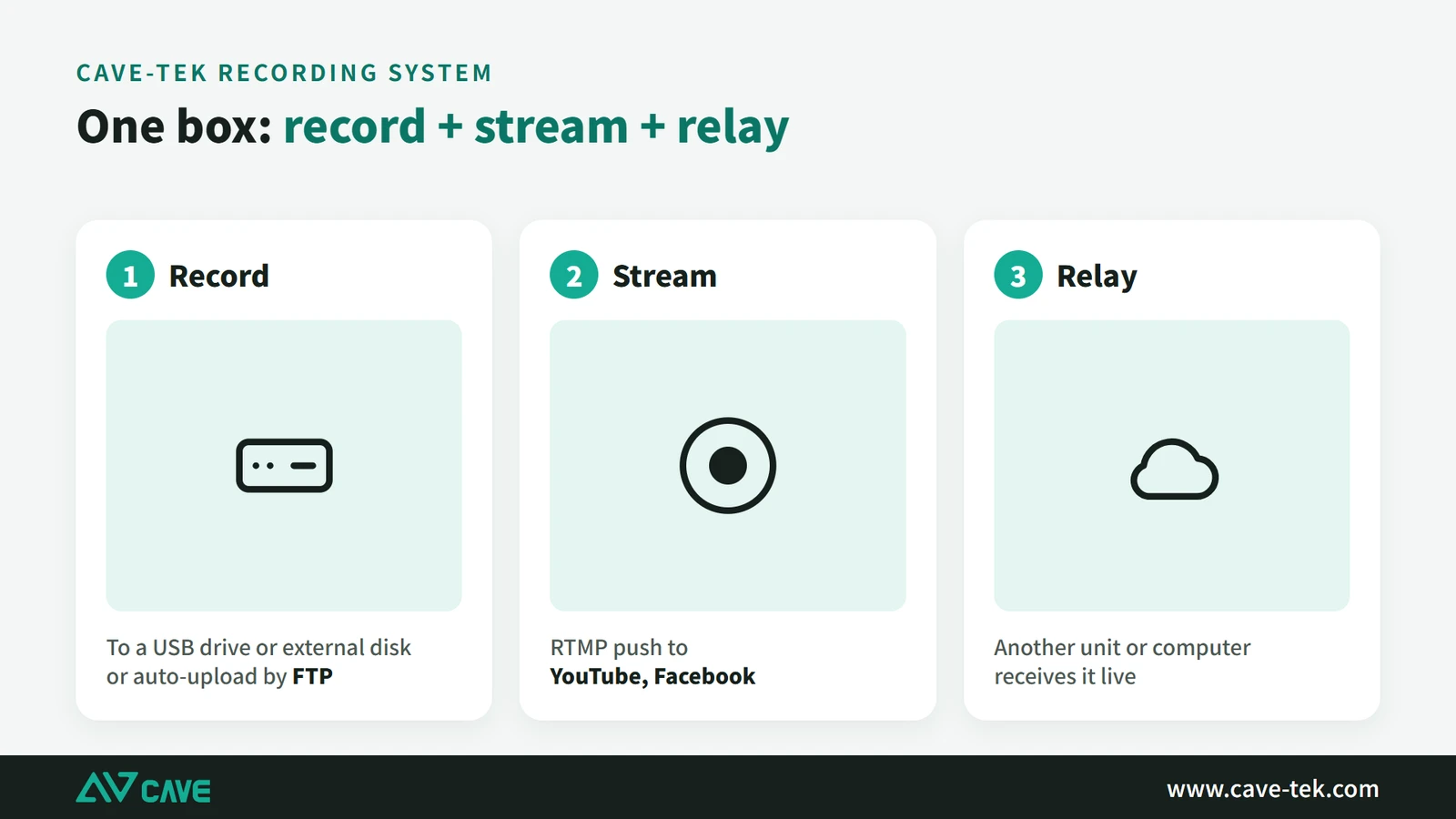
A dedicated recorder is designed for exactly this: it works as soon as it is switched on, runs steadily for long periods, and records and streams from one box.
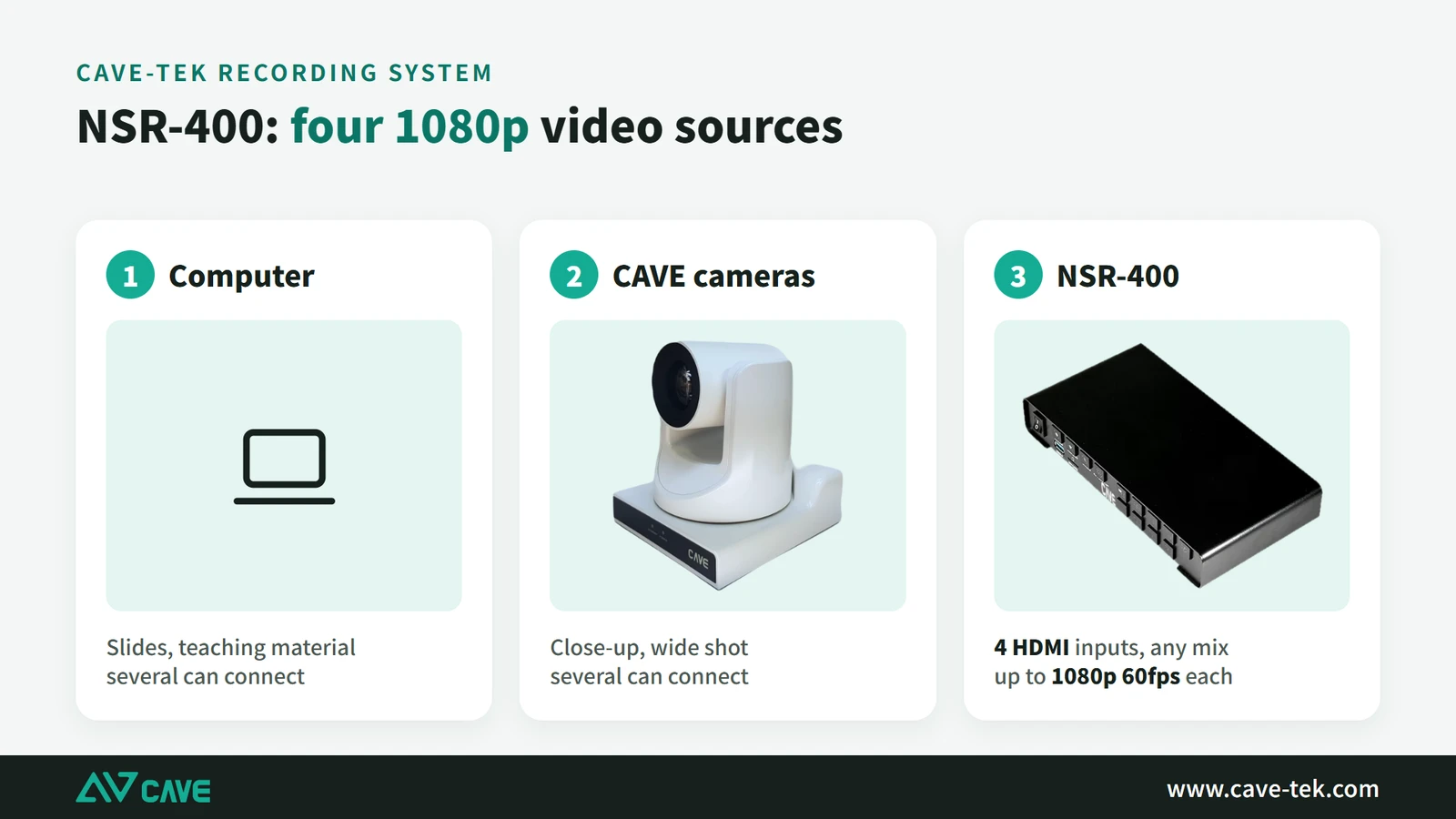
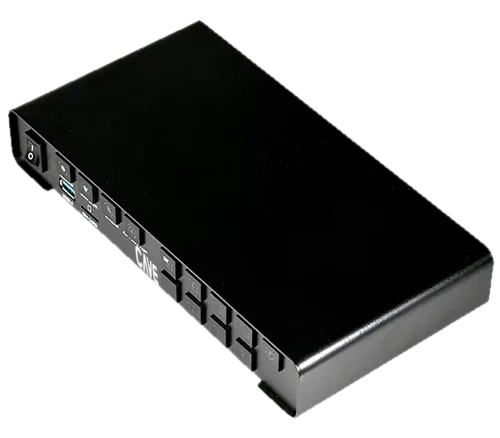
The CAVE NSR series
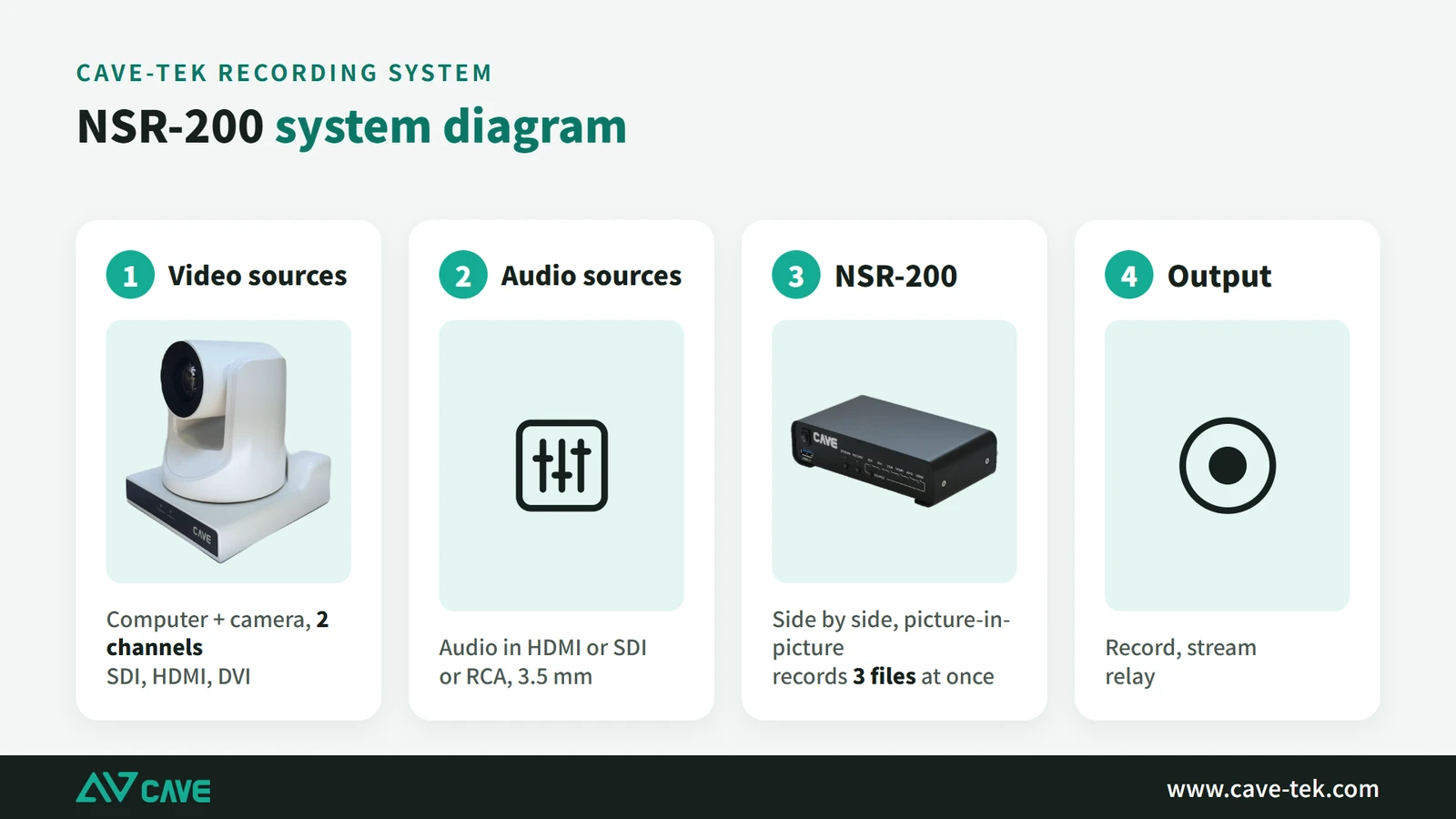
- NSR-200 (2 channels): for small classrooms, training rooms and company meeting rooms, with the basic pairing of camera plus slides
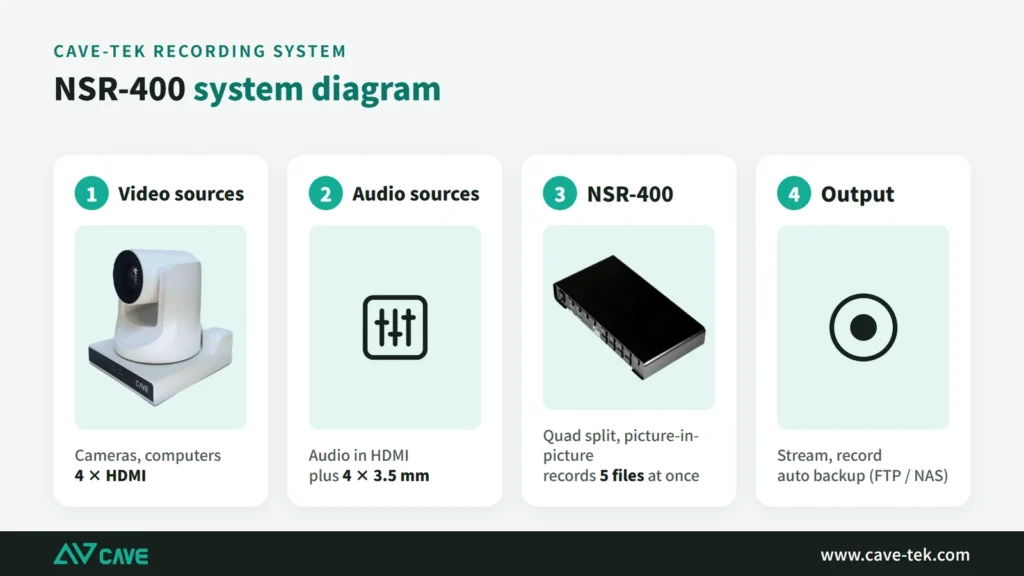
- NSR-400 (4 channels): for large classrooms, halls, multi-camera recording and event streaming, with four sources such as presenter, wide shot, audience and slides
Streaming usually goes by RTMP to YouTube or the company’s own platform. When choosing between NSR-200 and NSR-400, count the audio inputs as well as the picture sources. Enough video inputs and too few audio inputs still means a compromise.
Recorder or vision mixer: what is the difference?
People often ask whether a recorder is the same as a vision mixer. Not quite. The NSR series has a simplified switching function built in, meant for people with no dedicated director: choose a layout (presenter full screen, slides full screen, picture-in-picture, side by side) and press once to switch. For classes and training, where the format is fixed, that is enough.
A real vision mixer is for live direction and large events. It is built for fast live operation and does more: many custom layouts, logos and lower-third captions over the picture, animated transitions and sound effects, for something close to a television broadcast. In return it needs someone who knows how to run it.
When should switching and recording be separated?
For a company party, a large product launch or any event stream with many transitions, captions and camera positions, separate them. A professional vision mixer does the live switching and compositing at the front, and its finished output goes into the NSR for recording and streaming. The mixer side is free to do effects, and the recorder side concentrates on keeping the recording and stream steady. For ordinary teaching and training, the switching built into the NSR is enough.
How big a disk? How long can it record?
How long it can record depends on three things: the quality setting, how many channels are recorded at once, and for how long. The quality setting includes a figure called the bit rate, which is how much data each second of video uses. Roughly:
- 1080p: common settings for lesson recording are about 4 to 8 Mbps (30 frames per second uses less space than 60)
- 4K: about 16 Mbps (H.265 uses less space than H.264, but still far more than 1080p)
To work it out yourself, the formula is simple: capacity needed (GB) ≈ bitrate (Mbps) ÷ 8 × recording time in seconds ÷ 1024. For example, 4 Mbps for 4 hours is 4 ÷ 8 × 14,400 seconds ÷ 1024, about 7 GB. Getting the capacity right means you neither run out of space halfway through nor pay for a large drive you will never fill.
Half a day and a full day
| Quality setting | Half day (4 hours) | Full day (8 hours) |
|---|---|---|
| 1080p (about 4 Mbps) | About 7 GB | About 14 GB |
| 4K (about 16 Mbps) | About 28.8 GB | About 57.6 GB |
That assumes you record only the final switched picture. If the raw picture from every camera is stored as well (called ISO recording), multiply by the number of channels. NSR-400 recording 4 raw channels plus the programme, 5 sets of 1080p, needs about 14 GB × 5 ≈ 70 GB for an 8-hour day. So decide whether you want only the finished video or the raw footage too; the difference is several times over.
How long on 256 GB and 1 TB?
| Capacity | 1080p (about 4 Mbps) | 4K (about 16 Mbps) |
|---|---|---|
| 256 GB | About 142 hours (about 18 working days at 8 hours a day) | About 36 hours (about 4.5 working days) |
| 1 TB | About 555 hours (about 69 working days) | About 139 hours (about 17 working days) |
These are rough figures. How much the picture moves (a quiet lecture against constant walking and animated slides) and how efficiently each machine compresses both affect it. Leave 20% to 30% spare, and check whether the recorder overwrites old files when full, or moves files to a NAS or the cloud automatically, so that you don’t find the disk full halfway through a recording.
Three common recording setups
Setup 1: small classroom, one camera
For small classrooms, small training rooms, personal talks and simple online courses. One AI tracking PTZ camera, the presentation computer and an NSR-200 produce a presenter-plus-slides video.
Setup 2: two cameras
For medium classrooms, corporate training and classes taught in the room and online together. It gives a presenter close-up, a wide shot and the slides, with a K10 keyboard recalling camera presets. For audio, add a small audio processor to mix and cancel echo, so the microphones and computer audio don’t simply pile up into noise.
Setup 3: smart classroom, several cameras
For large halls, smart classrooms, professional training centres and multi-camera streaming. The aim is not to pile up equipment but to build a routine that keeps producing content reliably: AI tracking, several cameras, a keyboard, integrated audio, multi-source recording and streaming are all needed. With several cameras running, use a K20 keyboard so the operator can move quickly between them.
Quick selection table
| Use | Camera | Control | Audio | Recorder |
|---|---|---|---|---|
| Small classroom | P12i | AI auto tracking | Wireless clip-on microphone | NSR-200 |
| Training room | P12i, P20i | K10 | Handheld microphone | NSR-200 |
| Room plus online class | P20i (AI tracking) | K10 | Feed from the room’s PA system | NSR-200 |
| Large hall | Several PTZ cameras | K20 | Feed from the room’s PA system | NSR-400 |
| Smart classroom | TX20i + PTZ | K20 | Feed from the room’s PA system | NSR-400 |
| Professional multi-camera streaming | TX20i + P20i | K20 | Mixer or audio processor | NSR-400 |
Conclusion: a good recording system is one people keep using
The most important thing about a recording system used to be getting the content recorded. Now it is whether you can keep recording simply and reliably. So don’t just compare resolution, zoom ratio and the number of inputs. Think through the whole routine. Who shoots? Who controls? How is the sound picked up and matched to the picture? How many shots are needed? Recording only, streaming only, or both?
With those answers, the choice of camera, keyboard, audio and recorder becomes much clearer. If you are planning classroom recording, corporate training or multi-camera streaming, contact us and we will put together a suitable combination for your space, shooting distance and way of working.
See real installations in schools and companies: Installation cases ›
Products in this guide
FAQ
Can a recorder record and stream at the same time?
Yes. NSR-400, for example, records up to 5 channels at once (4 inputs plus the programme output) while streaming over RTMP.
Does a small classroom have to use a PTZ camera?
Not necessarily. If the presenter stays in one place and one shot is enough, a fixed camera will do. Consider a PTZ or AI tracking camera when you need to switch between close-up and wide, or when the presenter moves around.
I already have microphones and an amplifier. Do I need separate audio equipment?
Usually not. Connect the amplifier's audio output to the recorder. Separate audio equipment only needs planning when there is no existing PA system.
The planning advice in this guide is general reference. Actual results vary with the room, the equipment and the network. Product specifications follow the manufacturer's documents; we recommend contacting us for an assessment first.
More guides
How to stream a sports event: from one phone to multi-camera coverage in 9 steps
School teams and community leagues want to stream their games too, and you don't have to buy a pile of equipment to begin. This guide starts with a single phone and works up to professional multi-camera coverage.
10 things to get right when streaming or recording with a PTZ camera
You bought the right camera, and the picture is still too dark, too yellow or soft? The cause is usually where the camera is placed and a few basic settings. Here are the 10 things to check before going live.
How to Plan a Hybrid Classroom: Lectures, Demonstrations and Discussions, With Remote Students Following Along
The teacher teaches in the classroom while some students join online at the same time. This guide uses three kinds of class (lecture, demonstration, discussion) to explain the cameras, microphones and controls for a hybrid classroom, and sorts out the terms.