How to Plan a Hybrid Classroom: Lectures, Demonstrations and Discussions, With Remote Students Following Along
The teacher teaches in the classroom while some students join online at the same time. This guide uses three kinds of class (lecture, demonstration, discussion) to explain the cameras, microphones and controls for a hybrid classroom, and sorts out the terms.
Short answer
A hybrid classroom is one where the teacher teaches in the room while some students join online at the same time. The setup depends on how the class is taught. For an ordinary lecture, an S12+ or P20i covers the front and the board, and the sound reuses the classroom's existing microphones and sound system, passed through an audio processor to remove echo and connected to the computer by USB; to pick up what students say, add an omnidirectional microphone such as the SM-500. For demonstration teaching (pattern making, sewing, hairstyling, cooking, experiments), hang a P20i from the ceiling above the demonstration position and steer it with a K10 controller to capture close-ups of the hands, so both the class and the online students see clearly. For discussion classes the key is picking up every voice: the existing microphones only pick up whoever holds them, so add SM-500 units, one to four depending on room size. To record, add an NSR-200.
Key takeaways
- "Hybrid classroom" is not a standard term; here it means a classroom where the teacher teaches in the room while students also take part online, live
- The same room needs a different setup for each kind of class: lectures need the front and the board, demonstrations need close-ups of the hands, discussions need sound
- For demonstrations, hang a P20i from the ceiling above the demonstration position and steer it with a K10; the enlarged close-up reaches the whole class and the online students
- Start with the S12+ and the P20i and switch positions with presets
- The most common sound setup reuses the classroom's existing microphones and sound system, with an audio processor to remove echo before the computer; add omnidirectional microphones to pick up students
- Keep the daily operation so simple that the teacher is never distracted; that is what makes it last
Many schools and training centres now run classes where some students are in the room and some are online. For the teacher it means teaching two groups at once; for the online students the worst things are not seeing the board and not hearing their classmates' questions.
A hybrid classroom is different from an ordinary meeting room: the teacher stands, walks and writes on the board, students raise their hands, and the people online have only one picture and one sound to follow. What the equipment needs to do depends on how the class is taught. The sections below clarify the terms first, then walk through three common kinds of class.
There are several guides on PTZ cameras, live streaming and recording, each for one job. Start with “What is a PTZ camera” for the basics, then read on for your situation:
| Guide | What you will learn |
|---|---|
| What is a PTZ camera (start here) › | Pan, tilt and zoom, presets, how to control it, AI tracking, and five questions for choosing |
| Why medium and large rooms use PTZ › | 5 reasons to use a PTZ camera |
| 10 things to watch when streaming or recording with PTZ › | Planning the shot, control, exposure, white balance, focus, depth of field, sound, mounting and power |
| How to adjust colour on a PTZ camera › | Lighting, exposure, white balance and colour, in order |
| How to plan a recording system › | What to record, fixed or PTZ, who operates it, sound, the recorder and common setups |
| Live streaming and recording for churches › | A setup volunteers can run: presets, a keyboard and a streaming recorder |
| How to live stream a sports match › | Nine steps from one phone to a multi-camera broadcast |
| Planning a hybrid classroom (you are reading this one) | Lectures, demonstrations and discussion classes |
| PTZ control and meeting-system integration › | Wiring, testing and speaker tracking (for projects and integrators) |
First, the terms: what is a hybrid classroom?
“Hybrid classroom” is not a standard term, and schools and websites use the surrounding words in different ways. These are the common ones; they overlap but are not identical:
| Term | What it usually means |
|---|---|
| Blended learning | Teaching that combines remote, online and in-person learning. There is no single definition, and no fixed standard for the mix (as UNESCO is quoted in Taiwan’s CommonWealth Magazine). |
| Synchronous remote teaching | Taiwan’s Ministry of Education divides remote teaching into synchronous and asynchronous. Synchronous means the teacher and students agree on a time and meet through video tools, with students joining from different places. |
| Hybrid teaching | Often means the teacher teaches in the room while teaching the in-room and online students at the same time; some schools also use it for a course design that mixes in-person and online. |
| HyFlex | Hybrid plus flexible. Every session offers in-person, synchronous online and asynchronous online options, and students choose. |
In this guide, a “hybrid classroom” is a classroom where the teacher teaches in the room while students also take part online, live, the point where “synchronous remote” and “hybrid” meet in the table. Whatever your school calls it, the equipment is the same: online students must see the teacher and the teaching content, and hear everyone in the room.
Scene one: an ordinary lecture, the teacher at the front, students at their seats
This is the most common case. The teacher stands near the front and teaches with slides or the board, students sit in the room, and some students are online. Online students care about two things: seeing the teacher and the board, and hearing classmates’ questions. The teacher’s microphone is usually fine; what gets lost is what students in the room say, so online students hear the teacher answering but not the question.
Start with the S12+ and the P20i, which are enough for most classrooms. Both are PTZ cameras that you can steer left and right, tilt, and zoom remotely, and you can save common positions as presets, for example the front, the board and the wide shot, then switch with one button. They differ in zoom and in tracking:
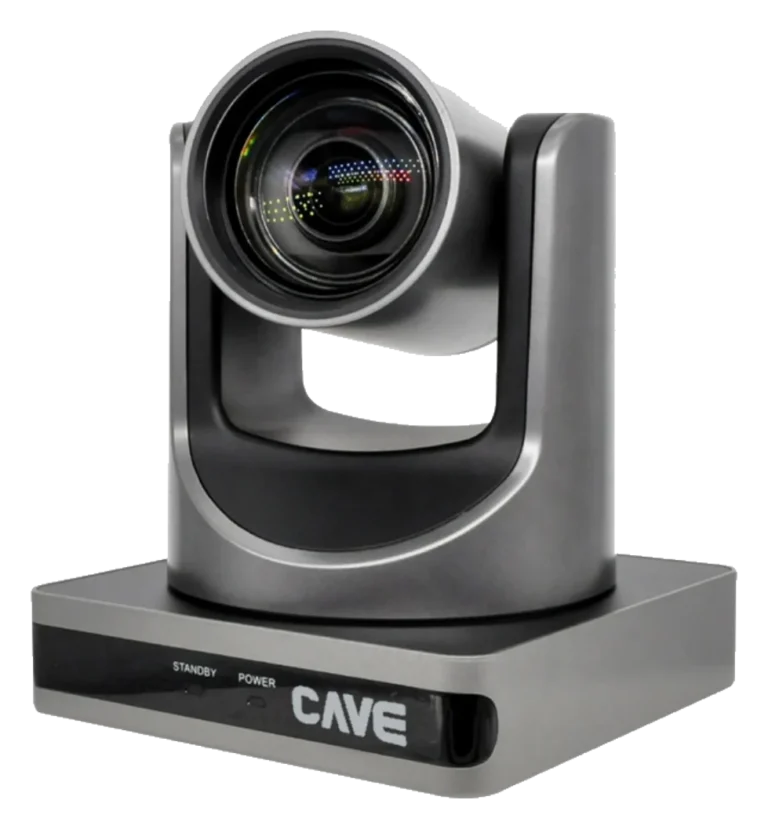
- S12+: 1080p, 12x optical zoom, horizontal field of view from 72.5° to 6.9°, 255 presets, and a USB connection to the teacher’s computer with no driver to install. It suits small and medium classrooms and training rooms.
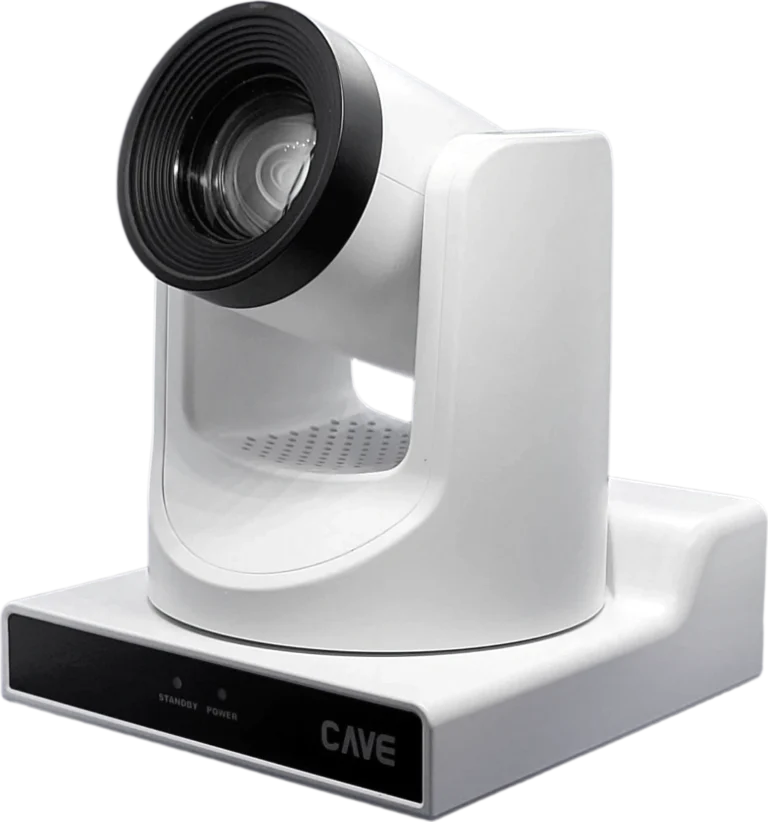
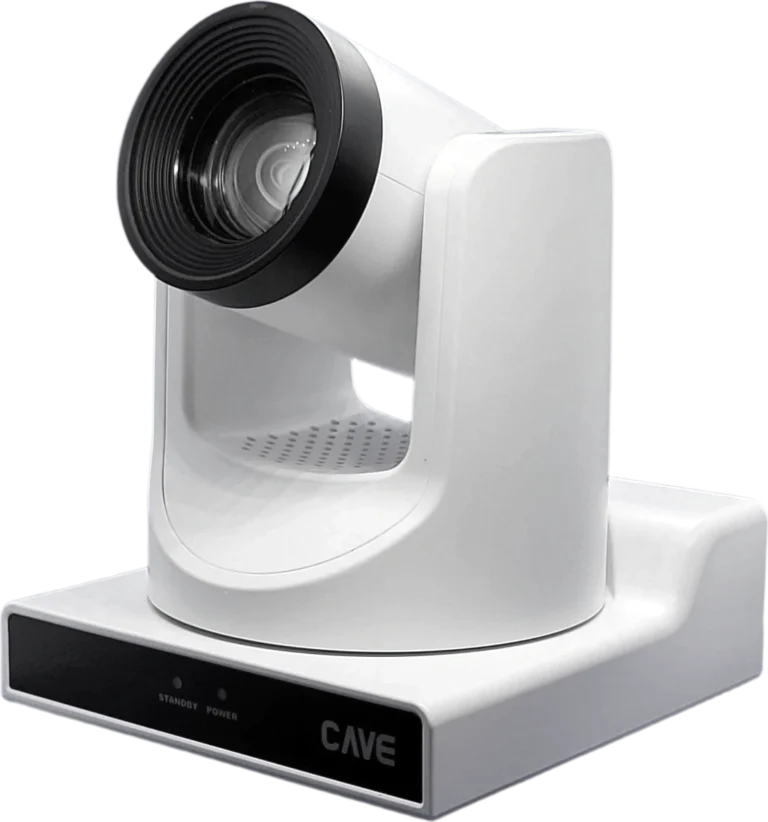
- P20i: 1080p, 20x optical zoom, 3.36° at the telephoto end, so a camera at the back of the room still catches the teacher’s face and the board. It has built-in AI person tracking, so when the teacher walks around or turns to write, the camera follows. It connects by USB, and also has HDMI, 3G-SDI and network output. It suits medium and large classrooms, and teachers who move a lot.
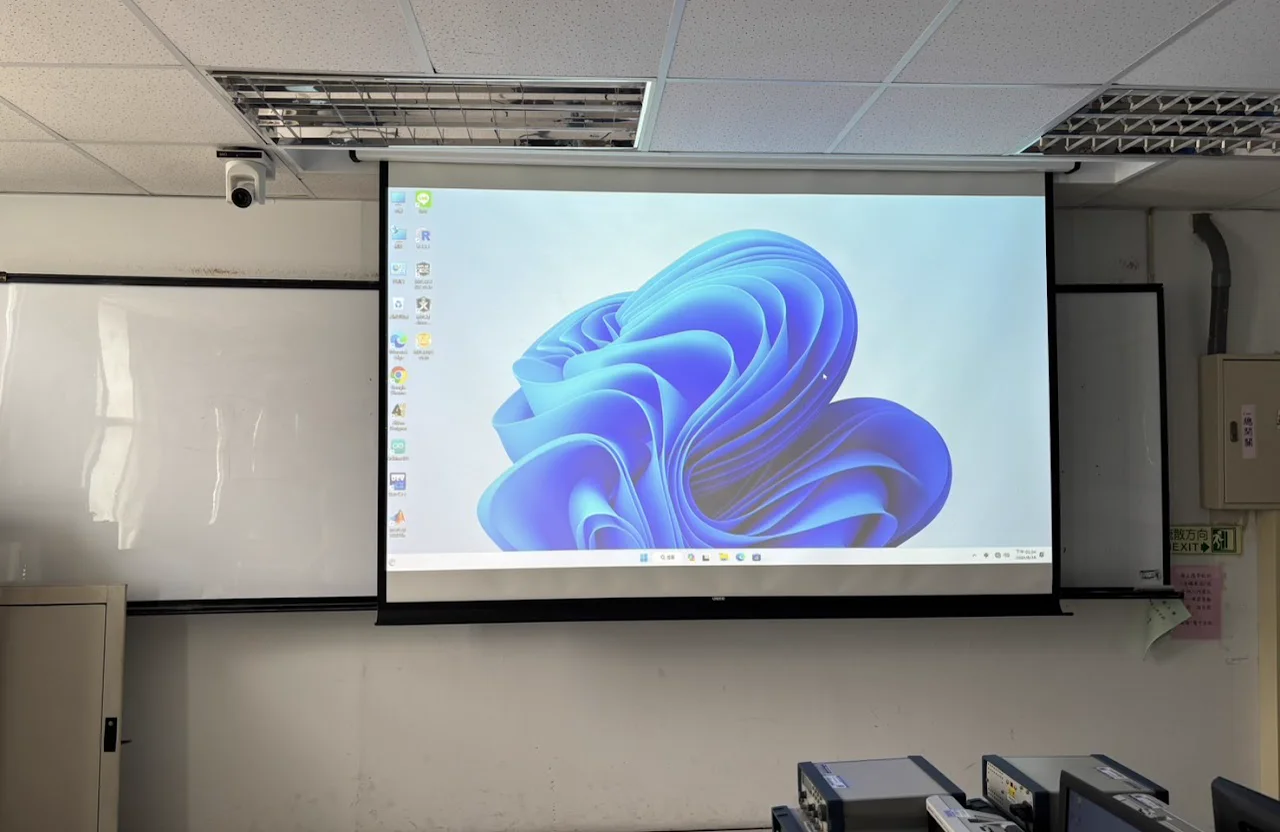
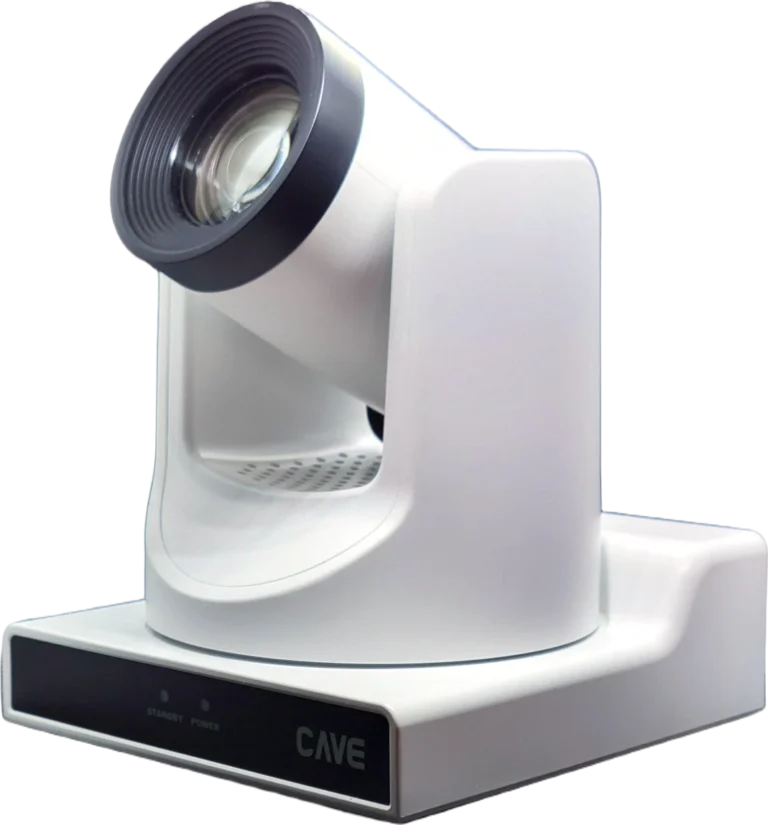
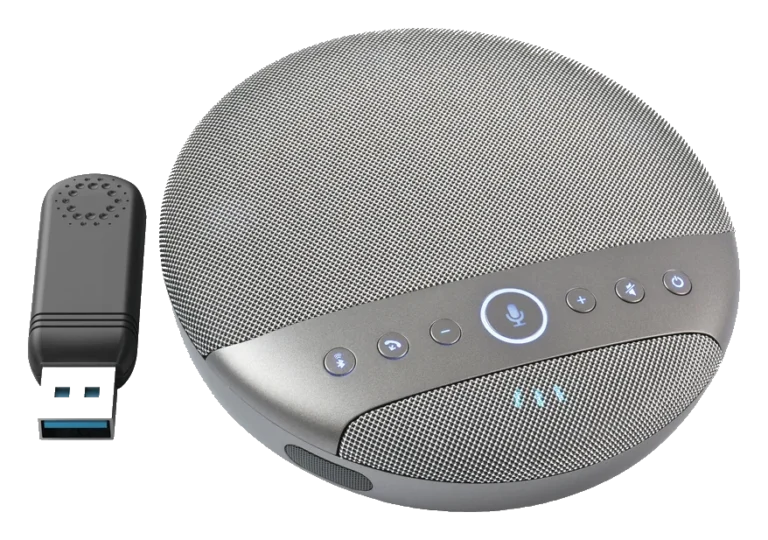
For sound, first see what the room already has: most classrooms already have a microphone at the front and a sound system, which is the most common combination and can simply be reused (see “Reusing the classroom’s existing microphones” below). If there is no pickup equipment, or you want to pick up what students say, put an SM-500 speakerphone on the desk. One unit picks up 360° within a radius of 4 metres, with built-in echo cancellation and noise reduction; in a larger room use up to four together, so there is a microphone and a speaker near every row. The units connect to each other wirelessly, so there is no cable to run and no installation work. It connects to the computer over USB, with no driver needed on Windows or macOS. In a very large room, such as a tiered lecture hall, the S12+ and the P20i may still show the teacher too small when fully zoomed in; then consider the P30i (30x optical zoom, 2.28° at the telephoto end, also with AI tracking). To make small text on the board and slides clearer, consider the 4K TX20i. These two are advanced options, not something every classroom needs.
Scene two: demonstration teaching, where the hands are what matters
In a demonstration class students are not watching the teacher’s face but the hands: pattern making and sewing, hairstyling, cooking, experiments. The teacher works and explains at the same time, and students need to see every detail. In the room, students crowd round the demonstration table and the back rows often cannot see; online, the camera used for a lecture shows even less of what the hands are doing.
The approach is to hang a PTZ camera from the ceiling above the demonstration position, aim it at the table and capture the hands up close, then enlarge the picture on the projection screen so the whole class sees; the same picture goes to the online students through the video software. A design department at a university of technology does this in several classrooms, including garment design and hair design: a P20i hangs from the ceiling above the demonstration position, and while teaching pattern making, sewing and hairstyling the teacher steers the camera with a K10 controller and enlarges the close-up on the projection screen, so the whole class sees the explanation clearly and understands the knowledge behind the demonstration.
- Camera: the P20i supports upside-down mounting and a ceiling bracket is included in the box. With 20x optical zoom it can zoom in on the work from the ceiling.
- Controller: the K10 finds the camera automatically over a network cable, and its joystick steers with one hand, so the teacher does not have to leave the demonstration table to adjust the camera. It can store 10 presets, for example the wide shot, the left of the table, the right of the table and a close-up of the hands, each recalled with one button.
- Picture: the P20i connects to the computer over USB, so the video software shows the online students the same close-up; in the room, connect a projector over HDMI or SDI.
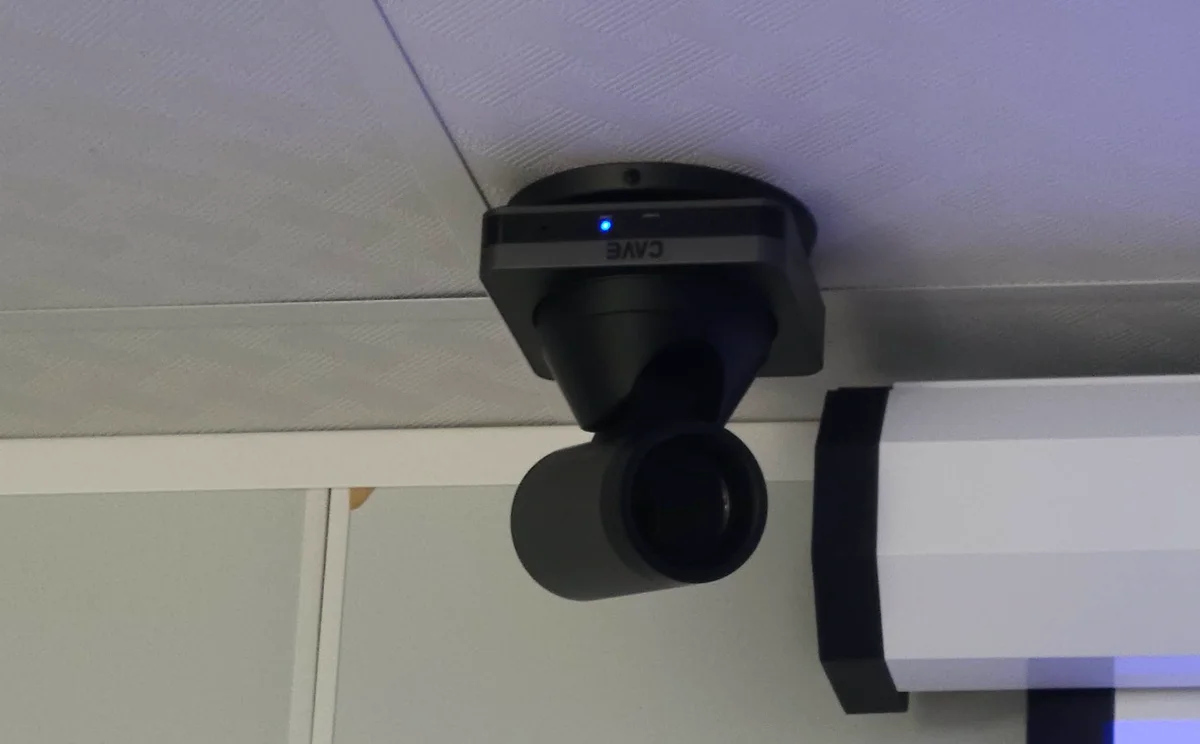
The same approach suits other classes where the details of the hands matter, such as laboratories, cooking classrooms, technical demonstrations in beauty and nursing, and electrical and automotive workshops. In each, put the camera where it can see the hands clearly and let the teacher operate it.
Scene three: discussion classes, where sound matters most
In discussion classes, seminars and group reports, students speak a lot and sit far apart, so sound matters more than picture. If online students cannot hear what the students at the back say, they are not taking part in the discussion.
The microphone at the front only picks up whoever holds it, so what students say has to be picked up separately. Cover the whole room: place SM-500 units to suit the layout of the desks. A desk up to 6 metres long takes one unit, and a larger room takes two to four, with the circles overlapping so every seat is picked up. For the picture, preset the camera on the teacher, the board and the wide shot, and switch to the area of whoever is speaking when needed.
Reusing the classroom’s existing microphones: the most common combination
Most school and training classrooms already have a wireless microphone at the front and a sound system. The most common approach in a hybrid classroom is to reuse them rather than buy new pickup equipment: the teacher’s voice comes from the existing microphone, close to the mouth and clearest, and the teacher does not have to change microphones. The connections are:
- Connect the existing microphones to the audio processor. Taking the CAVE DMA-702P as an example, the receiver of a wireless microphone goes to the WIRELESS input, and a mixer or other source goes to LINE IN. The room’s sound system keeps working as before.
- The processor handles echo cancellation, noise suppression and automatic gain, and connects to the teacher’s computer by USB; select it as the microphone and speaker in the video software.
- The online students’ voices come out of the processor’s SPK-OUT and go to the room’s amplifier. The processor also has an echo-cancellation reference input (AEC-REF), so it knows which sound to subtract from what the microphones pick up, and the online students do not hear their own echo.
The benefit is that the teacher keeps familiar equipment and the lecture is clearest. There are two trade-offs: the existing microphones only pick up whoever holds them, so what students say needs separate pickup, either by passing a microphone around or by adding omnidirectional microphones such as the SM-500; and the mixer and the audio processor have to be set up by someone, so we suggest a professional team set them up in the room the first time.
Daily operation: do not turn the teacher into a director
However good the equipment, if the teacher needs ten minutes of setup before each class, or has to keep adjusting it during the class, it ends up unused. The aim is to make the daily routine as simple as possible. A common routine looks like this:
- At the start of term, turn the camera to the front, the board and the wide shot (and for demonstrations the position for close-ups of the hands), and save each as a preset.
- Run one trial class and check that every position is clear for online viewers and that the sound is heard.
- For ordinary classes, the teacher only turns on the computer, connects the USB cable and selects the camera and speakerphone in the video software.
To switch between positions, add a K10 controller; an assistant or a student helper can operate it. To record the class or stream it, add an NSR-200 recorder: connect the camera and the slides computer (or two cameras) to make a “speaker plus slides” or “wide plus close-up” picture, with dedicated record and stream buttons on the unit. If the classroom already has microphones and an amplifier, run a cable from the amplifier or mixer’s recording output to the NSR-200 so the sound the room has already processed is recorded too; do not use the camera microphone to record the loudspeakers, which records echo and noise.
How to choose: by how the class is taught
| Kind of class | Camera | Sound and extras |
|---|---|---|
| The classroom already has microphones and a sound system (the most common) | S12+ or P20i, to suit the class | Existing microphones to a mixer, then an audio processor (for example the DMA-702P) to remove echo, and USB to the computer; add pickup for students |
| Lecture, small classroom or training room | S12+ (12x, presets) | One or two SM-500 units |
| Lecture, most classrooms, teacher walks around | P20i (20x, AI tracking) | Two to four SM-500 units; add a K10 to switch |
| Demonstration (pattern making, sewing, hairstyling, cooking, experiments) | P20i hung from the ceiling above the demonstration position | K10 controller, close-up enlarged on the screen |
| Discussion or seminar | S12+ or P20i, preset on the teacher, board and wide shot | Two to four SM-500 units; the point is to pick up everyone |
| Tiered lecture hall, or small text on the board | P30i (30x) or TX20i (4K) | Add microphones to suit the room; add an NSR-200 to record |
The SM-500 in the table is for a classroom with no pickup equipment, or for picking up what students say. These are common setups; adjust them to the room size, the seating and the ceiling height. You can also use the planning wizard on the products page: answer a few questions and get a planning sheet.
Summary: first ask how the class is taught, then choose the equipment
Equipment for a hybrid classroom depends not only on the size of the room but on how the class is taught: a lecture needs the front and the board, a demonstration needs close-ups of the hands, and a discussion needs every voice. Most classrooms need an S12+ or P20i, with the sound reusing the room’s existing microphones through an audio processor; add an SM-500 to pick up students, or when the room has no pickup equipment. For demonstrations, hang a P20i from the ceiling and steer it with a K10. A very large room or a need to see small text calls for the P30i or TX20i, and recording calls for an NSR-200.
If your classroom or the way you teach is unusual, tell us the room size, the seating and what you teach, and our team will get in touch to help you plan.
Products in this guide
S12+
The meeting-room standard.
P20i
The workhorse for halls and auditoriums.
P30i
Long reach for large venues.
TX20i
See further. Follow smarter.
SM-500
Wireless. Meet anywhere.
DMA-702
Microphones, hidden in the ceiling.
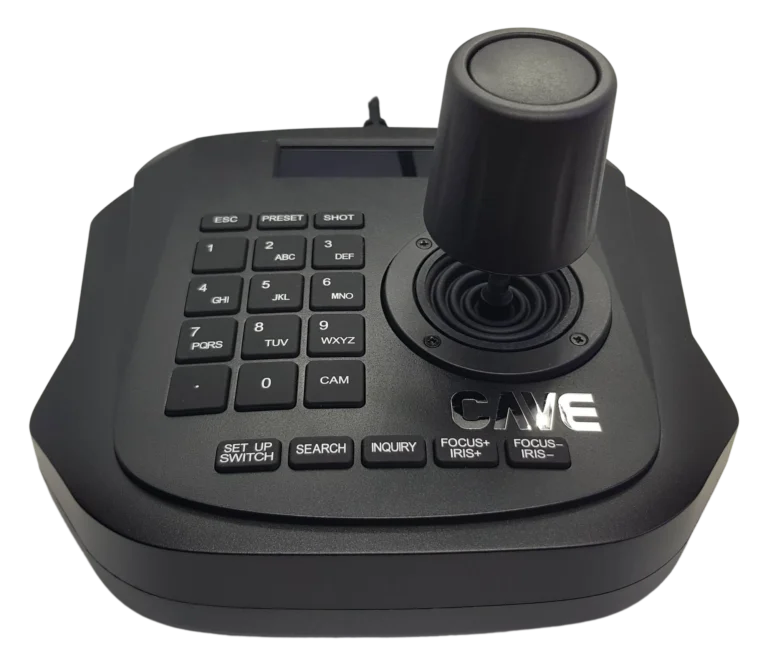
K10
One cable. Six cameras.
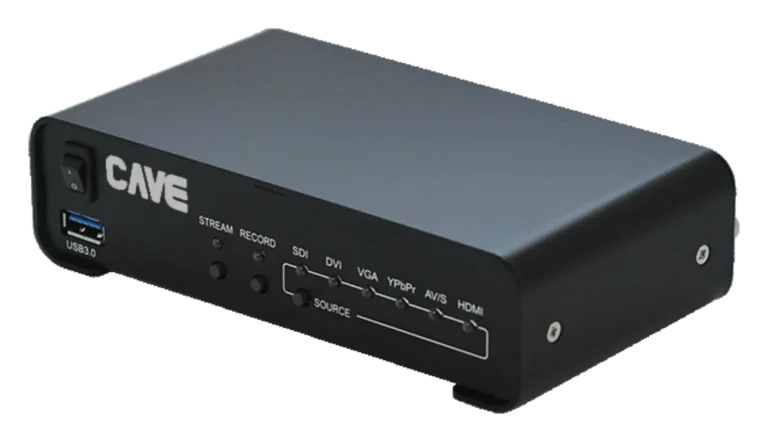
NSR-200
A compact two-camera studio.
FAQ
Is “hybrid classroom” a standard term?
No. "Blended learning", "synchronous remote teaching", "hybrid teaching" and "HyFlex" are used differently by different schools and writers, and there is no single definition. This guide uses "hybrid classroom" for a classroom where the teacher teaches in the room while students also take part online, live.
What is the minimum equipment for a hybrid classroom?
One PTZ camera, plus pickup: if the classroom already has microphones and a sound system, reuse them and connect through an audio processor to remove echo, then USB to the teacher's computer; if not, use a speakerphone that covers the room. Select them in Teams, Google Meet or Zoom and the class can start.
Can the classroom’s existing microphones and sound system be reused?
Yes, and it is the most common approach. Connect the existing microphones to a mixer or amplifier, then to an audio processor (for example the DMA-702P) to remove echo and noise, and connect it by USB to the teacher's computer. The existing microphones only pick up whoever holds them, so what students say needs separate pickup.
How do online students see the details in a demonstration class?
Hang a PTZ camera (for example the P20i) from the ceiling above the demonstration position, aim it at the demonstration table, and steer it with a controller (for example the K10) to capture the hands up close. The picture can be projected for the class and sent to the online students through the video software on the computer.
Which camera should the classroom use?
The S12+ (12x optical zoom) or the P20i (20x optical zoom, built-in AI tracking) is enough for most classrooms; measure the distance from the camera to the front first. For demonstrations that need close-ups, the P20i is the one we suggest.
Will online students hear classmates at the back?
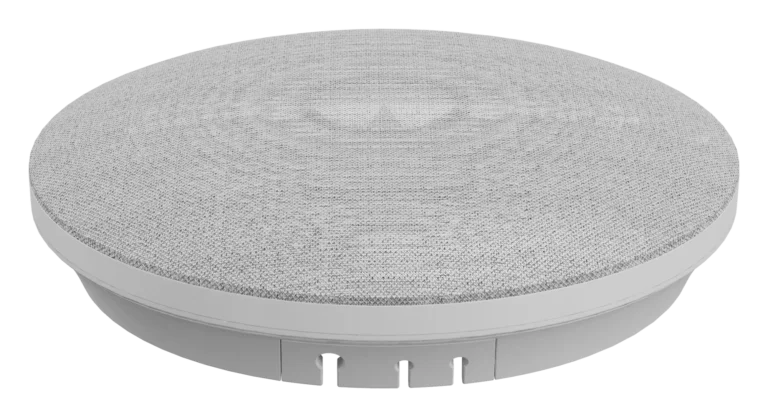
The microphone at the front only picks up whoever holds it, so classmates at the back need separate pickup. One SM-500 covers a radius of 4 metres and up to four can be used together, so there is a microphone near every row. If you want clear desks, the ceiling array microphone DMA-702 is another option.
Do I need to record the class?
To record or stream, add a recorder. The NSR-200 has two inputs and suits "speaker plus slides" or "demonstration close-up plus wide shot".
The planning advice in this guide is general reference. Actual results vary with the room, the equipment and the network. Product specifications follow the manufacturer's documents; we recommend contacting us for an assessment first.
More guides
How to stream a sports event: from one phone to multi-camera coverage in 9 steps
School teams and community leagues want to stream their games too, and you don't have to buy a pile of equipment to begin. This guide starts with a single phone and works up to professional multi-camera coverage.
10 things to get right when streaming or recording with a PTZ camera
You bought the right camera, and the picture is still too dark, too yellow or soft? The cause is usually where the camera is placed and a few basic settings. Here are the 10 things to check before going live.
How to plan a recording system: cameras, control, audio and the recorder explained
When people want to record a class, a talk or an event, and perhaps stream it too, the first thing they ask is which recorder to buy. That isn't the first question. Answer these 6 questions, then choose the equipment.